
A tour of the interface
After this page you can find your way around the interface of lip: you know what each part of the screen is, which keys do what, and what happens when you change something. Every other page of this section builds on it.
The pictures on these pages are drawn from what lip really shows. Orange marks, numbers and key badges are added to explain them; they are not part of lip.
Starting it
Open a terminal in the folder of your server, or in an empty folder where you want one, and run lip without anything after it:
liplip takes over the whole terminal window and shows its Home page. The folder you started it in is the workspace: the folder that every page works on.
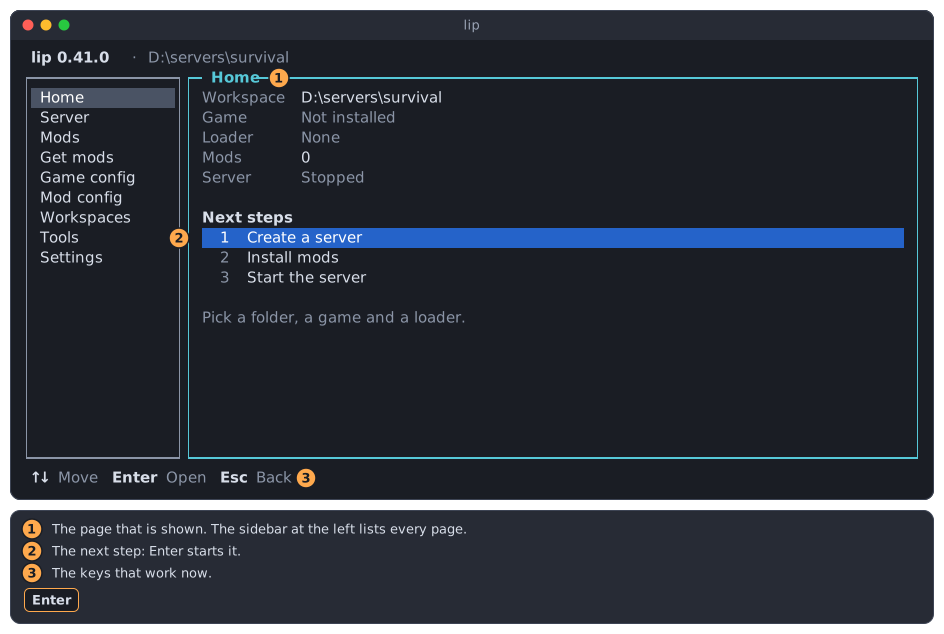
You use the keyboard only. The mouse does nothing.
TIP
lip followed by a word, such as lip install, is a command: it does one thing and ends. The commands are described in Running a server from the commands and in the reference.
What is on the screen
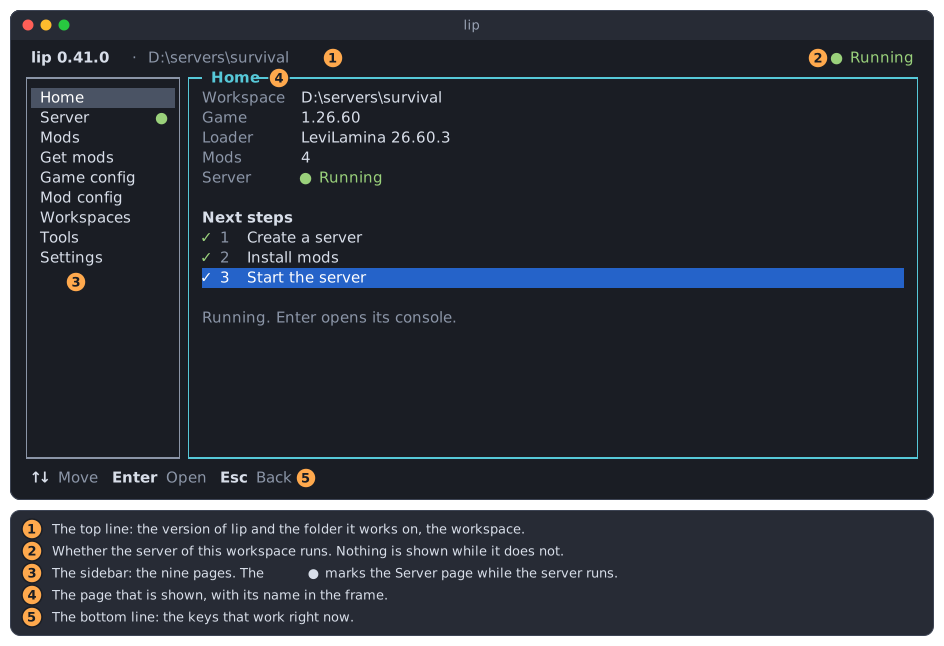
- The top line shows the version of lip and the workspace.
- At its right end, the top line says whether the server of this workspace runs. While the server is stopped, nothing is shown there.
- The sidebar lists the nine pages: Home, Server, Mods, Get mods, Game config, Mod config, Workspaces, Tools and Settings. A green
●after Server means that the server runs. - The page is the large box. Its name is written into its frame.
- The bottom line lists the keys that work right now, each with a word that says what it does. It changes whenever you move. When in doubt, read it.
Where the focus is
At any moment, either the sidebar or the page takes your keys. That part has the focus. lip starts with the focus in the Home page.
Press Esc to move the focus from the page to the sidebar. There, ↑ and ↓ go through the pages, and each page shows at once as you pass it.
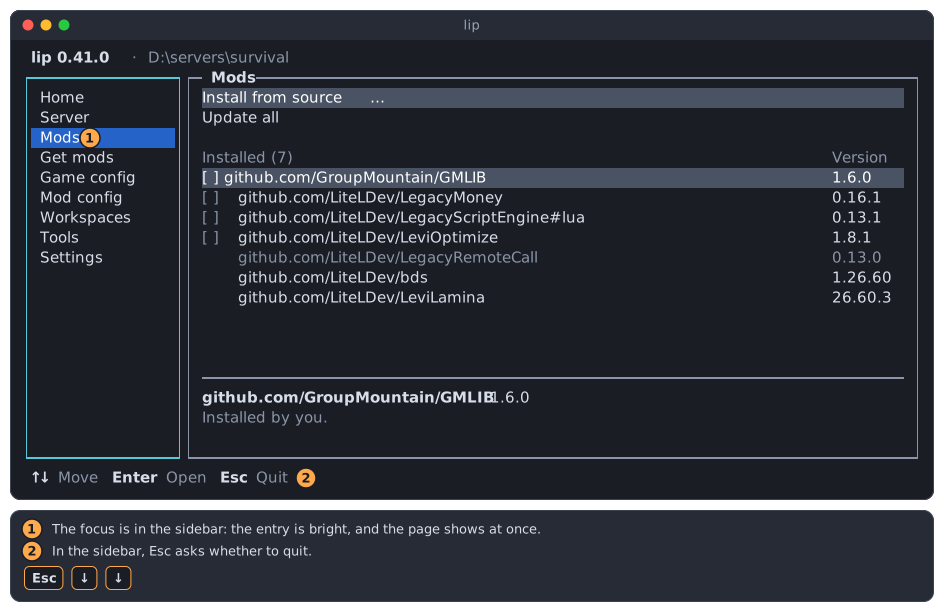
- The entry of the page shown is bright while the sidebar has the focus.
- In the sidebar,
Escasks whether to quit lip.
Press Enter to move the focus into the page.
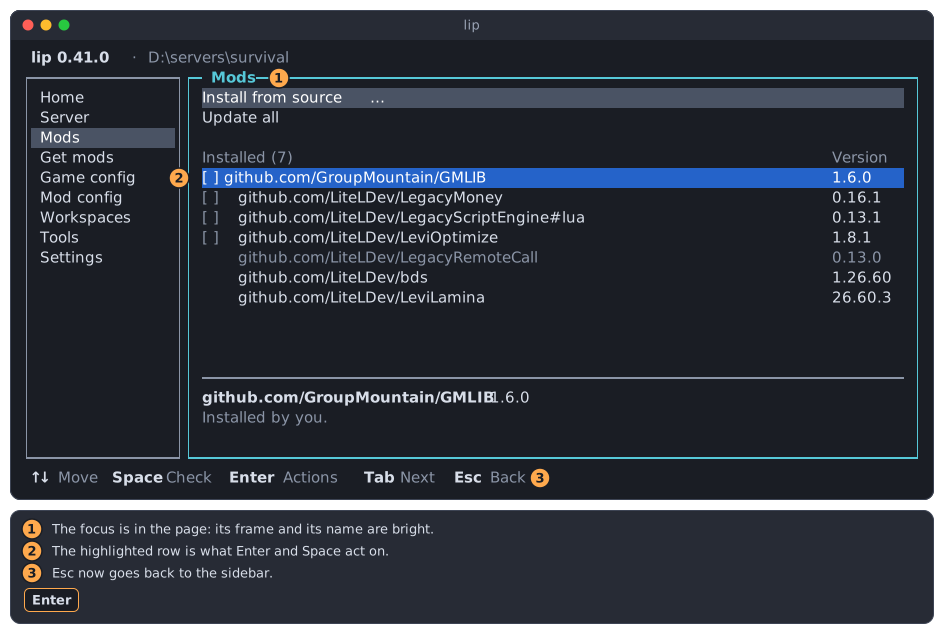
- The frame and the name of the page are bright while the page has the focus.
- One row is highlighted.
EnterandSpaceact on that row. Escnow goes back to the sidebar.
Esc goes back one step
Esc always goes back one step, and never further:
| Where you are | Esc goes to |
|---|---|
| A dialog or a menu | What was below it. |
| An inner part of a page, such as the input line of the server | The part of the page that it was entered from. |
| A page | The sidebar. |
| The sidebar | The question whether to quit lip. |
So pressing Esc several times always brings you to the sidebar, and once more to the question about quitting. Nothing is lost on the way: a page with changes that are not saved asks first.
The keys
The same keys do the same thing on every page.
| Key | Does |
|---|---|
↑ ↓ | Move in a list or a menu. In the sidebar, show the page above or below. |
← → | Move between the sidebar and the page, and between parts or buttons that are side by side. Change the value of an option that is drawn ‹ like this ›. |
Enter | Opens or carries out what is highlighted. On a row of a list, opens the menu of what you can do with it. |
Space | Checks a row where several can be checked. Switches an option on or off. |
Esc | Goes back one step. |
Tab | Goes to the next part: from the sidebar through the parts of the page and back to the sidebar. Shift+Tab goes the other way. |
PgUp PgDn | Move a screenful up or down in a list or a text. |
Home End | Go to the first or the last row. |
Ctrl+C | Asks whether to quit lip. On the Server page while the server runs, stops the server instead. While lip carries a change out, cancels it. |
There are no letter shortcuts. Letters are typed only where a text field has the focus, such as a search box. Everything else is a row or a button that the arrow keys reach.
A list or a text that is longer than its box shows ▲ and ▼ at its right edge, and the bottom line then names the keys that scroll it:
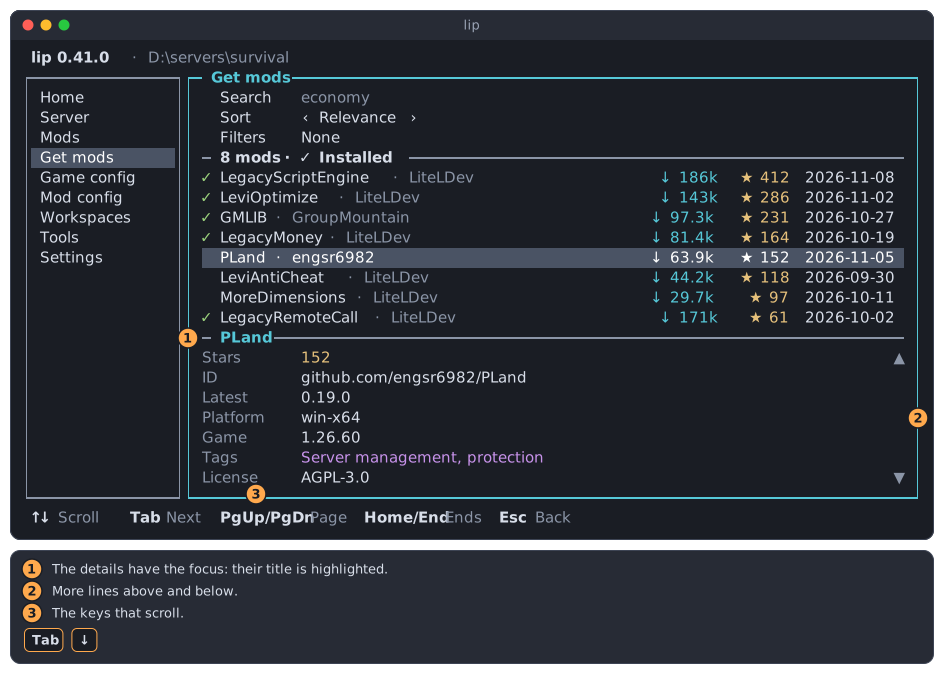
- The part that has the focus has a bright title.
▲and▼mean that there are more lines above and below.↑↓,PgUpPgDn,HomeandEndscroll.
Menus on rows
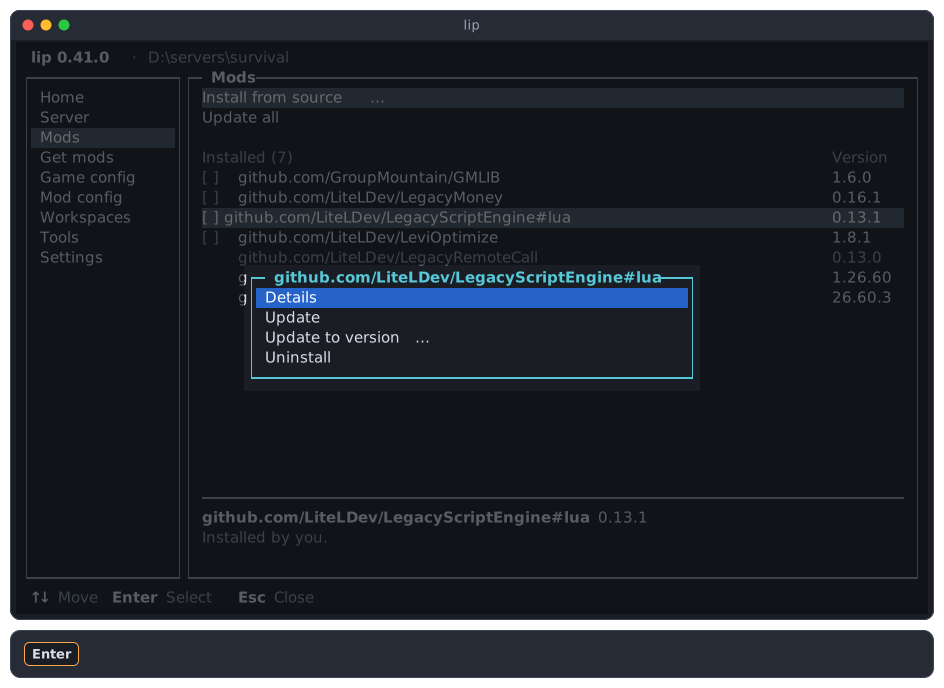
On a row of a list, Enter opens a small menu of what you can do with that row. Move with ↑ and ↓, choose with Enter, and close the menu with Esc.
Disabled items say why
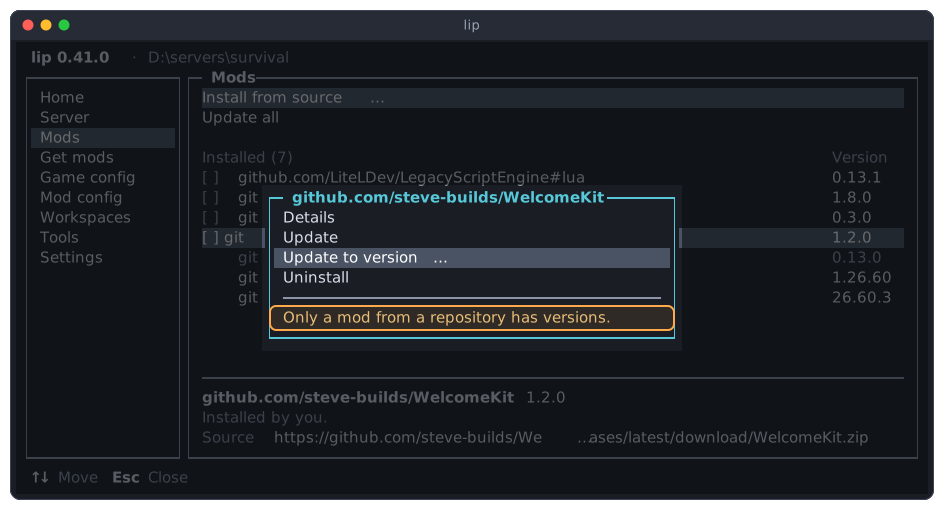
Something that cannot be done now stays on the screen, in gray. Move to it and lip says why below the menu. Enter does nothing on it.
Dialogs
A dialog is a box that opens above the page. While it is open, it takes every key. The page behind it does not react until the dialog is closed.
There are a few kinds, and each works the same way wherever it appears.
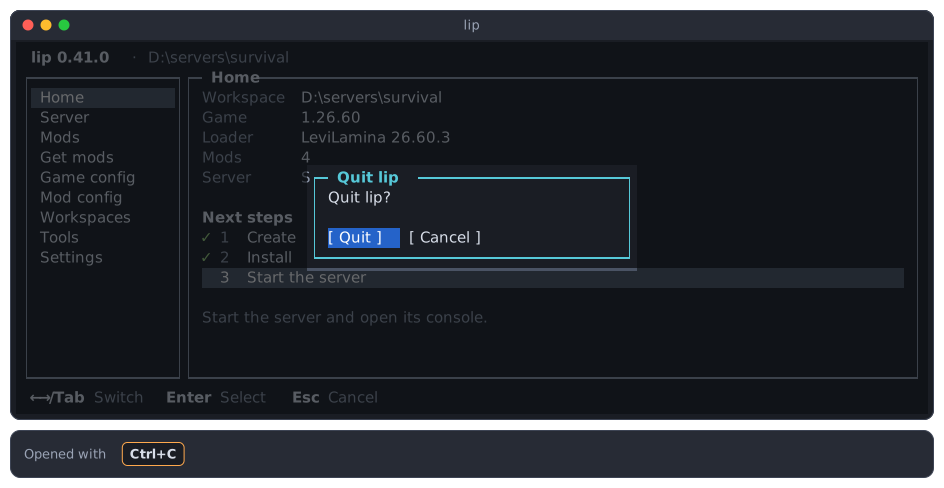
A question with buttons. ← and → choose a button, Enter presses it. Esc presses the last button, which is always the one that changes nothing.
A choice. ↑ and ↓ move, and one sentence below the choices explains the highlighted one. Enter chooses, Esc cancels.
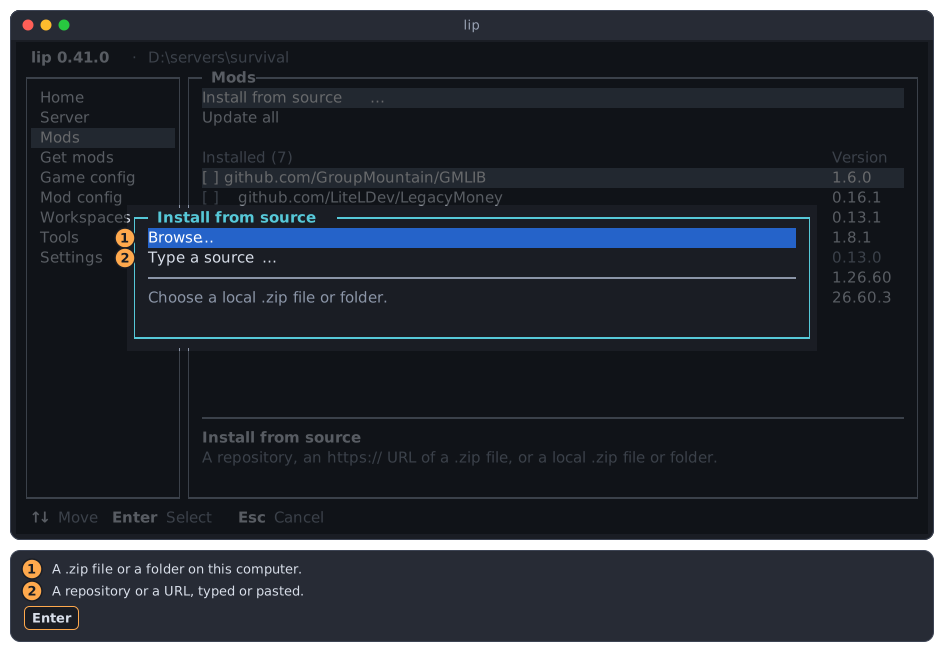
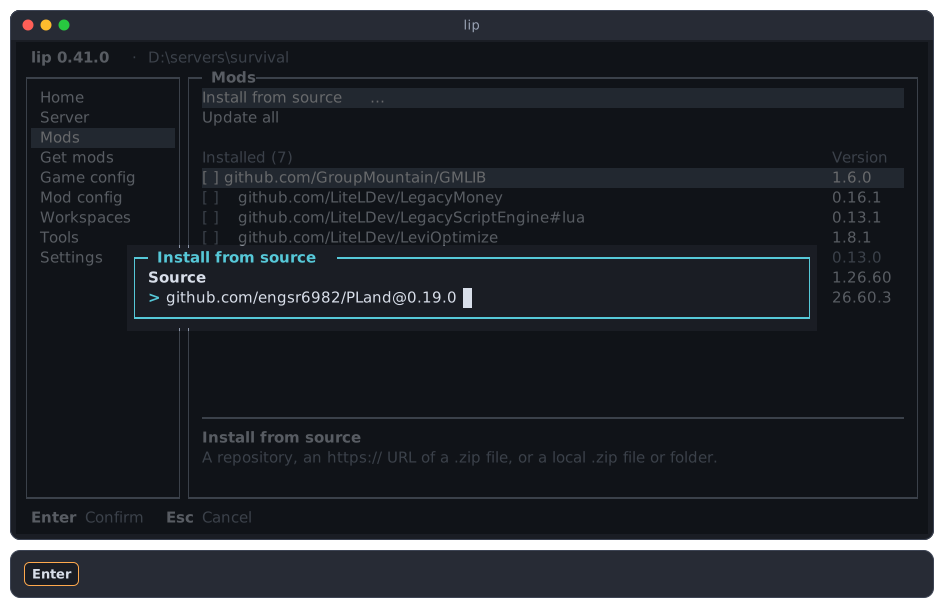
A text field. Type, then press Enter. Gray text in an empty field is an example of what to type, not a value.
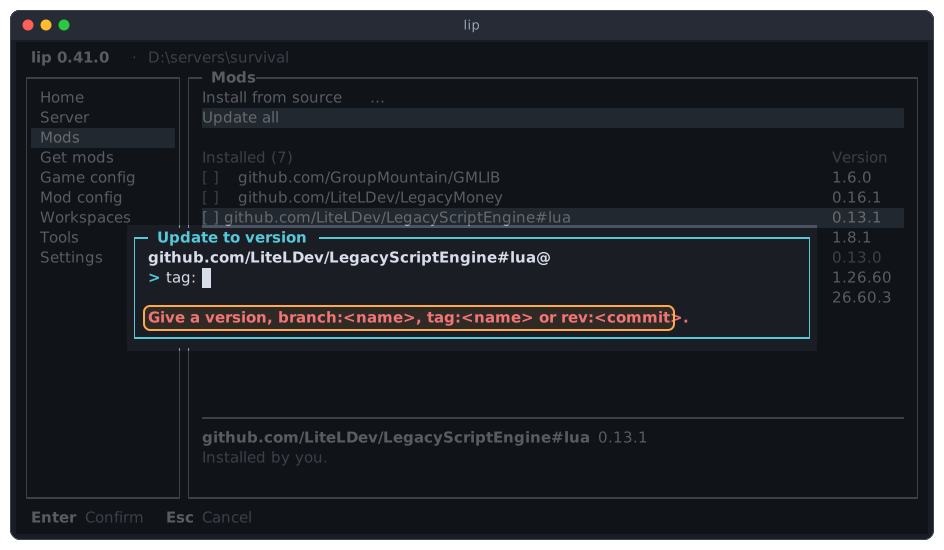
When lip cannot use what you typed, the dialog stays open and says what it expects:
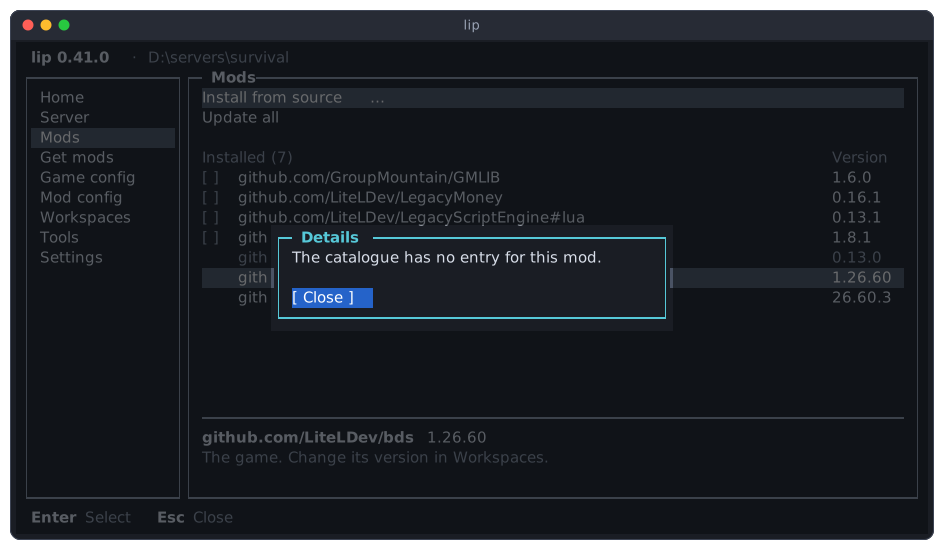
A message. It has one button, Close.
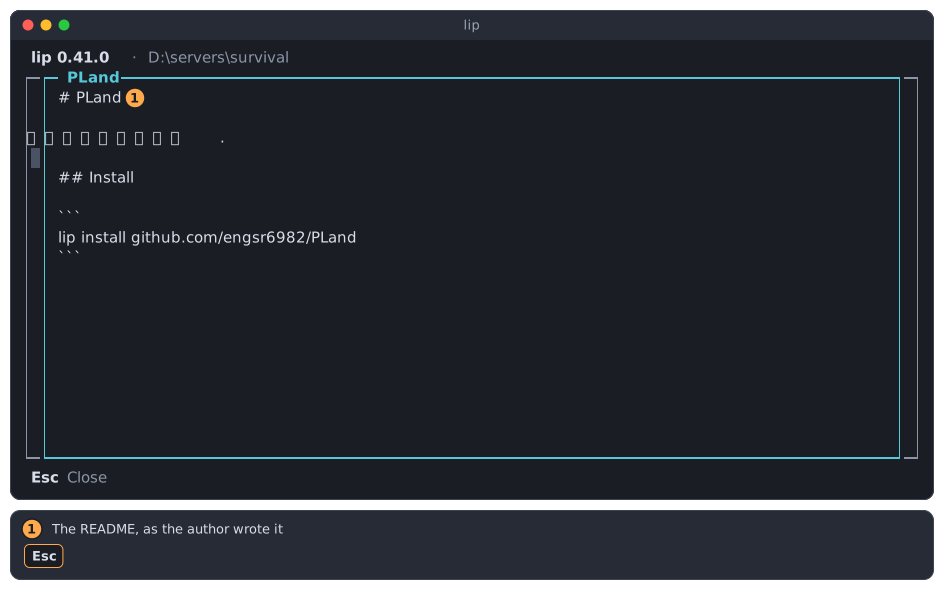
A long text, such as the README of a mod, opens in a window that fills the screen. Scroll with the arrow keys; Esc or Enter closes it.
Preview, then Apply
Nothing that changes your server happens at once. Installing, updating or uninstalling a mod, and setting up a server, all go the same way.
1. The plan
lip first works out what it would do, and shows it. This is the plan. The lines that start with Dry run: are the changes.
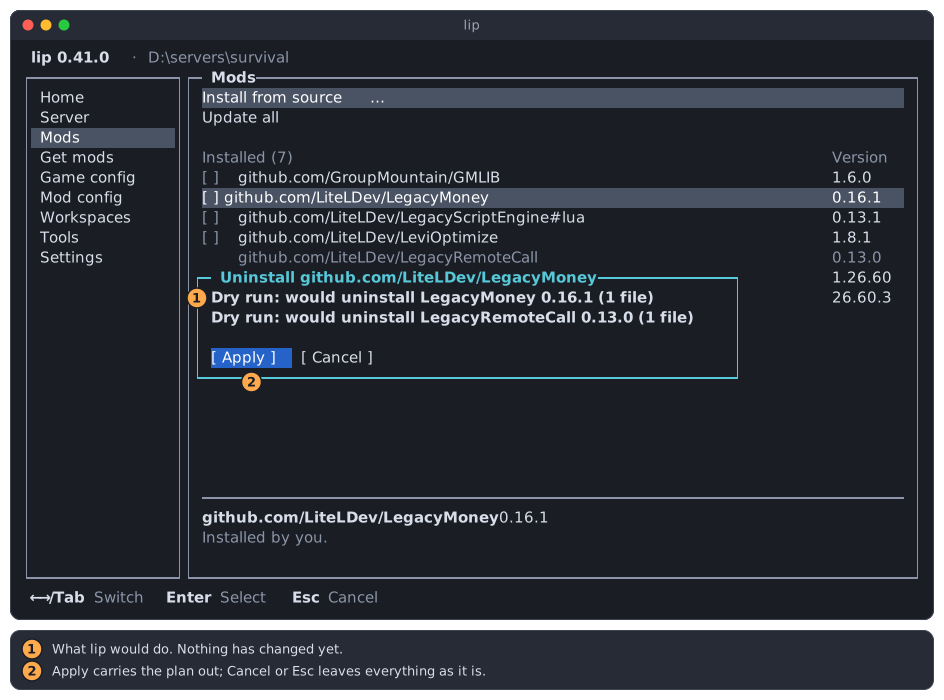
- What lip would do. Nothing has changed yet.
- Apply carries the plan out. Cancel, or
Esc, leaves everything as it is.
Because Cancel changes nothing, the plan is also how you find out what an action would do.
INFO
The lines of a plan, and everything else that a command says, are in English in every language of the interface.
Two kinds of plan look different.
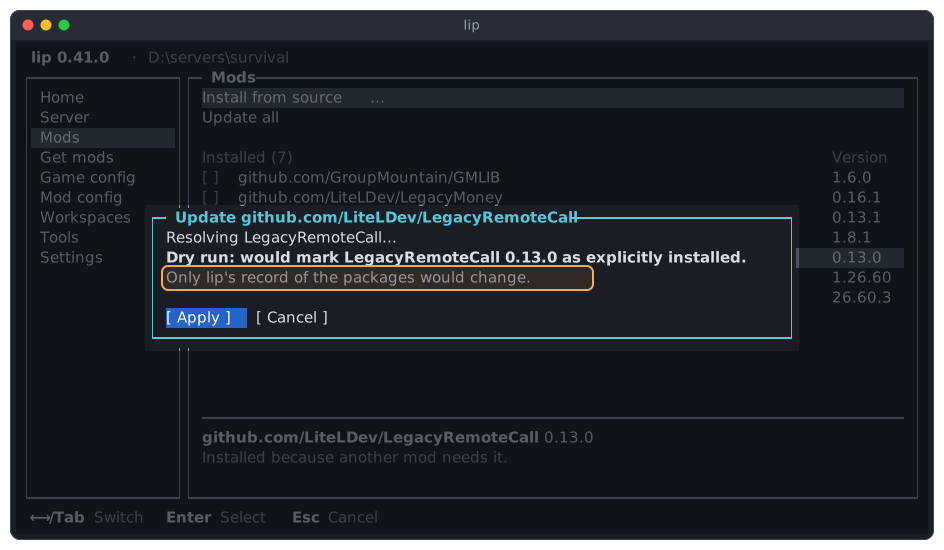
Only lip's record changes. No file of the game or of a mod would change, only what lip has written down about your mods. The plan says so in its last line. You can apply it or cancel it; your server behaves the same either way.
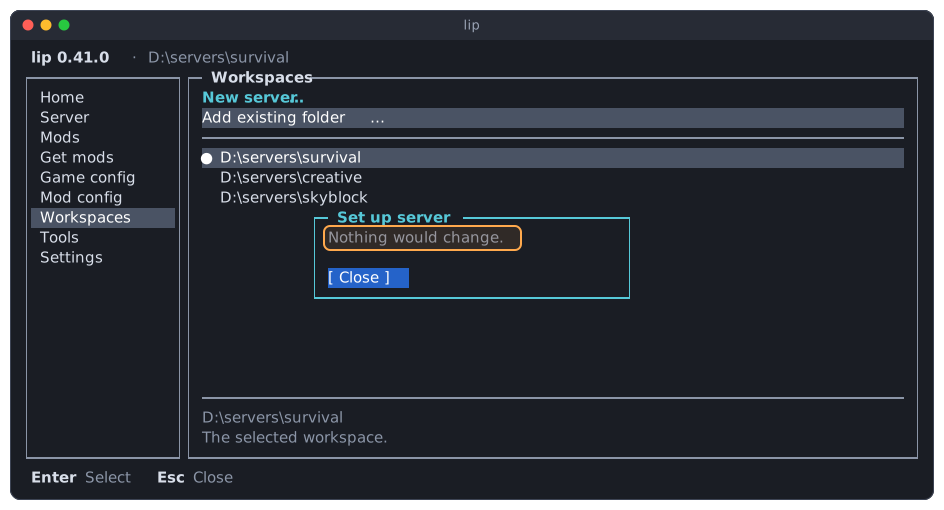
Nothing would change. There is nothing to apply, so the only button is Close.
2. The license of the game
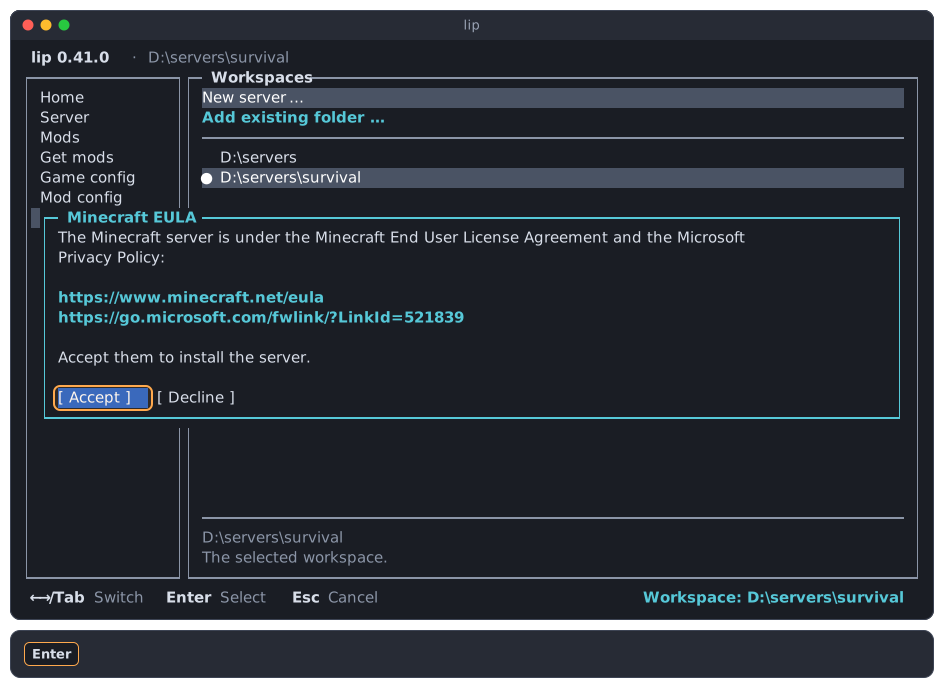
When the plan installs the game itself, lip then shows the links to the Minecraft End User License Agreement and the Microsoft Privacy Policy. Choose Accept to go on. Decline stops, and nothing is installed.
3. Progress
While lip works, it shows what it downloads and what it does.
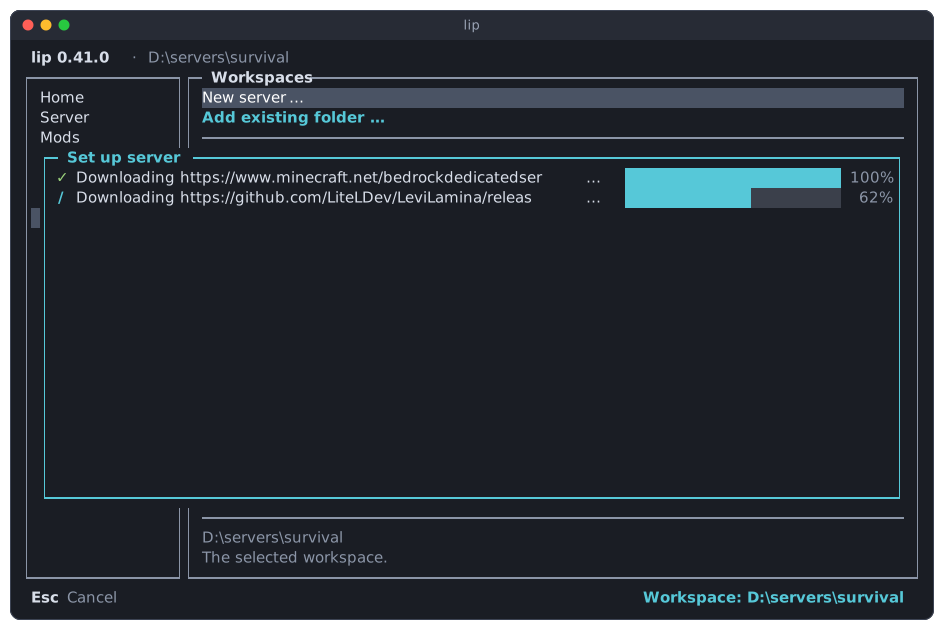
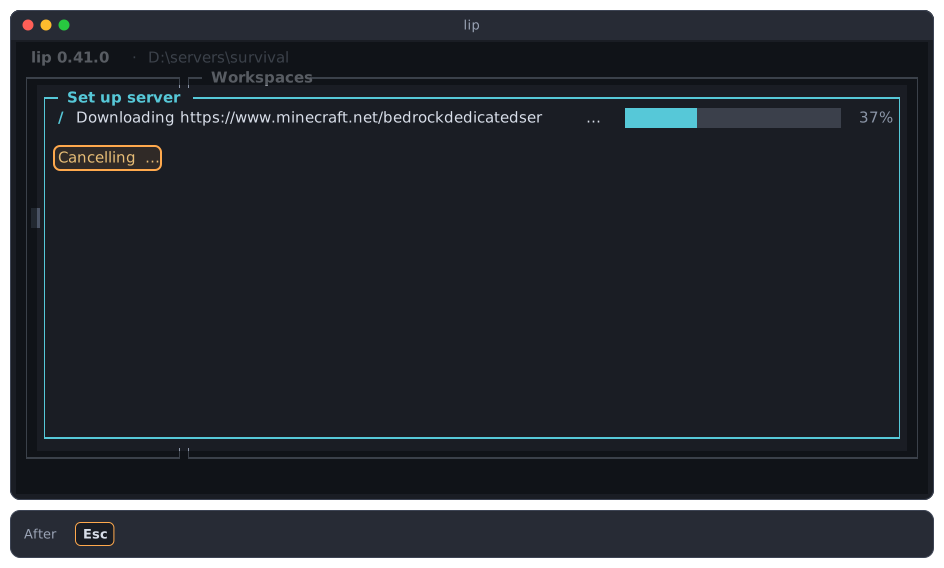
Press Esc or Ctrl+C to cancel. lip writes Cancelling…:
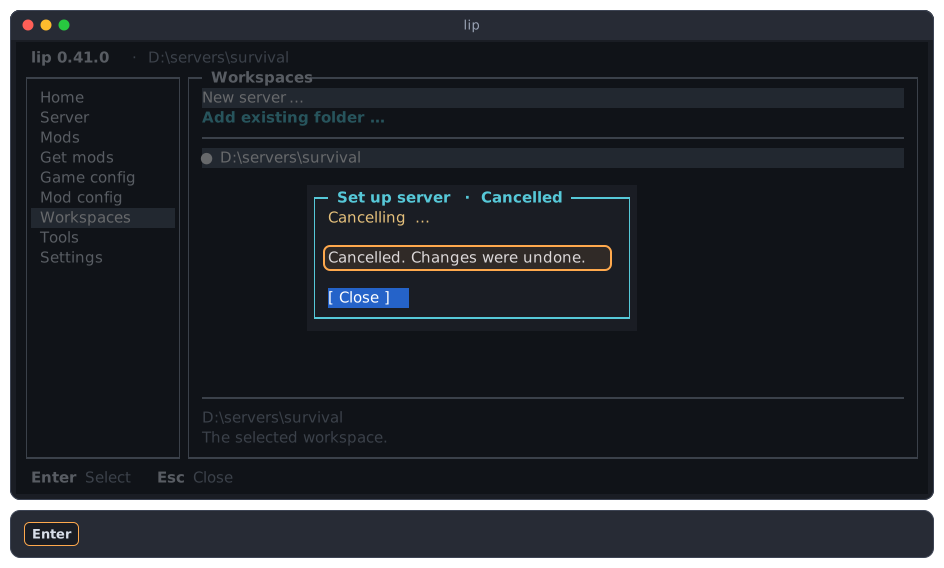
Then lip undoes what it had done so far, so your folder is as it was before, and says so:
INFO
A change that you cancelled did not fail. Its dialog has "Cancelled" in its title and the frame of any other dialog, not the red frame of a failure.
4. The result
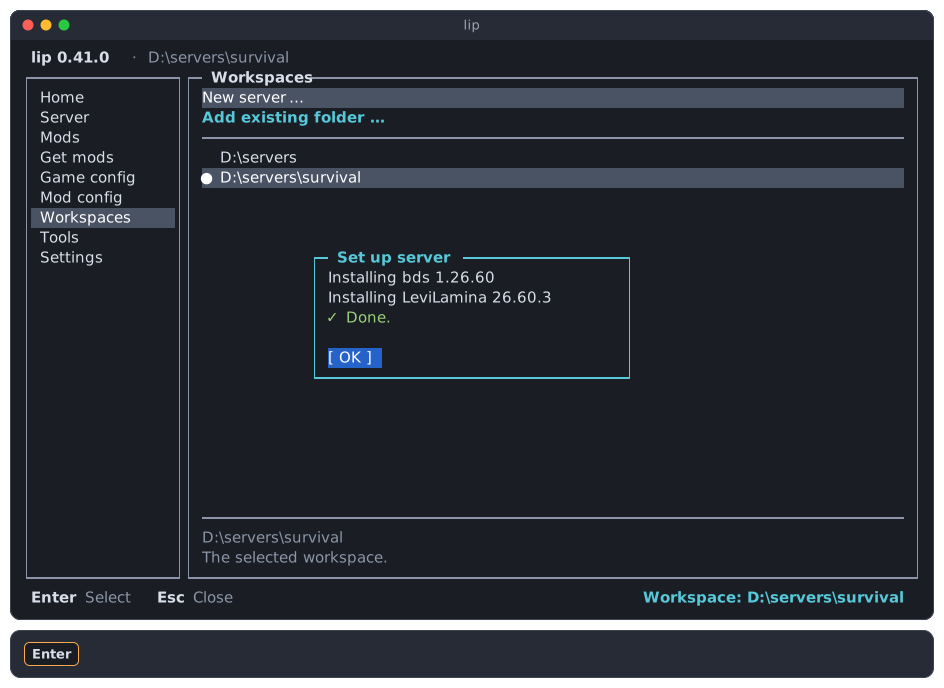
When lip is done, it shows what it did, ending with ✓ Done. Press Enter to close it.
When something fails
A failure does not close lip. lip shows a dialog with a red frame and goes on afterwards.
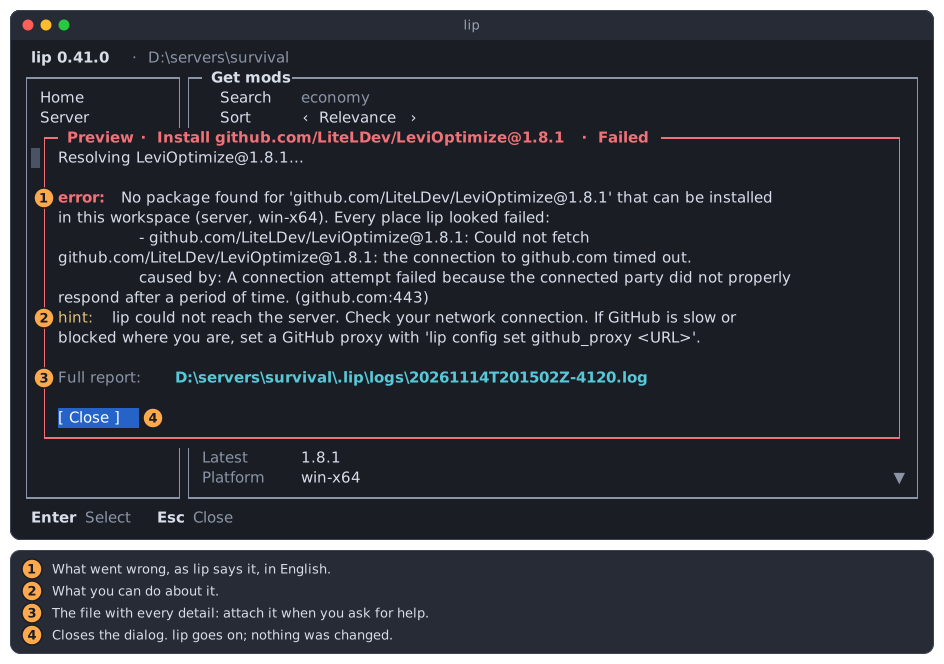
error:is what went wrong.hint:is what you can do about it. Not every failure has a hint.Full report:is the path of a file with every detail. It is in the folder.lip\logsof the workspace. Attach it when you ask for help.- Close closes the dialog.
A failure while lip works on the plan changes nothing. A failure after you chose Apply is undone as a cancel is. See Troubleshooting for what the common failures mean.
The folder and file browser
Whenever lip needs a folder or a file, it opens a browser, so you do not have to type a path.
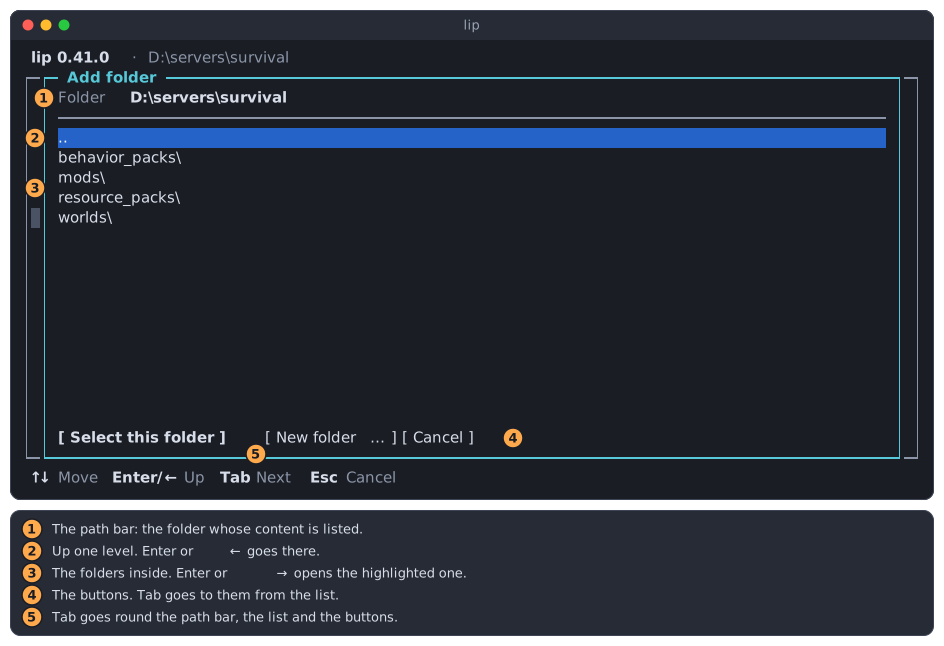
- The path bar shows the folder whose content is listed.
..is the folder one level up.Enteror←goes there.- The folders inside end with
\.Enteror→opens the highlighted one. - The buttons.
Tabgoes to them from the list. Tabgoes round the path bar, the list and the buttons.
Esc closes the browser without choosing anything.
Folders and files that are hidden, or whose name starts with a dot, such as .lip, are not listed. A folder that lip is not allowed to read says so in one line.
Typing a path
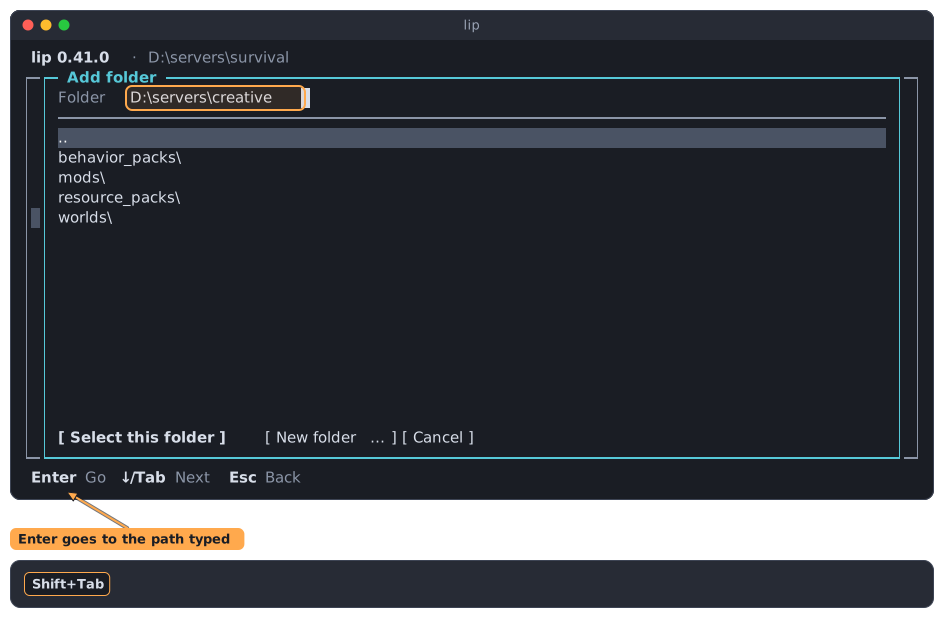
You can still type or paste a path. Press Shift+Tab in the list to go to the path bar, type, and press Enter. lip goes to that folder. Esc goes back to the list.
The drives
Above the top folder of a drive is the list of the drives. Open one to go on; nothing can be selected in this list itself.
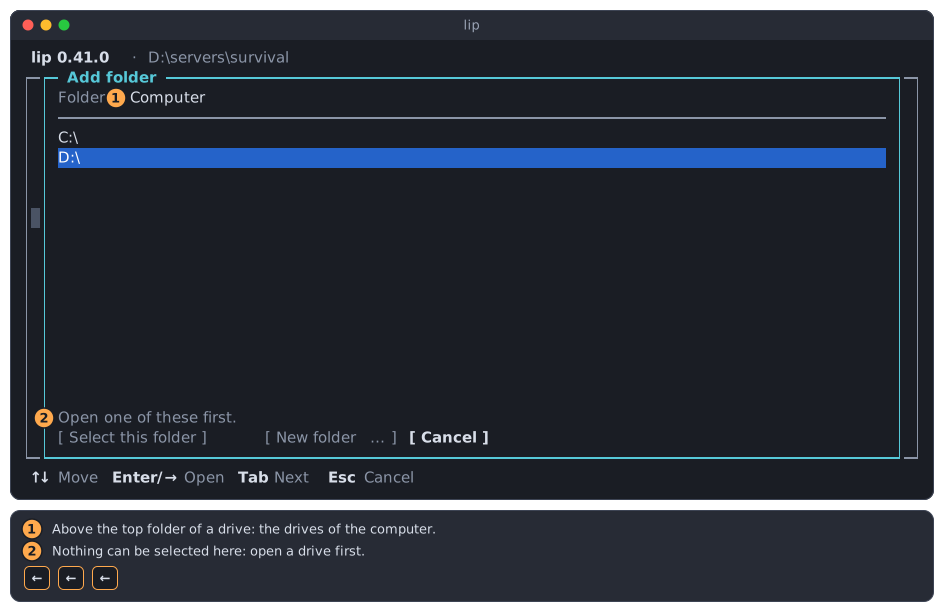
On Linux and macOS there are no drives: the top is /.
Its four forms
The browser looks a little different depending on what lip asks for.
A folder that exists, for example when you add a folder on the Workspaces page. This is the picture at the top of this section. Select this folder chooses the folder shown. New folder… asks for a name, makes that folder inside the one shown, and opens it.
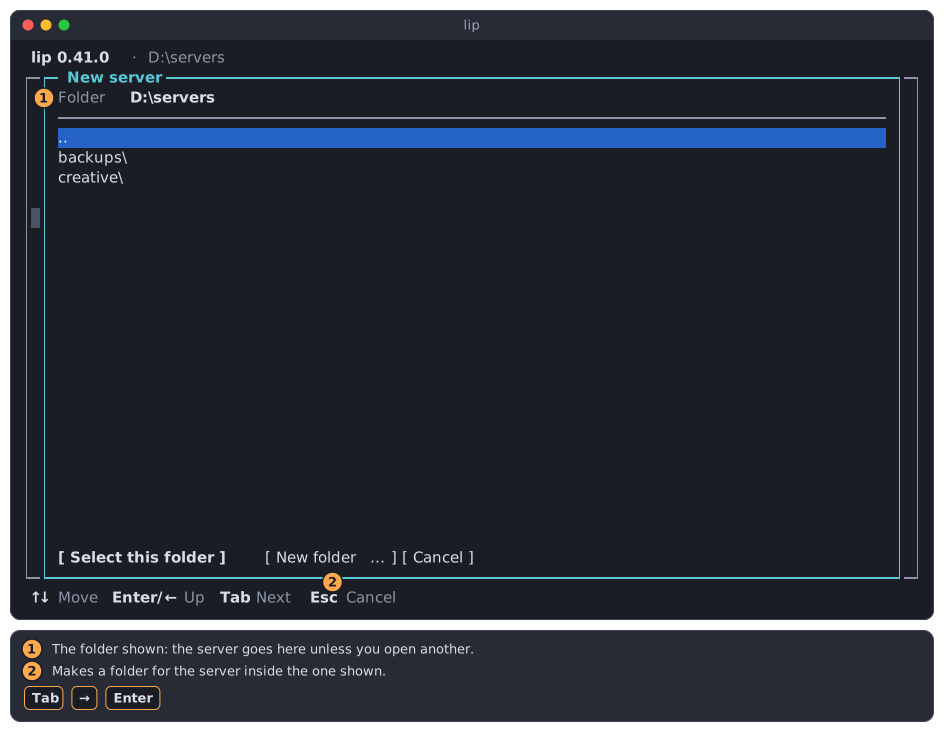
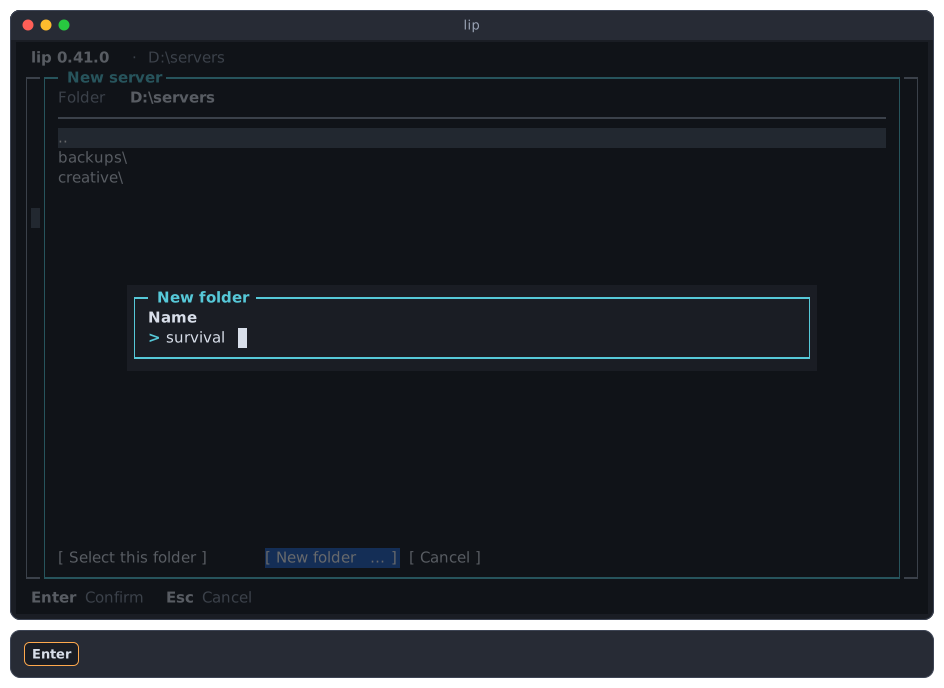
A folder that may be new, for a new server. It looks the same, but New folder… makes nothing yet: lip creates the folder when it sets the server up.
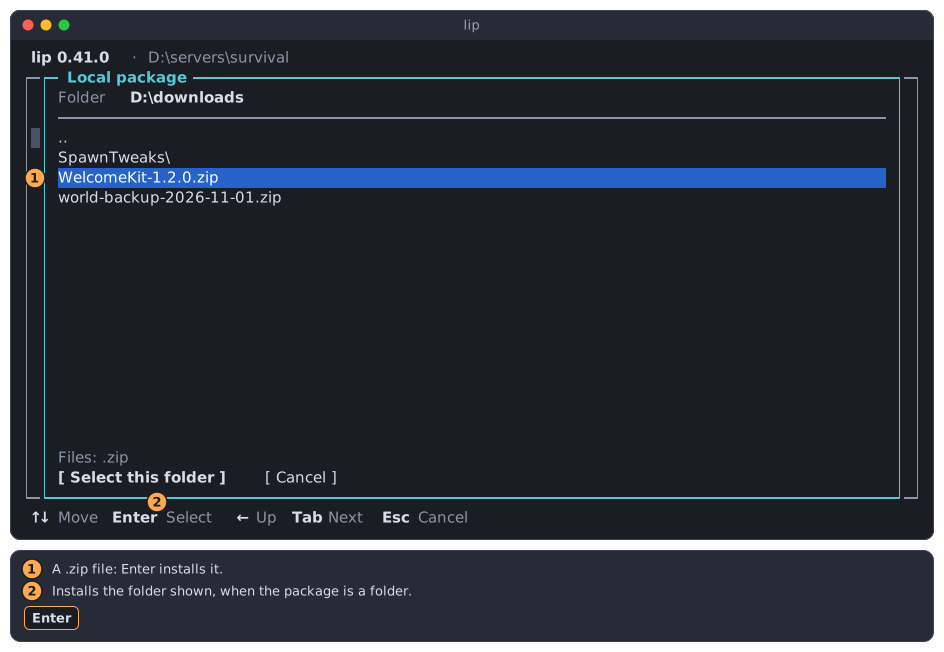
A file or a folder, when you install a mod from your disk on the Mods page. The list also shows the files that can be chosen, and a line above the buttons names their kind. Enter on a file chooses it; Select this folder chooses the folder shown.
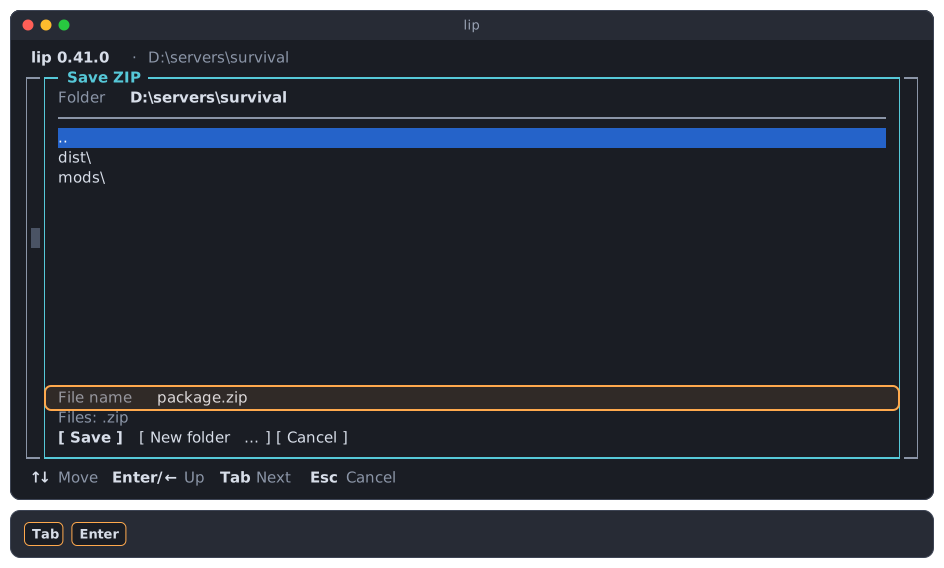
A file to write, on the Tools page. A field below the list holds the name of the file. Go to the folder you want, change the name if you like, and choose Save.
While the server runs
While the server of the workspace runs, lip changes neither its mods nor the files of the game. This keeps a running server from losing files it has open.
| What | While the server runs |
|---|---|
| Installing, updating and uninstalling mods | Off. |
| Setting up the server, changing the game or the loader | Off. |
server.properties, allowlist.json, permissions.json on the Game config page | Can be read, not saved. |
| The configuration files of the mods on the Mod config page | Can be changed and saved. |
| Everything else: browsing mods, Tools, Settings | Works as usual. |
What is off stays on the screen in gray, with the reason "Stop the server first.":
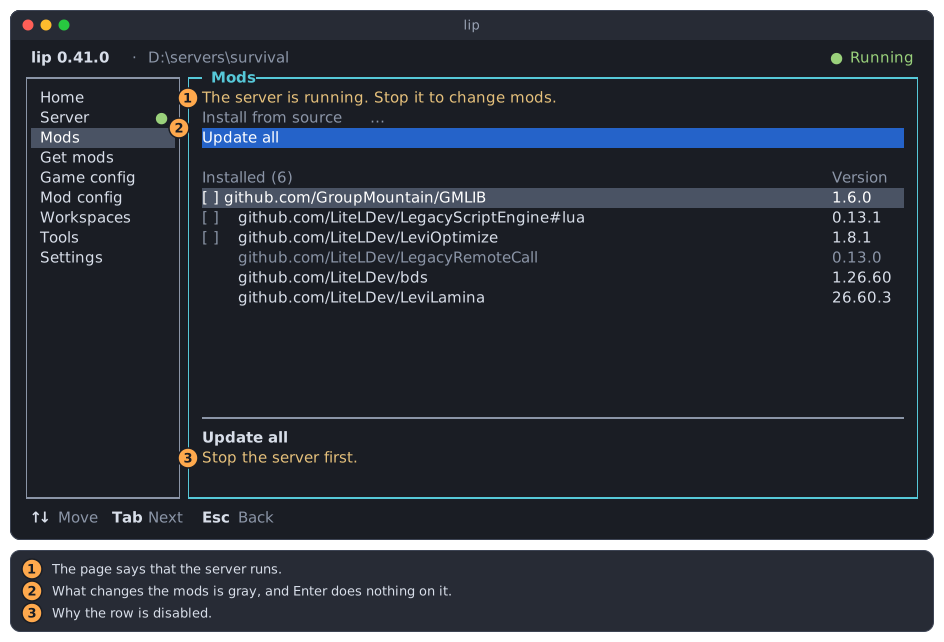
- The page says that the server runs.
- The rows that would change the mods are gray.
- The details area says why.
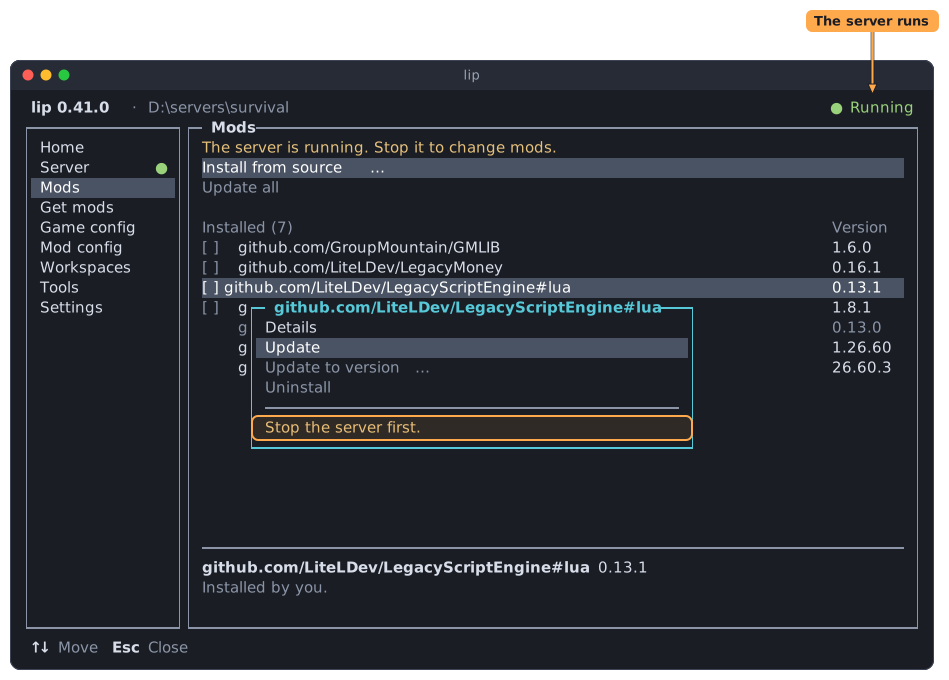
Stop the server on the Server page, make your change, and start it again.
This holds whoever started the server: this interface, another terminal, or the command lip run.
Messages in the bottom line
A short message sometimes appears at the right of the bottom line. It tells you that something was done, or why nothing happened. It goes away by itself after six seconds, and you do not have to answer it.
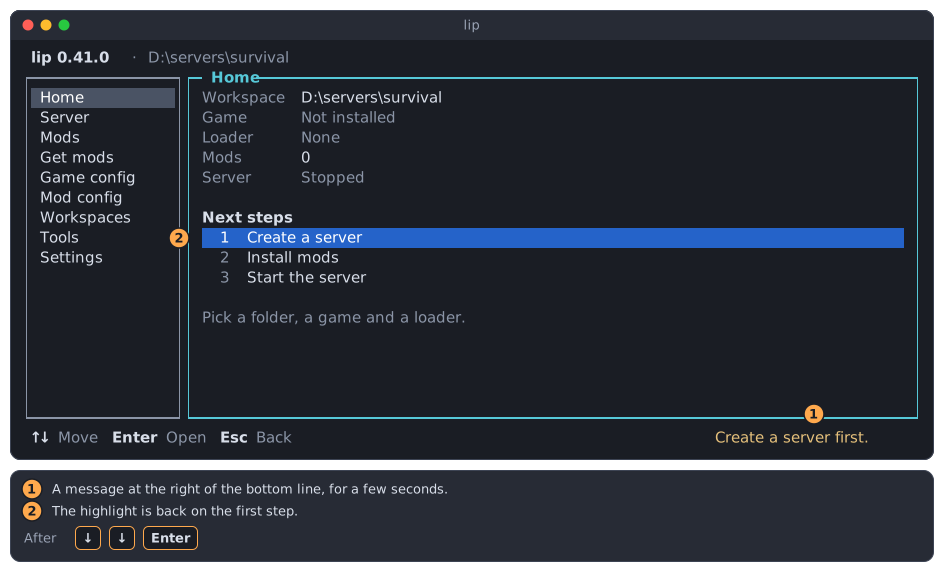
A message is green when something worked, yellow for a warning, red for a failure, and blue for plain information.
Small terminals
lip needs a terminal of at least 60 columns and 16 rows. In a smaller one it shows only this line, and the only key that works is Ctrl+C, which quits at once without asking:
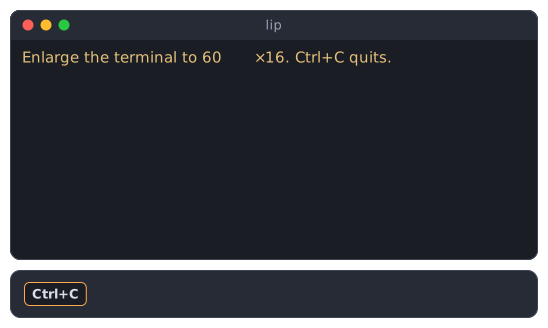
Make the window larger and lip comes back as it was.
In a terminal narrower than 80 columns, the sidebar shrinks to one symbol for each page while the focus is in the page, so that the page has more room:
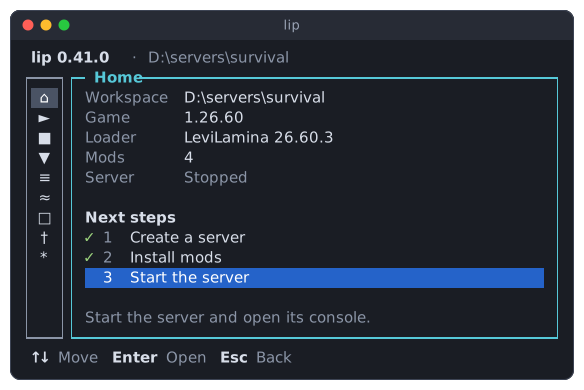
Press Esc, and the sidebar shows the names again:
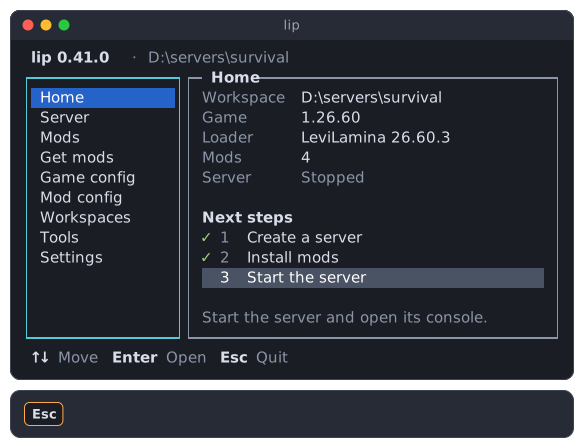
In a narrow terminal the bottom line may not have room for every key. Esc and the keys that act, such as Enter, are always shown; keys that only move are left out first.
Quitting
Press Esc in the sidebar, or Ctrl+C anywhere except on the Server page while the server runs. lip asks before it quits:
When a server runs, the question also says what happens to it. Normally the server keeps running:
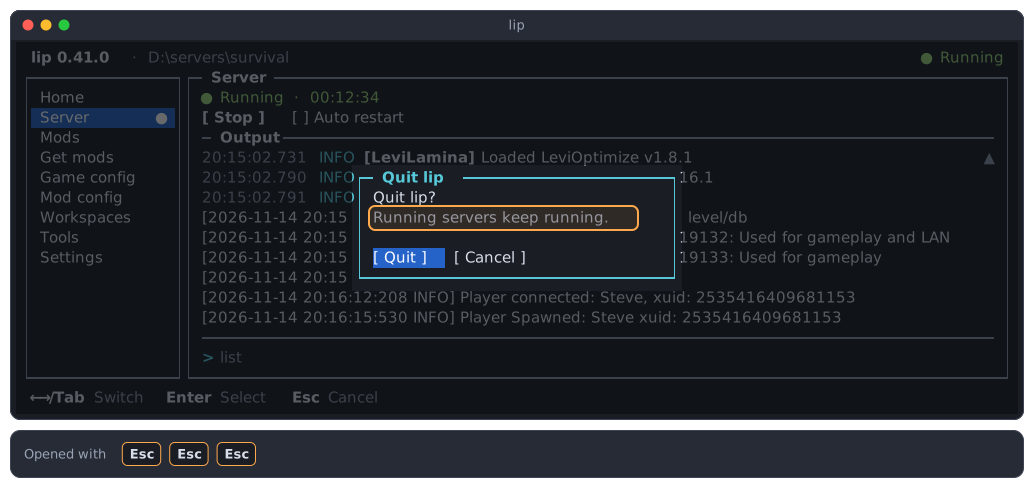
You can close the terminal, come back later, and run lip in the same folder to see the server again. The Server page explains this, and the rare case in which the servers stop first.
Languages
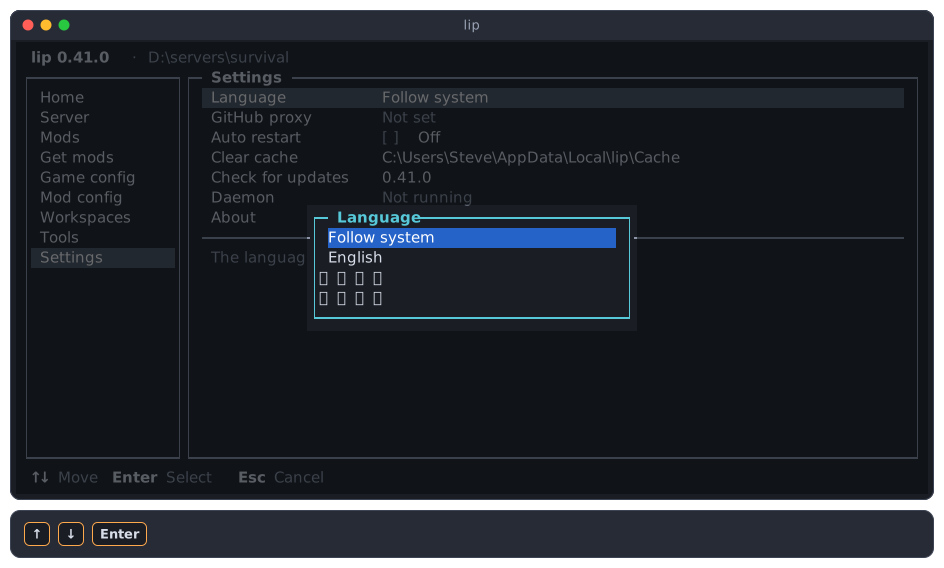
The interface is in English, Simplified Chinese or Traditional Chinese. At first it follows the language of your system. To choose one yourself, go to the Settings page and press Enter on Language. The screen changes at once.
Where to go next
- Your first server goes from an empty folder to a running server with mods, step by step.
- Home, Server, Mods and Get mods describe the pages you use most.
- The interface in brief is a short reference of every page and key.