
Troubleshooting
After this page you can read what lip tells you when a command fails, find its failure report, and fix the failures that come up most often.
Read the failure
When a command fails, lip writes three things to the terminal:
error: There is no server to run: 'D:\servers\survival\bedrock_server_mod.exe' is not a file, though the workspace has the game bds 1.26.60 with a loader. It may have been deleted or moved by hand. lip does not install a package again that is installed in the same version, so setting up the same versions here does not bring the file back. Restore it from a backup, or run 'lip setup --game 1.26.60 --loader levilamina@26.60.3' in an empty folder and copy the file from there.

Full report: .lip\logs\20261114T201502Z-4120.logerror:What went wrong. When one problem was caused by another, each cause follows on a line of its own that starts withcaused by:.hint:What you can do about it. There may be several hints, or none.Full report:The file that holds everything lip knows about the failure.
Read the error and the hints first. Most of the time they are enough.
The interface shows the same in a dialog:
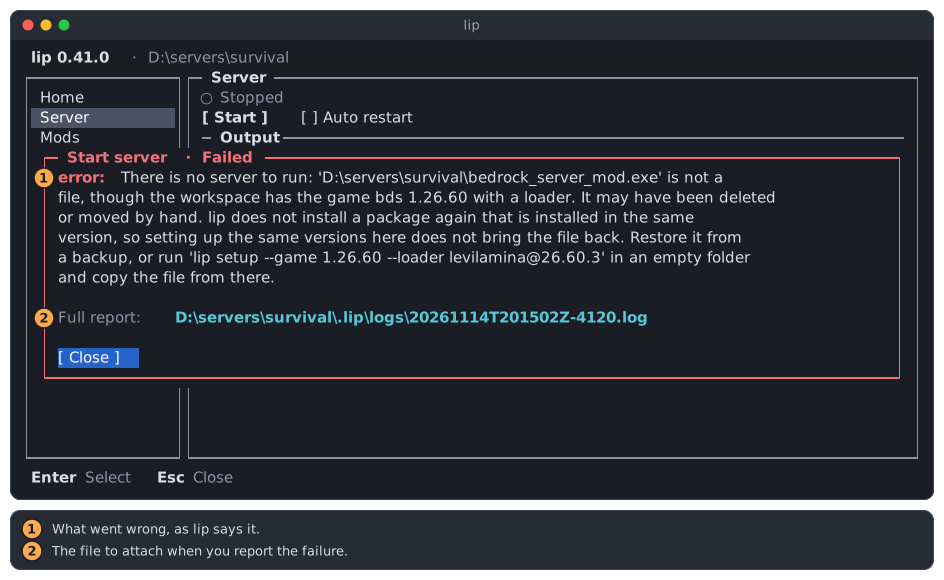
The failure report
- Where:
.lip/logs/in the folder you ran the command in. In the interface, in the selected workspace. - Name: the time of the failure, in UTC, and the number of the lip process, as in
20261114T201502Z-4120.log. - How many: lip keeps the newest 20 and deletes older ones.
- Format: plain text. Open it with any editor.
A report has five parts:
| Part | Holds |
|---|---|
Environment | The time, the version of lip, the command, the folder, your system, the config and cache directories, whether the daemon carried out the command, and the proxy variables that are set. |
Error | The error and the hints, as shown on the terminal. |
Exception | The error in full technical detail. |
Workspace (.lip) | What .lip holds, and the journal of an interrupted operation when there is one. |
Trace | What lip did, step by step: network requests, versions it considered, files it changed, and the output of the programs of packages. |
Passwords and tokens inside URLs, such as those of a proxy, are replaced by ***. Look the file over before you share it all the same: it names your folders and packages.
Some failures write no report:
- A mistake in the command line, such as an unknown option. lip explains it and adds
Run lip --help to see how to use lip. - A command you cancelled. lip writes
Cancelled. Any changes to the workspace were undone. - A server that ran and then failed.
lip runpasses on the exit code of the server and adds nothing. Read what the server wrote.
When the report itself cannot be written, for example on a read-only disk, lip prints its most important part on the terminal instead.
Ask for help
When the error and the hints do not help, open an issue at https://github.com/LiteLDev/lip/issues and attach the report. When a hint says This looks like a bug in lip, please do: the fault is ours, not yours.
Another lip is changing the workspace
error: lip cannot take the workspace lock 'D:\servers\survival\.lip\lock': most likely another lip command is changing the workspace 'D:\servers\survival'. Wait for the other lip command to finish, then try again. If no other lip command is running, a program may be holding the lock file open: close it, then try again.Only one command at a time may change a server folder. While a lip setup, lip install, lip update or lip uninstall works there, or the interface applies a change there, a second one does not wait: it fails at once and changes nothing.
lip run can fail this way too. Just before it starts the server, and before each automatic restart, it checks the folder for an interrupted change, and for that moment it needs the same lock.
What to do:
- Wait for the other command to finish, then run yours again. Look in your other terminals, and in the interface if it is open.
- If no lip is working, another program has the file
.lip/lockopen. Backup tools, sync tools and editors can do that. Close it and try again.
You never need to delete .lip/lock. The lock is not the file but a hold on it, and the hold ends by itself when the lip that has it ends, even when it crashes.
Commands that only read, such as lip list, and every dry run, do not take the lock and never fail this way.
A file is in use
hint: A file is in use by another program. Stop the server and other programs that use the workspace, then try again.This happens on Windows, where a running program keeps its files open and nothing can replace or delete them. Most often the program is the server itself: you changed packages while it ran, and a file that lip must replace belongs to the running game or to a loaded mod.
lip has undone its changes. The workspace is as it was.
What to do:
- Stop the server. Press Ctrl+C in its terminal, or choose Stop on the Server page of the interface.
- Close other programs that have files of the folder open, such as an editor on a configuration file.
- Run the command again.
If lip adds Some changes could not be undone, a file was held so firmly that lip could not even put it back. Do the same three steps. The next lip install, lip update, lip uninstall or lip setup in the folder finishes the clean-up before it does anything else. See After a crash or a power cut.
The interface avoids this: it changes no packages of a workspace while its server runs.
GitHub cannot be reached
lip downloads most packages from GitHub. The hint tells you which kind of problem it met:
| Hint starts with | Meaning | What to do |
|---|---|---|
lip could not reach the server. | No answer at all: no network, or GitHub is blocked or very slow. | Check your connection. Then see When GitHub is slow or blocked. |
The server refused the request, possibly because too many requests were sent. | GitHub, or your proxy, limits how much you may download. | Wait some minutes and try again. |
The repository or file does not exist, or is private. | The name is wrong, or the repository is not public. | Check the name and the version for typos. lip installs from public repositories only. |
The server had a problem. | GitHub, or the site, is having trouble. | Try again later. |
A file that <package> <version> publishes is missing from where its package file says it is | The package points to a download that is gone. | Install another version with <package>@<version>, and tell the author of the package. |
When you have a GitHub proxy set and the message says that the proxy does not support git repositories, the proxy cannot do what lip needs. Remove it with lip config delete github_proxy, or set another.
The interface checks GitHub when it starts. When it cannot reach it and you have not chosen yet, it asks whether to set a proxy, connect directly, or decide later.
The server does not start
lip run, or Start in the interface, fails before the server runs. Find your message below.
There is no server to run: this workspace has no game.
The folder has not been set up, or you are in the wrong folder. Go to the server folder, or set one up: lip setup --game <version>. See Set up the server.
A server of the workspace '…' is already running
A server of this folder runs already, and a folder runs one server at a time. Find it and stop it there:
- It may run in another terminal, started by
lip run. Press Ctrl+C there. - It may be a managed server, started in the interface or with
lip run --managed. Runlip run --managedto attach to it, then press Ctrl+C. Or choose Stop on the Server page of the interface.
In the interface, the Server page shows Running outside this interface for a server that it did not start and cannot control: one that a plain lip run started, or that another user of the machine runs. The interface cannot stop it or show its output. Stop it where it was started.
There is no server to run: '…' is not a file
The folder is set up, but the program of the server is gone. It may have been deleted or moved by hand, or removed by security software. Setting up the same versions again in this folder does not bring it back: lip does not install a package again that is installed in the same version. Restore the file from a backup. Without a backup, run the lip setup command that the message names in an empty folder, and copy the missing file from there into this folder. You can also move to that new folder instead: install your mods there, and copy worlds/, server.properties, allowlist.json, permissions.json and the settings of your mods over from the old folder.
The game of this workspace is the Linux server … which lip runs only on Linux on x64.
Run it on Linux on x64, or set up the Windows server: lip setup --game <version> --build windows. See Linux and macOS.
The Microsoft Visual C++ Redistributable was not installed: Windows did not allow its installer to run as an administrator.
The Windows server needs it, and you answered No when Windows asked. Run the command again and allow it, or install it yourself from https://aka.ms/vc14/vc_redist.x64.exe.
Rosetta 2 is not installed
On a Mac with Apple silicon, run softwareupdate --install-rosetta --agree-to-license, then run lip again.
lip run --managed needs the daemon of lip
See lip carries out the command itself.
The server starts and then exits.
That is the server failing, not lip. lip run exits with the code of the server and writes no report. Read the last lines the server wrote. Common causes are a port that another program uses, a broken world, and a mod that fails to load. Remove the mod you installed last to test for the latter.
When restart is on-failure and the server keeps failing, lip stops trying after 5 restarts within 10 minutes:
⚠ The server exited with code 1. lip restarted it 5 times within 10 minutes, so it does not restart it again. Look at what the server wrote above for why it fails.A daemon of another version
lip does its work in a background process, the daemon, which the first command starts. After you update lip, the daemon of the old version may still run.
Mostly you notice nothing. The new lip asks the old daemon to exit, and when it is idle it does, and a new one starts.
An old daemon that is busy stays: one that is carrying out a command, or that runs a managed server. The new lip then says:
lip could not have its daemon carry out the command (the daemon of lip 0.41.0 that runs carries out a command or runs a managed server); it carries it out itself.Your command still works. To move to the new daemon:
-
See what runs:
lip daemon status.textThe daemon of lip 0.41.0 runs as process 4120, carrying out 0 commands. -
Stop the managed servers. For each, run
lip run --managedin its folder and press Ctrl+C, or stop it in the interface.lip run --managedkeeps working with the old daemon for this purpose. -
Run
lip daemon stop. The next command starts the new daemon.
lip daemon stop refuses while the daemon is busy, and says so. It never stops a server for you.
lip carries out the command itself
lip could not have its daemon carry out the command (<reason>); it carries it out itself.lip could not start or reach its daemon, and did the work in the process you started instead. This is a fallback, not a failure: the command does the same thing.
Two things are different without the daemon:
lip run --managedfails. A managed server lives in the daemon. Run the server with a plainlip run, or fix the daemon first.- The interface does not keep servers running. Servers you start in it stop when you quit it. The interface tells you so when you quit.
The reason in parentheses says what went wrong:
| Reason | What to do |
|---|---|
the daemon of lip <version> that runs carries out a command or runs a managed server | See A daemon of another version. |
the daemon that lip started did not listen within 10 seconds, the daemon that lip started does not listen | The daemon could not start. Run the command again. If it persists, report it with the output of lip daemon status. |
the daemon keeps exiting, the daemon keeps being replaced | The daemon exited or was replaced several times in a row while lip connected. This happens when two versions of lip are used at the same time. Use one version, and run the command again. |
| A message of your system, such as a refused access | On Linux and macOS, check that you may write to the directory of the socket: $XDG_RUNTIME_DIR/lip, or ~/.local/state/lip when that variable is unset. |
A different message, lip: the daemon ended before the command did., means the daemon was killed while it worked for you. Run the command again. If it was changing a workspace, the next command there cleans up first.
After a crash or a power cut
If lip is killed, or the machine loses power, while a command changes a server folder, the change is left half done. lip is prepared for this. Before it changes a file it notes the change in .lip/journal, and it keeps the old version of each file beside it until the whole command is through.
You do nothing special. The next lip setup, lip install, lip update, lip uninstall or lip run in that folder first puts things right, and tells you which way:
⚠ A lip operation on this workspace was interrupted (it started at <time>); undid its <n> changes. The workspace and its state file are as they were before it.The interrupted command had not finished, so lip took it back. Run it again.
Finished an interrupted lip operation that had completed (it started at <time>): deleted the backups it left.The interrupted command had done everything but the clean-up, so lip finished it. Nothing to repeat.
If lip cannot put a file back, for example because the server has it open, it fails, lists the files, and keeps the journal. Stop the server and the programs that use the folder, then run any of those commands again. It continues where it stopped.
DANGER
Do not delete .lip/journal, and do not delete files named .<name>.bak in the server folder while the journal exists. They are what lip restores from.
A dry run, and the plan the interface shows before you apply, only mention the interruption. They do not repair it.
Clean the cache
lip keeps what it downloads in a cache, so that the same file is not downloaded twice. The cache only saves time. Deleting it loses nothing.
lip cache clean✓ Cache cleaned successfully.Clean it when:
- You need the disk space. Game downloads are large.
- A download seems broken and the same install fails again and again. lip already replaces a cached file that is not a valid ZIP archive, so this is rarely needed.
Do not clean it while another lip command is downloading: that command may fail. Run it again afterwards.
Your servers, your settings and the Wine of lip are not in the cache and are not affected. In the interface, the same is "Clear cache" on the Settings page.
Other messages
| Hint | What to do |
|---|---|
lip is not allowed to access a file. | Check that the file is not read-only and that your user may write to the server folder. |
The disk is full. | Free some space, for example with lip cache clean, then try again. |
A hook command of a package failed. | A program that a package runs while it is installed or removed failed. Its output is above the error, and in the Trace part of the report. This is a problem of the package: report it to its author. |
Run lip in an interactive terminal. | lip had to ask you something and could not, because its input or output is not a terminal. For the Minecraft EULA, add --accept-eula. |
The game of this workspace is <version>, with LeviLamina <version>; lip install does not change them. | The packages you asked for do not fit your game or your loader. The error names which. Install other versions of them, or change the game: see Change the game later. |
Request other versions of the packages named above, or install fewer of them together. | The packages you asked for do not fit together. The error names which. Install other versions of them, or fewer of them. |
Where files are
Knowing where lip keeps things helps when you look for a problem.
| What | Where |
|---|---|
Your server: the game, worlds, server.properties, mods | The server folder itself |
| What lip knows about the folder: installed packages, locks, the journal, failure reports, the Wine prefix, the workspace settings | .lip/ in the server folder. Hidden on Windows. |
| Your settings | %APPDATA%\lip on Windows, ~/.config/lip elsewhere |
| The cache | %LOCALAPPDATA%\lip\Cache on Windows, ~/.cache/lip elsewhere |
| The Wine of lip | ~/.local/share/lip on Linux and macOS |
| The list of workspaces of the interface | %LOCALAPPDATA%\lip\State on Windows, ~/.local/state/lip elsewhere |
Every file and directory is described in Files and directories.