
Get mods
The Get mods page is the mod list of levimc.org inside lip. After this page you can find a mod by searching, sorting and filtering, read about it, and install the version that fits your server.
If the keys or the parts of the screen are new to you, read A tour of the interface first.
The page
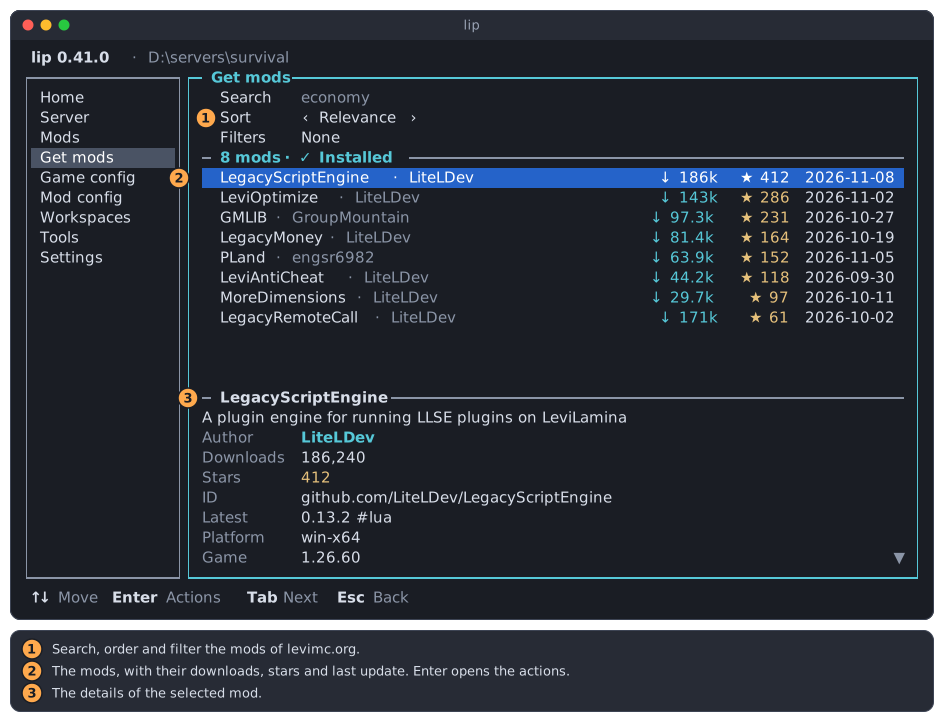
- Search, Sort and Filters decide which mods are listed, and in which order.
- The list of mods. The page opens with the focus here.
- The details of the highlighted mod.
↑ on the first mod goes up to Filters, Sort and Search. ↓ from there, or Enter in the search, goes back to the list. Tab goes round these parts too.
lip manages servers, so the list holds the mods that can run on a server. The list is read from levimc.org each time you open lip, and nothing of it is saved on your disk.
The list
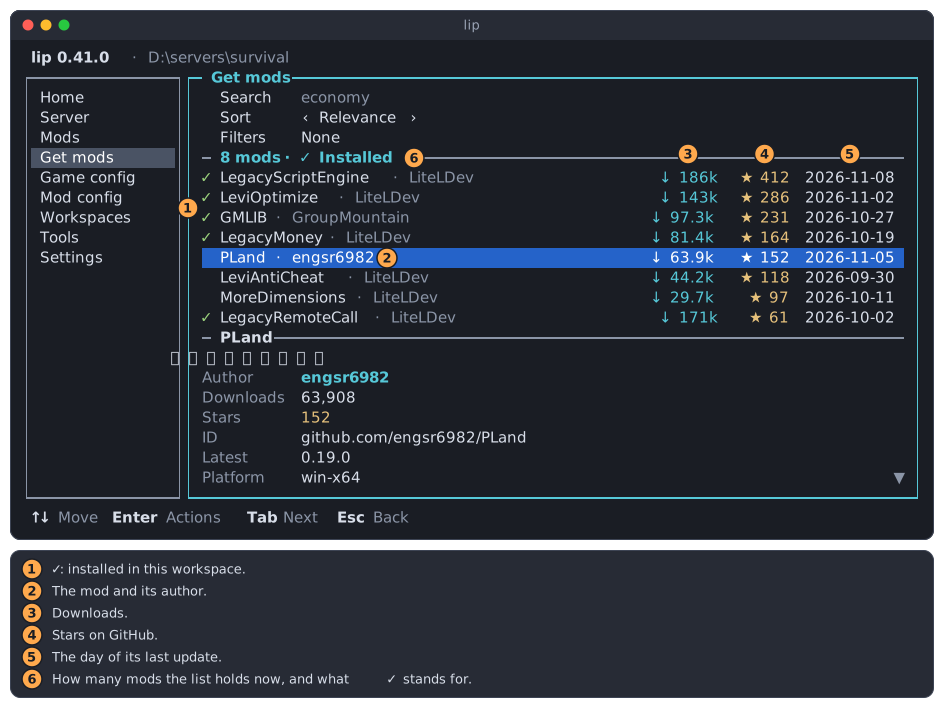
✓marks a mod that is installed in this workspace.- The name of the mod, and its author after the dot.
↓is how often the mod was downloaded.186kis about 186,000.★is the number of its stars on GitHub.- The date of its last update.
- The line above the list says how many mods are listed now.
A mod without downloads or stars leaves that column empty. In a narrow terminal the date is left out first, then the downloads.
The details
The details change as you move through the list. They show the description of the mod, then:
| Row | Shows |
|---|---|
| Author | Who publishes the mod. |
| Downloads, Stars | The exact numbers. |
| ID | The address of the mod's repository. This is the name of the mod on the Mods page. |
| Latest | The newest version, and its variant after # when the mod has variants. |
| Platform | The systems that the mod is built for. |
| Game | The game versions that it supports. |
| Tags | What kind of mod it is. |
| License | The license of the mod. |
| Depends | What the mod needs, with the versions that it accepts. lip installs these for you. |
| Updated | The date of the last update. |
When the details are longer than their box, a ▼ at the right edge says so. Press Tab to give them the focus, then scroll.
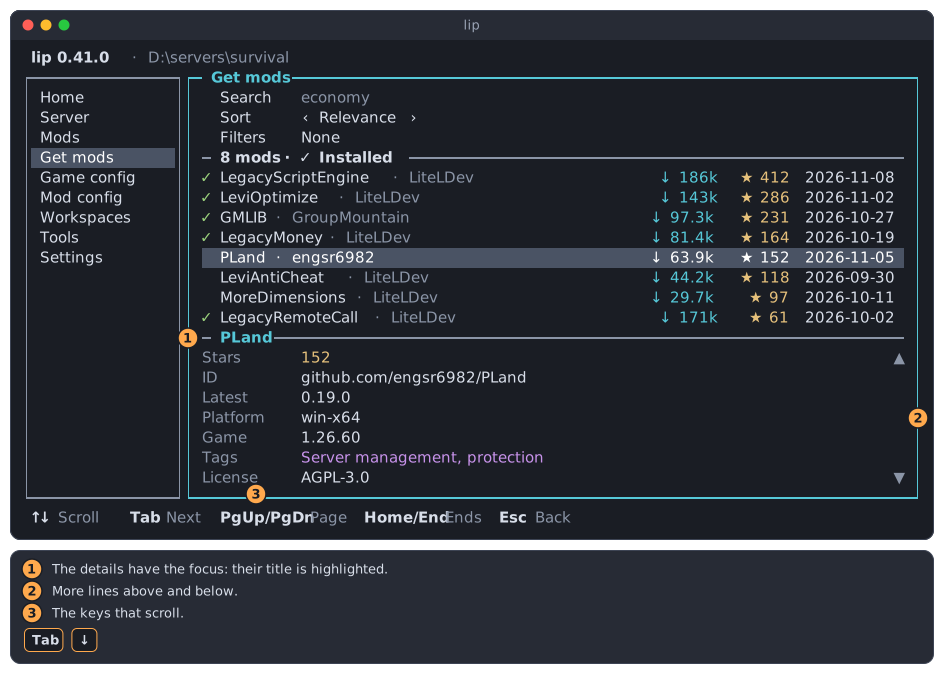
- The title of the details is bright while they have the focus.
▲and▼mean that there are more lines above and below.- The keys that scroll.
Esc goes back to the list.
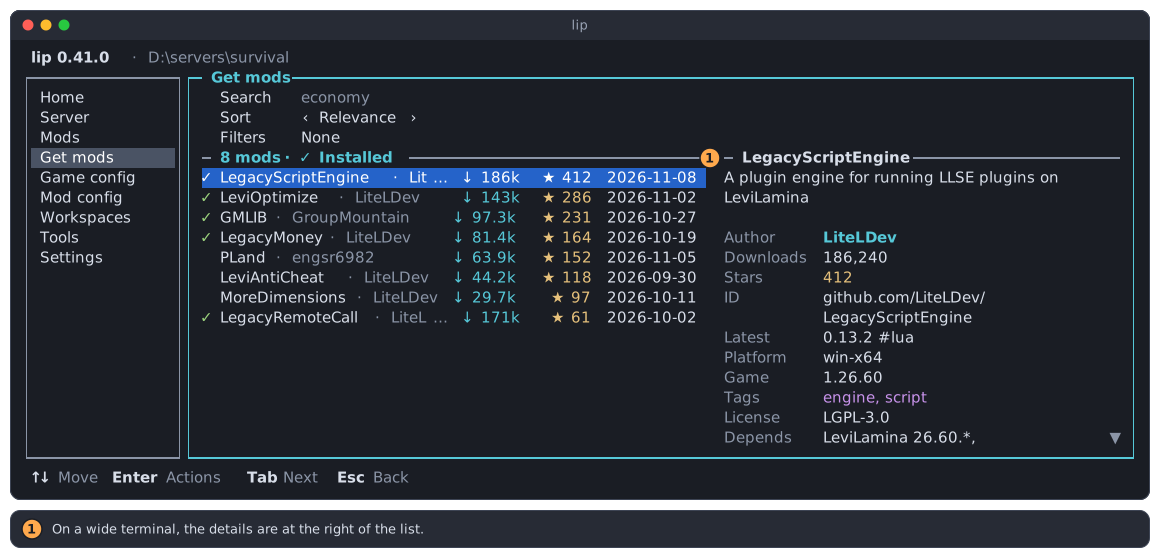
In a terminal of about 106 columns or more, the details are at the right of the list and show more rows at once:
Searching
Press ↑ until Search is highlighted, and type. The list follows each letter.
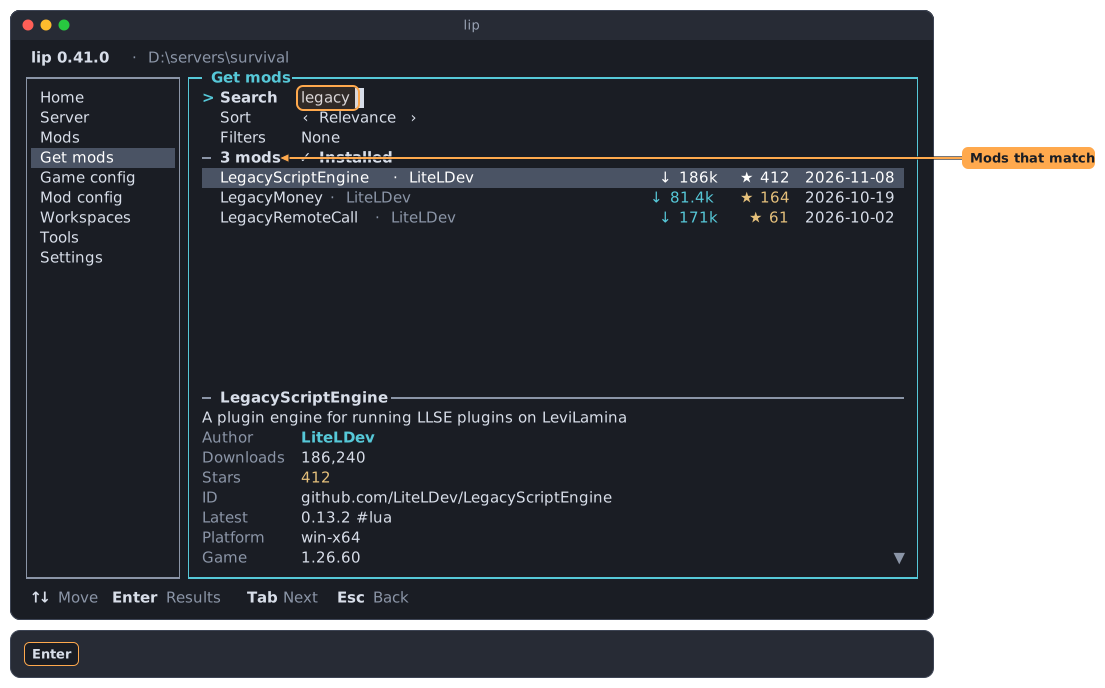
The search looks at the name, the author, the description, the tags and the license of each mod. With several words, a mod must match all of them.
The search also understands the language of the interface. Tags are shown in your language, and you can search for them as they are shown: in the Chinese interface, 经济 finds the mods with the tag Economy, just as economy does.
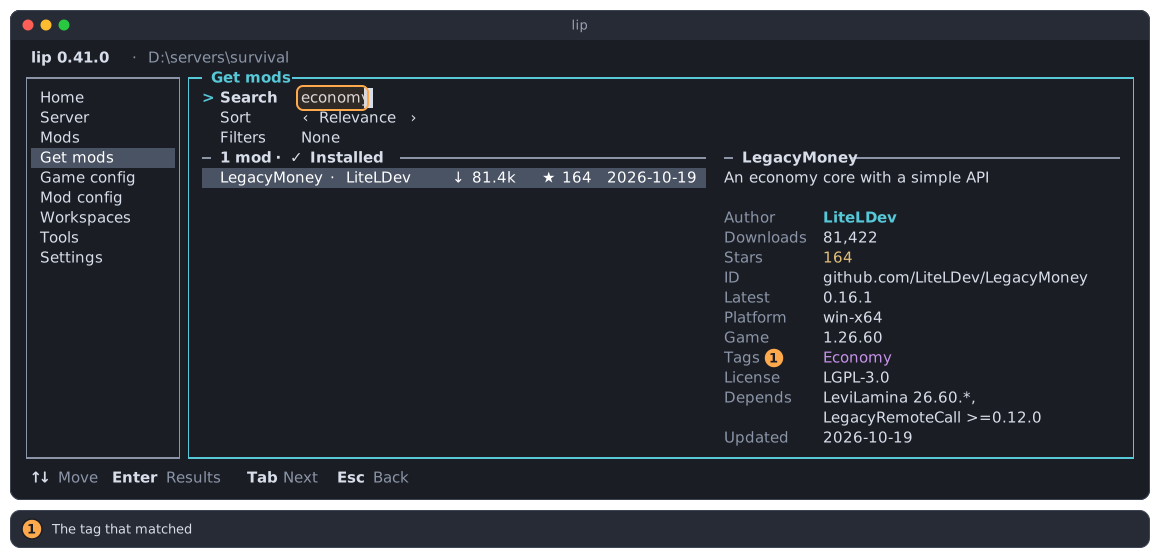
Press Enter to go to the mods that were found. To see every mod again, delete what you typed.
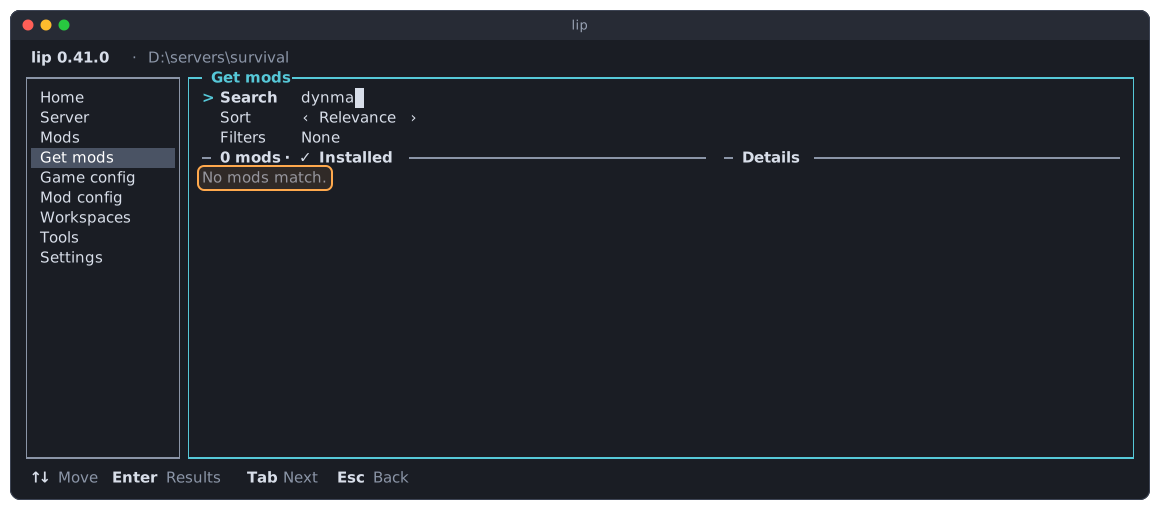
When nothing matches, the list says so:
Sorting
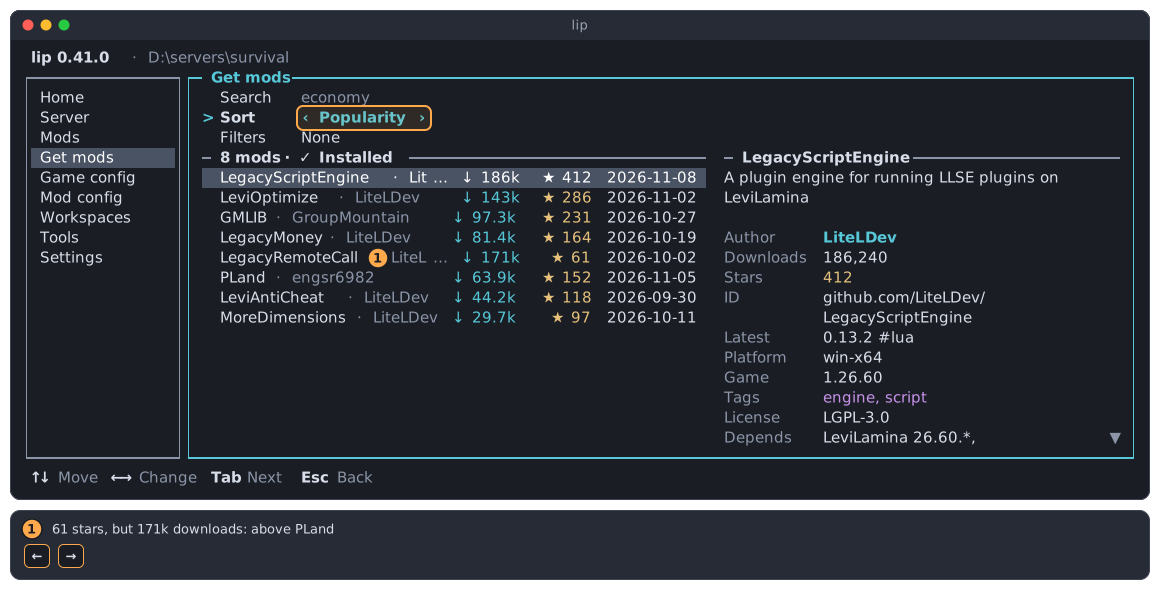
Press ↑ until Sort is highlighted. ← and → change the order.
| Order | The mods come |
|---|---|
| Relevance | In the order of levimc.org. When you search, the best match comes first. |
| Popularity | Most popular first. |
| Updated | Last updated first. |
| Newest | Last published first. |
Popularity is a number that lip works out from the stars and the downloads of a mod together, in the same way as levimc.org. Each of the two counts as much as the other, and each is measured against the other mods of the list. So the order is neither the order of the stars nor that of the downloads: in the picture, a mod with 61 stars and 171,000 downloads comes before a mod with 152 stars and 64,000 downloads.
Filtering
Filters narrow the list to the mods that have, or do not have, something.
-
Press
↑until Filters is highlighted, thenEnter.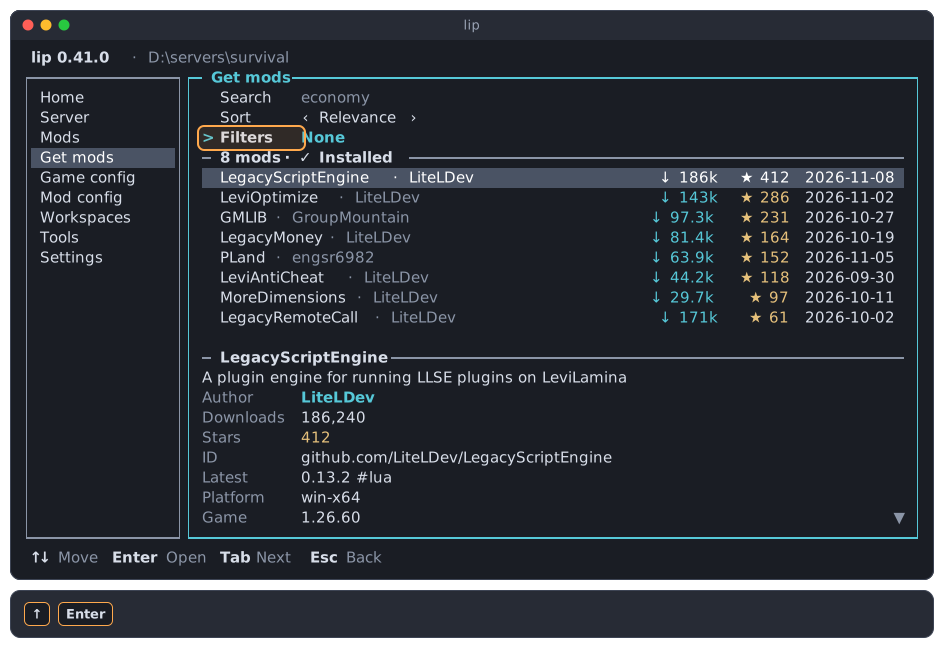
-
The filter panel opens. Its sections are closed at first.
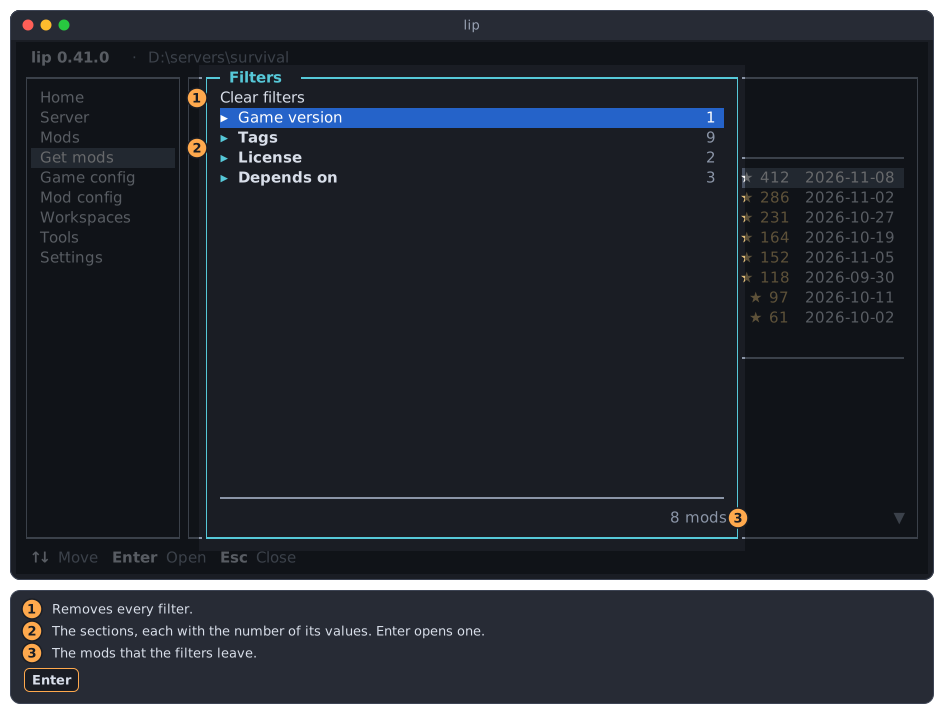
- Clear filters removes every filter.
- The sections. The number is how many values a section has.
- How many mods the filters leave. The list behind the panel follows at once.
-
Press
Enteron a section to open or close it, andSpaceon a value to choose it.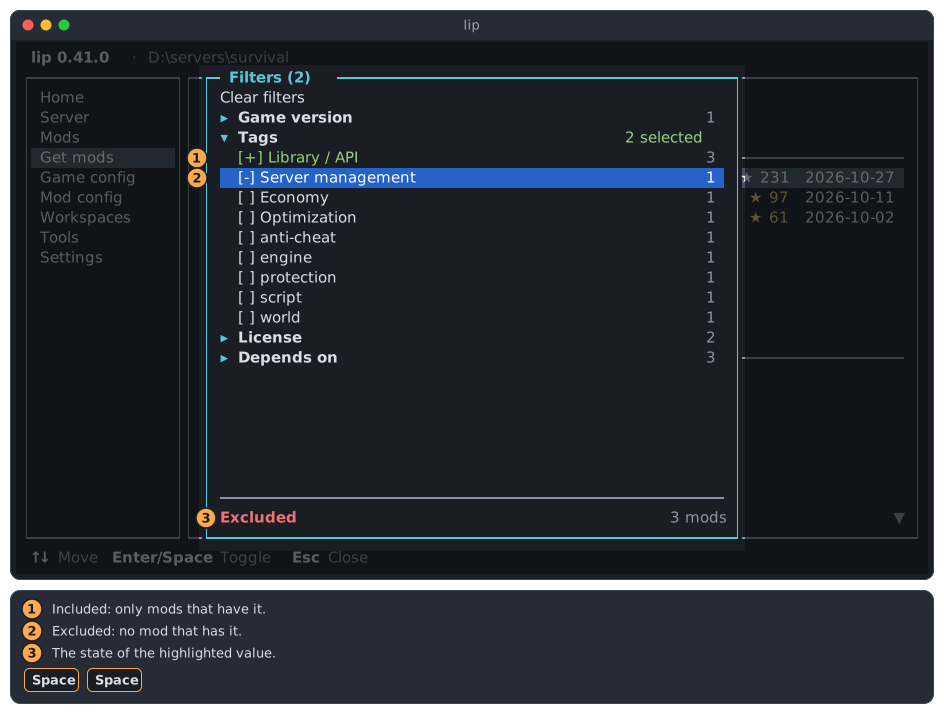
[+]included: only mods that have this value are listed.[-]excluded: mods that have this value are left out.- The state of the highlighted value, in words.
-
Press
Escto close the panel. The Filters row says how many filters are active.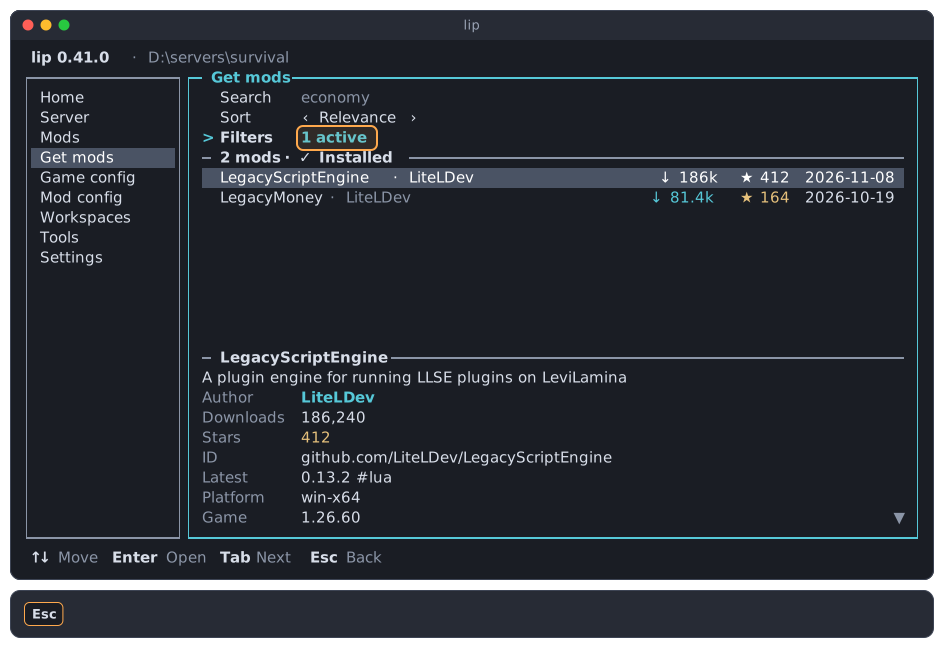
Space goes through the states in turn: not chosen, included, and, where a section allows it, excluded.
| Section | Filters by | Include | Exclude |
|---|---|---|---|
| Game version | The game versions that a mod supports. | Yes | No |
| Tags | The kind of mod. The common tags come first, in your language. | Yes | Yes |
| License | The kind of license: permissive, weak copyleft, copyleft, other, or none. | Yes | No |
| Depends on | What a mod needs, such as a library. | Yes | Yes |
The number at the right of a value is how many mods have it.
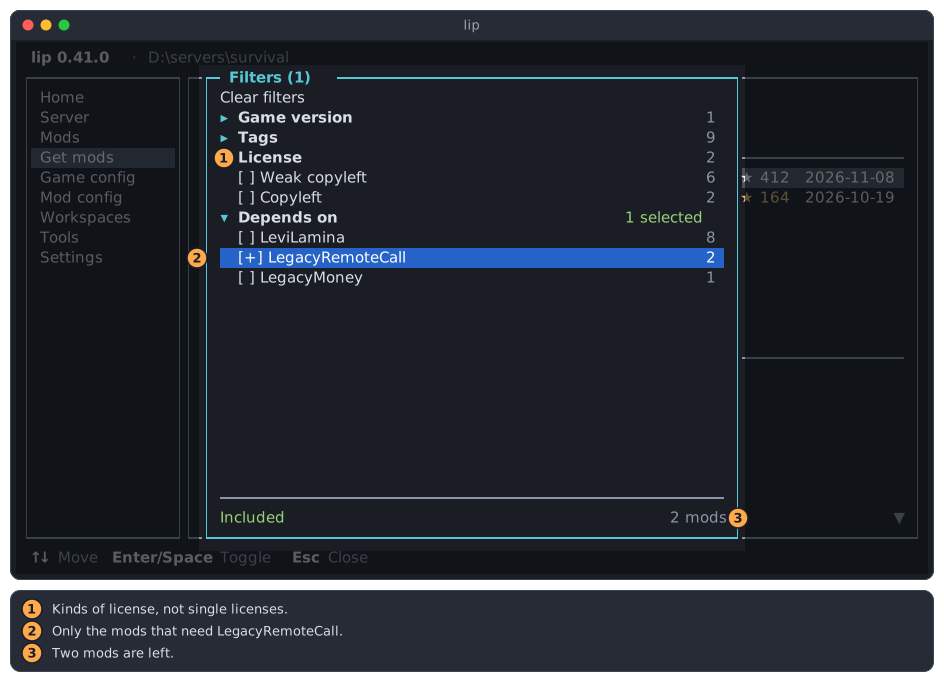
- License has kinds of licenses, not single licenses.
- Only the mods that need LegacyRemoteCall are listed.
- Two mods are left.
Filters stay until you clear them or quit lip. They work together with the search.
The menu of a mod
Press Enter on a mod to open its menu.
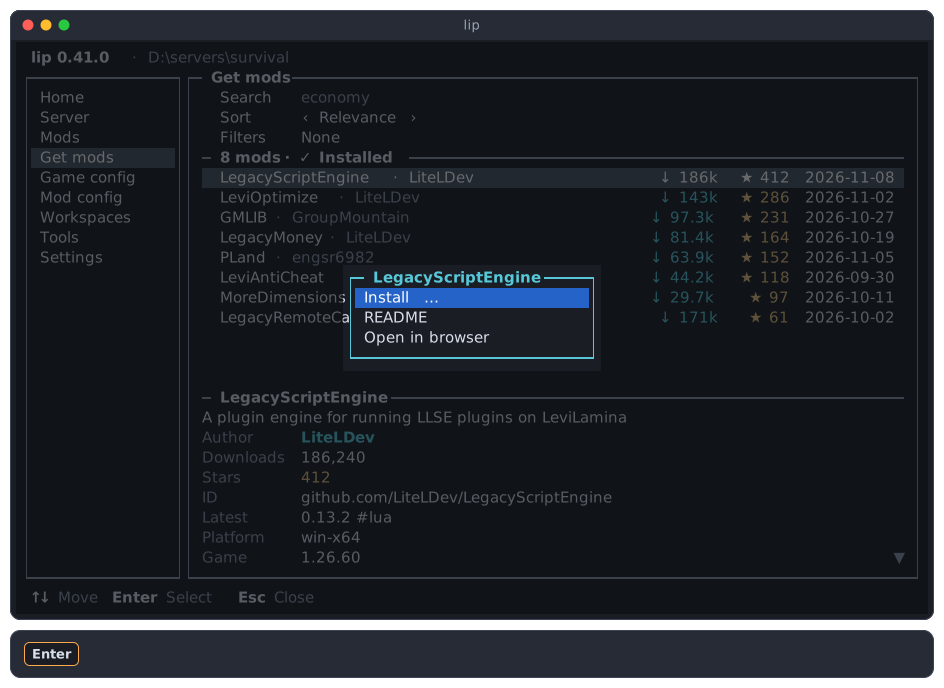
| Action | Does |
|---|---|
| Install… | Asks for the version, then installs the mod. |
| README | Shows the text that the author wrote about the mod. |
| Open in browser | Opens the page of the mod on levimc.org in your web browser. |
README
The README opens in a window that fills the screen. Scroll with the arrow keys, PgUp and PgDn. Esc or Enter closes it.
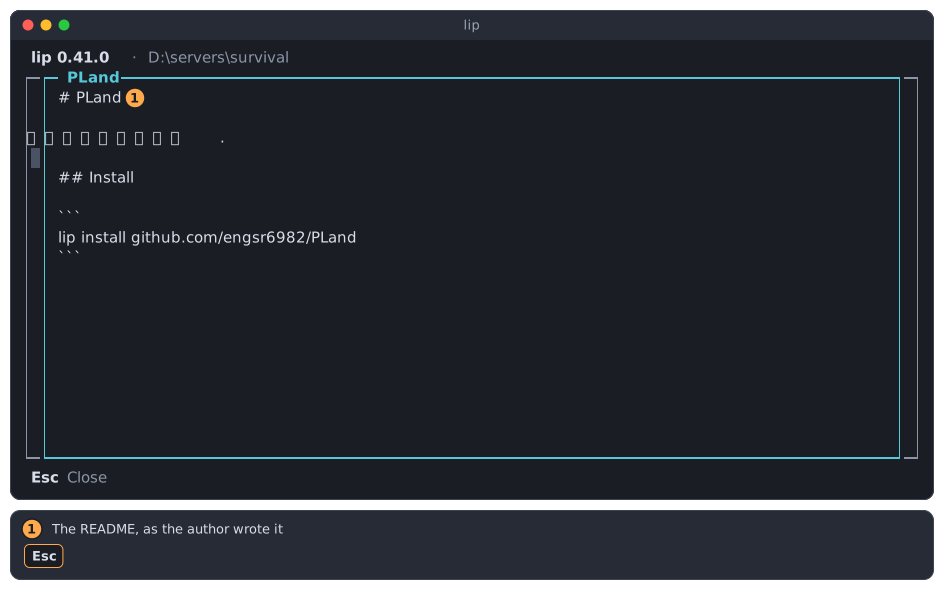
The README is shown as plain text, as the author wrote it. A mod without one says "No README."
Open in browser
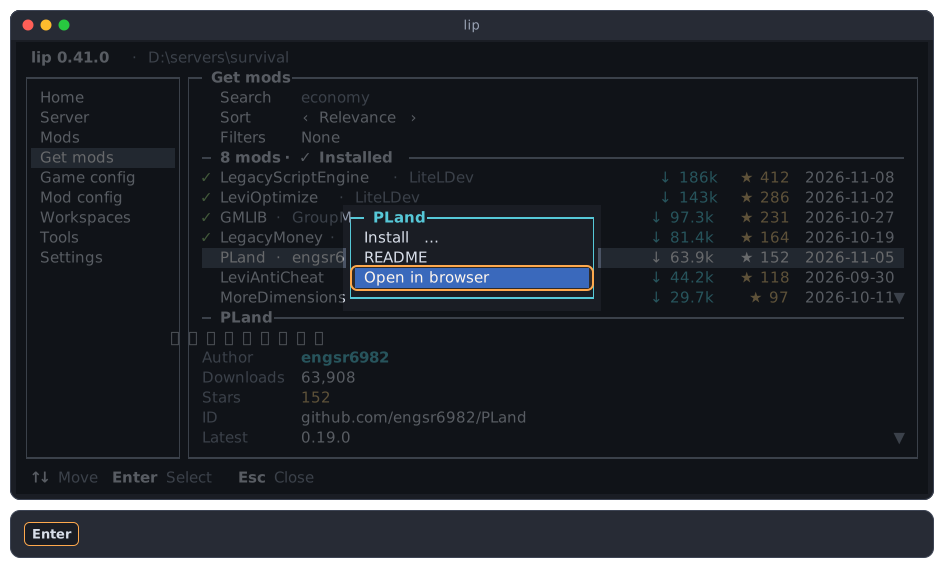
lip asks your system to open the page. On a server without a desktop nothing may happen; the README is then the way to read about the mod. For a mod that has no page, the action is gray and says "This mod has no page."
Installing a mod
Installing always goes through choosing a version. lip shows only the versions that fit your server, so you cannot pick one that does not.
-
Highlight the mod, press
Enter, and choose Install…. -
Choose the version. The newest version that fits is highlighted, so
Enteris usually all you need.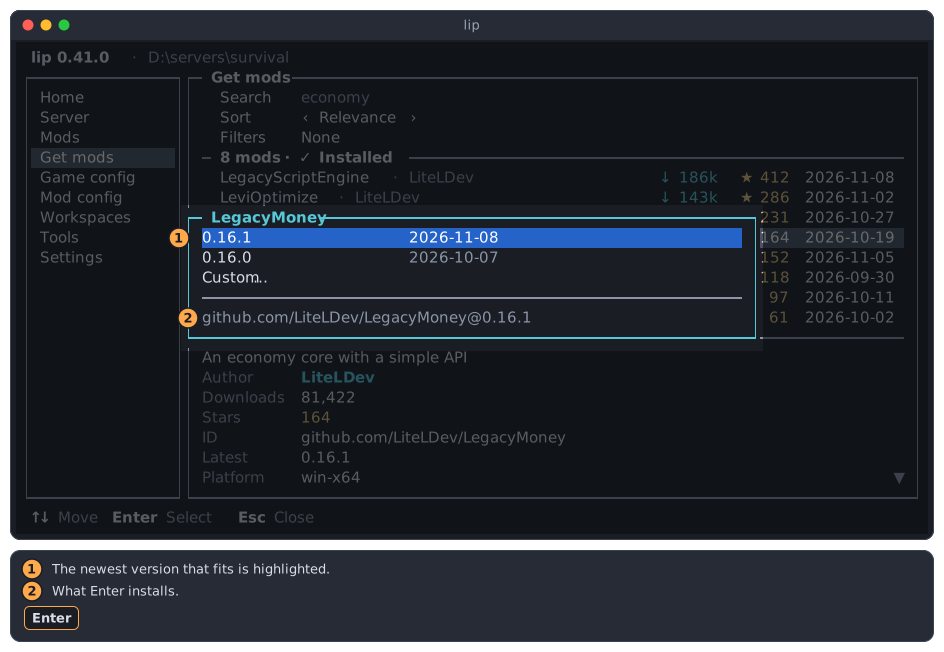
- The versions that fit, newest first, each with its date.
- What lip installs when you press
Enter.
-
Read the plan. It lists the mod, and every other mod that it needs.
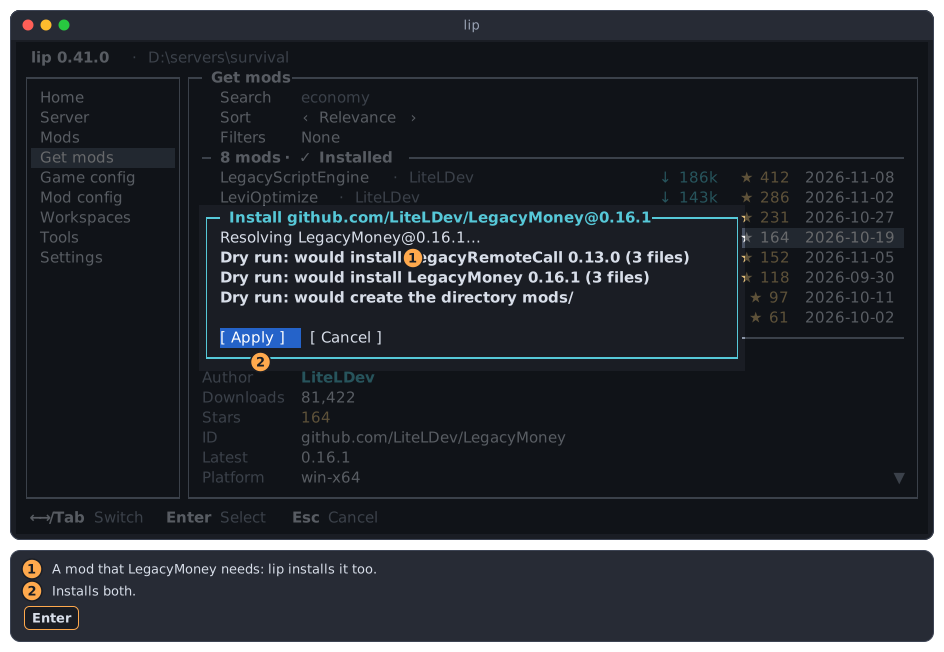
- A mod that LegacyMoney needs. lip installs it too.
- Apply installs both. Cancel installs nothing.
-
Choose Apply. When lip is done, it shows what it did.
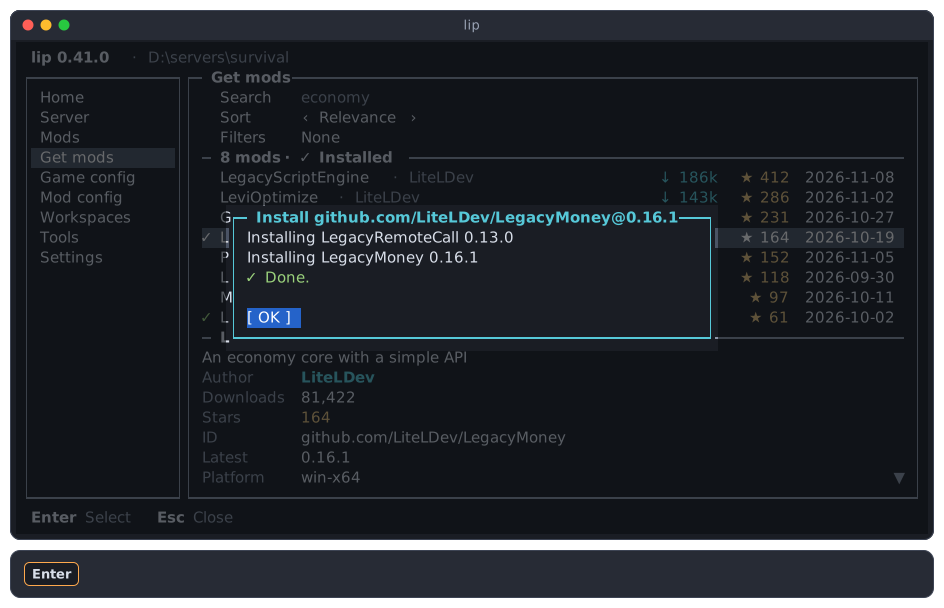
-
Press
Enter. The mod now has a✓in the list, and so has what was installed with it.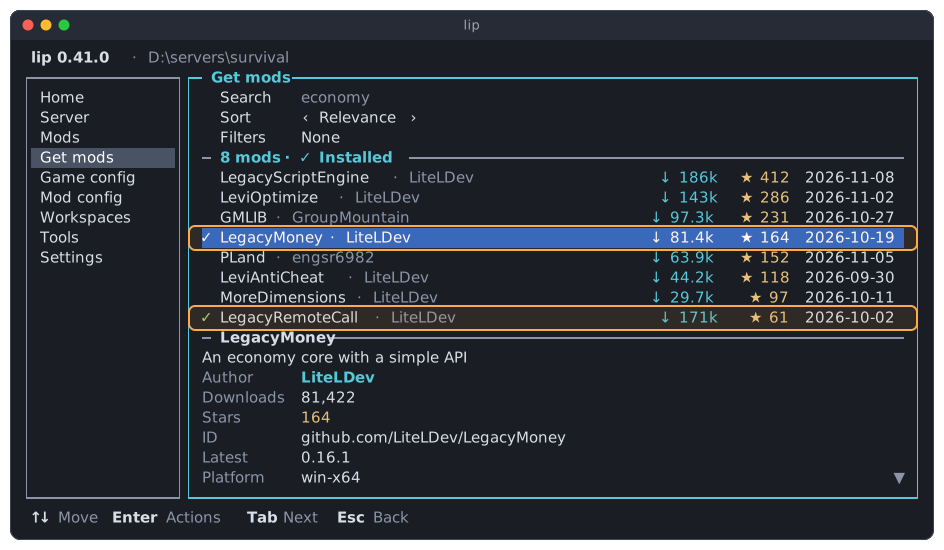
The mod is loaded the next time the server starts. Preview, then Apply describes the plan, the progress and what happens when something fails.
Choosing a version
Variants
Some mods come in several variants: builds of the same mod for different uses. They are tabs at the top of the dialog. ← and → change the variant, and the versions below follow.
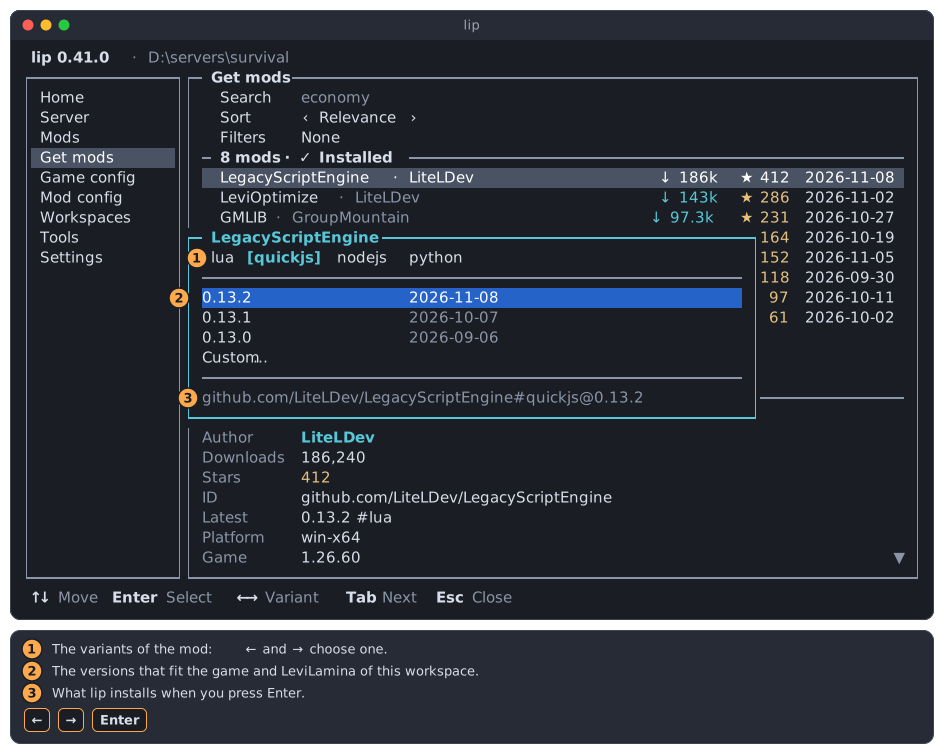
- The variants. The chosen one is in brackets.
- The versions of the chosen variant that fit your server.
- What lip installs: the mod,
#and the variant,@and the version.
Which variant you need is a question for the README of the mod. A mod with only one variant has no tabs.
When a mod has more variants than fit in one row, the row scrolls sideways as you move. ‹ and › at its ends say that there are more on that side.
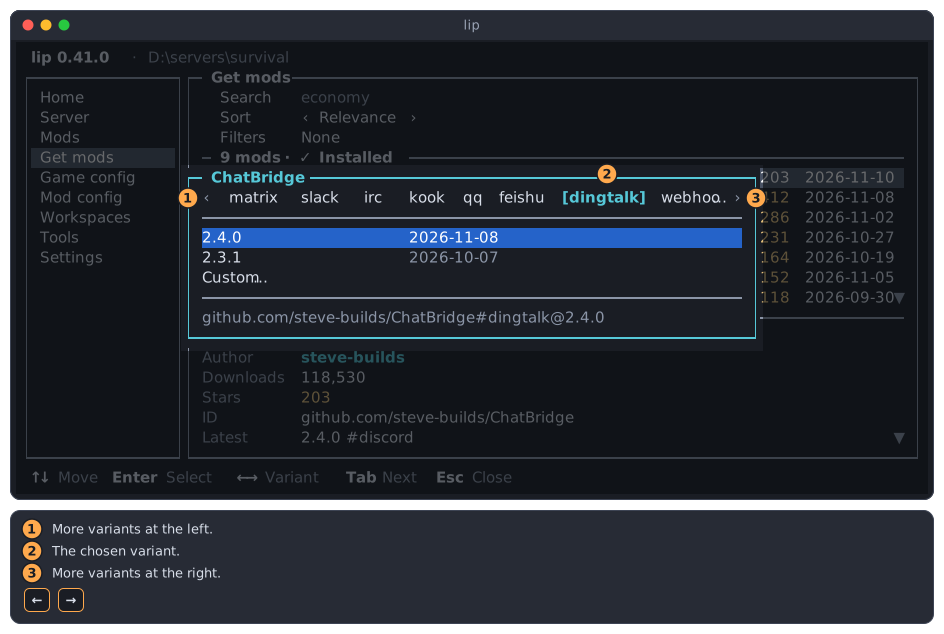
- More variants at the left.
- The chosen variant.
- More variants at the right.
Only versions that fit
The list holds the versions that work with the game and the LeviLamina of your workspace, and no others. An older or newer version that needs another LeviLamina is not offered, even though levimc.org lists it.
When no version of the chosen variant fits, a line says what rules them out:
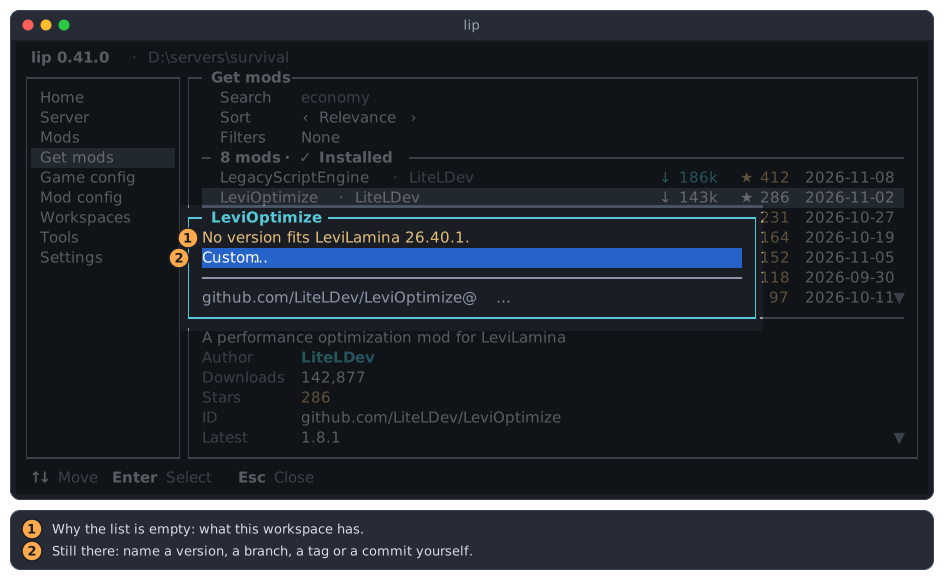
- The LeviLamina, or the game, that no version fits.
- Custom… is still there.
You then have three ways on: try another variant, look for another mod, or change the game and LeviLamina of the server on the Workspaces page.
Custom…
The last row, Custom…, lets you name what to install yourself. Use it for a branch, a tag or a commit, for example to try a fix that is not released yet.
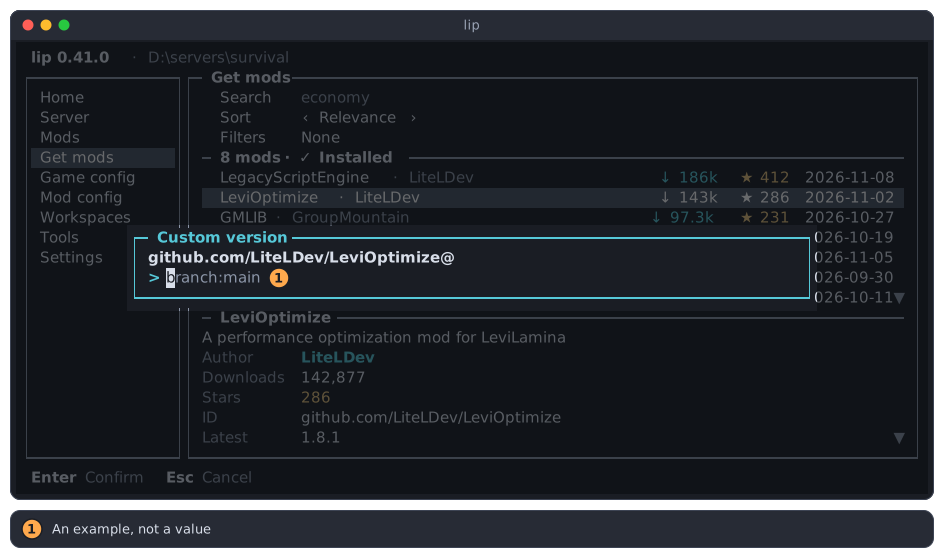
Type what follows the @: a version such as 1.8.0, or branch:main, tag: with a tag, or rev: with a commit. Press Enter to see the plan. Esc goes back to the versions.
lip does not check beforehand whether what you name fits your server. If it does not, the plan fails and says why, and nothing is changed.
In a folder without a server
You can look through the mods anywhere. Installing needs a server, because a version must fit a game. In a folder without one, Install… offers to create the server first:
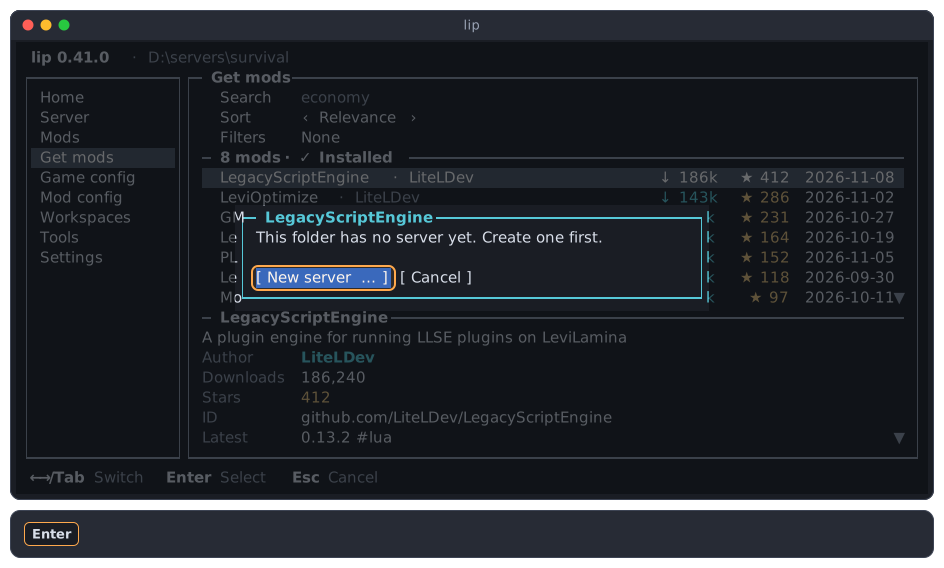
New server… starts the new server wizard of the Workspaces page.
While the server runs
While the server of the workspace runs, nothing is installed. Install… is gray, and the menu says why. README and Open in browser work as usual.
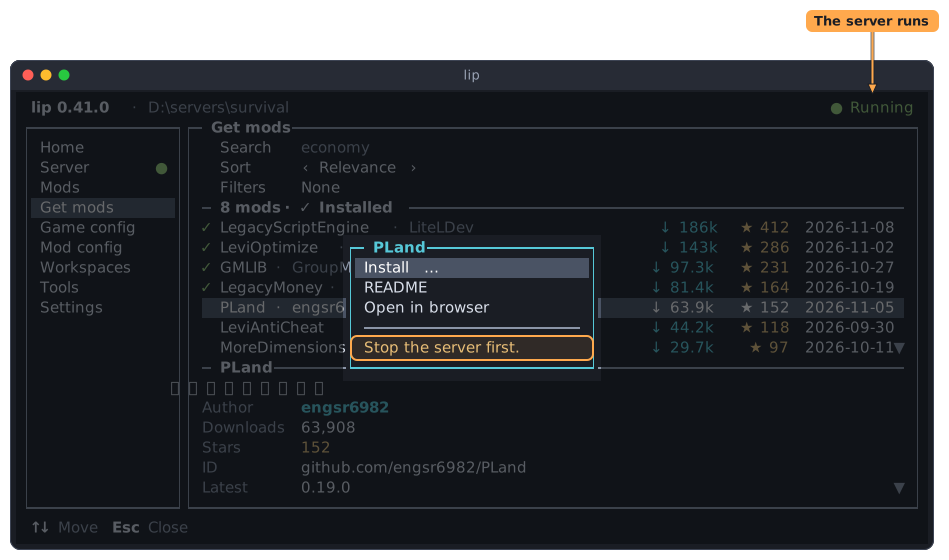
Stop the server on the Server page first.
When the list cannot be read
When lip cannot read the list from levimc.org, the page says so instead of showing mods.
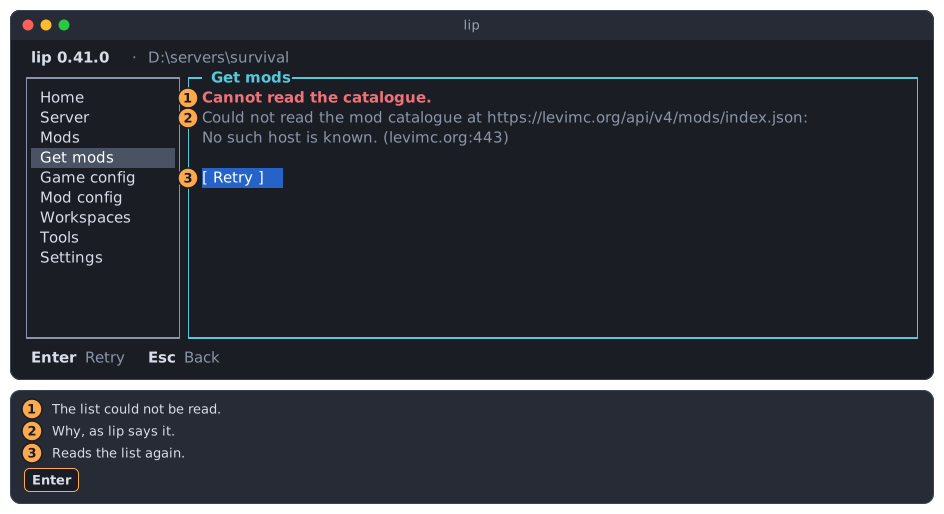
- The list could not be read.
- Why, as lip says it.
- Retry reads the list again.
Check your connection, then press Enter. The GitHub proxy of the Settings page is not used for levimc.org, so it does not help here.
You can still install a mod whose name you know: use Install from source… on the Mods page.