
Game config
After this page you can change the settings of the game itself from the interface: the properties of the server, who may join it, and what each player is allowed to do.
The Game config page edits three files in the folder of the server. You never open them in a text editor: the page shows each as a list, and writes it back when you save.
| Section | File | Holds |
|---|---|---|
| Properties | server.properties | The settings of the server: its name, the game mode, the port, and so on. |
| Allowlist | allowlist.json | The players who may join while the property allow-list is on. |
| Permissions | permissions.json | The players who get their own permission instead of the default one. |
When a change takes effect
The server reads these files when it starts. A change that you save takes effect the next time the server starts; the page says so at its bottom right: Applies on next server start.
Find your way around
Open the page: in the sidebar, move to Game config with ↓ and press Enter.
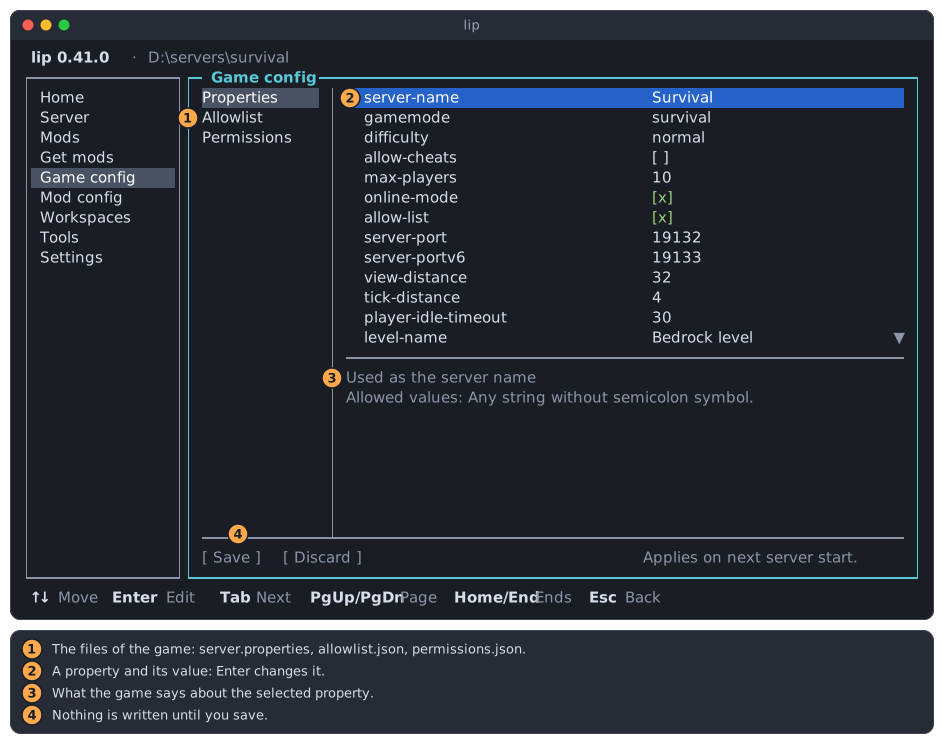
- The three sections.
↑and↓choose one;Enteror→goes into its rows. - The rows of the section. In Properties, a row is a property and its value.
- The description of the selected row. For a property it is the comment that the game wrote below it in
server.properties, in English, with the values that are allowed. - Save and Discard. They can be chosen only while you have changes.
| Key | Does |
|---|---|
↑ ↓ | Move in the sections or in the rows. |
Enter | In the sections: goes into the rows. On a row: changes it, or opens its actions. |
Space | Switches a property that is on or off. |
Tab | Goes on to the next part: sections, rows, buttons. |
Esc | Goes back one part: buttons, rows, sections, sidebar. |
The bottom line of the screen always names the keys that work where you are. A tour of the interface explains the keys that every page shares.
Change a property
Go into the rows of Properties with Enter. What Enter does on a property depends on the kind of value it holds. lip reads the kind from the line Allowed values: of the description.
Switch a property on or off
A property that is true or false shows a box: [x] is true, [ ] is false.
-
Move to the property, here
allow-cheats.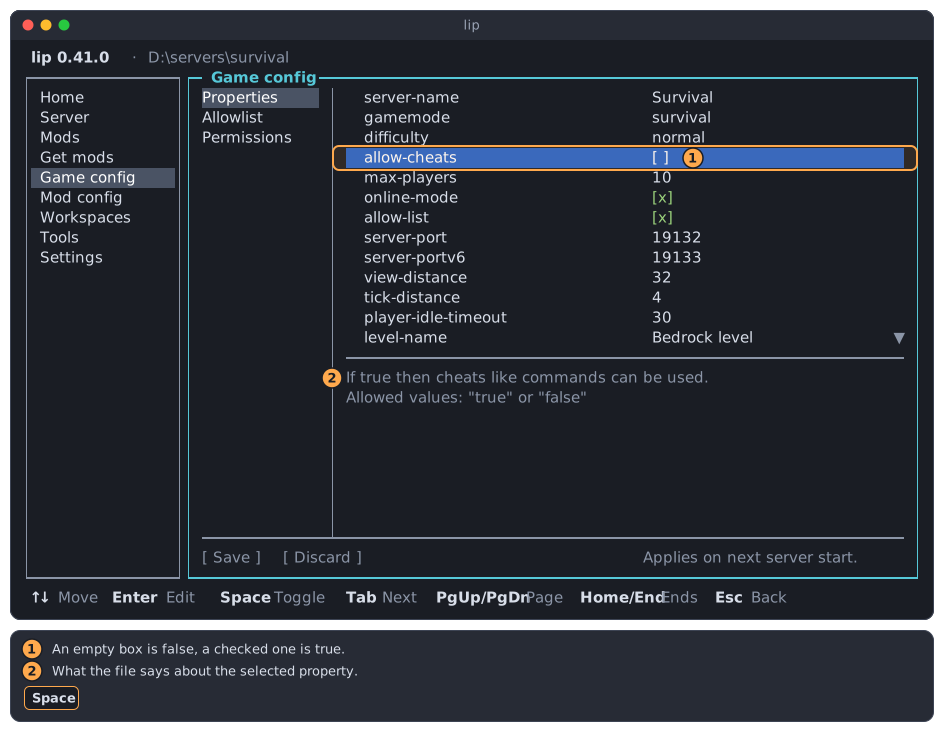
- The value: an empty box is
false, a checked one istrue. - What the file says about the property.
- The value: an empty box is
-
Press
Space, orEnter. The box changes.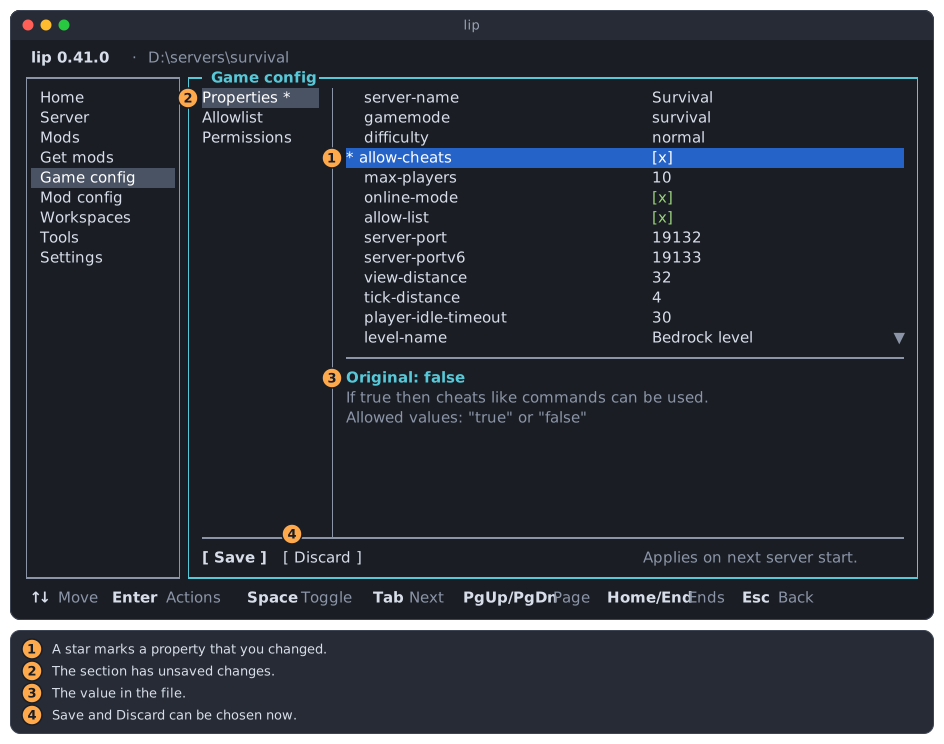
Nothing is written yet. The page marks what you changed:
- A star
*before the property. - A star after the name of the section.
- Original: and the value that the file still holds, in the description.
- Save and Discard can now be chosen.
Choose one of a few values
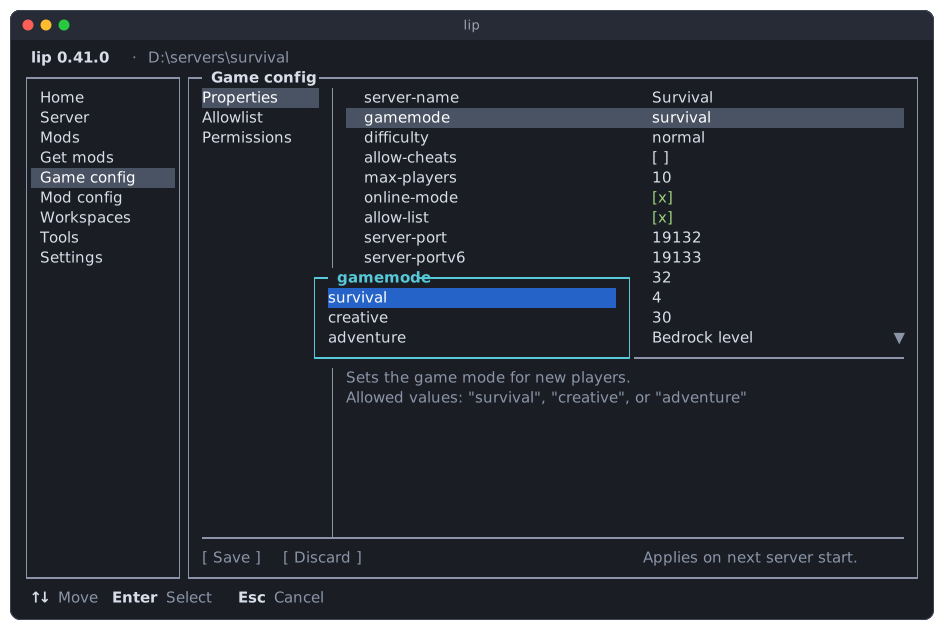
A property with a fixed set of values, such as gamemode, opens a list.
- Move to the property and press
Enter. - Choose a value with
↑and↓, and pressEnter.Esccloses the list without a change.
Type a number or a text
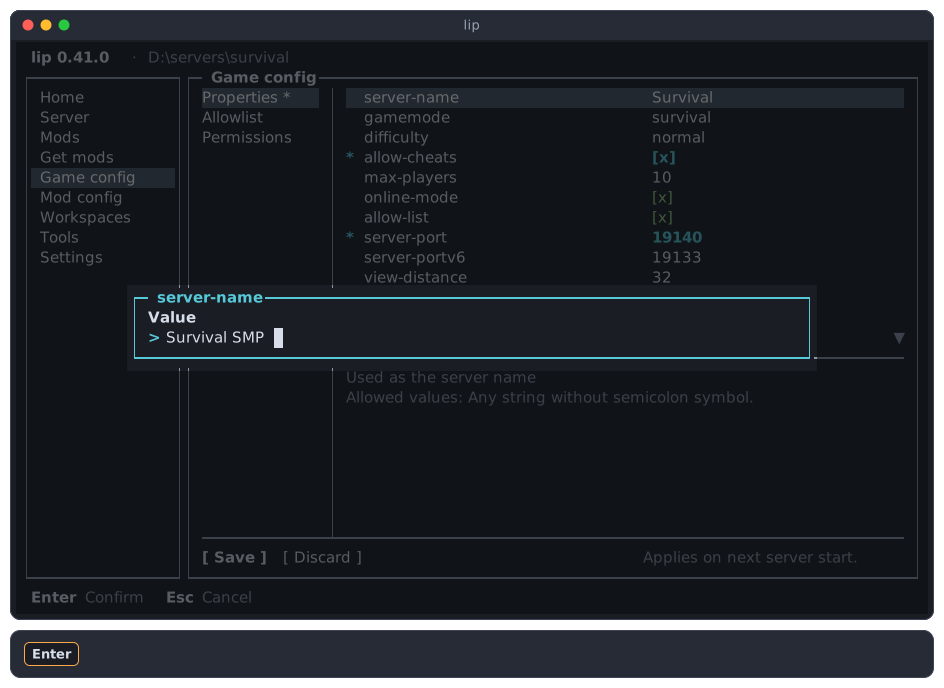
Any other property opens a field with its value. Type the new value and press Enter; Esc closes the field without a change.
A number must be a whole number. When the file gives a range or a least value, the field names it, and a value outside it is not taken: the field stays open and says why. A property that the file describes as a positive integer, such as max-players, takes neither 0 nor a negative number, and view-distance takes nothing below 5.
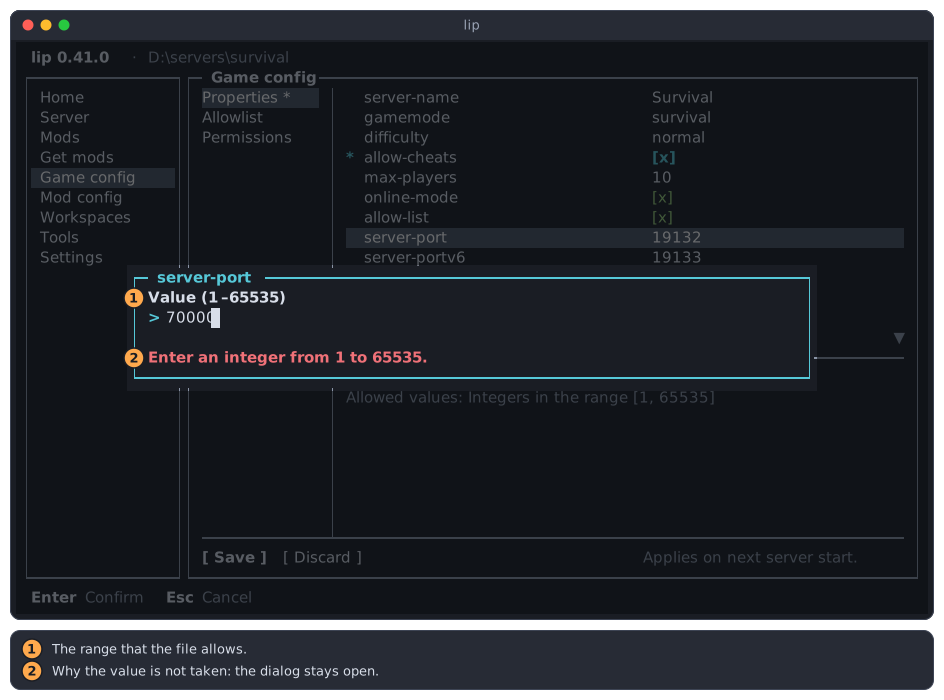
- The range that the file allows.
- Why the value is not taken. Correct it and press
Enteragain.
A text is one line, as you type it.
Take a change back
On a property that you changed, Enter opens a menu instead: its first row changes the value again, and Reset value puts back the value that the file holds.
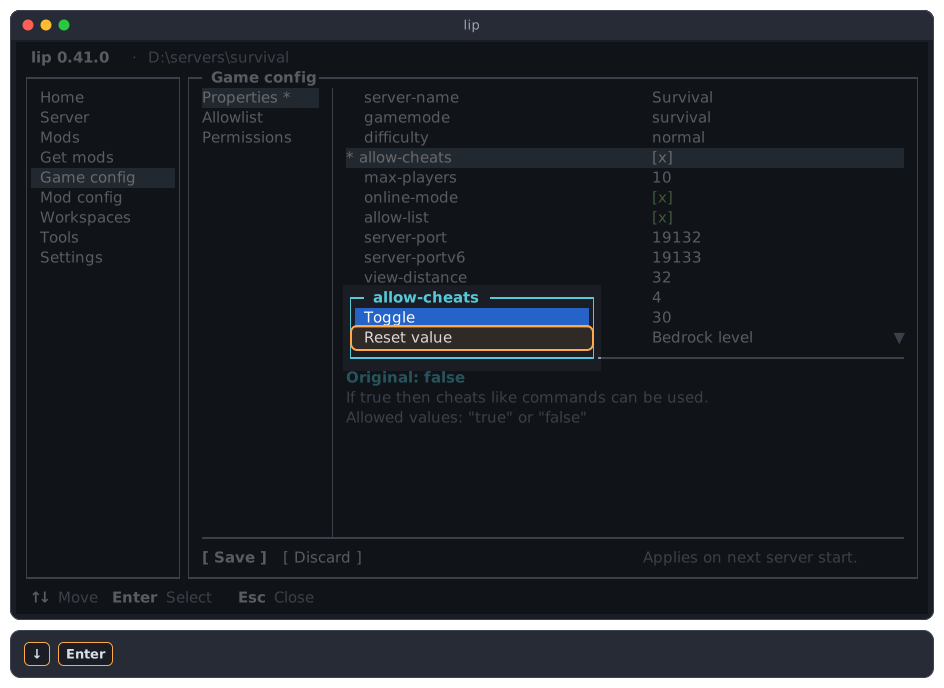
Space still switches an on/off property directly.
Edit the allowlist
The allowlist names the players who may join. The server uses it only while the property allow-list in Properties is on.
-
In the sections, move to Allowlist and press
Enter. The first row is Add player…; below it are the players, each with its XUID when the file has one. A player who may join a full server is marked ignores player limit.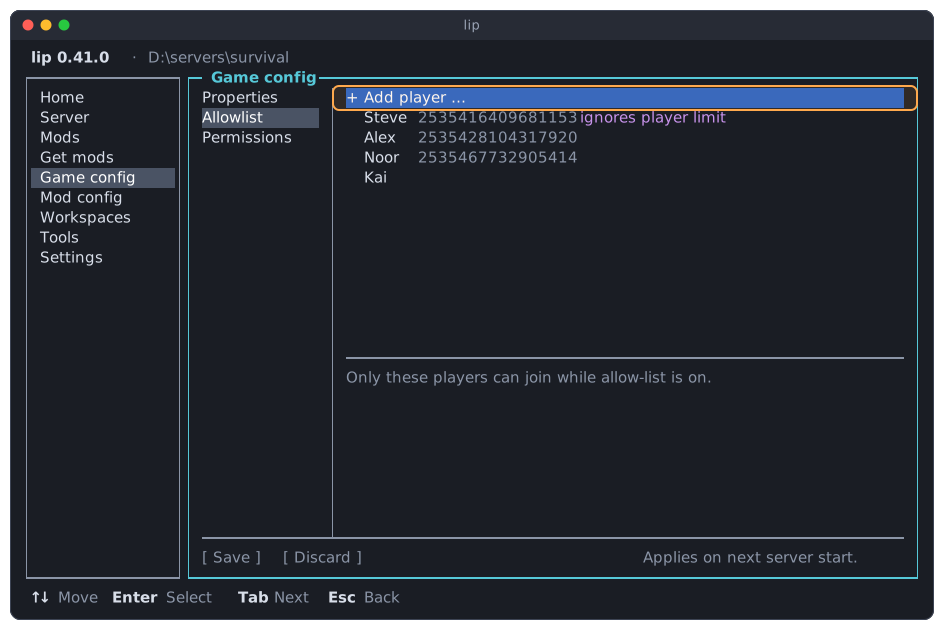
-
Press
Enteron Add player…. Type the name, pressTab, and type the XUID if you know it.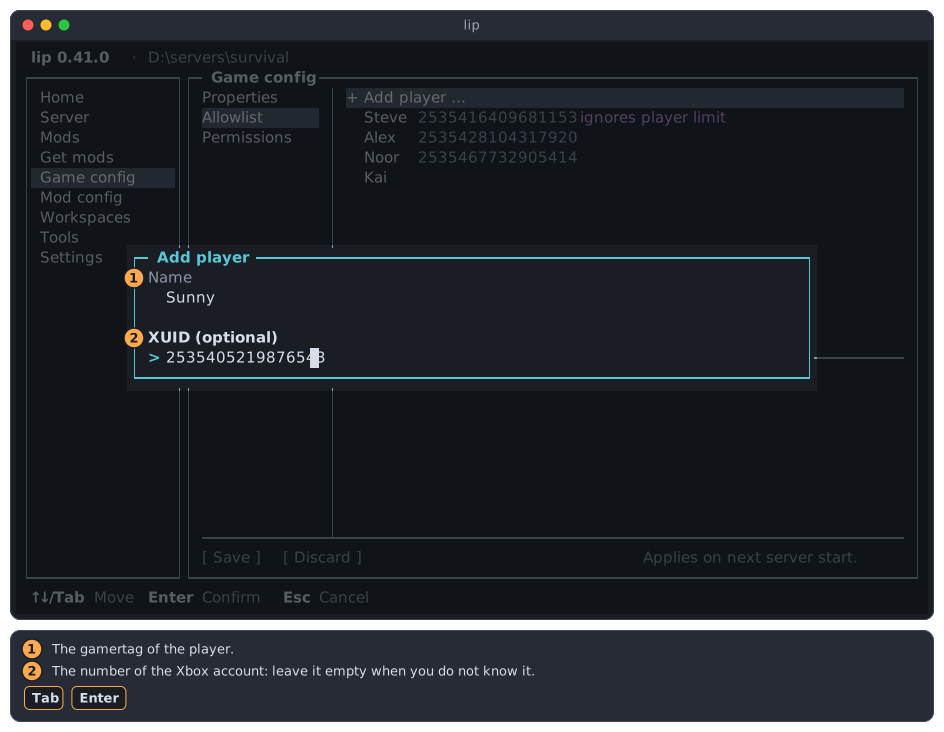
- Name: the gamertag of the player. A name that is on the list already is not taken.
- XUID (optional): the number of the player's Xbox account, digits only. Leave it empty when you do not know it.
-
Press
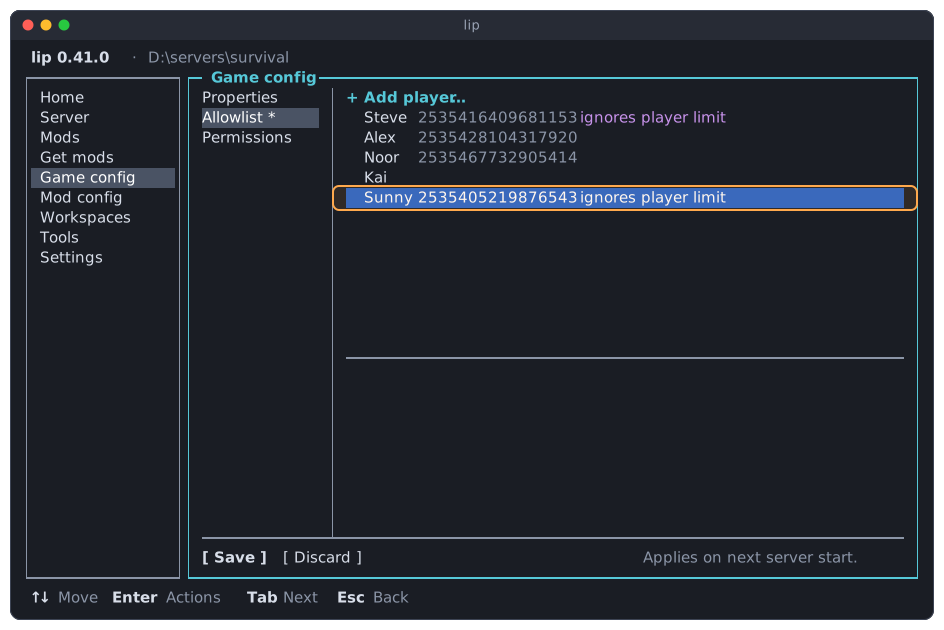
Enter. The player is added at the end of the list and selected. -
Press
Enteron a player to open its actions.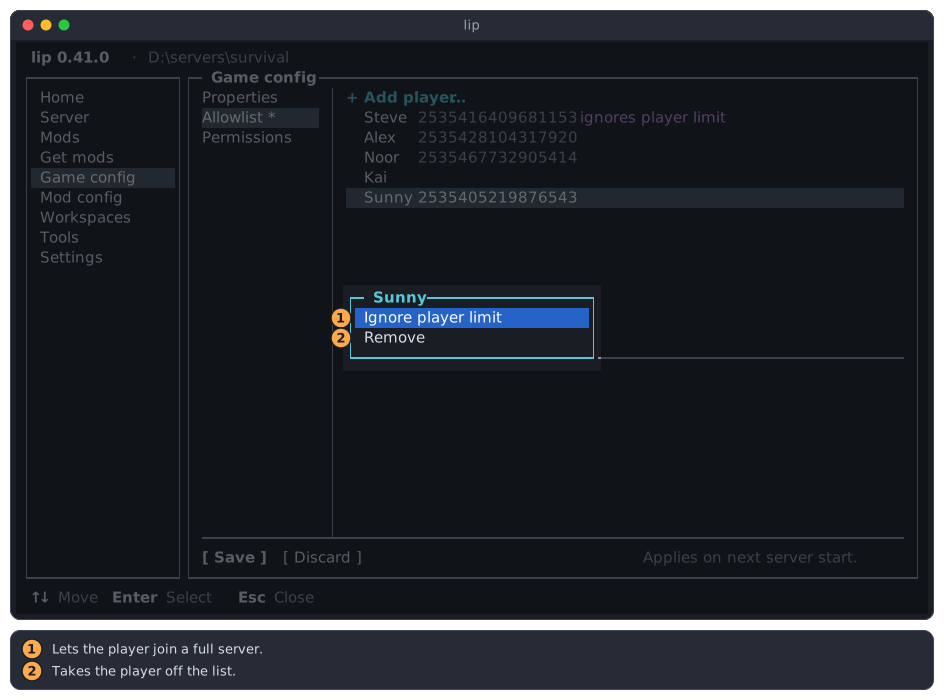
- Ignore player limit lets the player join when the server is full. For a player who has it, the row reads Apply player limit and takes it away again.
- Remove takes the player off the list.
Edit the permissions
The permissions give single players another permission than the one every new player gets, which is the property default-player-permission-level in Properties.
-
In the sections, move to Permissions and press
Enter.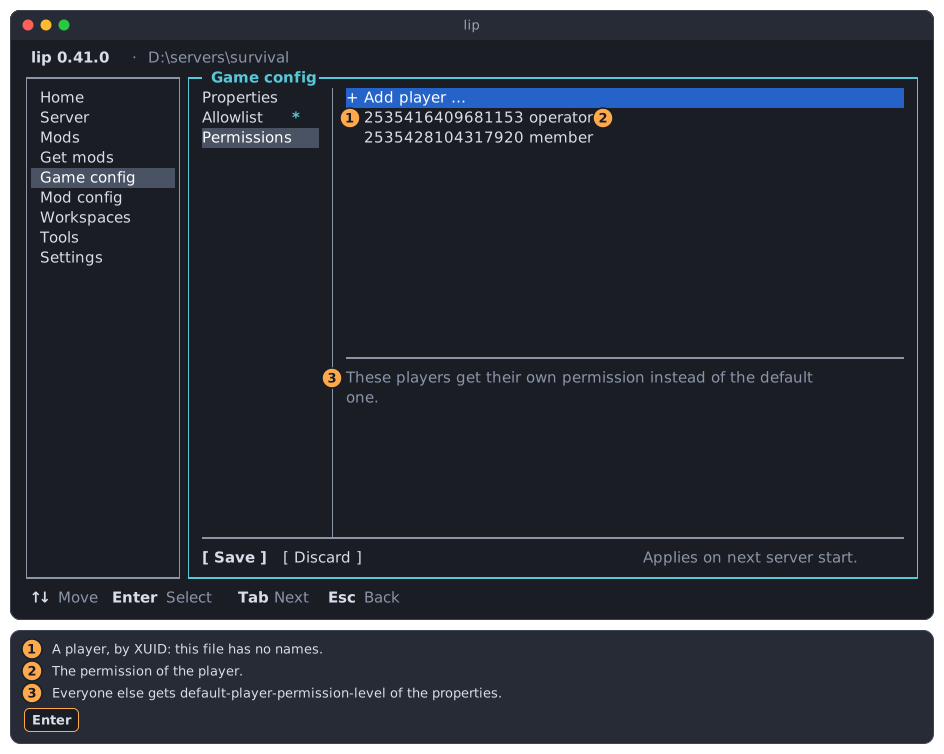
- A player. This file knows players by XUID only, not by name.
- The permission of that player.
- What the list is for.
-
Press
Enteron Add player… and type the XUID of the player.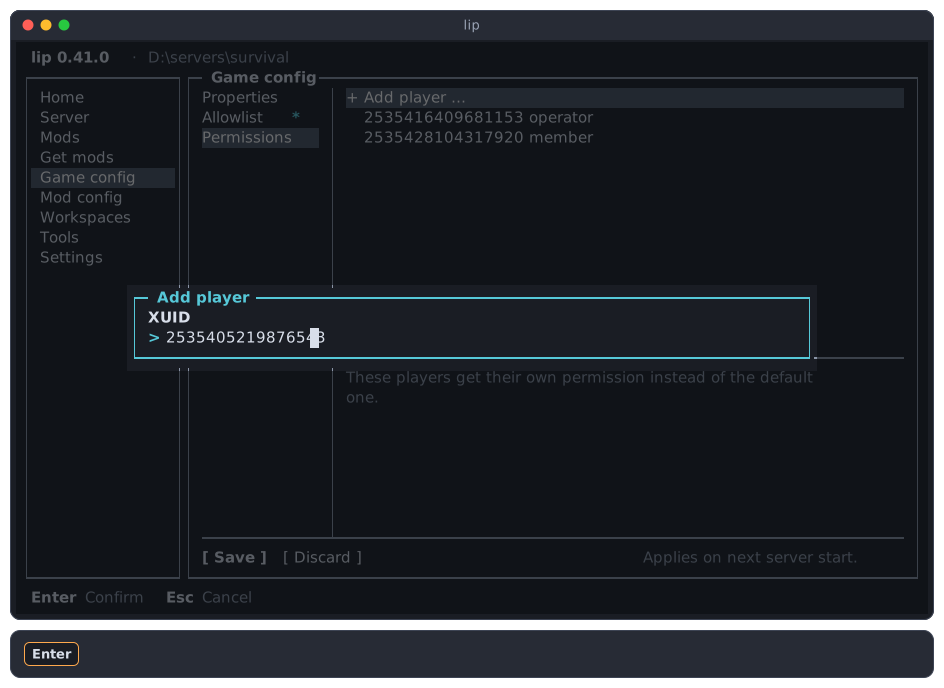
Where to find an XUID
The allowlist shows the XUID of every player whose XUID the file has. The server also writes it to its output when a player connects; see Server.
-
Press
Enterand choose the permission. The list starts onmember, or on the permission that the player has when the XUID is on the list already; then the permission of that player changes and no second row is added.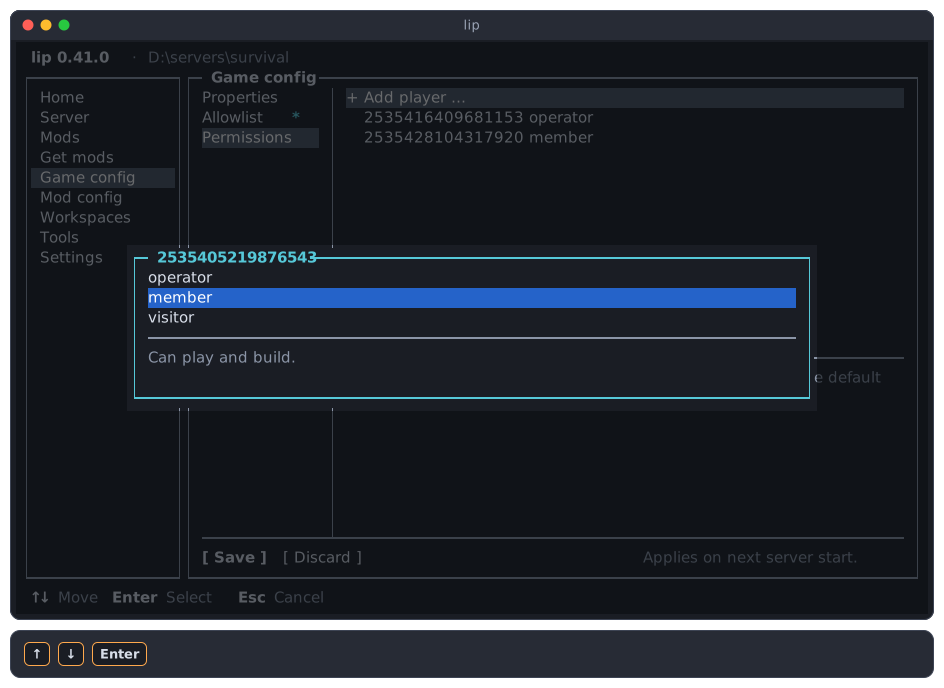
Permission The player operatorCan use every command. memberCan play and build. visitorCan only look around. -
Press
Enteron a player to open its actions: Change permission… opens the same list, and Remove takes the player off the list.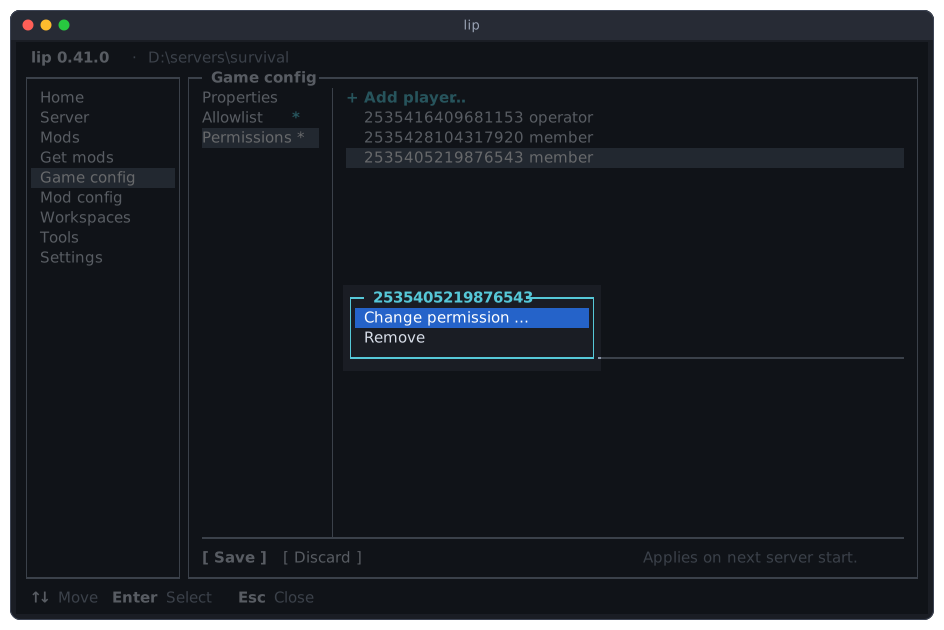
Save or discard your changes
The changes of all three sections are saved together.
-
Press
Tabuntil the buttons have the focus. From the last row of a list,↓goes there too.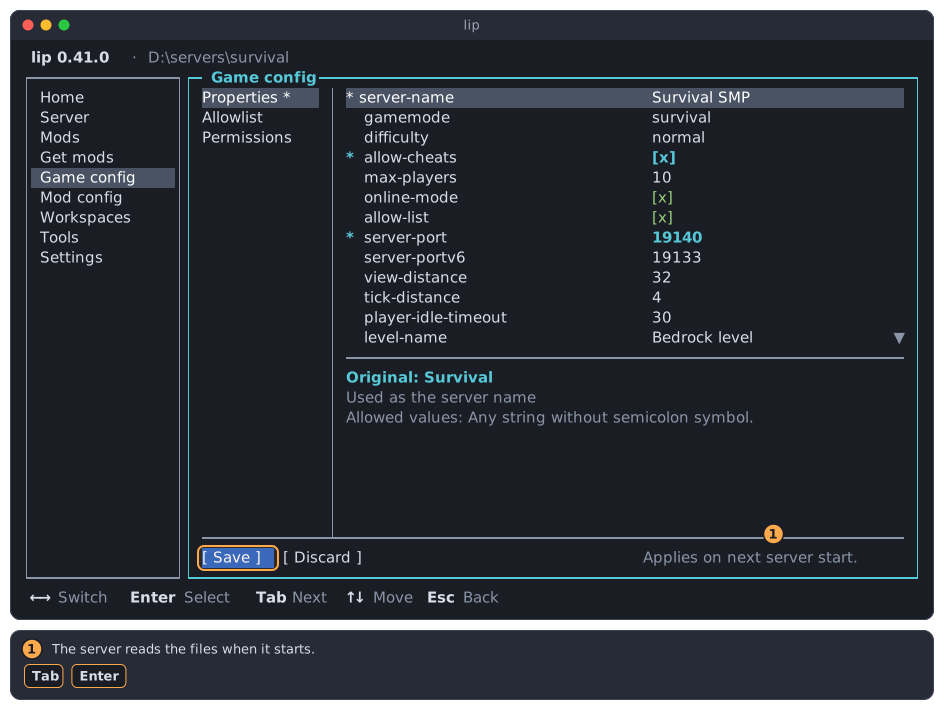
- The note of the page: the server reads the files when it starts.
-
Press
Enteron Save. lip writes every file that has changes, and says Saved. at the bottom right. The stars are gone.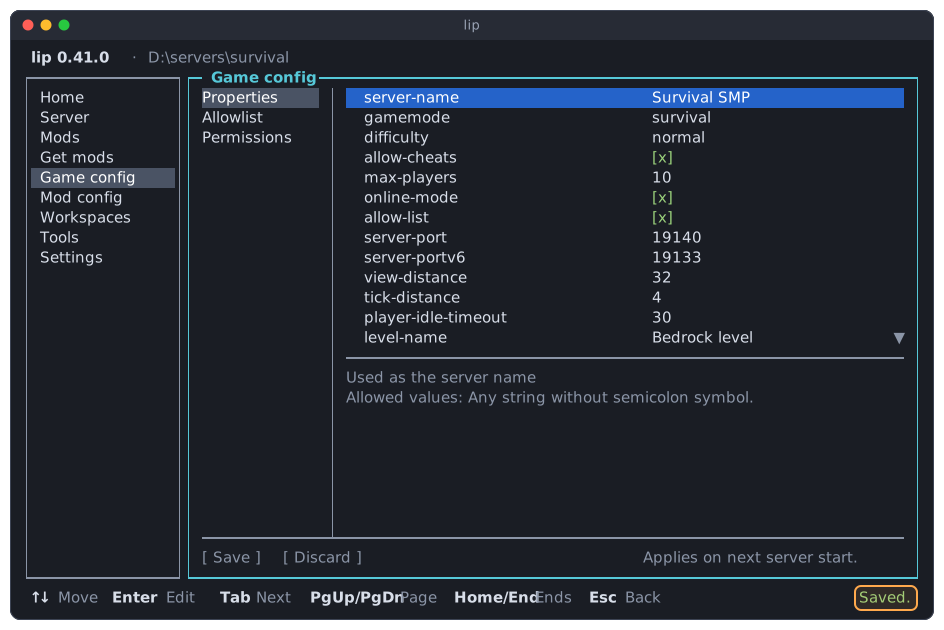
What lip writes:
- In
server.properties, only the values of the properties that you changed. Every other character of the file stays, comments included. allowlist.jsonandpermissions.jsonare written whole. The players keep their order, and what the page does not show of a player is kept. Comments in these files are not kept.allowlist.jsonandpermissions.jsonare created when they do not exist.server.propertiesis not; see Files that cannot be edited.
To drop your changes instead, move to Discard with → and press Enter. lip asks first; then it reads the three files again.
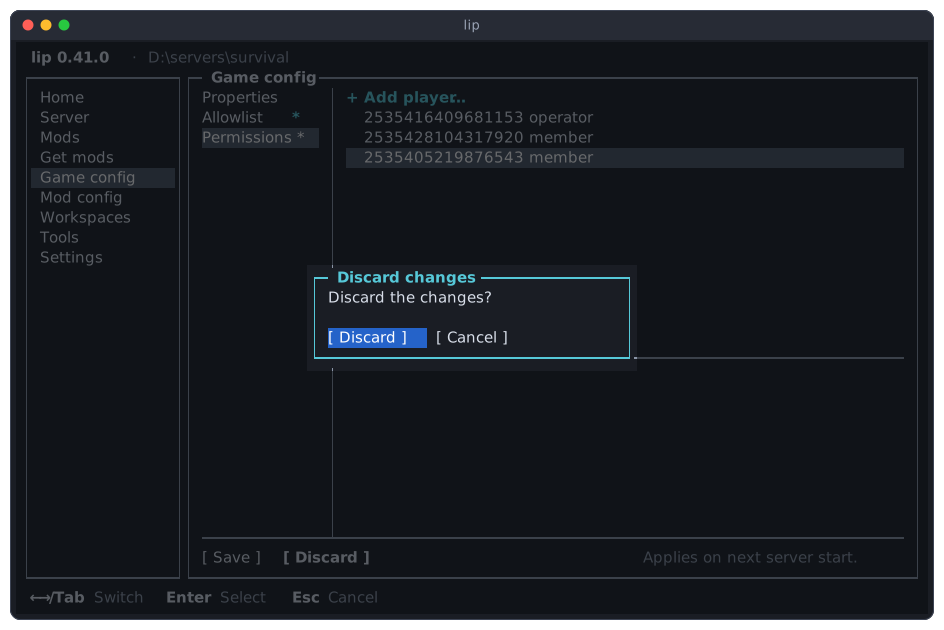
Leave the page with unsaved changes
When you go to another page, select another workspace, or quit lip while changes are not saved, lip asks what to do with them.
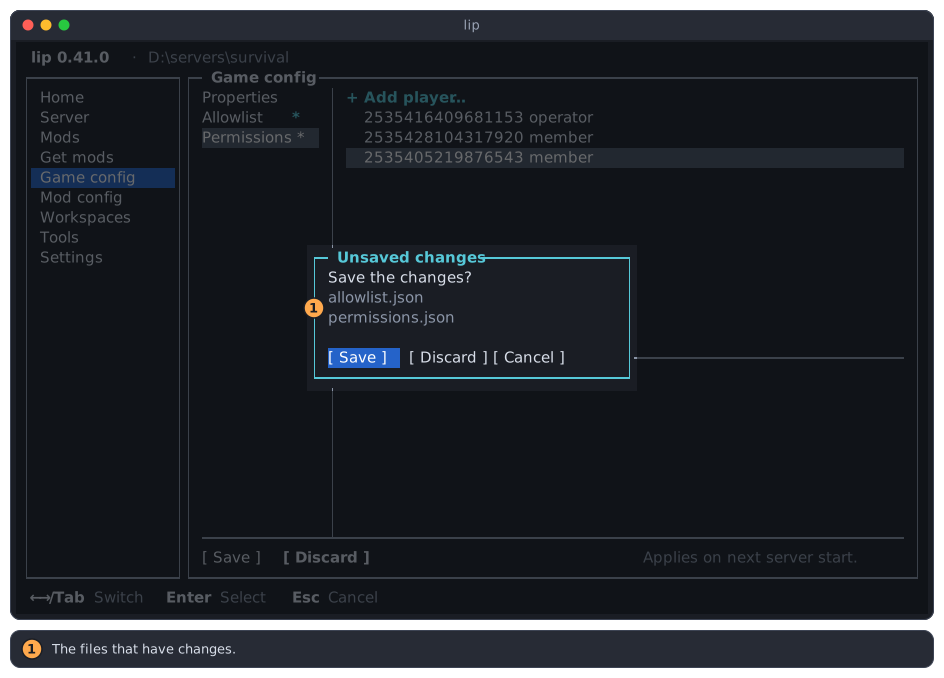
| Button | Does |
|---|---|
| Save | Saves the files it names (1), then goes on. |
| Discard | Drops the changes, then goes on. |
Cancel, or Esc | Stays on the page, with the changes as they are. |
A file that changed on disk
lip reads the files when the page is shown. When a file is no longer what lip read, because the server or you changed it meanwhile, saving does not overwrite it unasked.
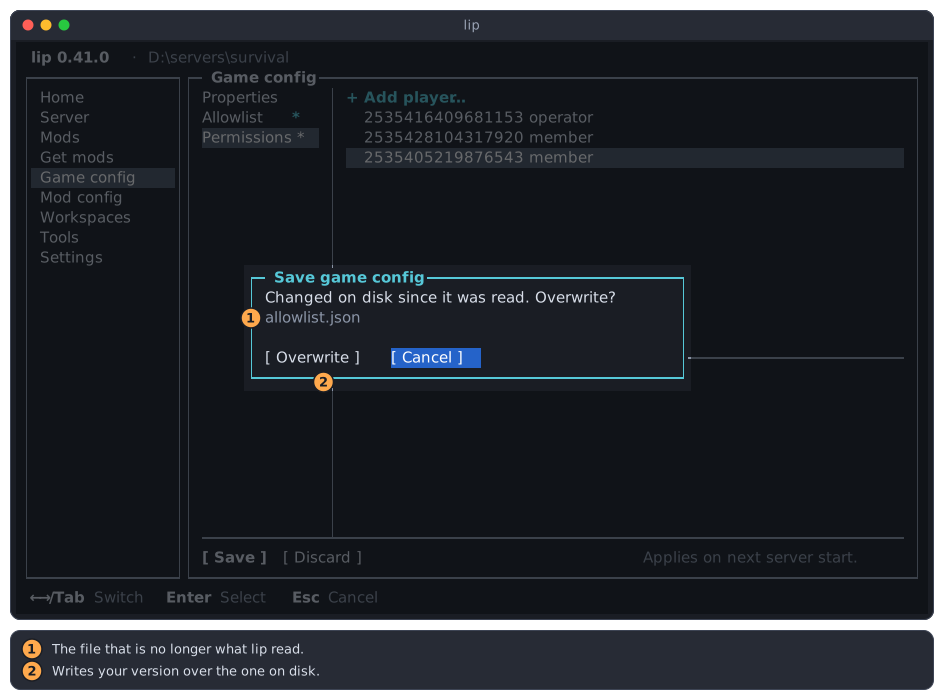
- The file that changed. Nothing was written yet, of this file or any other.
- Overwrite writes your version over the one on disk. Cancel, which
Enterpresses first, writes nothing; your changes stay on the page.
To see what the file holds now, choose Cancel, then Discard.
Files that cannot be edited
A new server has no server.properties until it has run once: the game writes the file when it first starts. The page says so and creates nothing. Start the server once on the Server page, stop it, and come back.
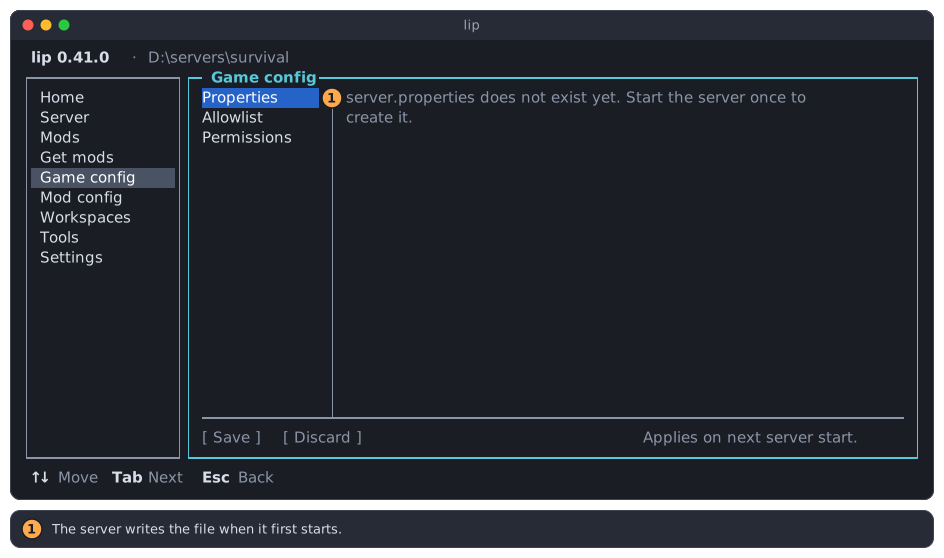
- The server writes the file when it first starts.
A file that lip cannot read, such as an allowlist.json with a mistake in it, is shown as it is and never written. Correct it in a text editor.
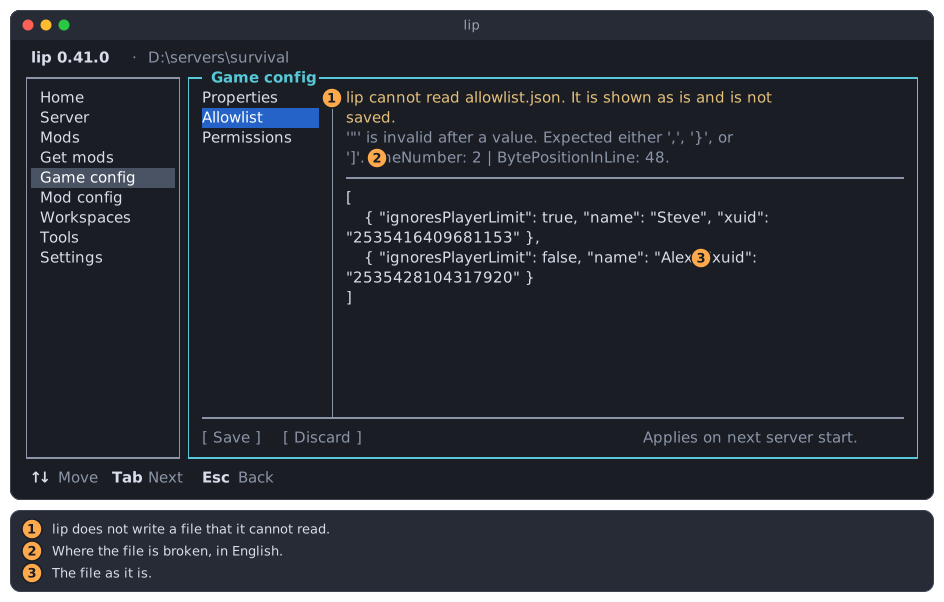
- lip does not write a file that it cannot read. Saving the other sections leaves it alone.
- Where the file is broken. This message is in English in every language.
- The file as it is. When it is longer than the area,
Entergoes into it and↑↓scroll.
While the server runs
While the server of the selected workspace runs, the page only shows the three files: you can look through them, but nothing can be changed or saved. This holds whoever started the server, the interface or a lip run in another terminal. Stop the server on the Server page to edit.
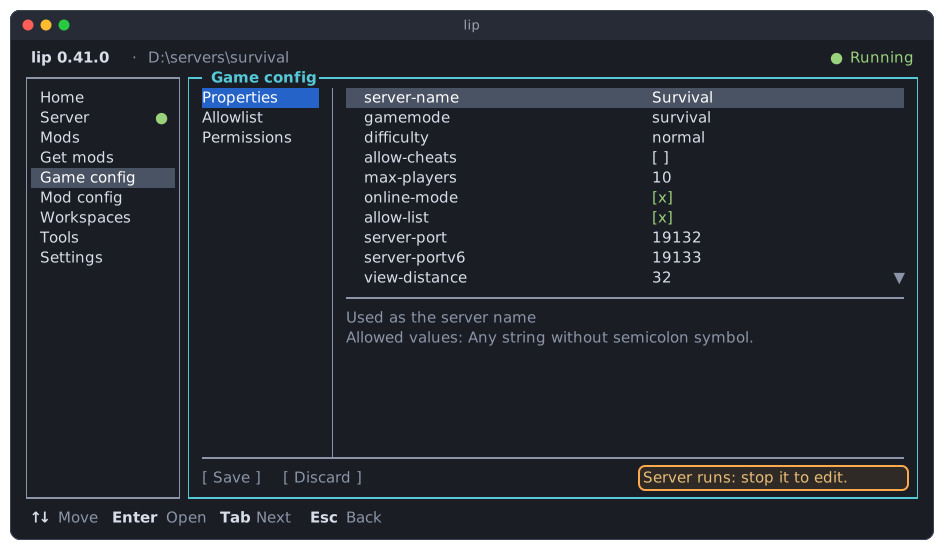
Enter on a row still opens its actions, so that you see what could be done. They are dimmed, and the menu says why: Stop the server first.
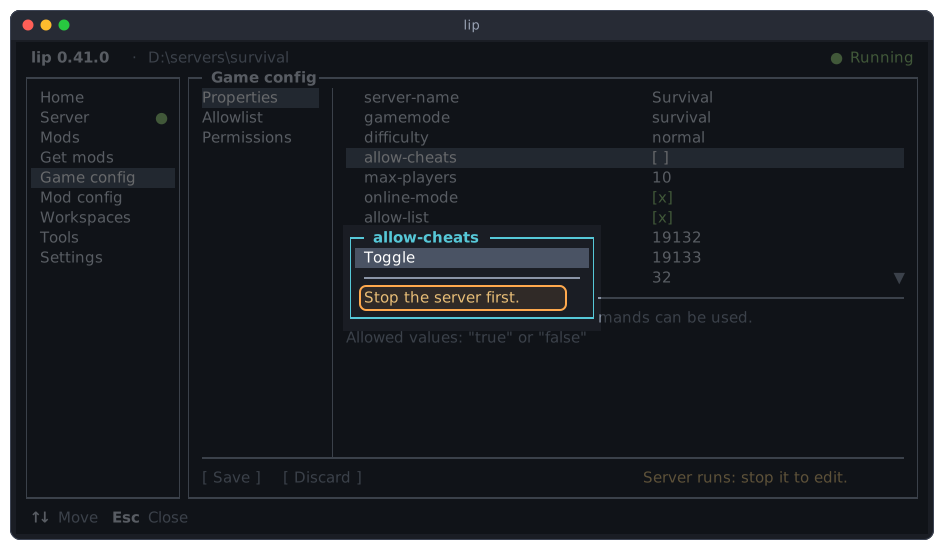
When the server starts while you have unsaved changes, the changes are kept on the page:
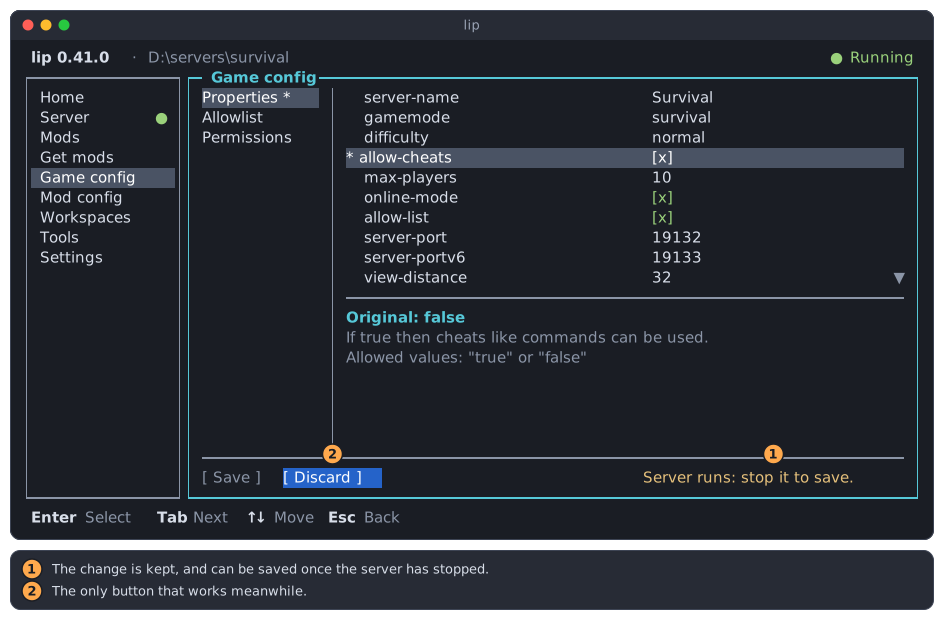
- The note changes to Server runs: stop it to save. Once the server has stopped, save as usual.
- Meanwhile Discard is the only button that works.
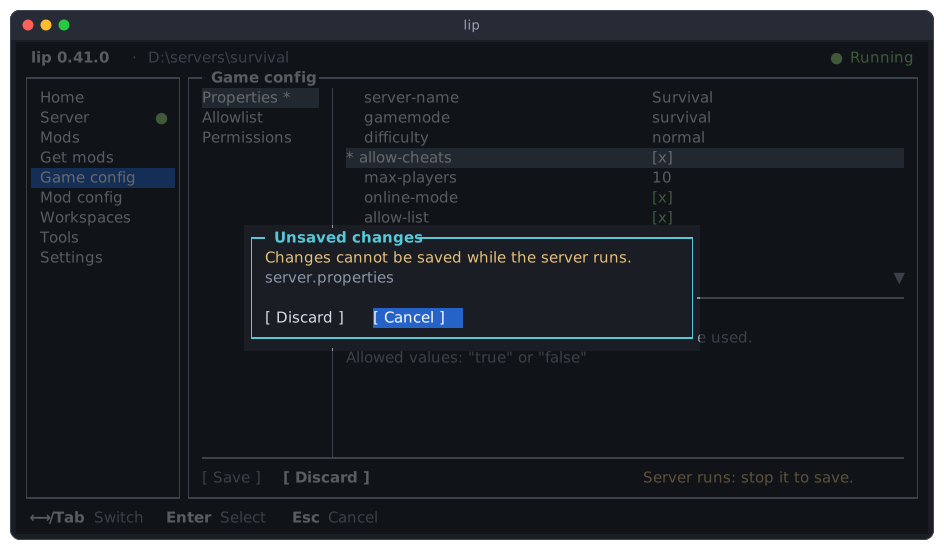
Leaving the page then cannot save either. lip offers to discard the changes or to stay:
When the server has stopped, lip reads the three files again, since the server may have written them. It does not do so while you have unsaved changes; saving them then asks before it overwrites a file that changed on disk.
The configuration files of mods are different: they can be saved while the server runs. See Mod config.