
Mod config
After this page you can change the settings of your mods from the interface, without looking for their files or editing JSON by hand.
The Mod config page lists the configuration files of the installed mods. A JSON file opens as a tree of names and values that you change one at a time. A file in another format is shown, to be edited in a text editor.
Which files the page lists
Each mod has a folder of its own in the server, mods/<mod>/, where <mod> is the name of the mod. For each installed mod, lip lists:
- every file in
mods/<mod>/config/, and in the folders below it; or, - when there is none: the
.json,.ini,.toml,.ymland.yamlfiles directly inmods/<mod>/(but notmanifest.json), andmods/<mod>/data/config.json.
Most mods write their configuration file when the server first starts with them. lip creates no configuration file.
The files
Open the page: in the sidebar, move to Mod config and press Enter.
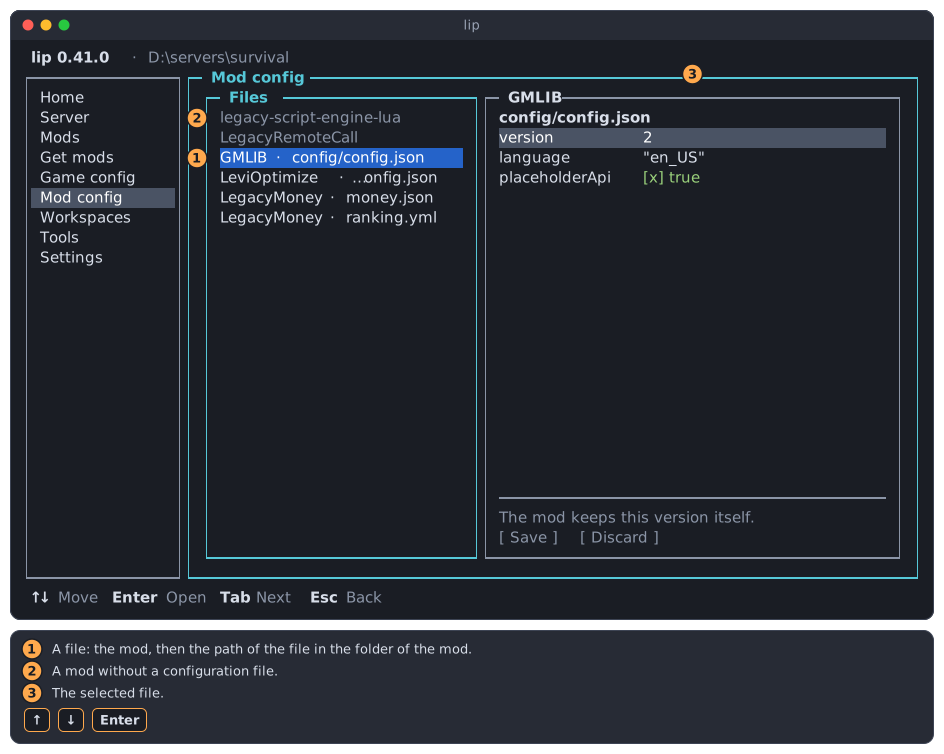
- A file: the name of the mod's folder, then the path of the file inside the folder of the mod. A mod with several files has several rows.
- A mod without a configuration file, dimmed.
- The selected file. The page opens on the first file of the list.
Move with ↑ and ↓: the right side follows. In a list that is too narrow for a long name, the end of the name is cut; the right side shows the mod in its title and the path of the file in its first line.
A mod without a file has nothing to show:
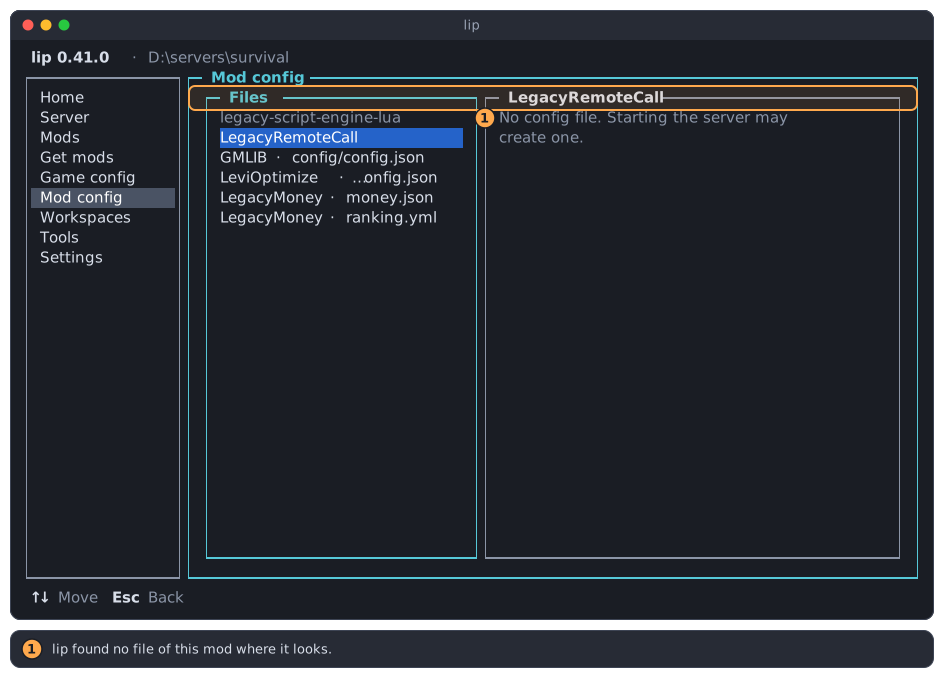
- lip found no file of this mod where it looks. The mod may write one when the server next starts.
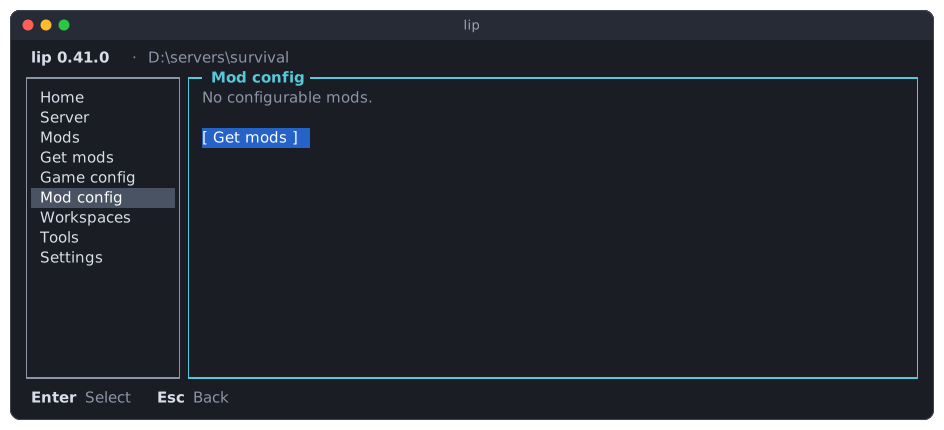
When no installed mod has a folder of its own, or no mod is installed at all, the page says No configurable mods. Enter on Get mods opens the Get mods page.
Edit a JSON file
Press Enter or → on a file to go into it. The page shows one level of the file at a time: a row for each name, with its value.
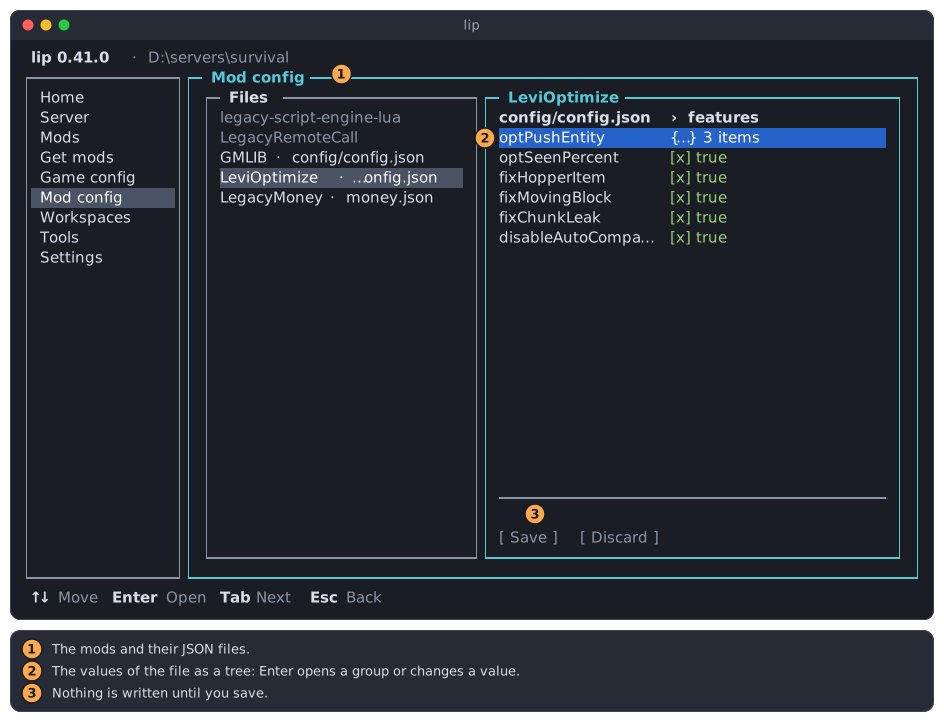
- The mods and their files.
- The values of the file, one level at a time.
- Save and Discard: nothing is written until you save.
| A value shown as | Is | Enter |
|---|---|---|
{…} 3 items | A group of named values (a JSON object). | Opens it. |
[…] 1 item | A list of values (a JSON array). | Opens it. |
[x] true, [ ] false | True or false. | Switches it; so does Space. |
3, 0.05 | A number. | Asks for another number. |
"en" | A text. | Asks for another text. |
null | Empty. | Asks for a value of any kind. |
The line below the rows says what kind of value the selected row holds.
Move through the file
- Move to a group or a list and press
Enterto open it. - Press
Escor←to go back up one level. At the top level,Escgoes back to the list of files.
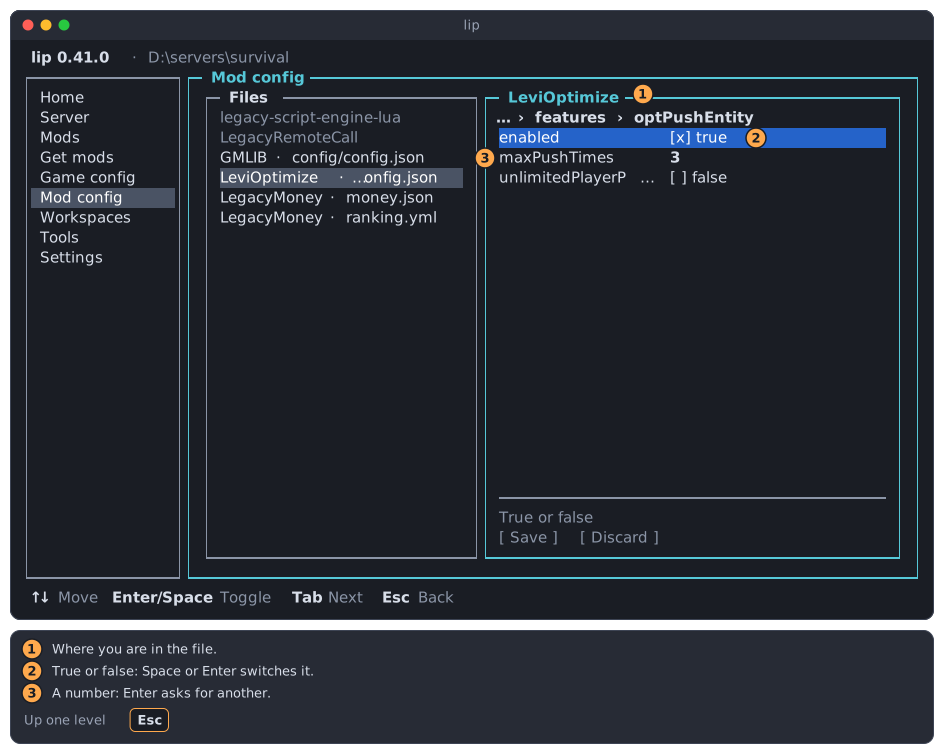
- Where you are: the file, then each level that you opened. When the line is too long, its start is replaced by
…. - A value that is true or false.
- A number.
A name that is too long for its column is cut with ….
Change a value
On a number or a text, Enter opens a field with the value. Type the new one and press Enter; Esc closes the field without a change.
A value keeps its kind. A number takes a number only; a text takes what you type as it is, spaces included, so 5 typed into a text stays the text "5".
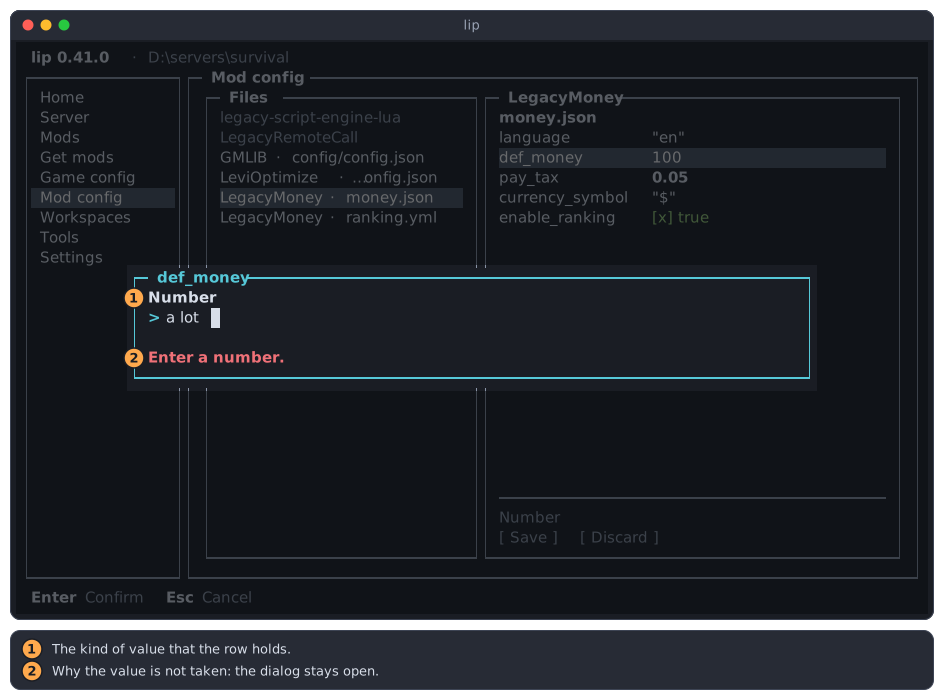
- The kind of value that the row holds.
- Why the value is not taken. Correct it and press
Enteragain.
On a value that is true or false, Space or Enter switches it at once.
Change a list
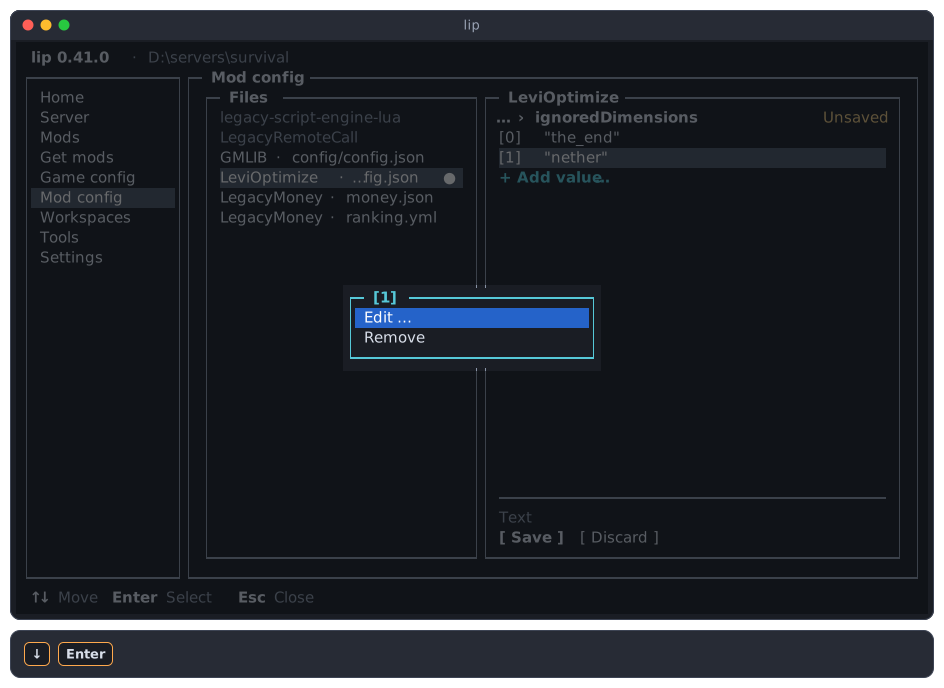
A list shows its values with their positions, [0], [1], and so on, and ends with the row Add value….
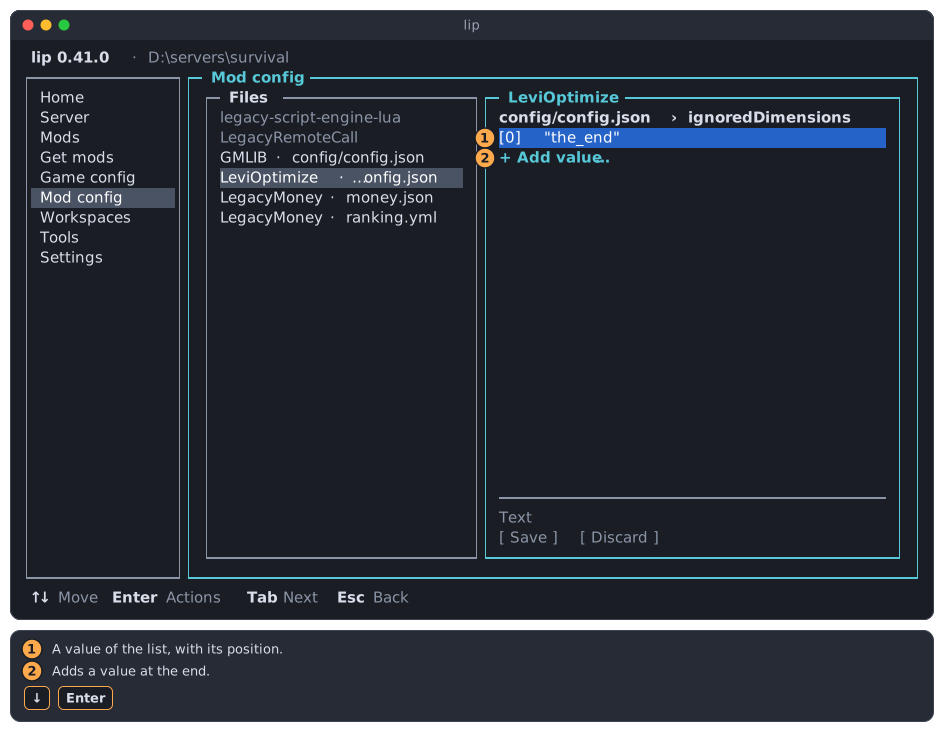
- A value of the list.
- The row that adds one.
To add a value, press Enter on Add value… and type it. What you type is read as JSON: 42 is a number, true is true, {"a": 1} is a group. Anything that is not JSON becomes a text, so you need no quotes around a word.
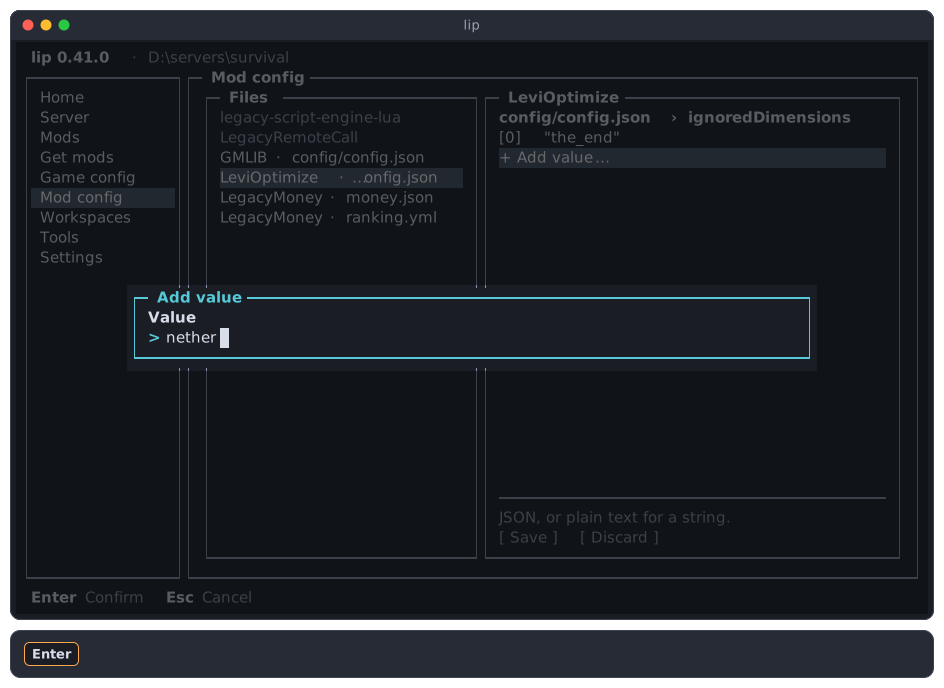
The value is added at the end of the list.
To change or remove a value of a list, press Enter on it. Its menu has Edit… (or Toggle, or Open, by the kind of value) and Remove.
What the page cannot do
Only lists grow and shrink. The page does not add a name to a group, remove one, or rename one: the mod decides which names its file has. For such a change, edit the file in a text editor.
The version row
Many mods keep a whole number named version at the top of their file, to know which layout the file has. The page shows it dimmed and does not let you change it: Enter does nothing there, and the line below the rows says why.
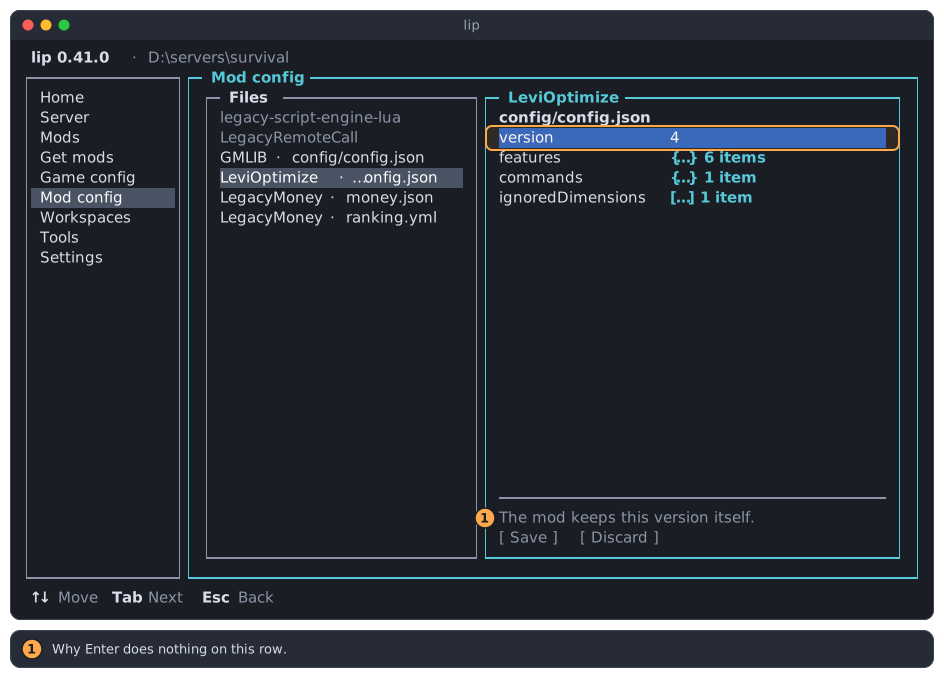
- Why
Enterdoes nothing on this row.
Save or discard your changes
Nothing is written while you edit. The page marks a file that has changes:
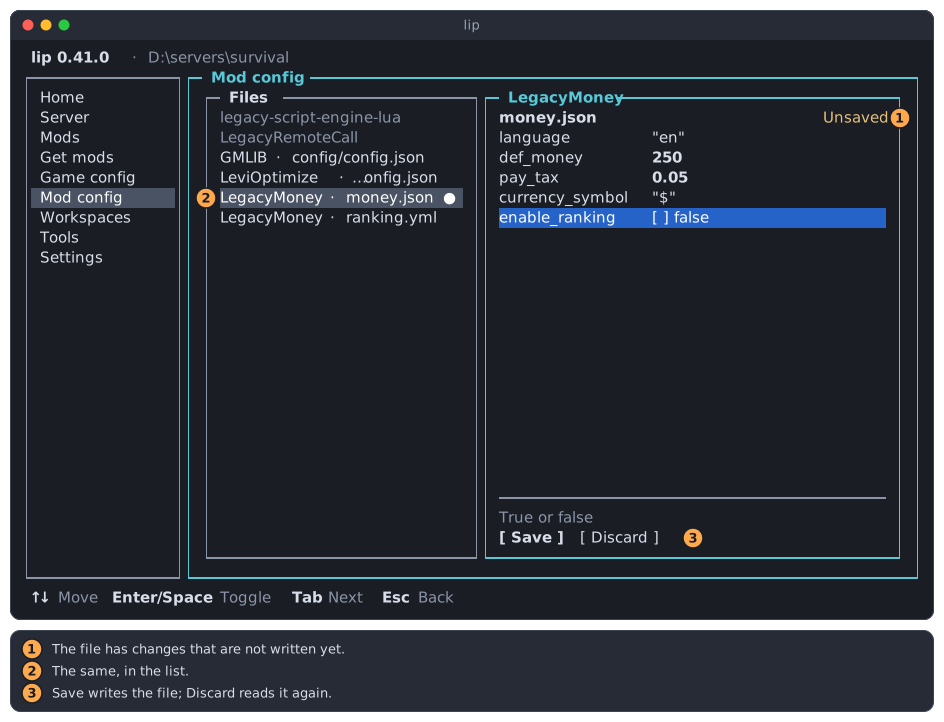
- Unsaved, at the right of the first line.
- A dot
●after the file in the list, when the list has room for it. - Save and Discard, which can be chosen now.
To save:
-
Press
Tabuntil the buttons have the focus. From the last row,↓goes there too.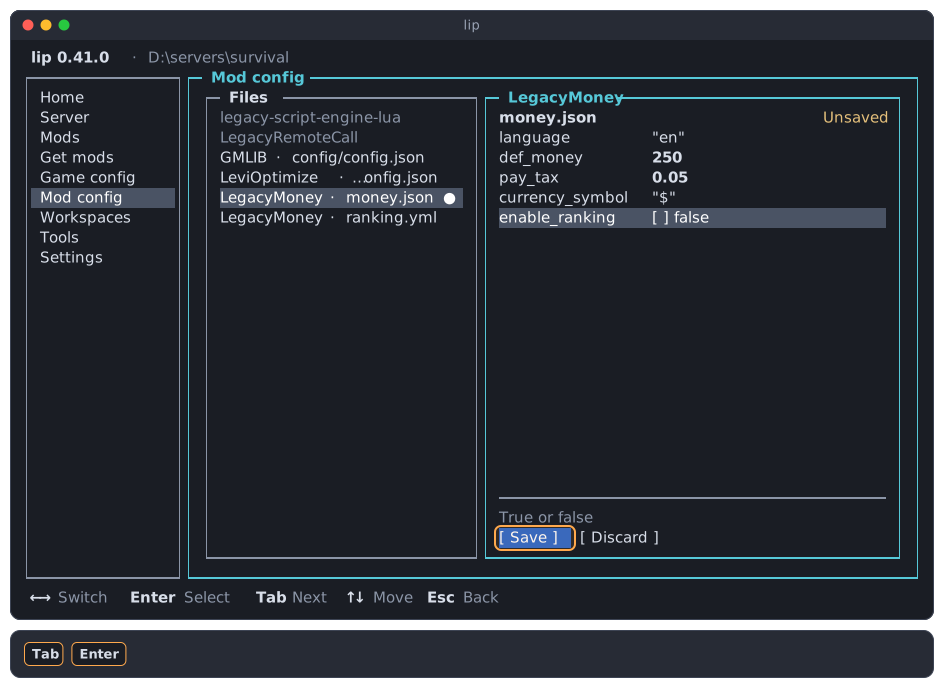
-
Press
Enteron Save. lip writes the file and says Saved. at the bottom right.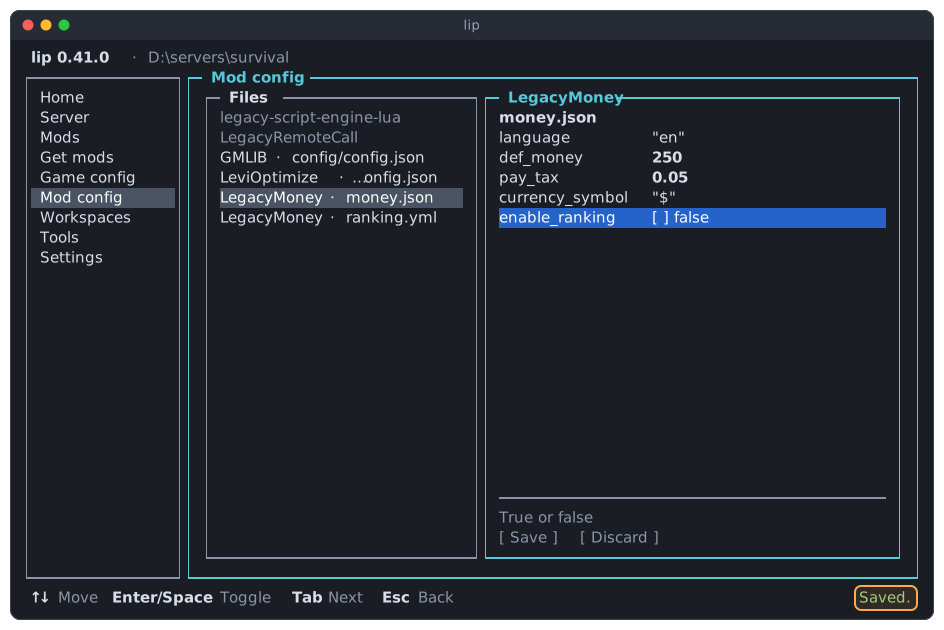
lip writes the whole file again: the values as you left them, each name where it was, indented with four spaces. Comments in the file are not kept. A file that was deleted meanwhile is not created again: lip says The file is gone.
Discard asks first, then reads the file again, which drops your changes.
Go elsewhere with unsaved changes
You edit one file at a time. When you select another file, go to another page, select another workspace, or quit lip while the file has changes, lip asks what to do with them.
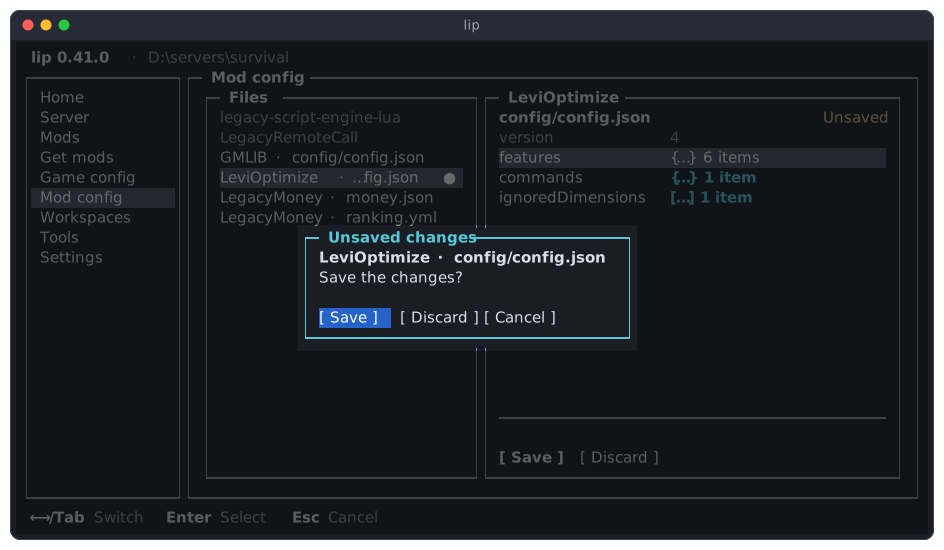
| Button | Does |
|---|---|
| Save | Saves the file, then goes on. |
| Discard | Drops the changes, then goes on. |
Cancel, or Esc | Stays in the file, with the changes as they are. |
A file that changed on disk
Mods write their configuration files themselves, some of them while the server runs. When the file is no longer what lip read, saving does not overwrite it unasked.
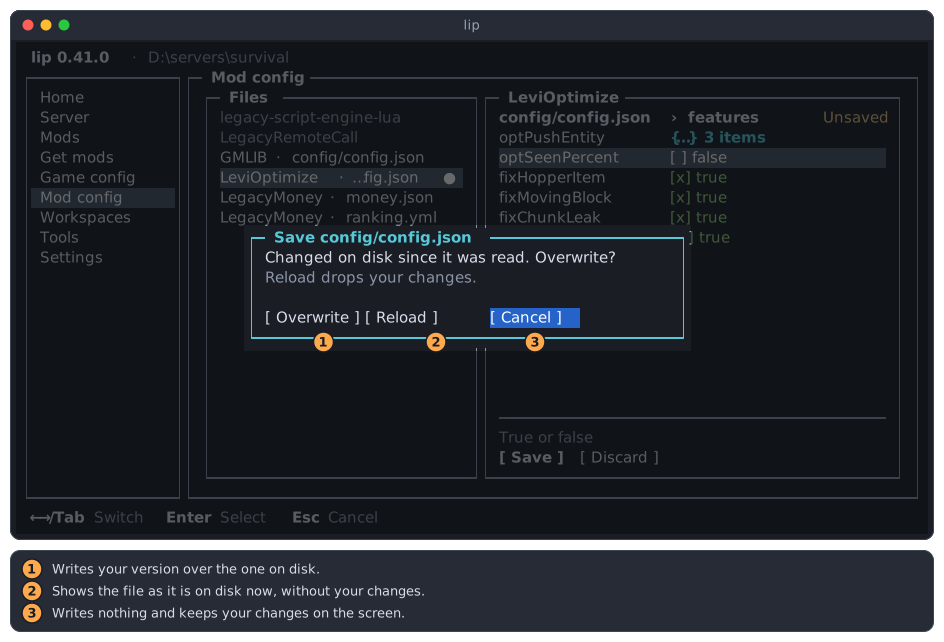
- Overwrite writes your version over the one on disk. What the mod wrote is lost.
- Reload shows the file as it is on disk now. Your changes are lost.
- Cancel, which
Enterpresses first, writes nothing and keeps your changes on the screen.
Files that are only shown
A file that is not JSON is shown as text, below the line Read-only. Use a text editor. Change it in a text editor, outside lip.
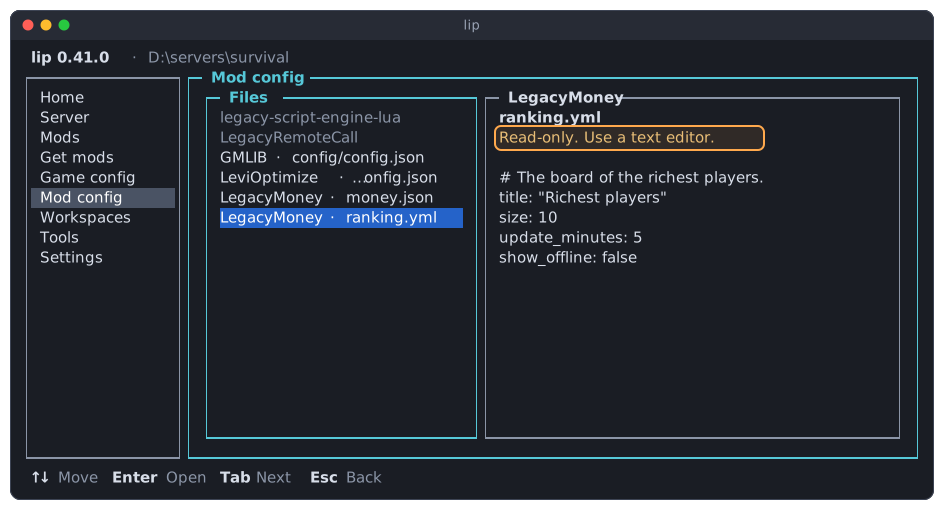
A .json file that is not valid JSON is shown the same way, below Read-only: not valid JSON. and what the JSON reader says about it. Comments (// and /* */) and a comma after the last value do not make a file invalid: lip reads them.
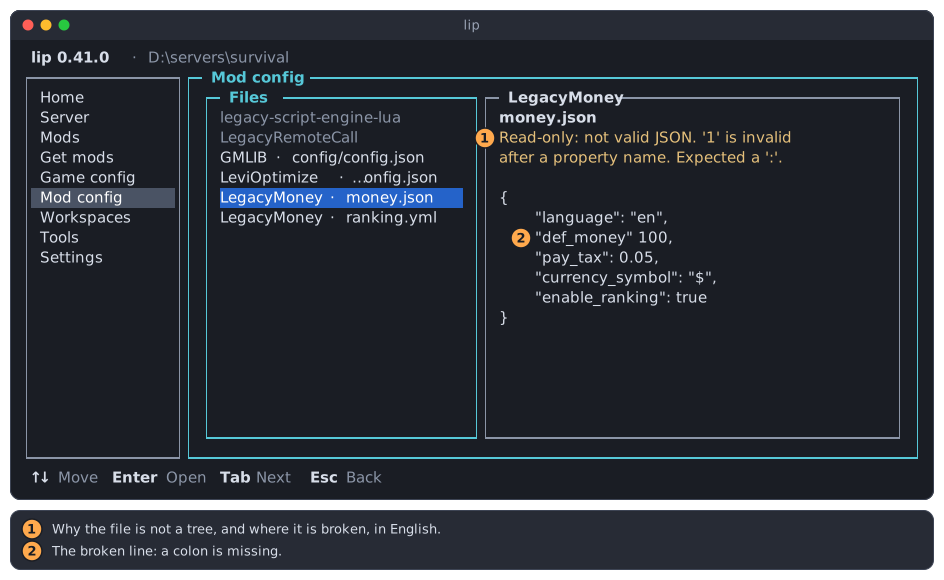
- Why the file is not a tree. What the JSON reader says is in English in every language.
- The mistake, here a missing colon. Correct it in a text editor and open the page again.
When the text is longer than the area, Enter goes into it; ↑, ↓, PgUp, PgDn, Home and End scroll, and Esc goes back to the list.
While the server runs
Unlike the Game config page, this page lets you change and save while the server runs. The last line of the page then says Changes may need a server restart.: many mods read their configuration only when the server starts.
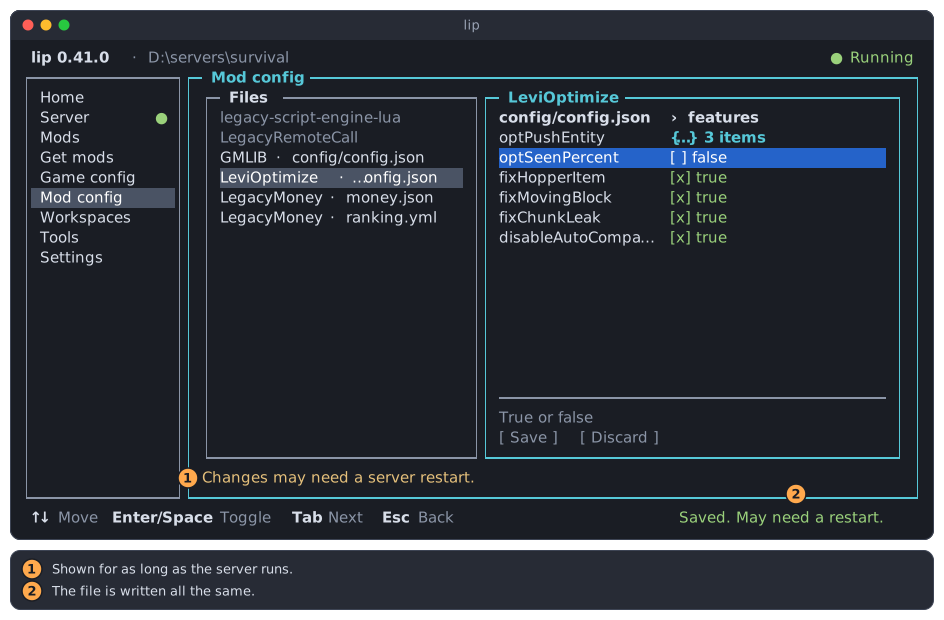
- The note, shown for as long as the server runs.
- What saving says meanwhile.
Whether a change needs a restart depends on the mod. When in doubt, restart the server on the Server page.
In a narrow terminal
When the terminal is too narrow to show the list and the file side by side, under about 90 columns, the page shows one of them at a time.
-
The list of files fills the page. Press
Enteron a file.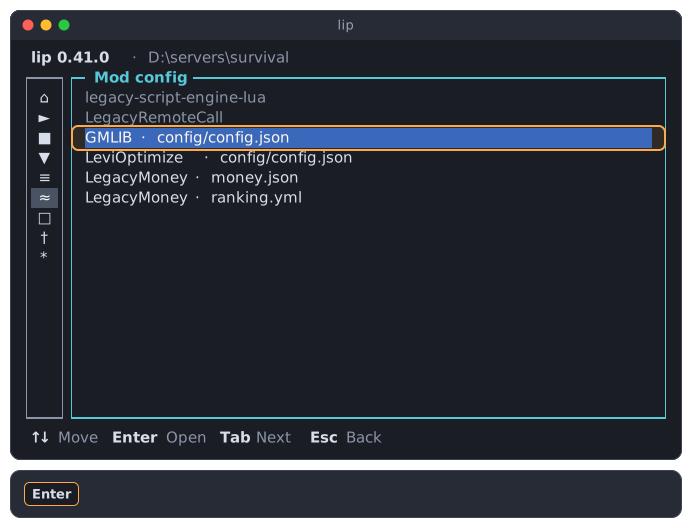
-
The file fills the page. Its first line names the mod and the file. Press
Escat the top level to go back to the list.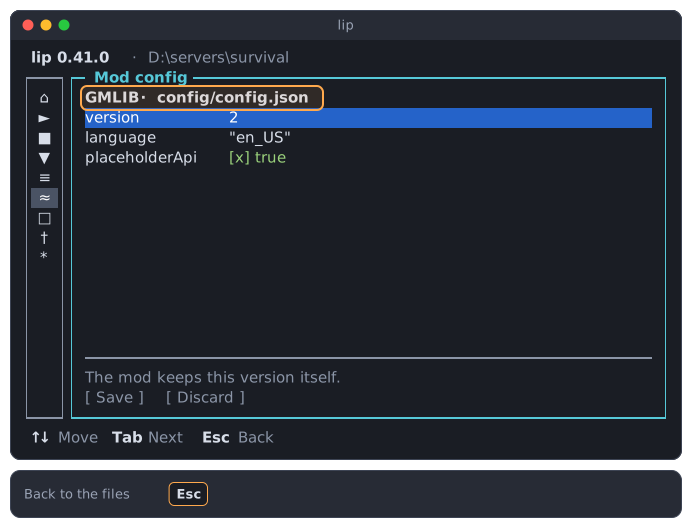
Everything else works as in a wide terminal. Small terminals says more about narrow terminals.