
Tools
After this page you can use the four tools of the interface for people who make packages: create a lip.toml, migrate an old tooth.json, pack a ZIP, and look at the package file of any package.
If you only run a server, you do not need this page. To learn what a package is and how to publish one, read Creating packages.
The page
The tools work in the selected workspace. To work on a mod of yours, start lip in the folder of the mod, or add that folder on the Workspaces page.
Open the page: in the sidebar, move to Tools and press Enter.
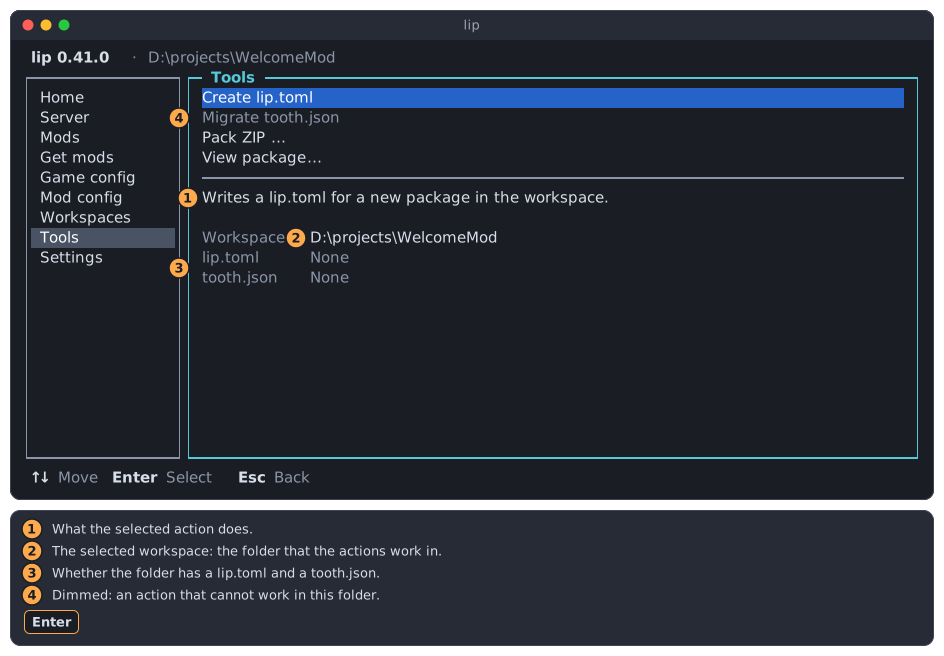
- What the selected action does. Move with
↑and↓;Entercarries the action out. - The selected workspace: the folder that the actions work in.
- Whether that folder has a
lip.tomland atooth.json: Found or None. lip looks again every two seconds, so the lines follow what you do outside lip. - A dimmed action: one that cannot work in this folder as it is. See Dimmed actions.
| Action | Does | Command |
|---|---|---|
| Create lip.toml | Writes the package file of a new package. | lip pkg init |
| Migrate tooth.json | Converts the package file of lip 0.x to a lip.toml. | lip pkg migrate |
| Pack ZIP… | Packs a folder into a ZIP archive. | lip pkg pack |
| View package… | Shows the package file and the versions of a package. | lip pkg view |
An action whose name ends in … asks before it does anything.
Dimmed actions
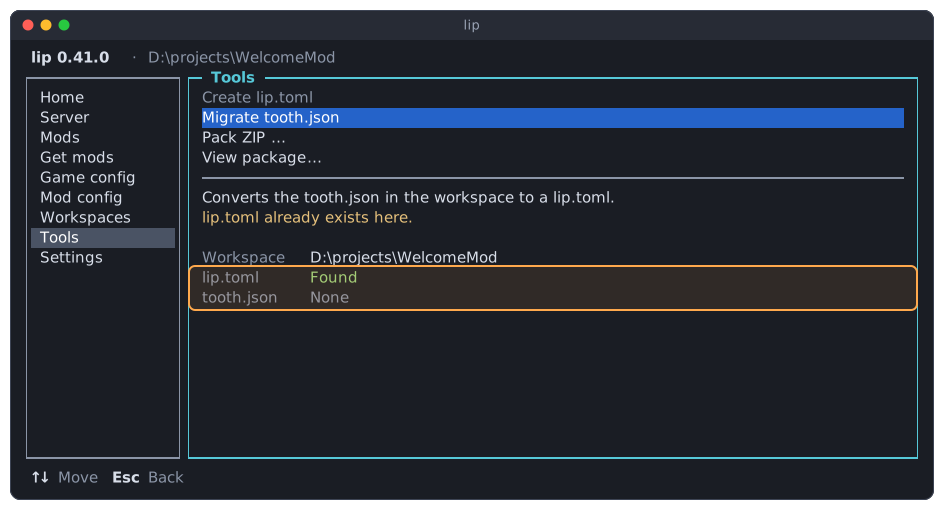
The two files of the status lines decide which actions can work. An action that they rule out is dimmed. When you select it, a line below its sentence says why, and the bottom line of the screen no longer offers Enter.
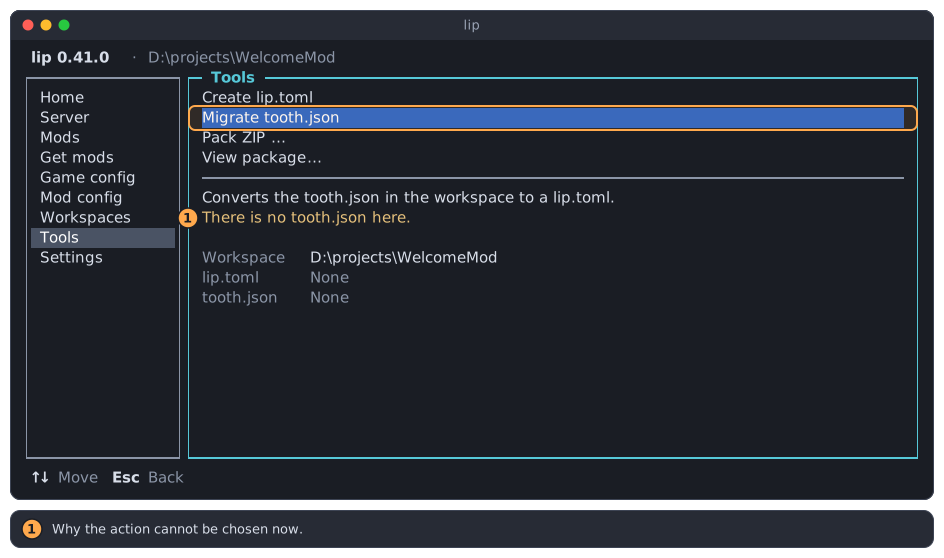
- The reason.
| Action | Dimmed when | The page says |
|---|---|---|
| Create lip.toml | The folder has a lip.toml. lip does not replace one. | lip.toml already exists here. |
| Migrate tooth.json | The folder has a lip.toml. | lip.toml already exists here. |
| Migrate tooth.json | The folder has no tooth.json. | There is no tooth.json here. |
Pack ZIP… and View package… are never dimmed. Whether a server runs makes no difference to this page: none of the four actions changes a server.
The action comes back as soon as the files allow it. To start over with a new lip.toml, delete the old one in a file manager; within two seconds the page shows lip.toml None, and Create lip.toml can be chosen again.
Create lip.toml
-
Move to Create lip.toml and press
Enter. lip asks for the package id.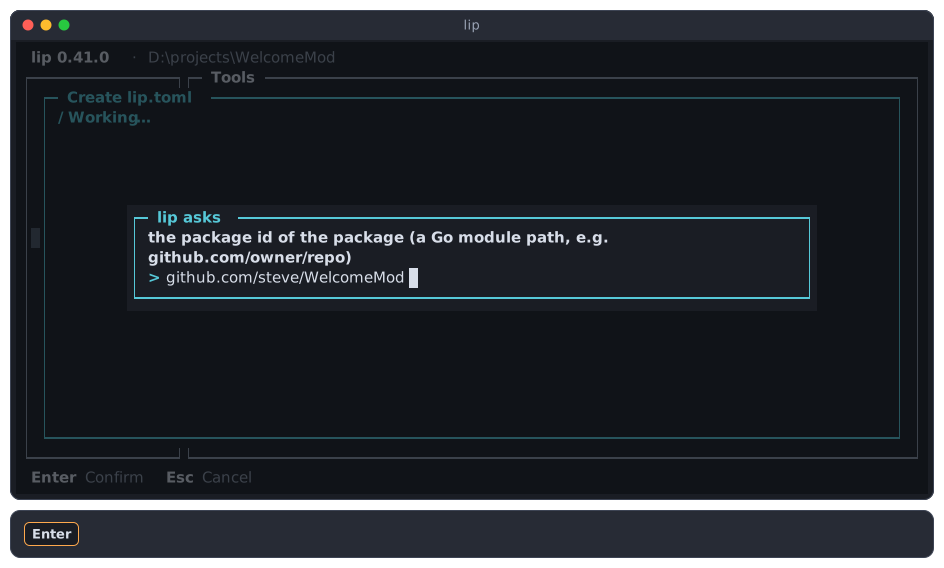
-
Type the id and press
Enter. The id is the address of the repository of the package, such asgithub.com/owner/repo. An answer that is not such an address is asked for again.Esccancels, and nothing is written. The question itself comes from the command, and is in English. -
lip writes
lip.tomlin the workspace and says so. PressEnter.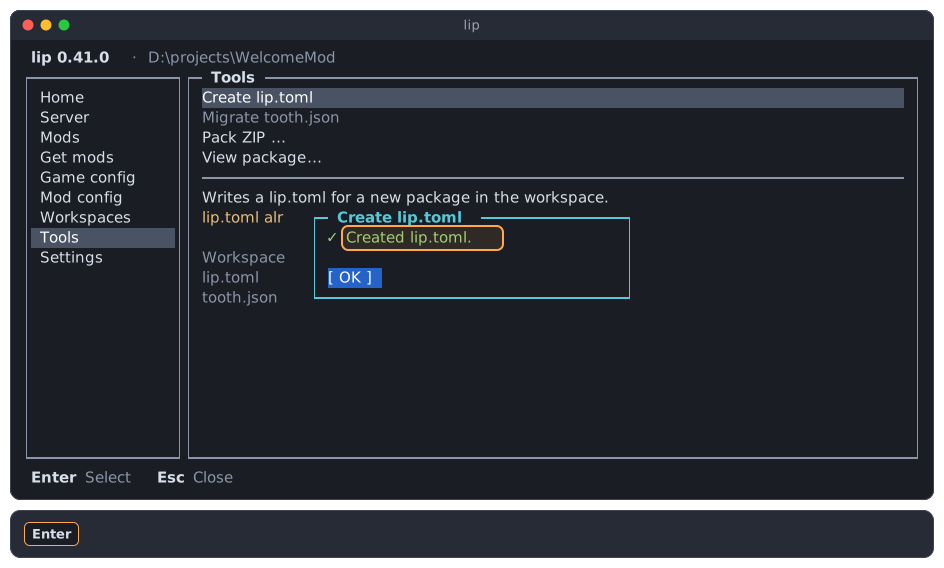
The file has the id you gave, the version 0.1.0, and one entry for a server on Windows x64:
format = 4
id = "github.com/steve/WelcomeMod"
version = "0.1.0"

[[variants.""]]
side = "server"
platform = "win-x64"
Edit it in a text editor from here on; lip.toml describes every field.
Now that the file exists, the action is dimmed:
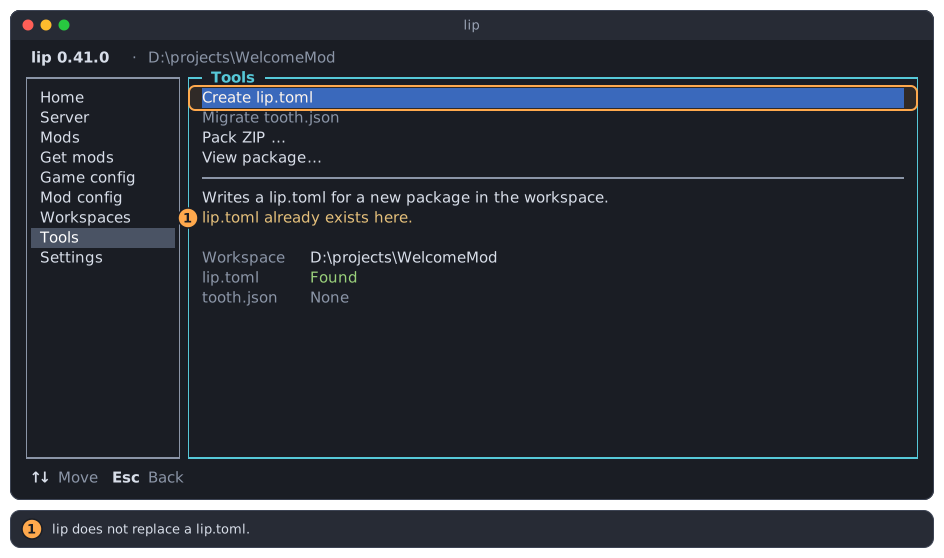
- lip does not replace a
lip.toml.
Migrate tooth.json
Packages of lip 0.x describe themselves in a tooth.json. This action writes the lip.toml that says the same, and deletes the tooth.json.
-
Move to Migrate tooth.json. It can be chosen when the status lines read
lip.tomlNone andtooth.jsonFound.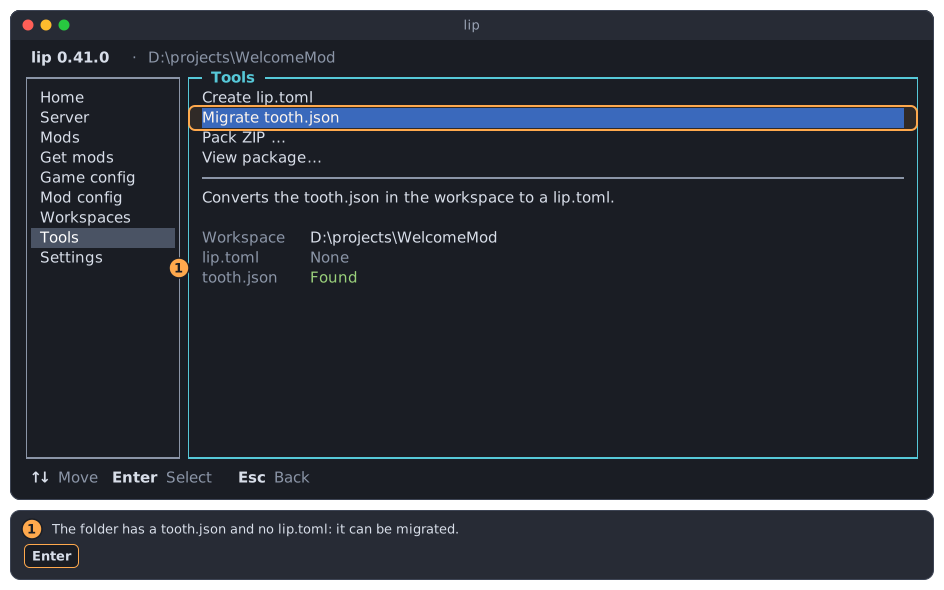
- The status lines that make the action possible.
-
Press
Enter. When thetooth.jsonlacks something that alip.tomlneeds, lip asks for it, once for each such value. Here the old file did not say which platform it is for: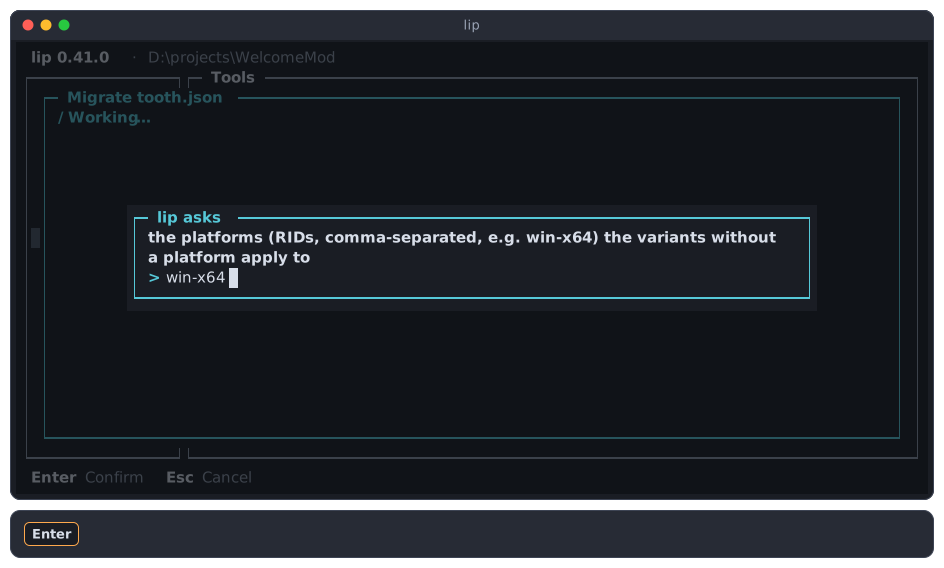
Type the answer and press
Enter. An answer that is not valid is asked for again. -
lip shows the result. Press
Enter.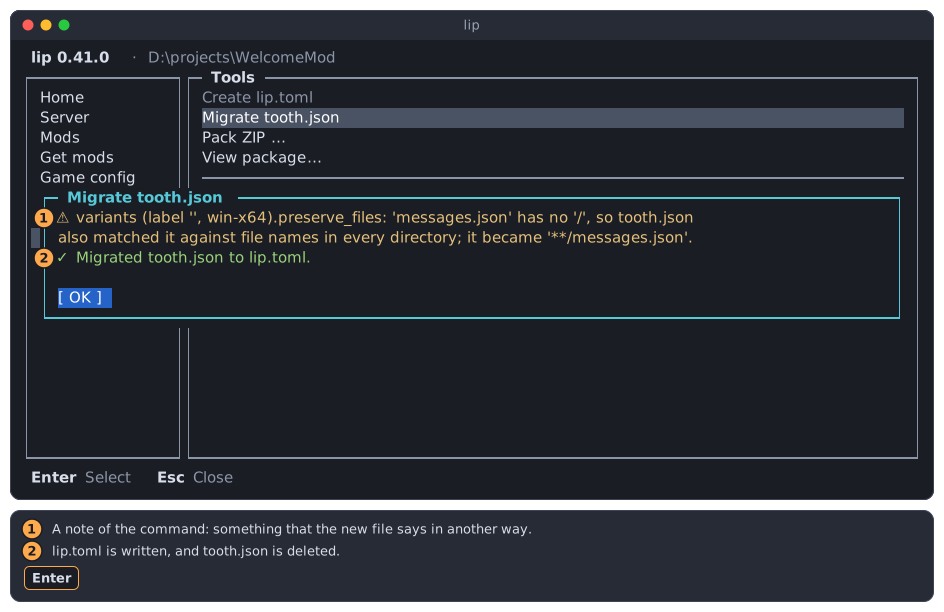
- A note, marked
⚠: something that the new file says in another way than the old one, or that it has no place for. Read each note and check that part oflip.toml. The notes are in English. - The result:
lip.tomlis written, andtooth.jsonis deleted.
- A note, marked
-
The status lines now read the other way round, and the action is dimmed: there is nothing left to migrate.
Migrating packages explains what changes between the two formats.
Pack ZIP…
This action packs a folder into the ZIP archive that you attach to a release of your package. It asks two things: the folder, and the file to write.
-
Move to Pack ZIP… and press
Enter. The folder browser opens in the workspace, titled Folder to pack.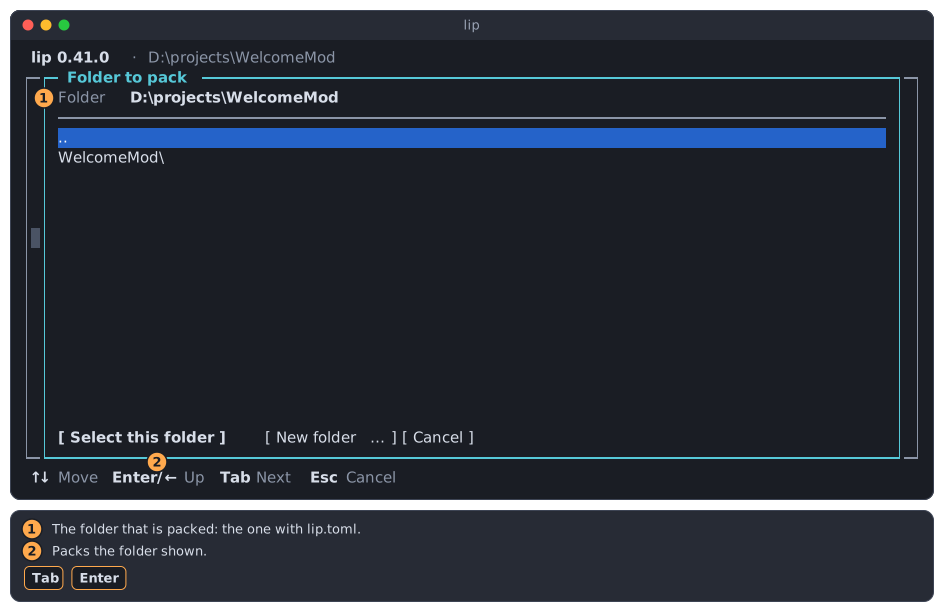
- The folder that will be packed. To pack the workspace itself, leave it as it is; otherwise open another folder.
- Press
Tabto reach the buttons, andEnteron Select this folder.
-
A second browser opens, titled Save ZIP. It offers the name
package.zipin the workspace.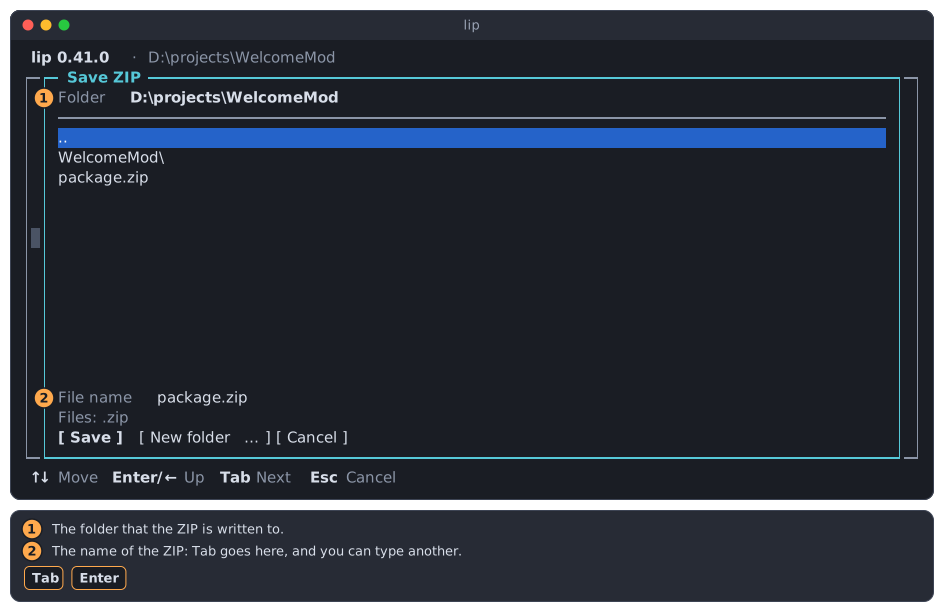
- The folder that the ZIP is written to. Open another folder to save it elsewhere.
- The name of the ZIP. Press
Tabto go there and type another name;.zipis added when you leave it out.Enterin this field saves.
Escgoes back to the first step. -
When a file of that name exists, lip asks before it replaces it.
Enterpresses Cancel first, which leads back to the name; press←and thenEnterto replace.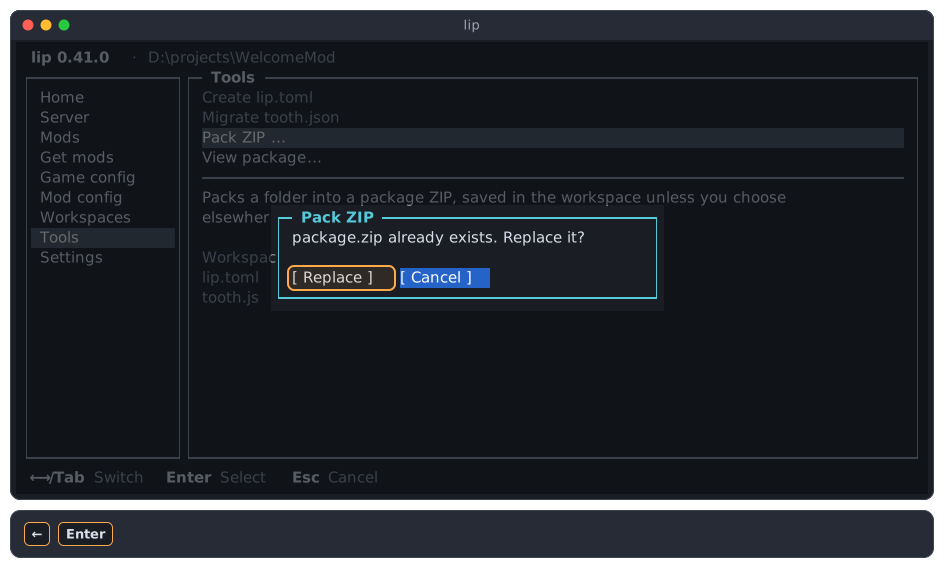
-
lip writes the archive and names it. Press
Enter.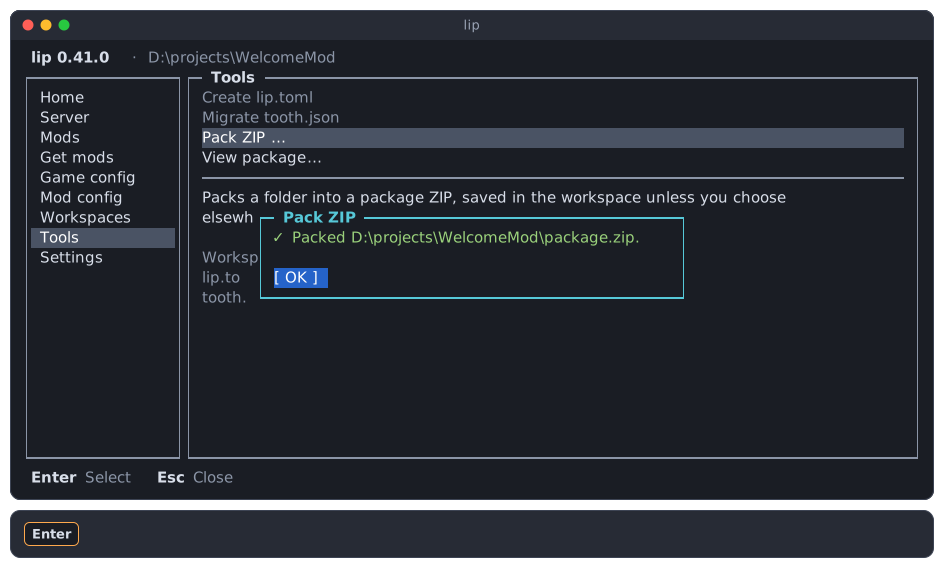
The archive holds every file of the folder at its path in the folder, except the archive itself, and the folders .git and .lip at the top of the folder.
The folder and file browser describes the browser in full.
View package…
This action shows what lip knows of a package before you install it: its package file and the versions that exist. It changes nothing in the workspace.
Move to View package… and press Enter. lip asks where the package is:
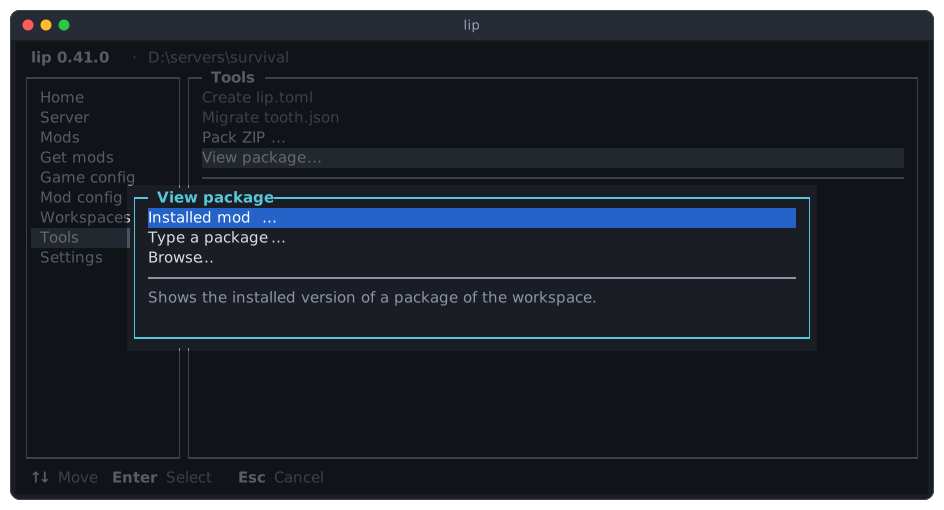
Esc in any of the three leads back to this choice.
An installed mod
-
Press
Enteron Installed mod…. lip lists what is installed in the workspace: the mods that you installed, then what they depend on, then the game and the loader.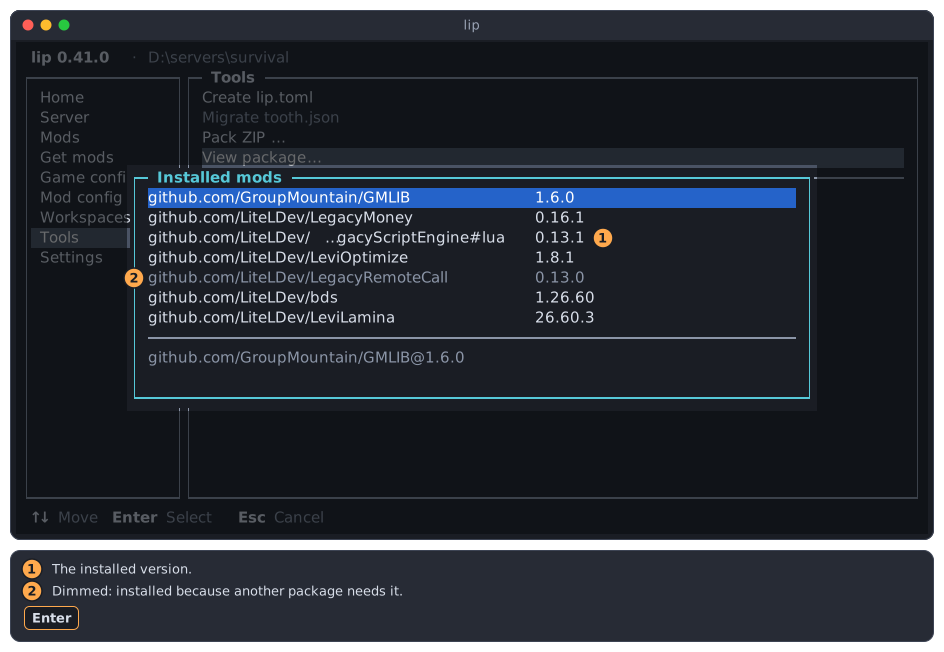
- The installed version.
- A dimmed row: a package that is installed only because another one needs it.
A long name is cut in its middle; the line below the list has it in full.
-
Press
Enteron a package. lip reads its package file, which may need the network, and shows the result.Escstops waiting.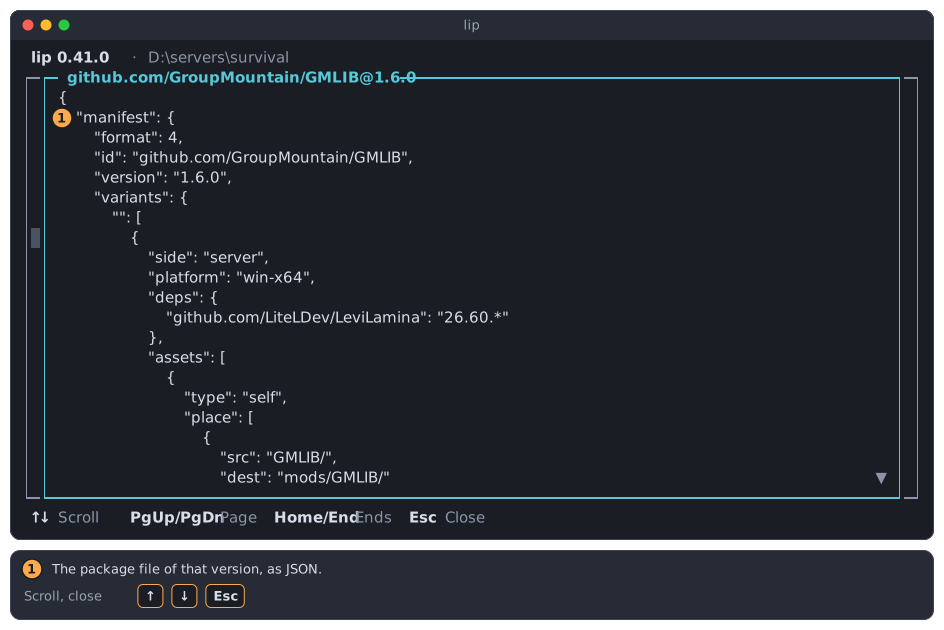
manifest: the package file of the installed version, as JSON. Further down,versionslists every version that the repository has.
Scroll with
↑,↓,PgUp,PgDn,HomeandEnd;Esccloses the viewer.
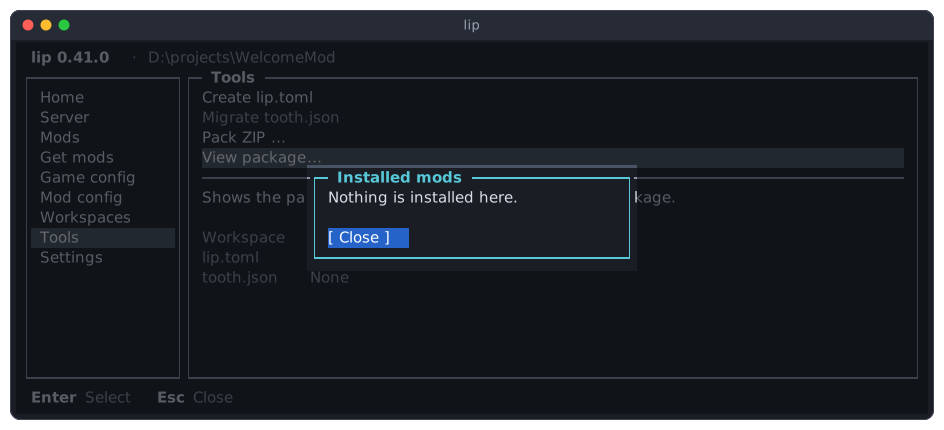
In a workspace without packages there is nothing to list:
A package that you type
Press Enter on Type a package… and type the package as you would on the command line: a repository, with @ and a version if you want a certain one, or the address of a ZIP file, or a path.
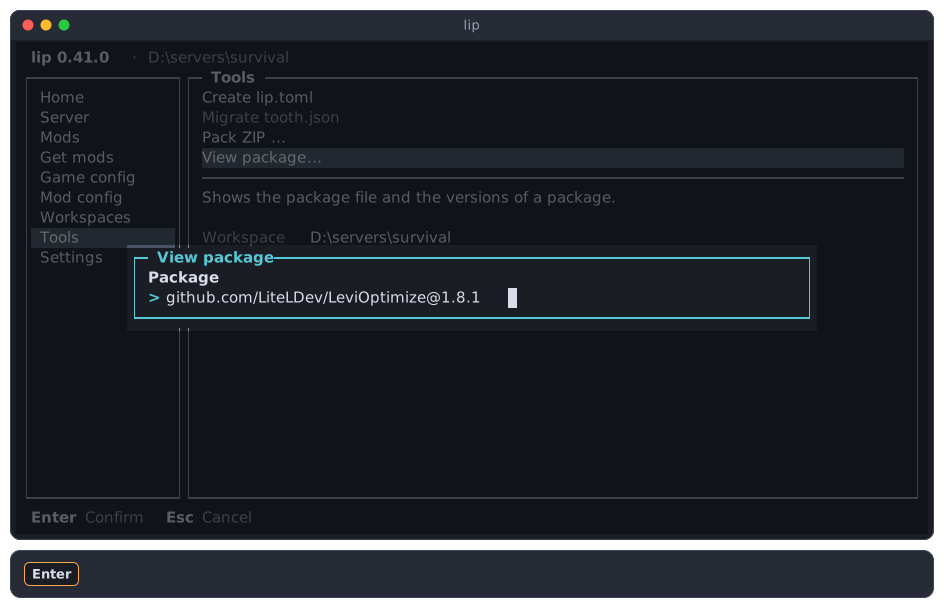
Press Enter. The result is shown as for an installed mod.
A file or a folder on your disk
Press Enter on Browse…. The browser lists folders and .zip files.
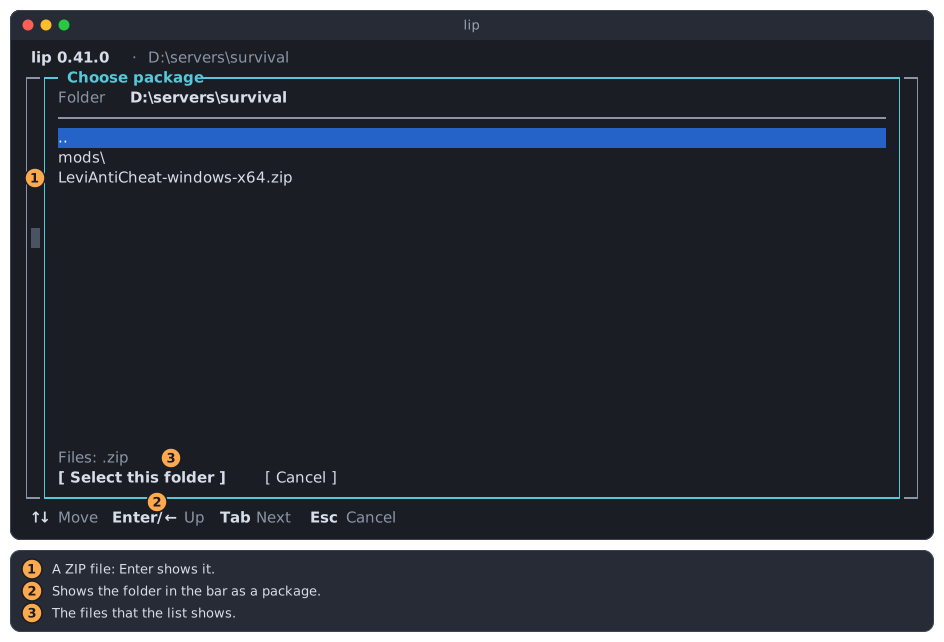
- A ZIP file:
Entershows the package in it. - Select this folder shows the folder in the bar as a package: one that has a
lip.toml, such as the folder of your own mod. - The kind of files that the list shows.
When an action fails
The page dims an action only for what the two status lines tell. An action can still fail for another reason: a tooth.json that is broken, a package that cannot be found, a folder that was deleted a moment ago. lip then shows a dialog titled with the name of the action and Failed, and changes nothing.
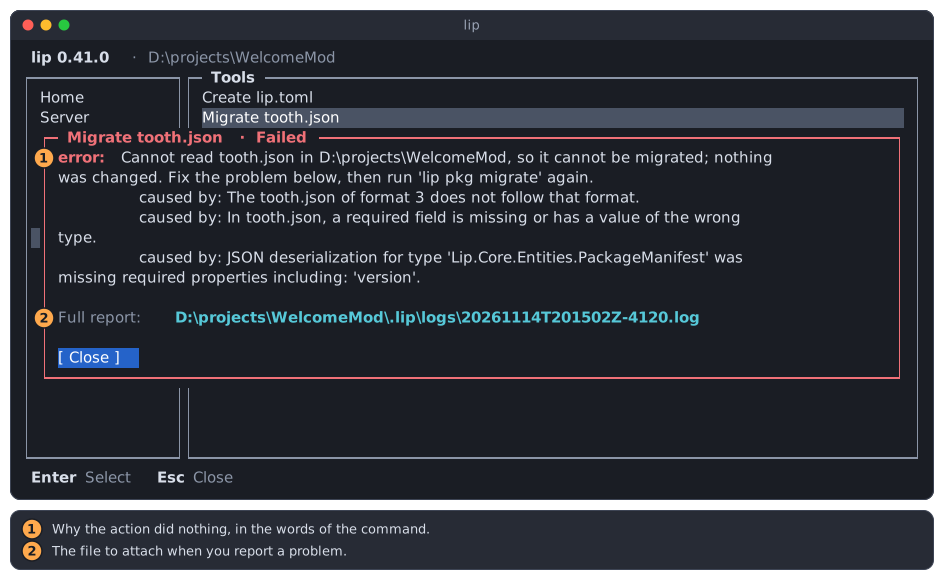
- error: what went wrong, and often what to do about it. Each line caused by: goes one step deeper into the reason; the last one is usually the most exact. Here the
tooth.jsonhas noversion. This text comes from the command and is in English. - Full report: a file with the details, below
.lip/logsof the workspace. Attach it when you ask for help; see Troubleshooting.
Press Enter or Esc to close the dialog.