
Settings
After this page you can change the language of the interface, tell lip how to reach GitHub, make a server restart itself after a crash, free disk space, and update lip.
The page
Open the page: in the sidebar, move to Settings and press Enter.
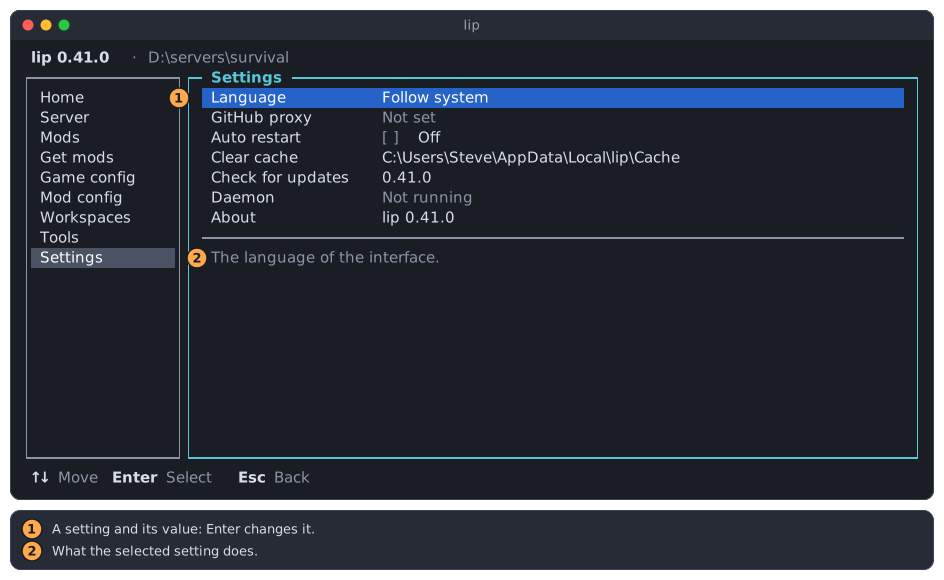
- A row and its value. Move with
↑and↓;Enterchanges the row or carries it out. - What the selected row does. A value that is too long for its row is shown whole here.
| Row | Does | Belongs to |
|---|---|---|
| Language | Chooses the language of the interface. | You, on this computer. |
| GitHub proxy | Says how lip reaches GitHub. | You, on this computer. |
| Auto restart | Restarts the server when it crashes. | The selected workspace. |
| Clear cache | Deletes the downloaded files. | You, on this computer. |
| Check for updates | Looks for a newer lip, and installs it. | lip itself. |
| Daemon | Shows the background process of lip. | You, on this computer. |
| About | Shows the version of lip. | lip itself. |
Every change on this page is made at once. There is no Save button.
Language
The interface speaks English, Simplified Chinese and Traditional Chinese.
-
Move to Language and press
Enter.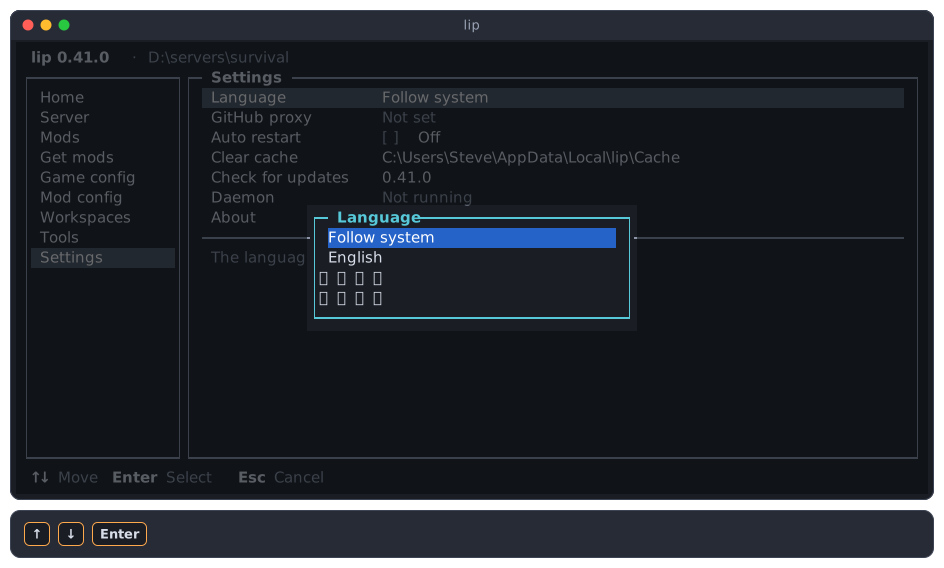
-
Choose a language with
↑and↓, and pressEnter. The whole interface changes at once; nothing needs a restart.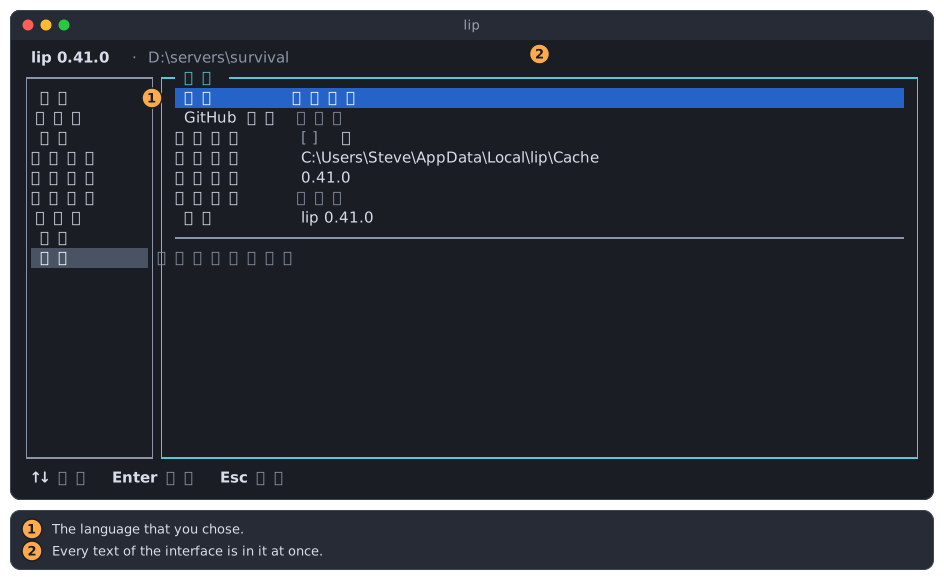
- The language that you chose.
- Every text of the interface is in it, the sidebar and the bottom line included.
Follow system uses the language of your system:
- On Windows, the display language of your user.
- Elsewhere, the first of the environment variables
LC_ALL,LC_MESSAGESandLANGthat names a language. - A Chinese locale of Taiwan, Hong Kong or Macao, or one marked
Hant, gives Traditional Chinese; any other Chinese locale gives Simplified Chinese; anything else gives English.
Only the interface itself is translated. What a command says is in English in every language: the lines of a plan, the messages of an installation, and errors.
The same with a command
The choice is the key language of your configuration; see Configuration.
lip config set language zh-Hans
lip config delete language
The values are en, zh-Hans and zh-Hant. Deleting the key is Follow system.
GitHub proxy
lip downloads LeviLamina and most mods from GitHub. Where GitHub is slow or cannot be reached, a GitHub proxy helps: a web address that lip puts before the GitHub address of every download.
The row has one of three values:
| Value | Means |
|---|---|
| Not set | lip connects to GitHub directly. Each time the interface starts, lip checks in the background whether GitHub answers, and asks you what to do when it does not; see When GitHub cannot be reached. |
| Direct | lip connects to GitHub directly, and does not check or ask. |
| A URL | lip sends its requests to GitHub through this proxy. A request that fails through the proxy is sent to GitHub directly. |
lip does not suggest a proxy, and these pages do not either. Use one that you trust: everything lip downloads from GitHub passes through it.
Enter on the row opens its actions:
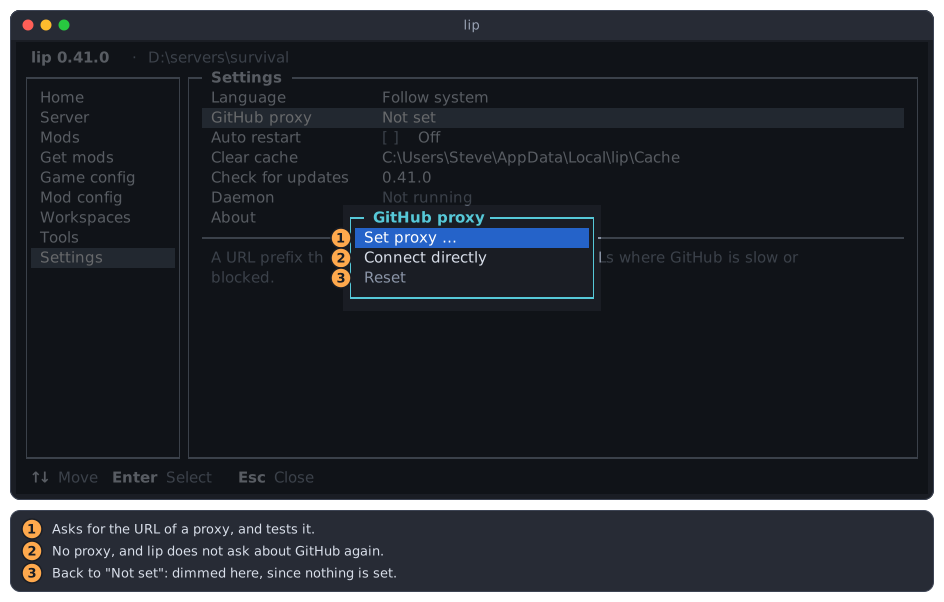
- Set proxy… asks for the URL of a proxy, and tests it.
- Connect directly sets the value Direct. It is dimmed when that is the value already.
- Reset takes the setting away, back to Not set. It is dimmed when nothing is set.
Set a proxy
-
Press
Enteron Set proxy…, and type or paste the URL of the proxy. It starts withhttps://and usually ends with/.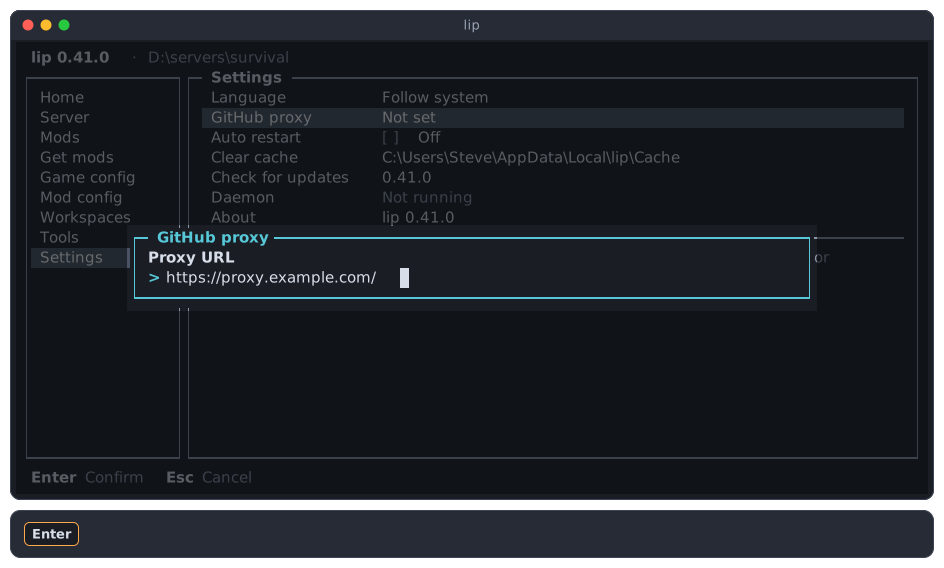
-
Press
Enter. lip tests the proxy: it asks GitHub for LeviLamina through it, and waits up to 10 seconds.Escstops the test and goes back to the URL.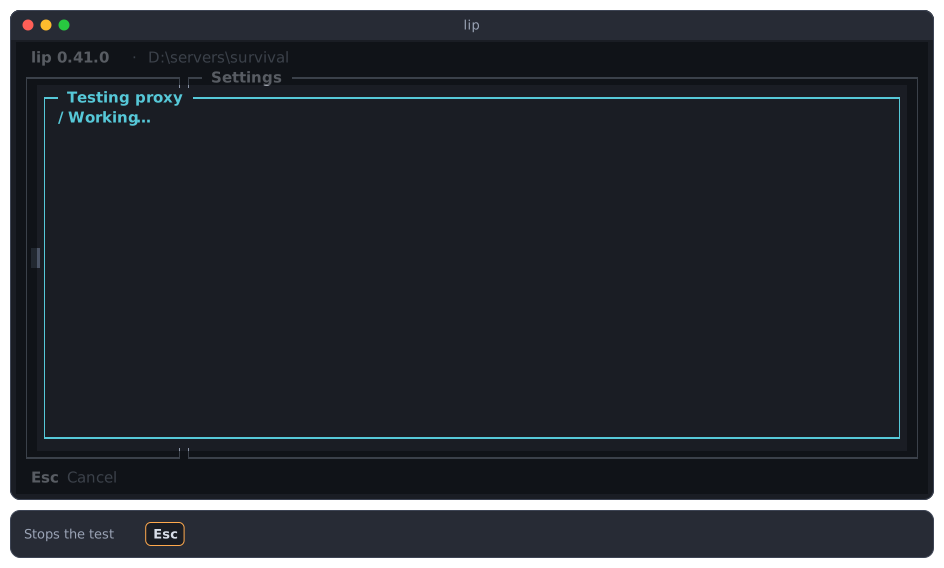
-
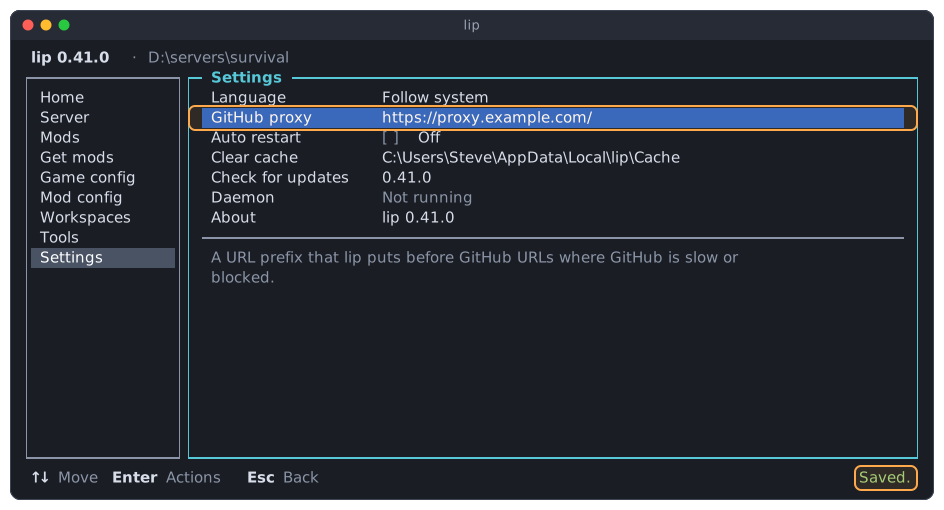
When GitHub answers through the proxy, lip saves it and says Saved. The row shows the URL.
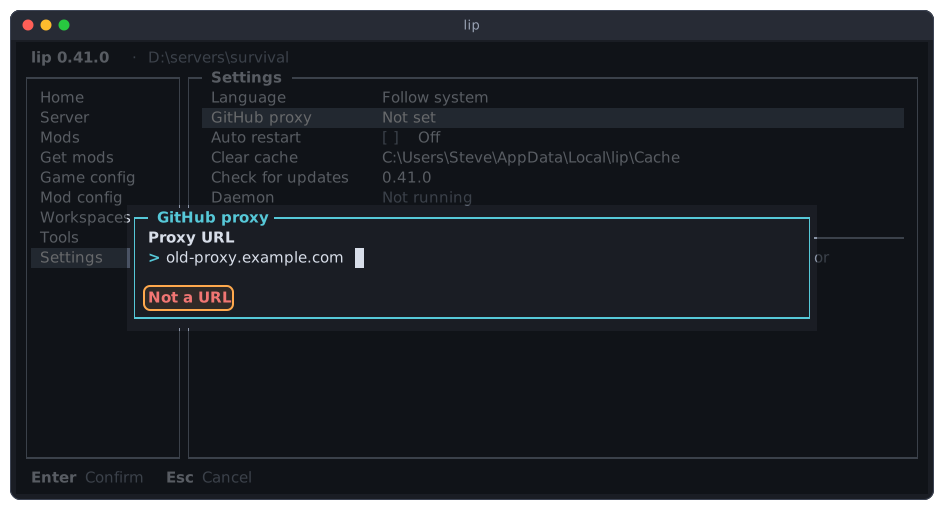
What you type must be a URL. Without https:// in front, it is not one:
When the test fails
When GitHub does not answer through the proxy, lip says why and saves nothing yet.
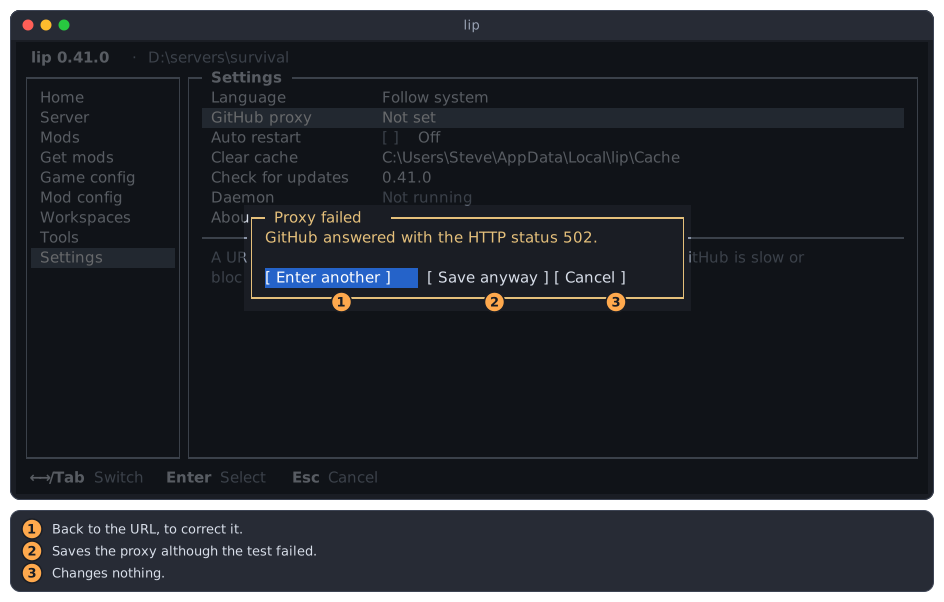
- Enter another goes back to the URL, which is still there to correct.
- Save anyway saves the proxy although the test failed. Use it when you know that the proxy works and only the test does not get through.
- Cancel, or
Esc, changes nothing: the row keeps the value it had.
The reason is in English. A status such as 502 or 404 means that the proxy answered, but not as GitHub does; a timeout means that nothing answered within 10 seconds. Troubleshooting has more.
Connect directly, or reset
Connect directly is for a network that reaches GitHub well enough: lip stops checking and asking.
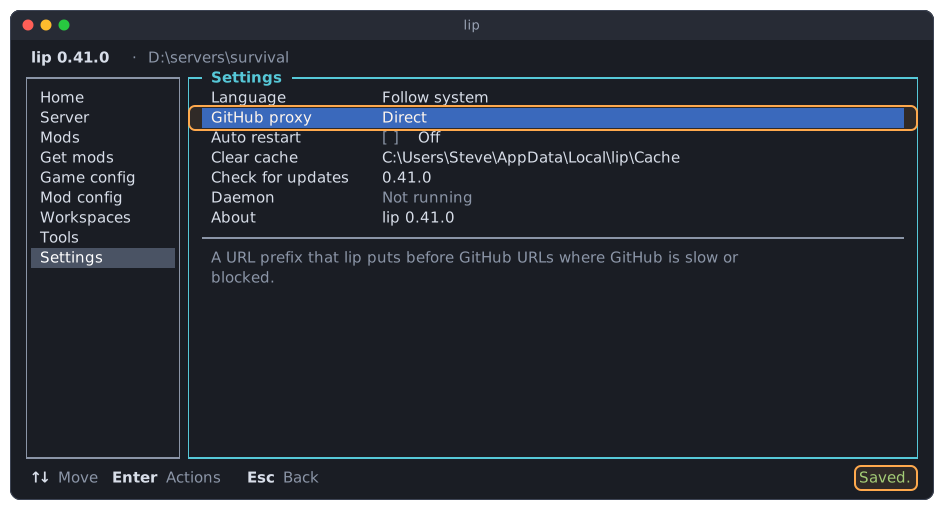
Reset brings back Not set: lip connects directly, and checks again the next time the interface starts.
The same with a command
The setting is the key github_proxy of your configuration; see Configuration.
lip config set github_proxy https://proxy.example.com/
lip config set github_proxy ""
lip config delete github_proxy
The second line is Connect directly, and the third is Reset. The commands do not test the proxy.
Auto restart
With Auto restart on, lip starts the server of the selected workspace again when it crashes, that is, when it ends with an error instead of being stopped.
Move to Auto restart and press Space or Enter: [x] On, [ ] Off.
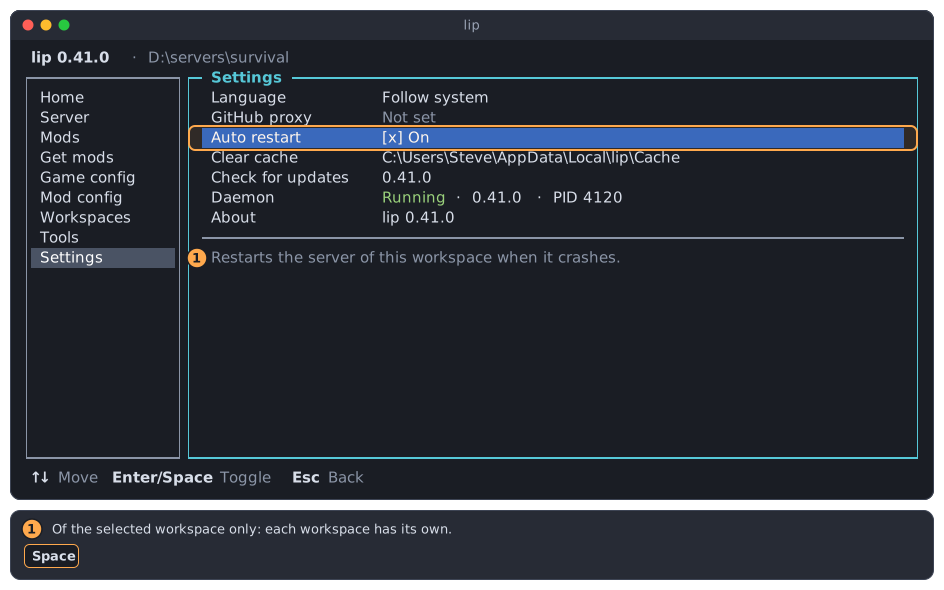
- The setting is of the selected workspace only. Each workspace has its own; switch workspaces to see another.
- lip waits 5 seconds before it starts the server again.
- A server that you stop is not restarted.
- A server that keeps crashing is restarted at most 5 times within 10 minutes.
- The setting counts as it is when the server ends, so you can switch it while the server runs.
The Server page has the same switch.
The same with a command
lip config set restart on-failure --workspace
lip config set restart never --workspace
Clear cache
lip keeps what it downloads in a cache, so that it need not download the same file twice. The row shows the folder of the cache. Clearing it frees disk space; lip downloads again what it needs later.
-
Move to Clear cache and press
Enter. lip asks first.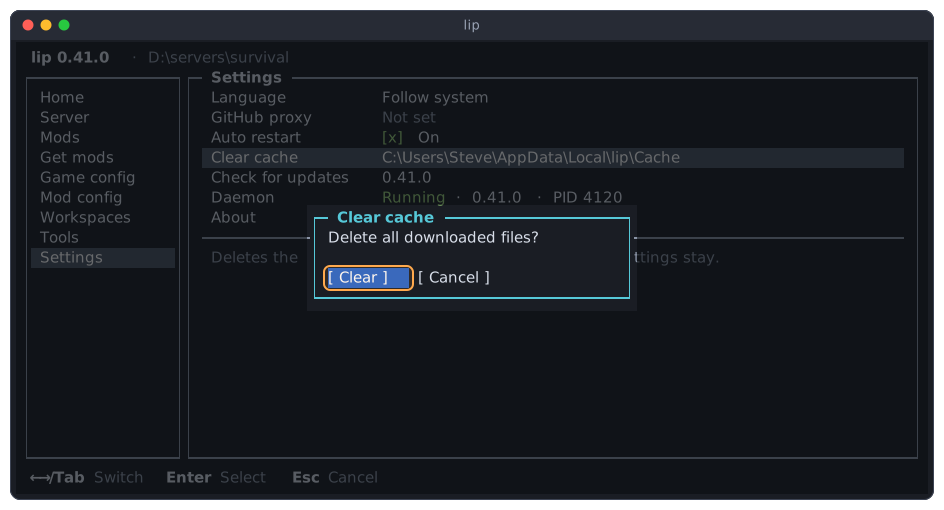
-
Press
Enteron Clear.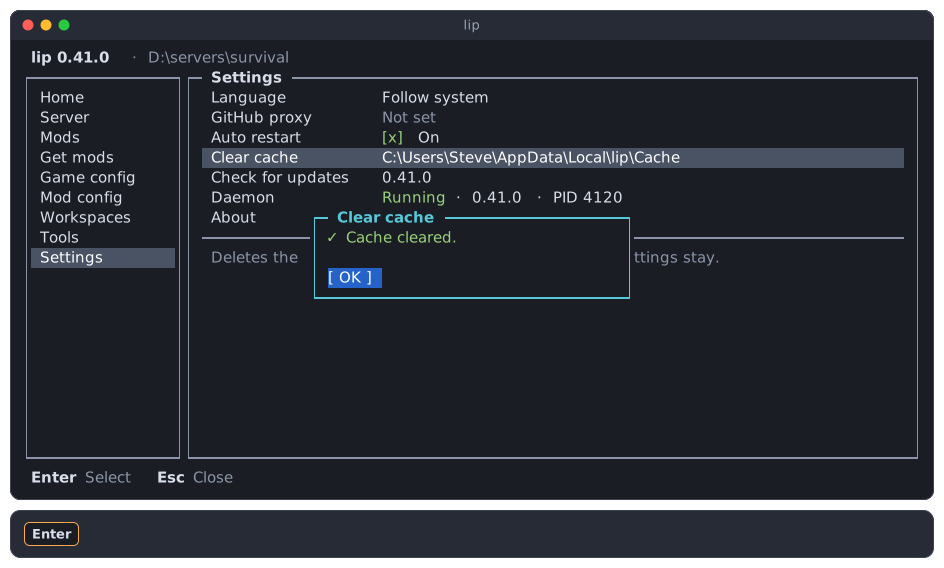
What is deleted is the cache folder and everything in it, which is all that lip downloaded: the files of the game, of LeviLamina and of the mods, and the download of an update of lip. Your workspaces, their servers and mods, and your settings are not touched.
The command is lip cache clean.
Updates
lip updates itself.
Check for updates
Move to Check for updates and press Enter. lip asks GitHub for its newest release.
When there is none newer, the row says so:
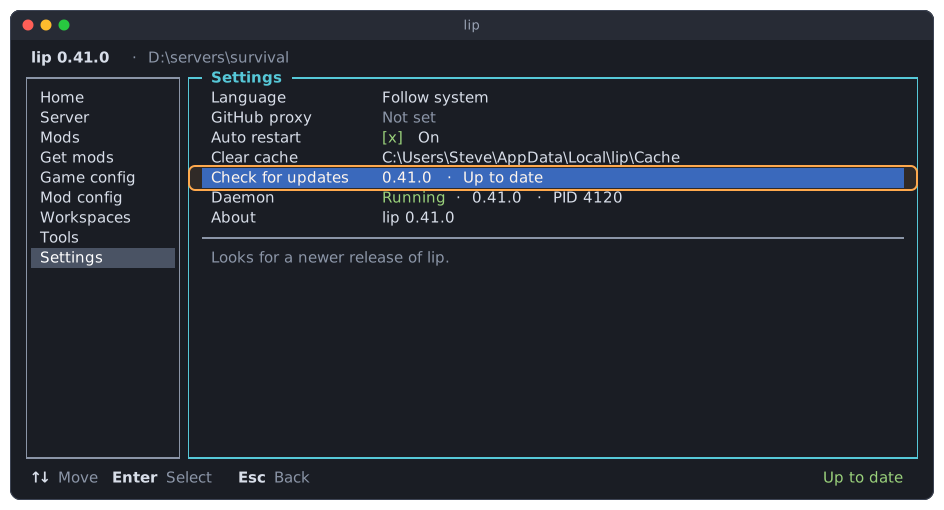
When there is one, lip offers to install it:
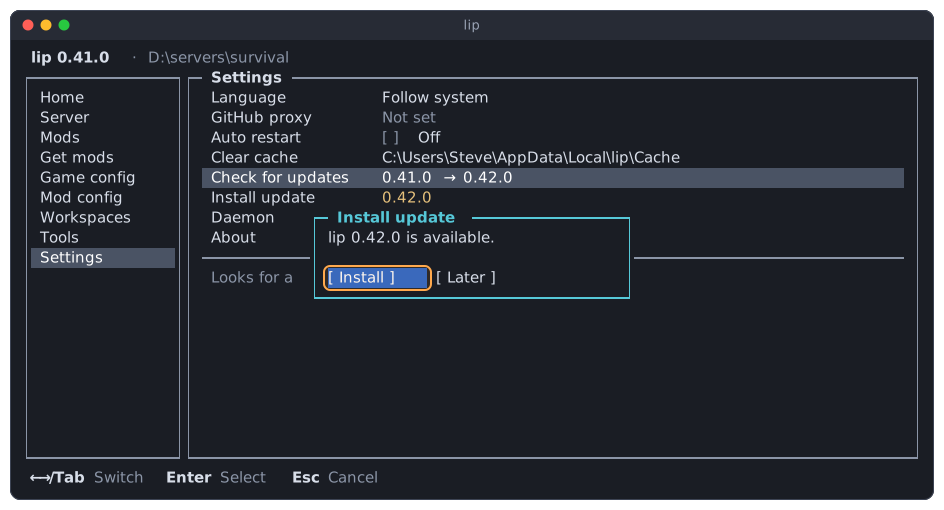
Install installs it now. Later closes the dialog; the newer version stays on the page, and a row Install update appears below Check for updates:
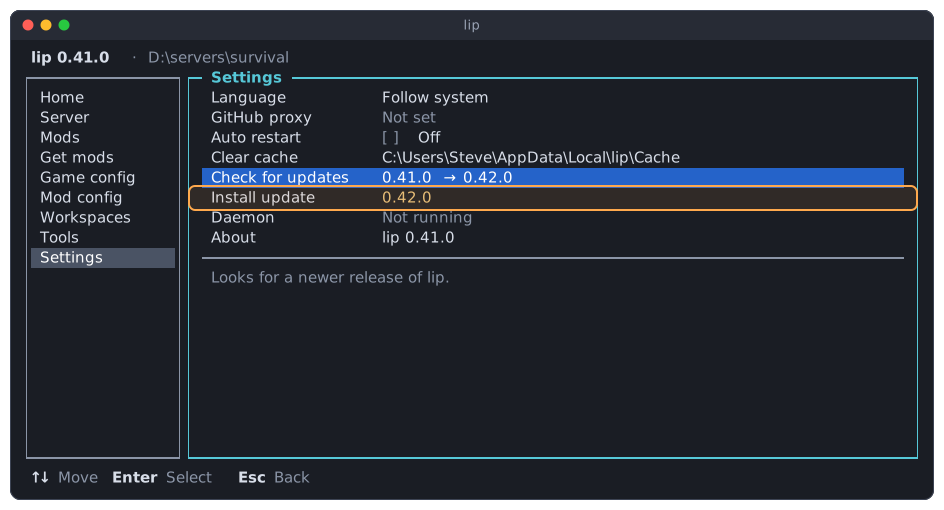
Install the update
-
Press
Enteron Install update, and again on Install.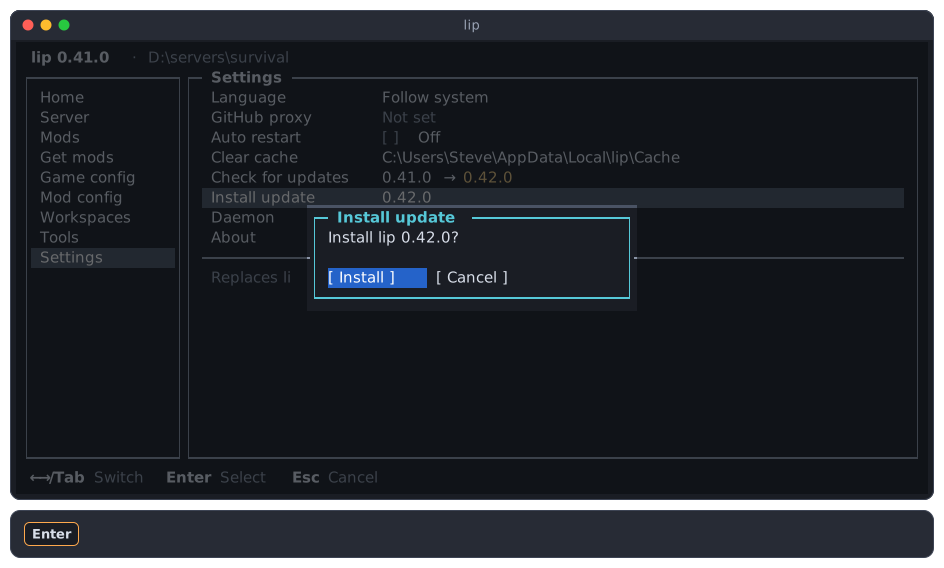
-
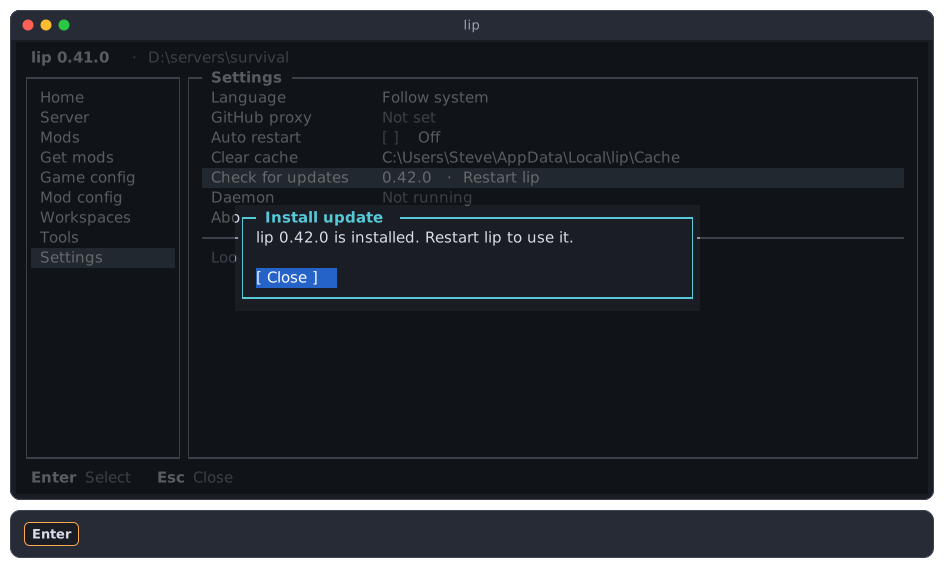
lip downloads the release, checks it, and installs it. What happens next depends on how lip was installed.
When lip was installed from a portable archive, its files are replaced at once:
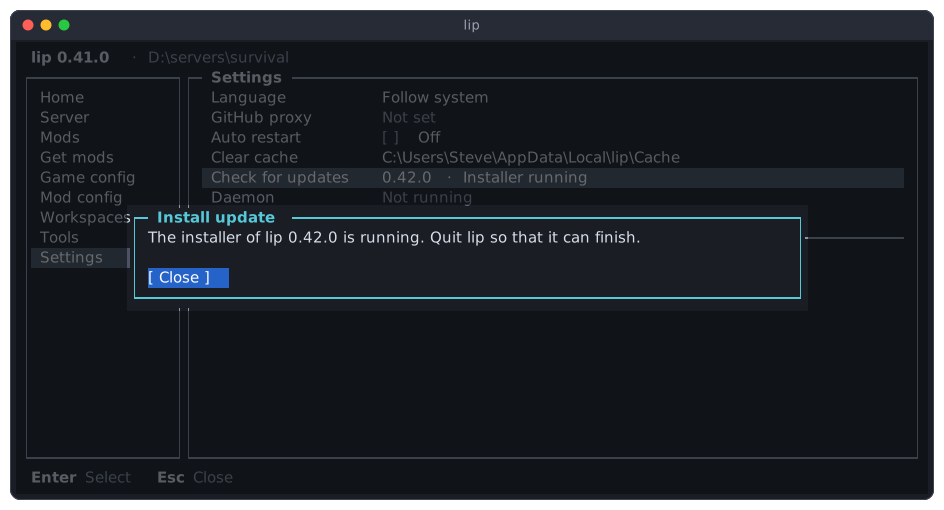
When lip was installed with the Windows installer, lip starts the installer of the new version. Windows asks for your permission, since the installer changes a program:
After installing
The lip on your screen is still the old one. The row reminds you:
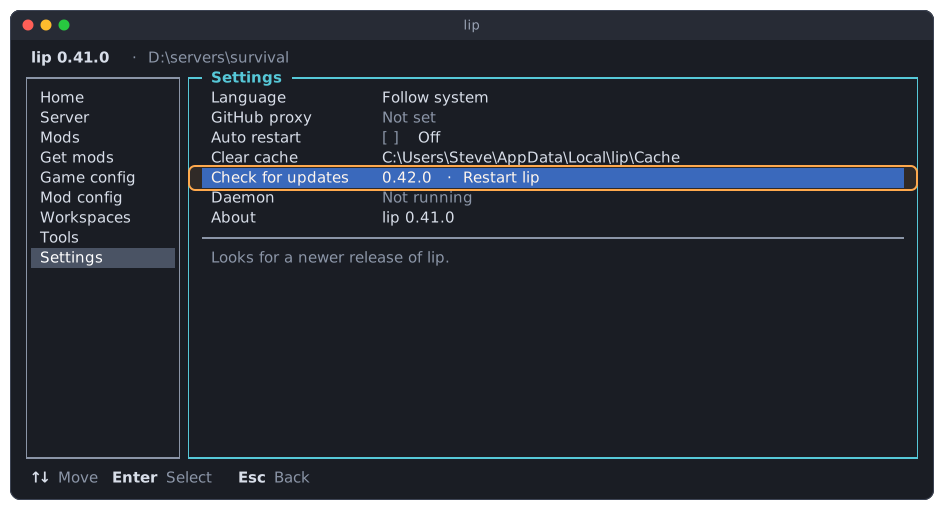
- Restart lip: quit lip, and start it again. The new version is then the one that runs.
- Installer running: quit lip, so that the installer can replace it; then start lip again.
Until then, Enter on Check for updates shows the same message again instead of checking.
The commands are lip self-update --check and lip self-update. Installation describes updating in full.
Daemon
The daemon is the background process of lip. It carries out the commands and the interface, and it runs the servers that you start, so that they keep running when you close the terminal. How lip works explains it.
The row shows whether a daemon runs. Move to it to read more below the list:
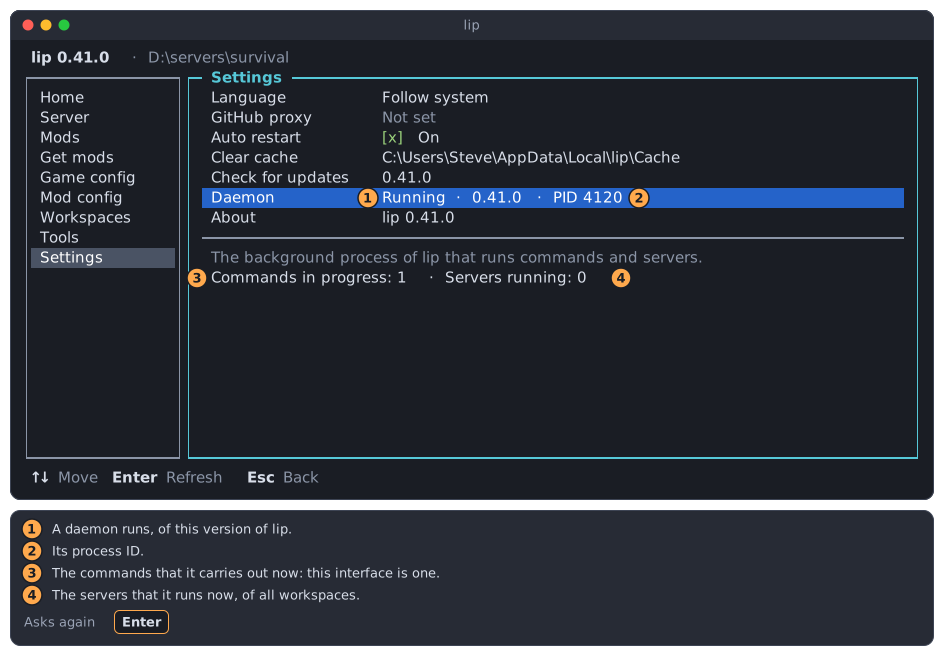
- Running, and the version of lip that the daemon is.
- PID: the process ID of the daemon, by which your system's task manager knows it.
- Commands in progress: how many commands the daemon carries out right now. Each open interface is one of them, so the number is at least 1 here.
- Servers running: how many servers the daemon runs right now, of all workspaces. It is shown only when this daemon carries out your interface.
Enter asks the daemon again and shows the new numbers.
Not running means that no daemon answers. lip then carries out the interface itself, and the servers that you start in it are stopped when you quit lip.
The interface cannot stop the daemon, because the daemon carries out the interface. Quit lip and run lip daemon stop.
About
The last row shows the version of lip that runs. Enter does nothing here.
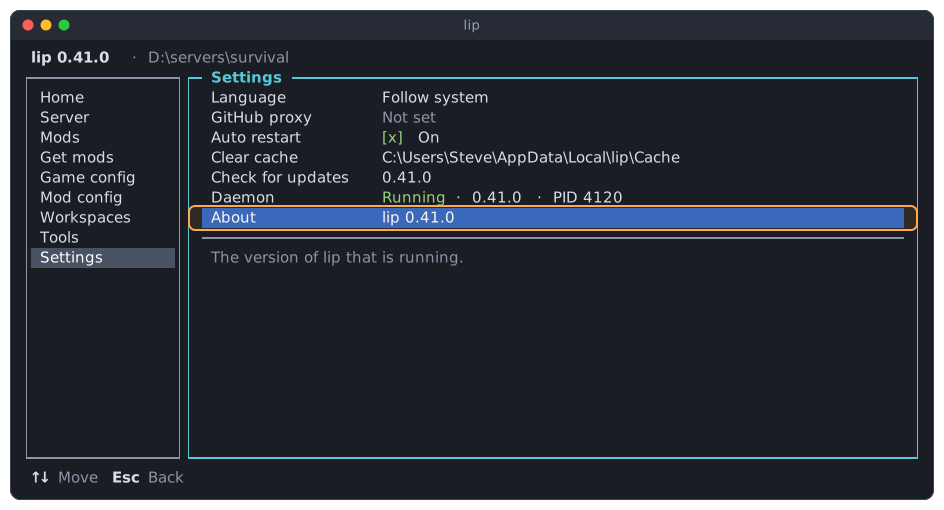
Give this version when you report a problem. The command is lip --version.