
Workspaces
After this page you can keep several servers side by side: create a new one, switch between them, add a server that you already have, and change the game or the LeviLamina version of one.
What a workspace is
A workspace is a folder that holds one server: the game, LeviLamina, the mods, the worlds, and lip's own records in .lip/. Every page of the interface works on one workspace at a time, the selected workspace. The top bar names it.
lip keeps a list of the workspaces that you used. When you start lip, the folder you started it in is added to the list, if it is not there yet, and selected. The list is kept between runs.
The list
Open the page: in the sidebar, move to Workspaces and press Enter.
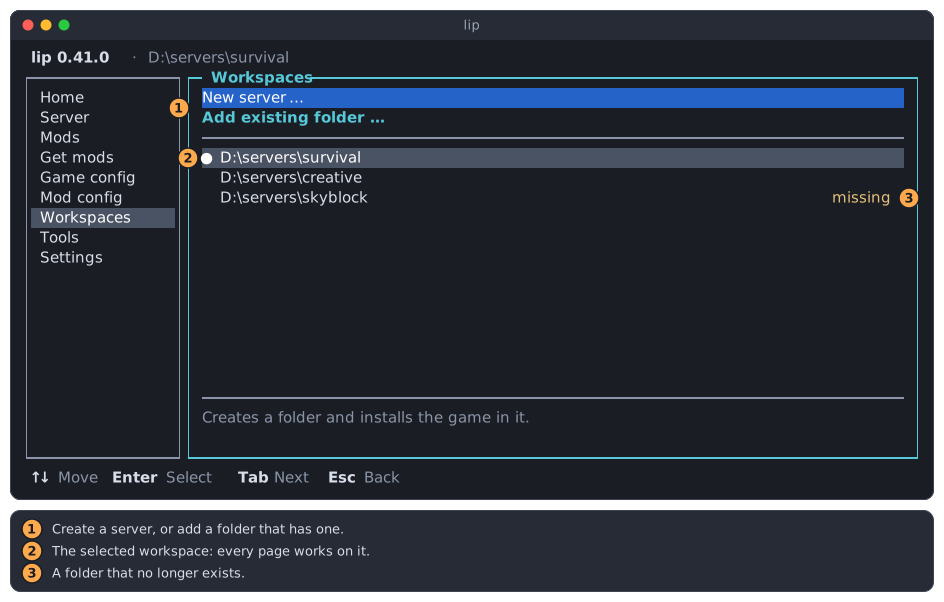
- Two actions: New server… creates a server, and Add existing folder… adds a folder that exists to the list.
- The selected workspace, marked with
●. - A workspace whose folder no longer exists, marked missing.
Move down into the list with ↓, or press Tab. The area below the list shows the whole path of the row that has the focus, and one sentence about it.
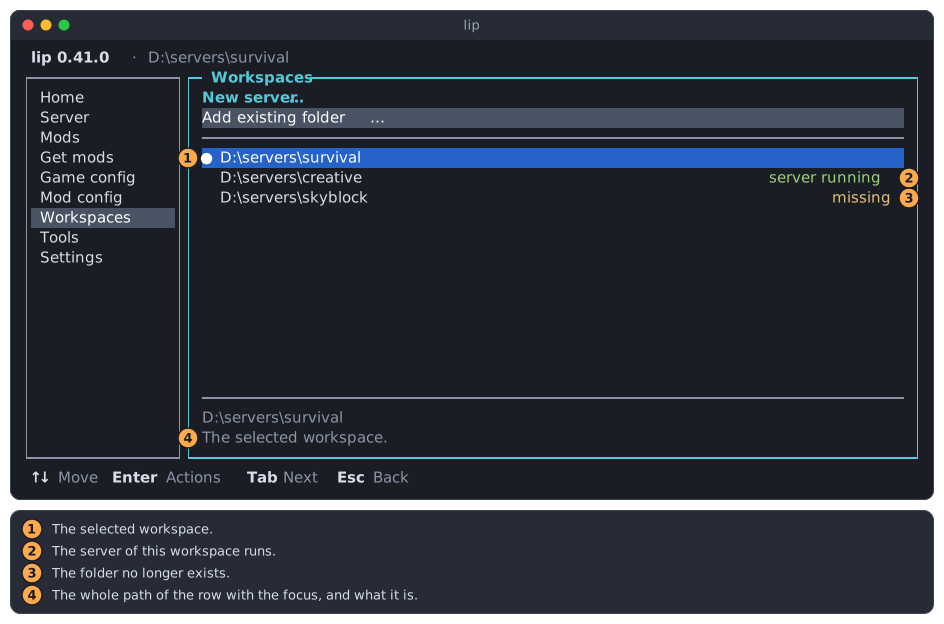
●: the selected workspace.- server running: the server of this workspace runs, whoever started it.
- missing: the folder was deleted, moved or renamed. lip can only take it off the list.
- The whole path, which the list cuts at its start when it is too long, and what the row is.
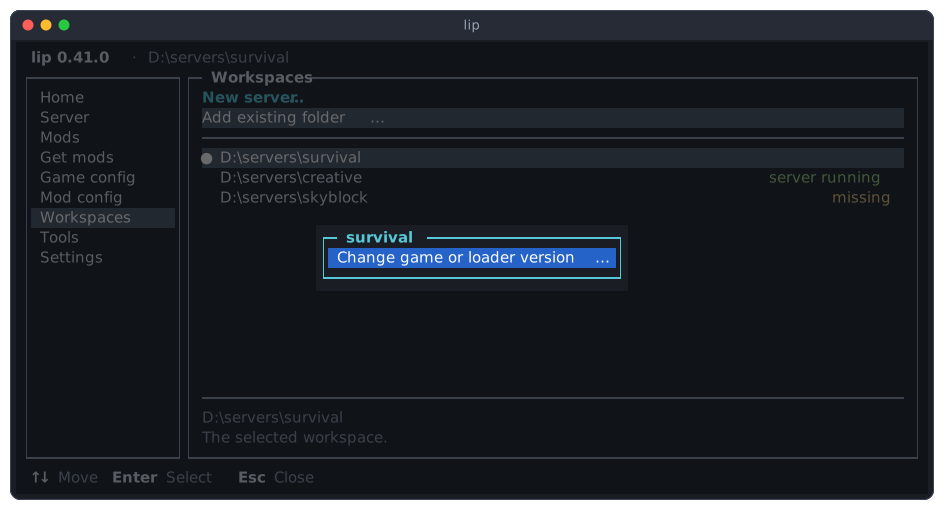
Enter on a workspace opens its actions. Which ones there are depends on the workspace:
| Action | Offered for | Does |
|---|---|---|
| Switch | Every workspace but the selected one and missing ones. | Selects the workspace. |
| Change game or loader version… | Every workspace but missing ones. | Sets the server up again with other versions. |
| Remove from list | Every workspace but the selected one. | Takes it off the list; no file changes. |
Switch to another workspace
-
Move to the workspace and press
Enter.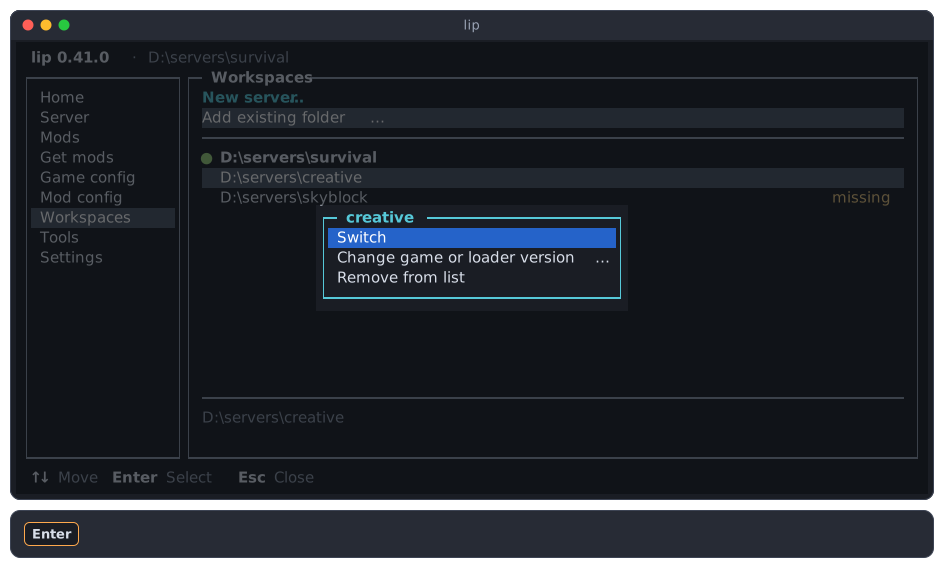
-
Press
Enteron Switch.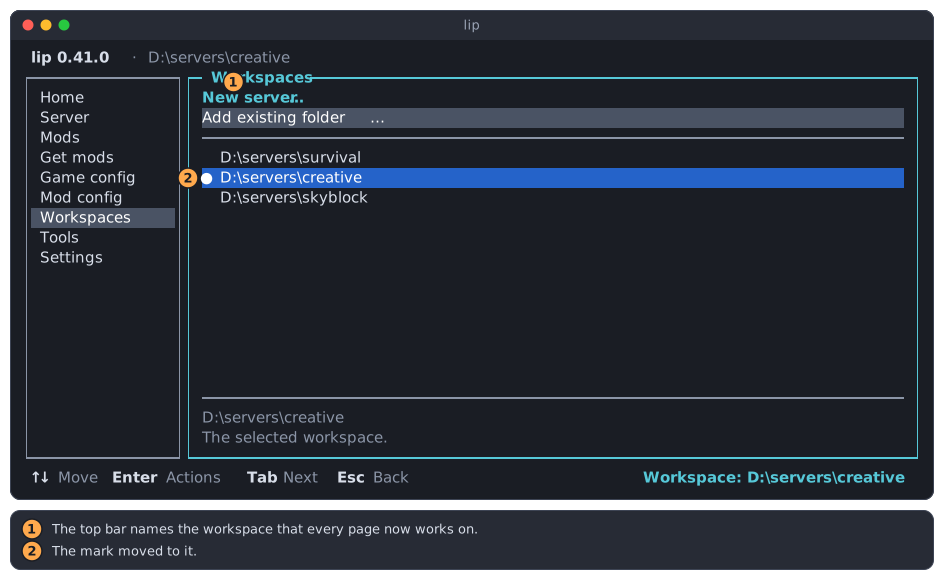
- The top bar names the new workspace. Every page now shows it: its server, its mods, its configuration.
- The
●moved to it.
Switching stops nothing. A server that runs in the workspace you left keeps running, and the list marks it server running.
When the Game config or the Mod config page has unsaved changes, lip asks what to do with them before it switches.
Add an existing folder
Use this for a server that lip does not list yet: one that you set up with the commands, or copied from another computer. lip takes any folder that exists, with or without a server in it.
-
Move to Add existing folder… and press
Enter.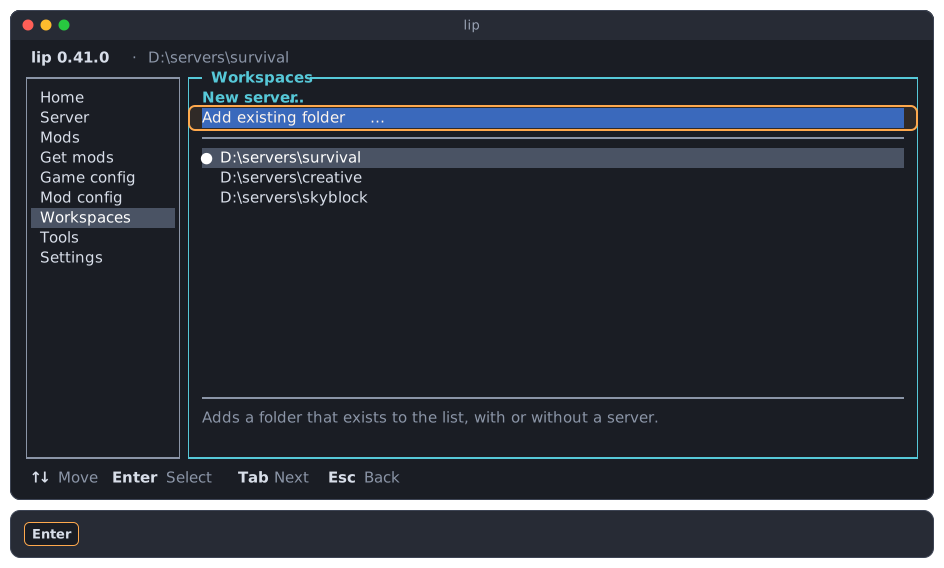
-
The folder browser opens in the selected workspace. Go to the folder of the server:
←goes up one level,↑and↓move, andEnteror→opens a folder.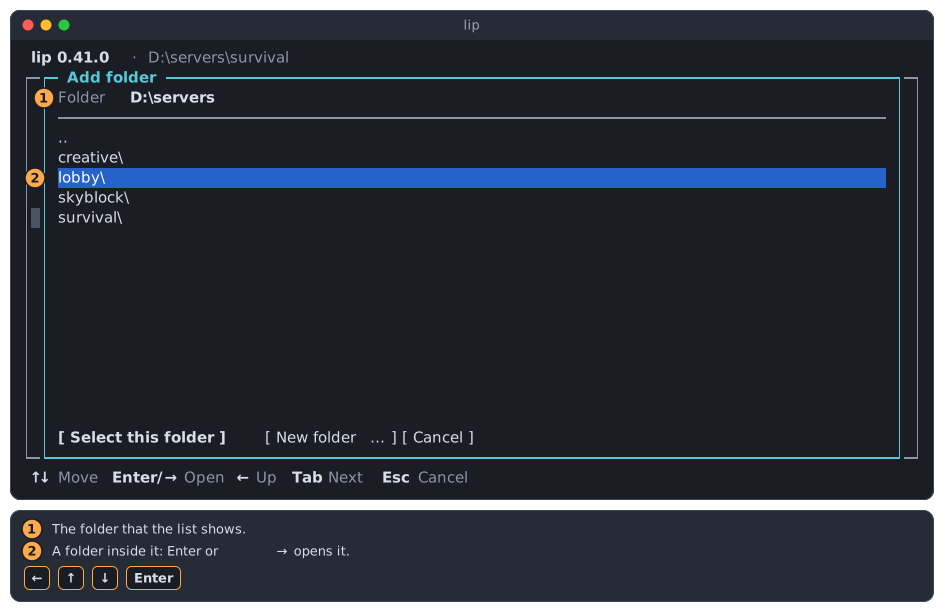
- The folder that the list shows. You can also type or paste a path here.
- A folder inside it.
-
When the browser shows the folder of the server, press
Tabto reach the buttons, andEnteron Select this folder.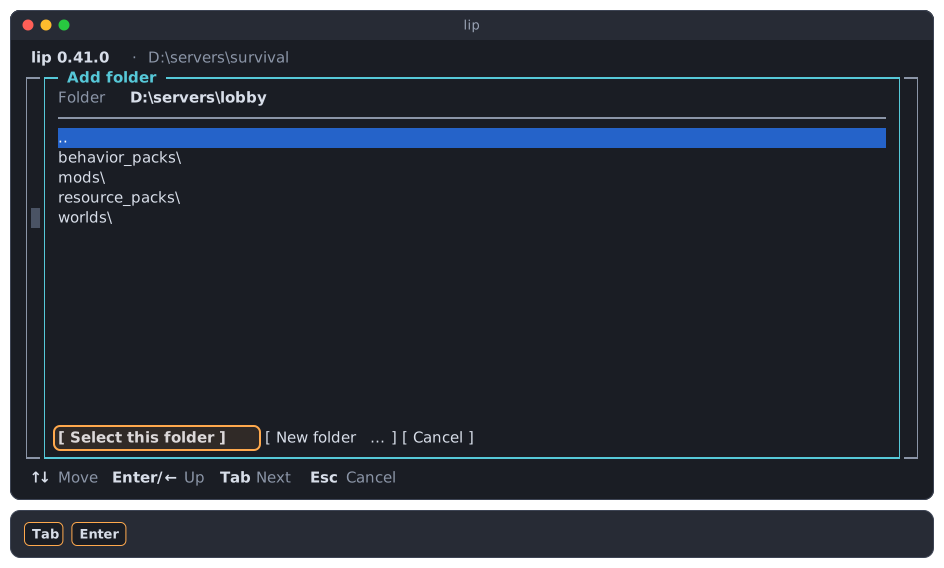
-
lip adds the folder to the end of the list and selects it.
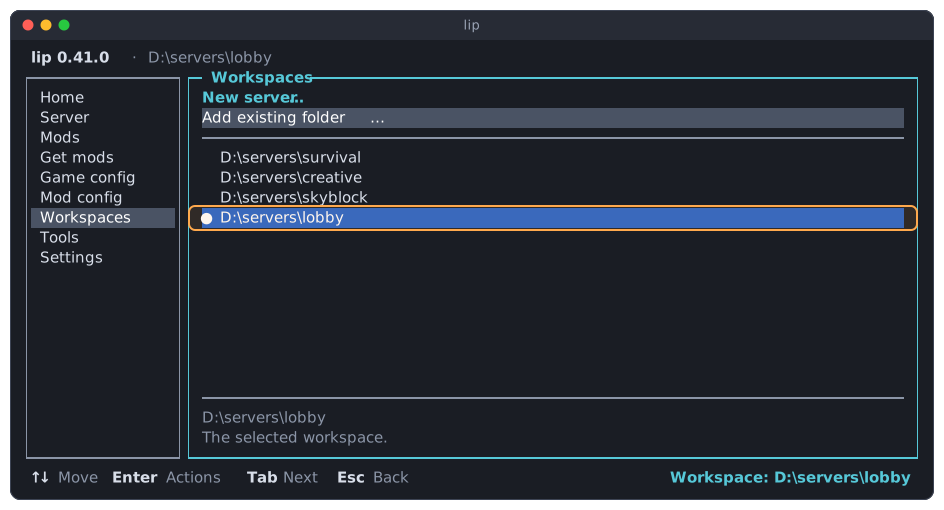
lip does not look into the folder: any folder that exists can be added. A folder that is on the list already is not added twice; it is selected. The folder and file browser describes the browser in full.
Remove a workspace from the list
Removing takes the workspace off the list and nothing more. No file is deleted: the server stays on your disk, and you can add its folder again later.
-
Move to the workspace and press
Enter. For a missing folder, Remove from list is the only action.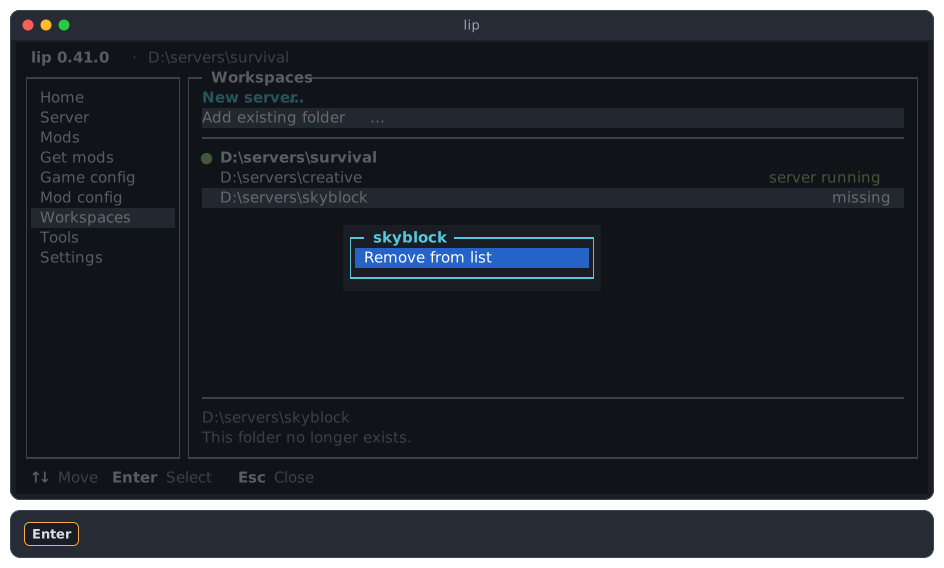
-
Press
Enteron Remove from list. lip asks first.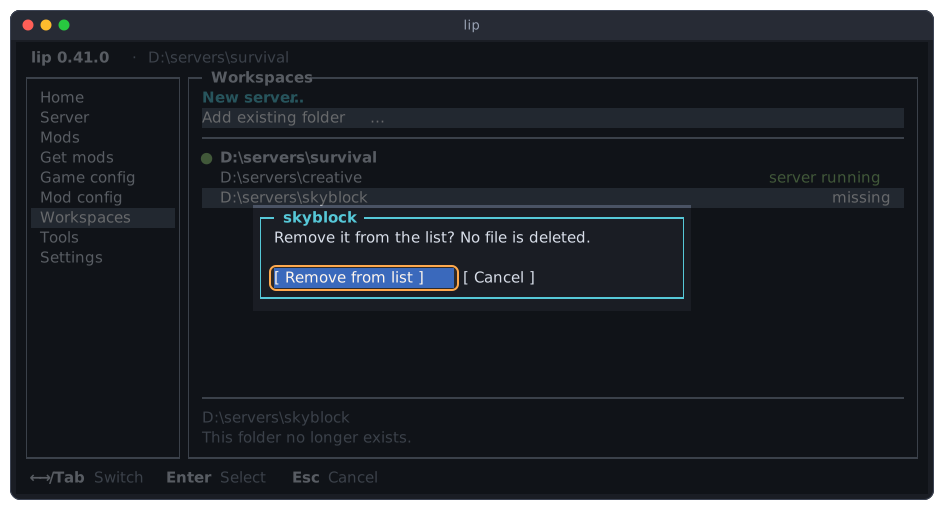
-
Press
Enteron Remove from list again.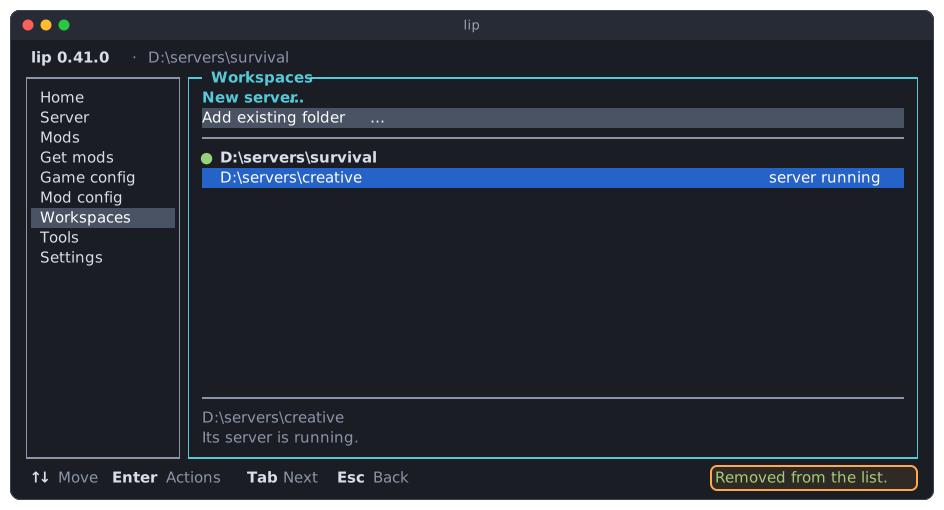
The selected workspace cannot be removed: its menu has no such row. Switch to another workspace first.
Create a new server
New server… is a wizard: it asks a few questions, one dialog after the other, and then installs the server. Esc goes back one step; in the first step it closes the wizard, and nothing has changed.
The same wizard opens from the first step of the Home page. Your first server walks through it once from start to end; this section describes every choice.
Step 1: where the server goes
Press Enter on New server….
When the selected workspace has no server yet, lip first offers that folder:
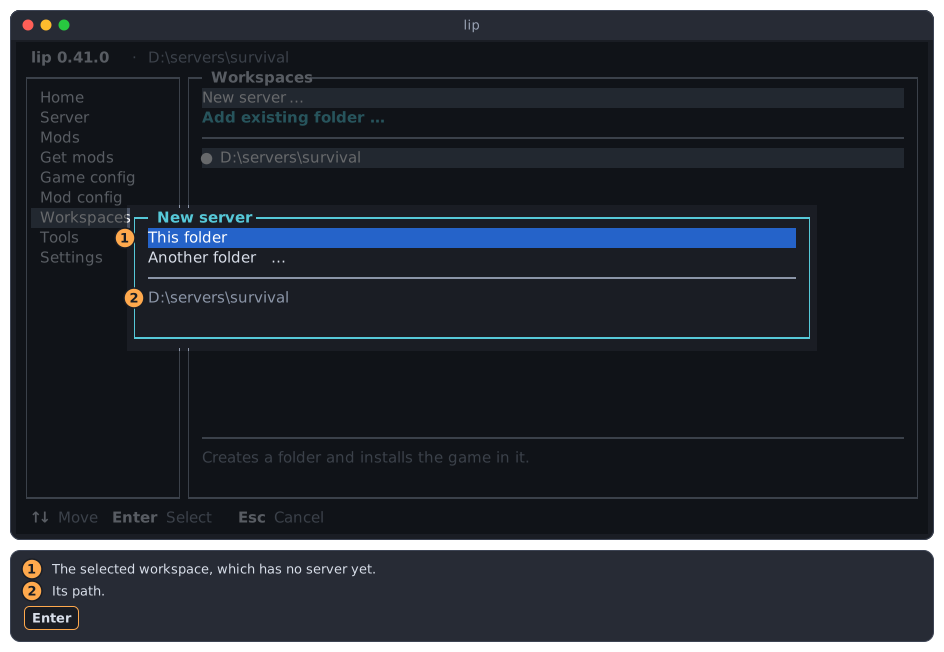
- This folder installs the server in the selected workspace.
- Its path.
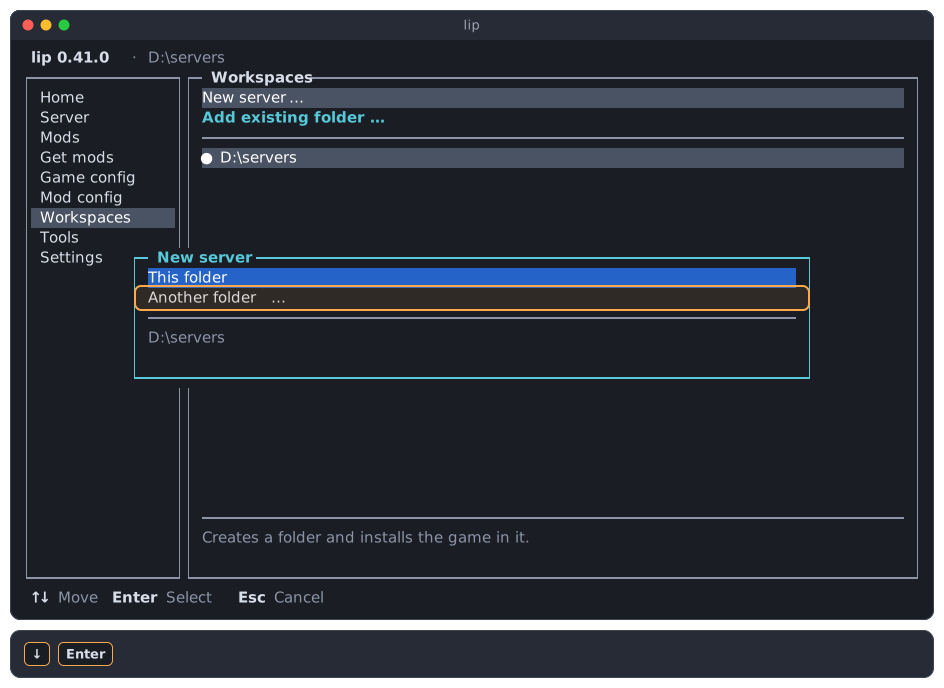
Another folder… opens the folder browser. When the selected workspace already has a server, the browser opens at once.
In the browser, go to the place where the server should be.
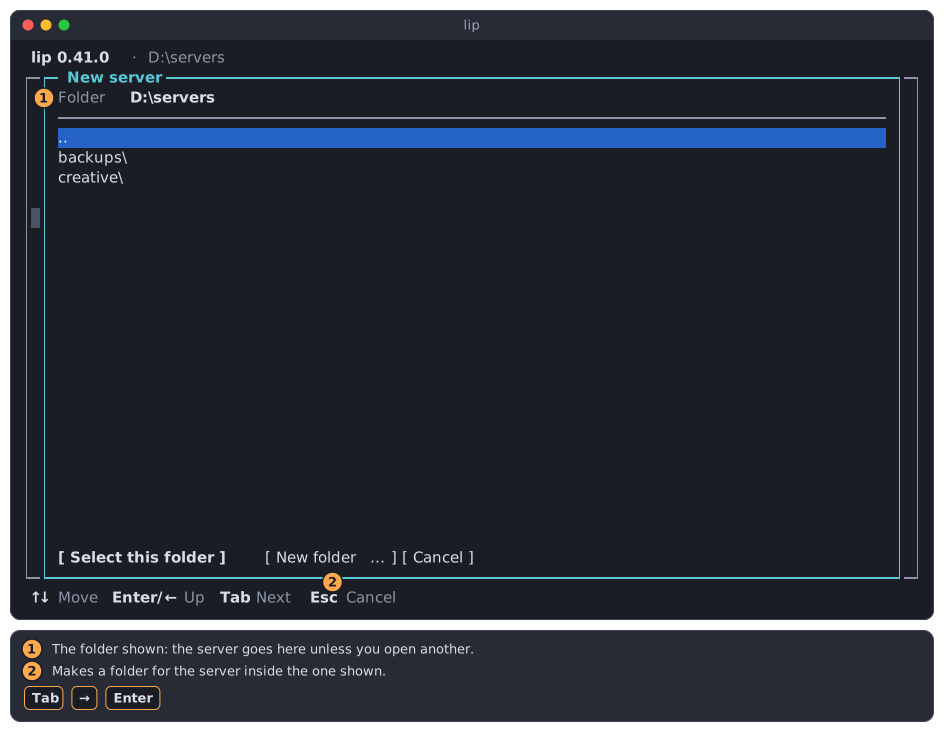
- The folder shown. Select this folder installs the server right here.
- New folder… asks for a name, and installs the server in a folder of that name inside the one shown.
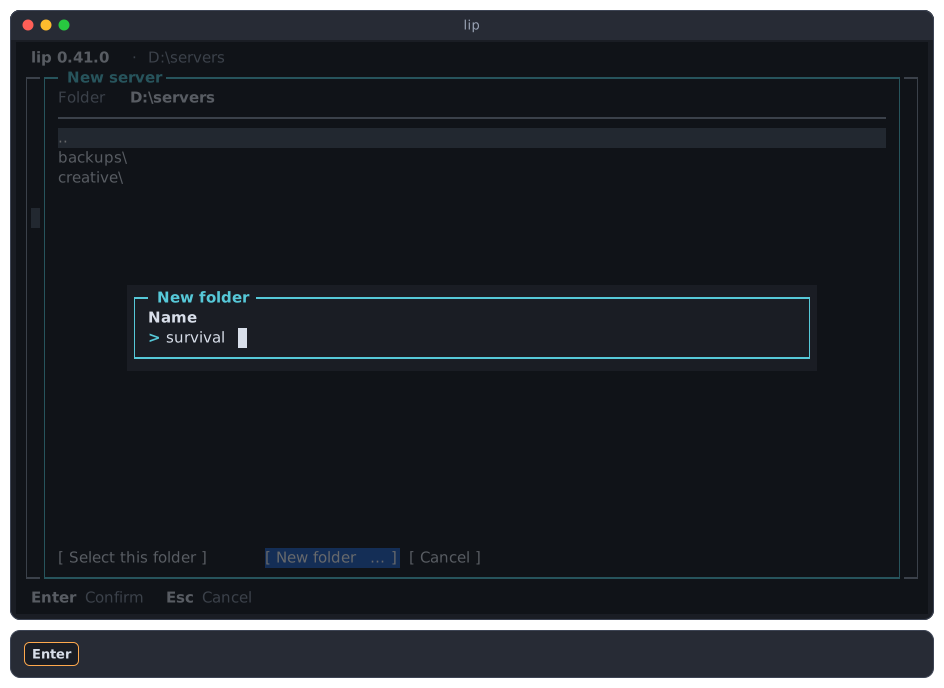
You can also type a path into the bar at the top, one that does not exist yet included. lip creates the folder only when you have made all choices; until then nothing is created.
lip refuses a folder whose server is running (Stop the server first.) and a path that names a file (That is a file).
Step 2: the game version
lip reads the versions of the game that can be downloaded, which takes a moment, and lists them: the releases, newest first, then the previews, marked preview.
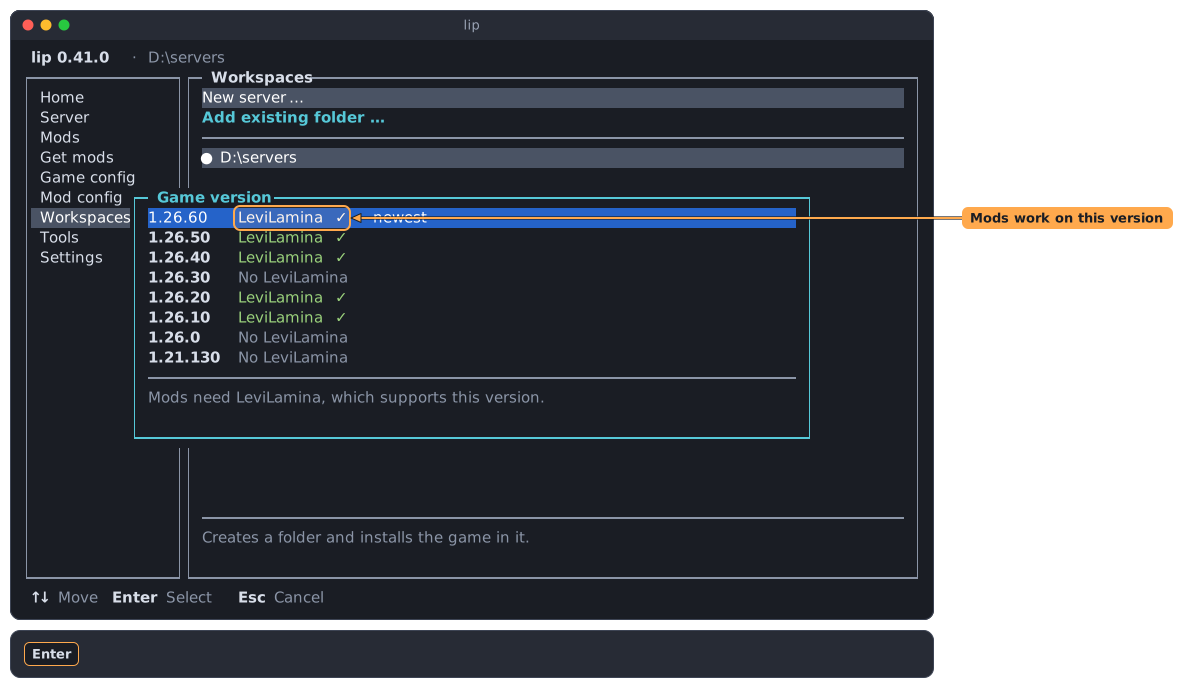
The column after the version says whether mods can work on it:
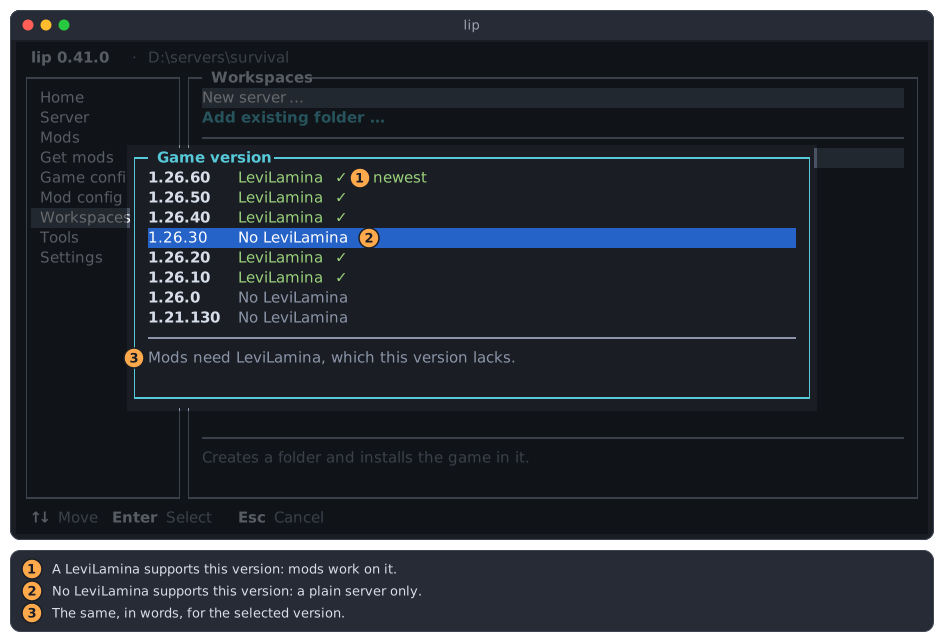
- LeviLamina ✓: a LeviLamina supports this version. Choose such a version for a server with mods.
- No LeviLamina: no LeviLamina was made for this version. Such a version can only be a plain server.
- The same in words, for the selected row.
Why the column matters
Mods do not run on the game itself. They need LeviLamina, the loader, and each LeviLamina is made for one game version. The newest game is not always supported yet.
lip reads this column from the mod catalogue of levimc.org. When the catalogue does not answer within a few seconds, the list is shown without the column; the loader step still tells you what fits.
Choose a version with ↑ and ↓, and press Enter.
Step 3: the build (Linux on x64 only)
The game comes in two builds: the Windows server and the Linux server. LeviLamina and its mods need the Windows server.
lip asks for the build only where both can run: on Linux on an x64 processor, and for a version that has both. Everywhere else the build is windows, and you do not see this step. On Linux, a version that has only one of the two says so in the list of versions:
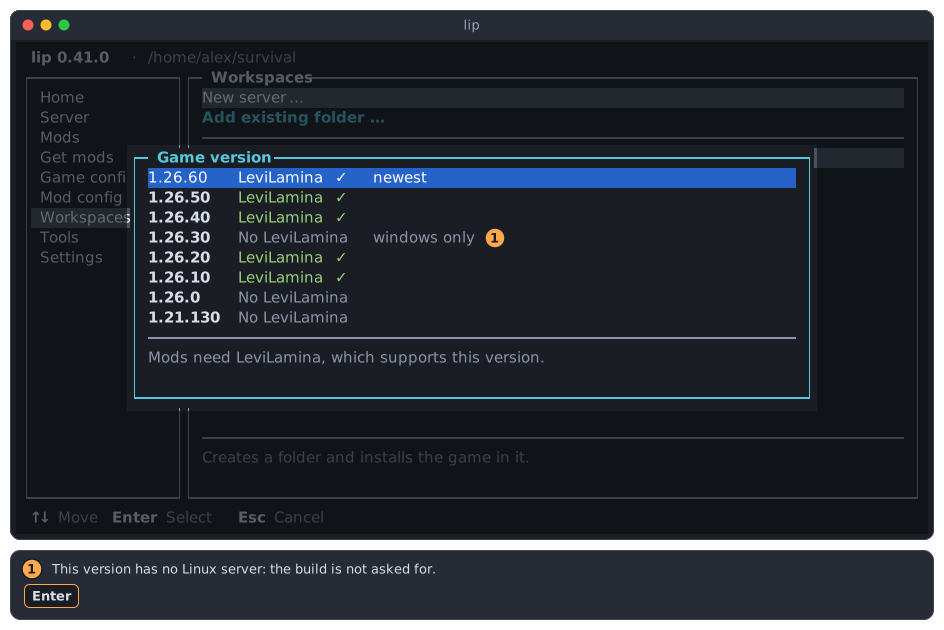
- A version that has no Linux server: for it, lip does not ask for the build.
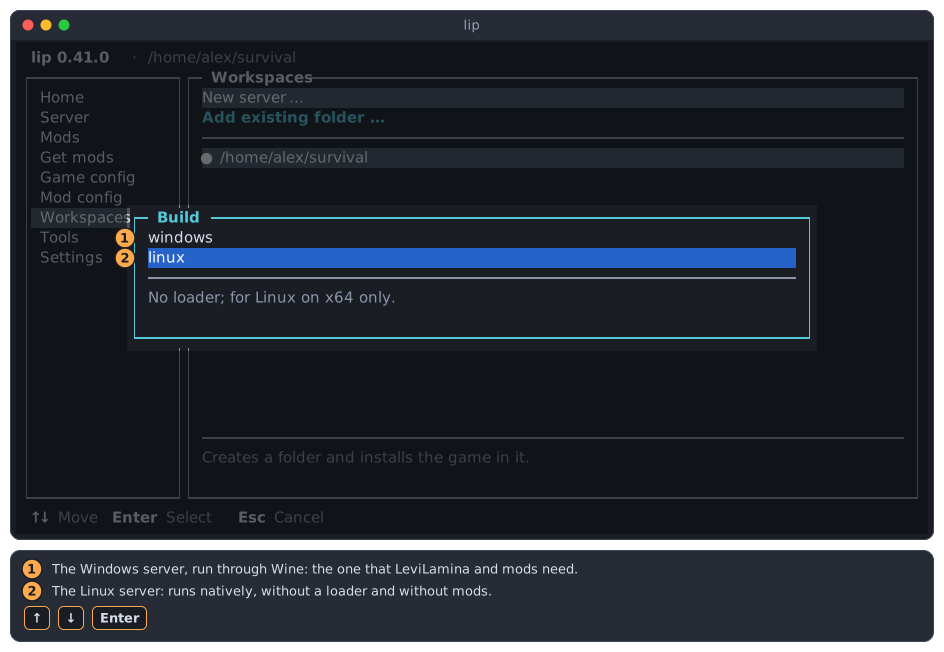
- windows: the Windows server, which lip runs through Wine. It is the one that supports LeviLamina and its mods.
- linux: the Linux server. It runs without Wine, has no loader, and cannot run mods. The wizard skips the loader step.
Linux and macOS says more about Wine and the Linux server.
Step 4: the loader
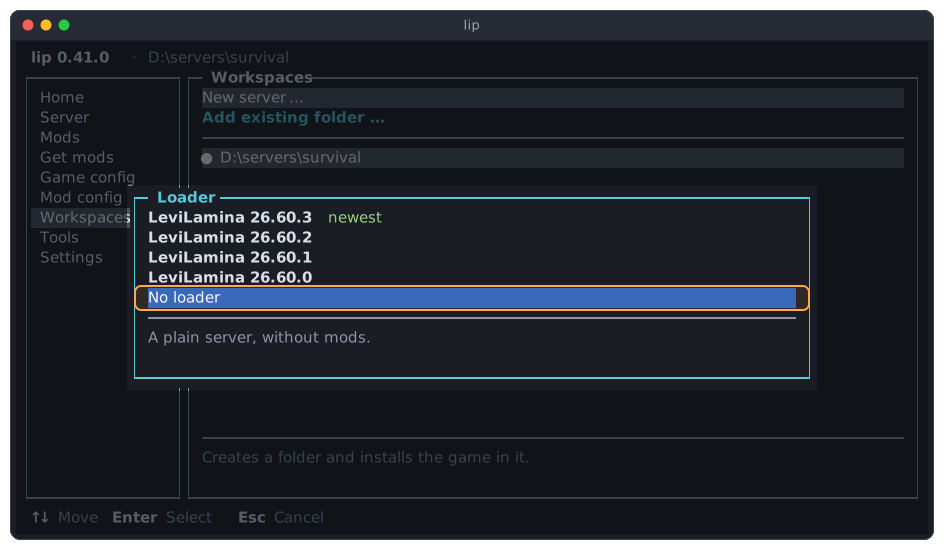
lip looks for the LeviLamina versions that fit the game version you chose, which may take a moment, and lists them, newest first, followed by No loader.
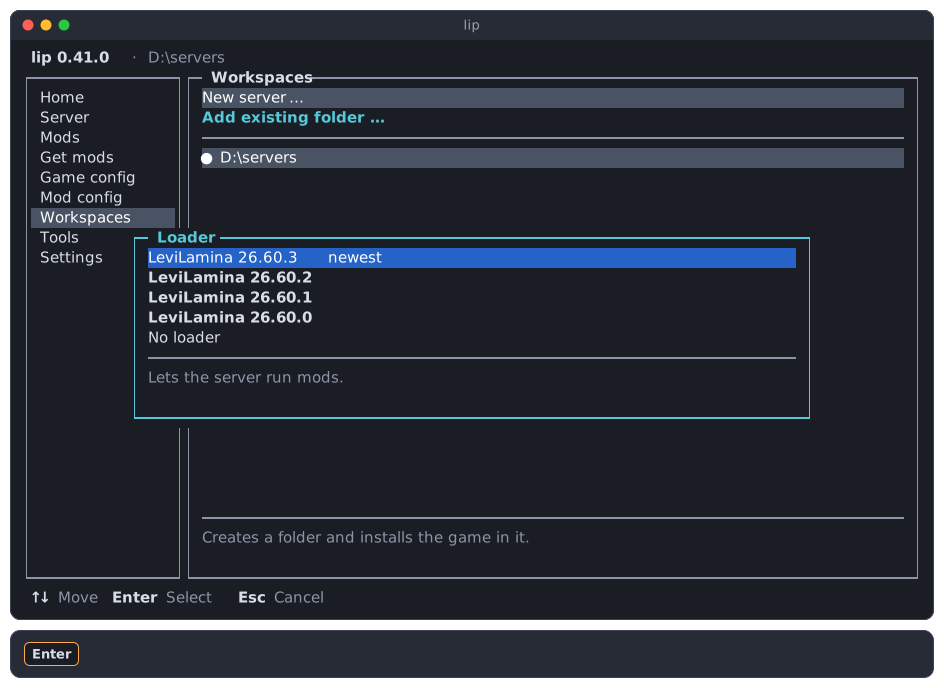
For a server with mods, press Enter on the first row, the newest LeviLamina.
No loader installs the game alone: a plain server that cannot run mods.
When no LeviLamina fits the game version, the step says so. It is no dead end:
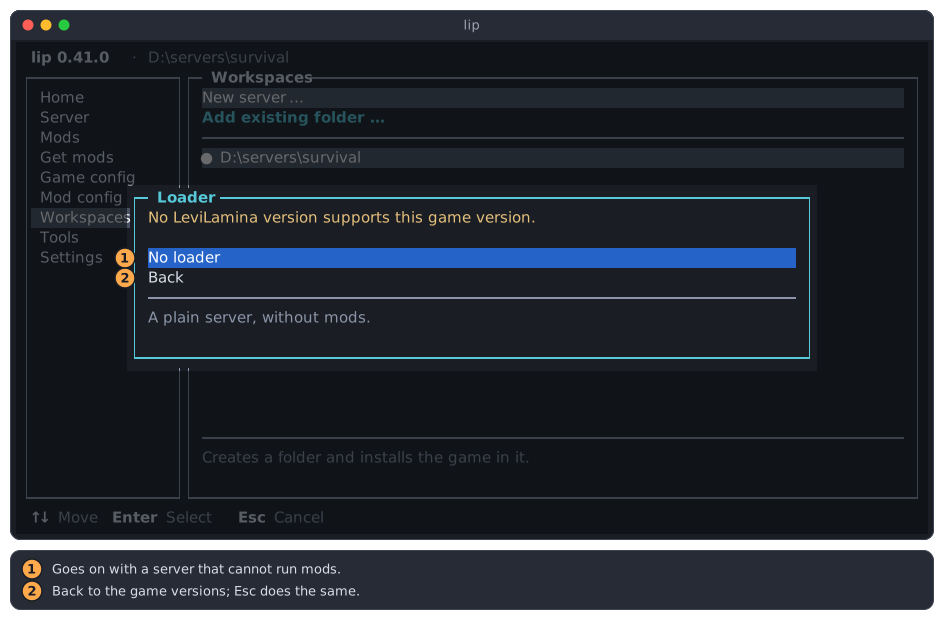
- No loader goes on with a plain server.
- Back returns to the game versions, where you can choose one with LeviLamina ✓.
Escdoes the same.
Step 5: the plan
Now lip creates the folder, when it does not exist, adds it to the list and selects it. Then it shows what it would install, without installing anything yet.
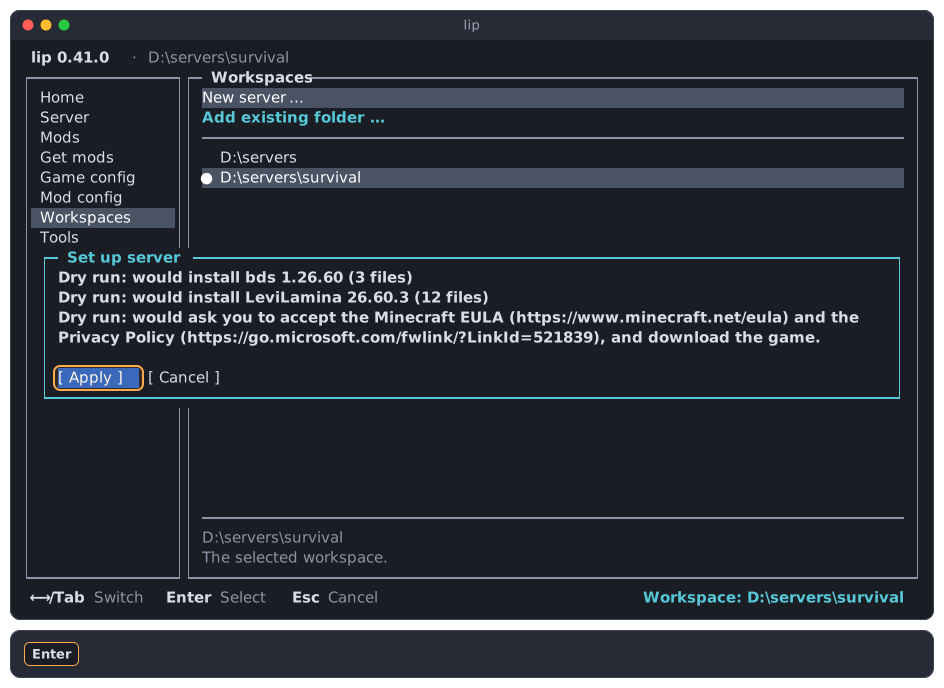
The lines are what the command says, in English: here the game, LeviLamina, and that lip will ask you to accept the license.
- Apply installs.
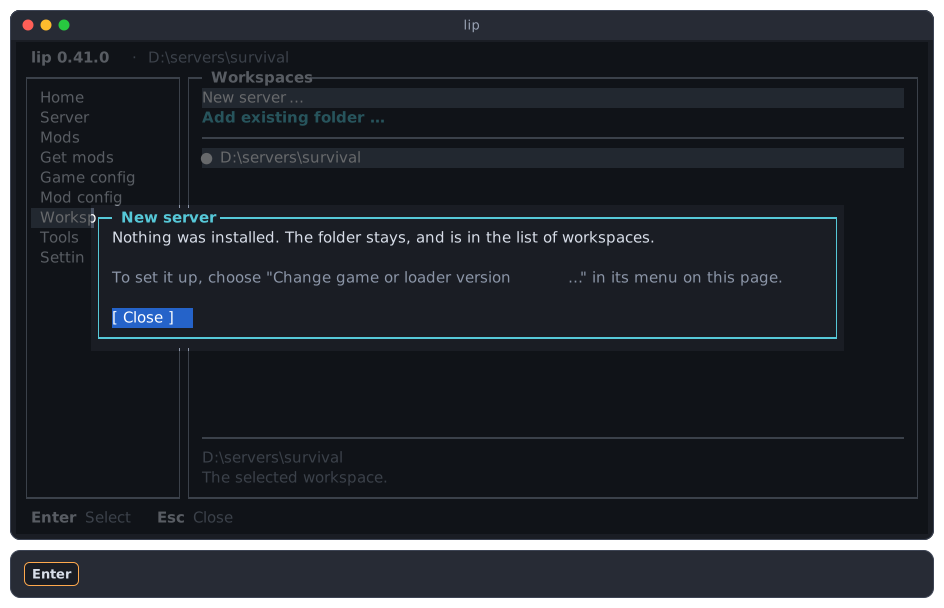
- Cancel installs nothing. The folder stays, empty, and stays the selected workspace, which lip says in a dialog. To set it up later, choose Change game or loader version… in its menu; or remove it from the list.
Step 6: the license
The game is Microsoft's. Before lip downloads it, you must accept the Minecraft End User License Agreement and the Microsoft Privacy Policy. Read them at the two addresses shown.
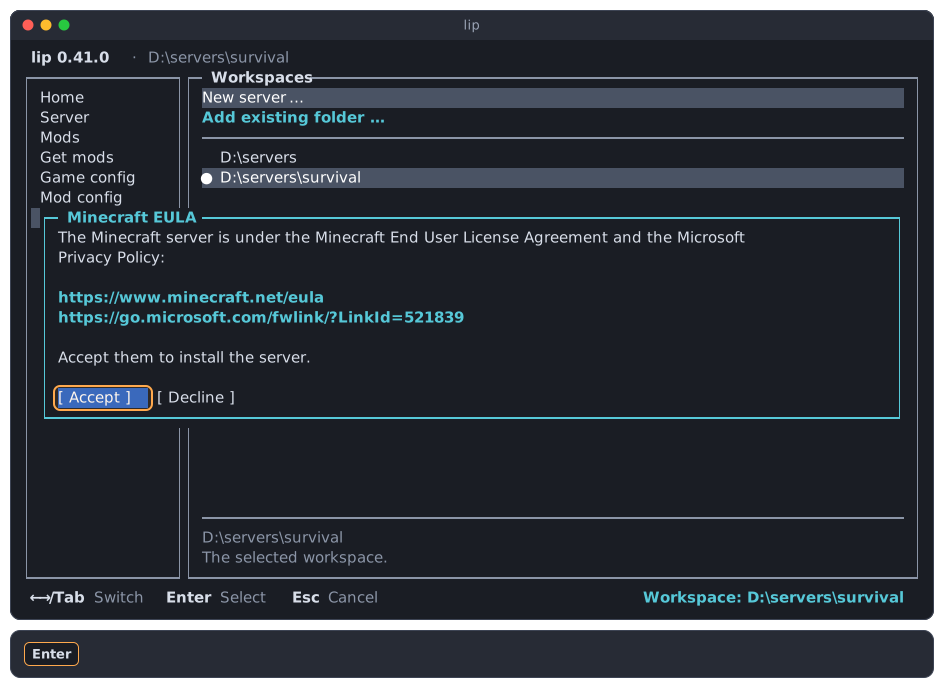
Accept goes on. Decline installs nothing:
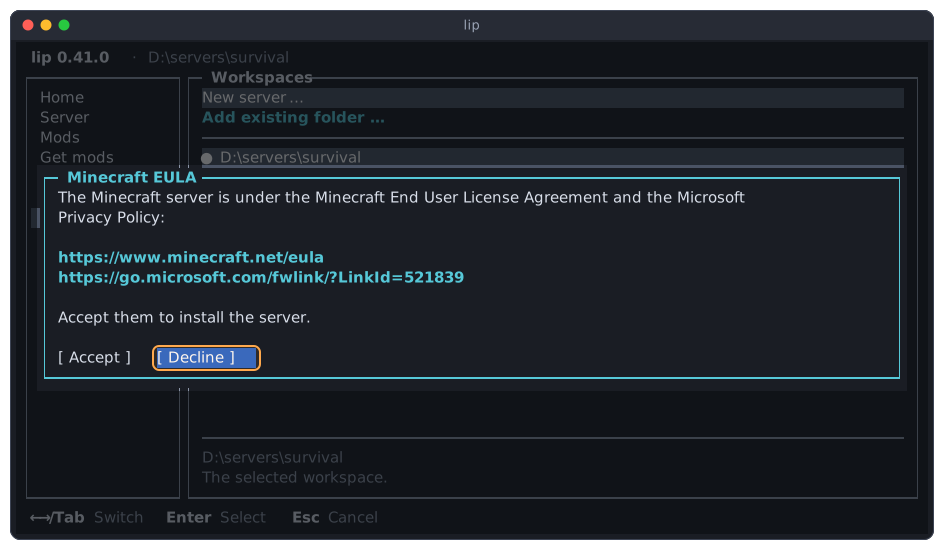
lip then says what stays, as after Cancel in the plan: the folder was created and is in the list, and nothing was installed in it.
Step 7: download and result
lip downloads the game and LeviLamina and installs them. Esc cancels; what was done so far is undone, and lip then says that the folder stays.
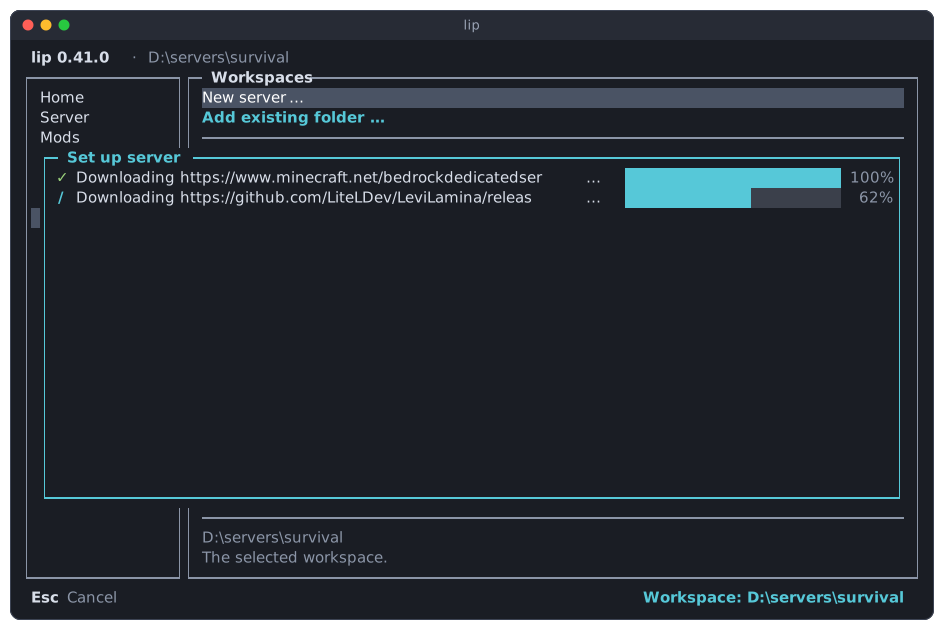
When it is done, the dialog lists what was installed and ends with ✓ Done. Press Enter.
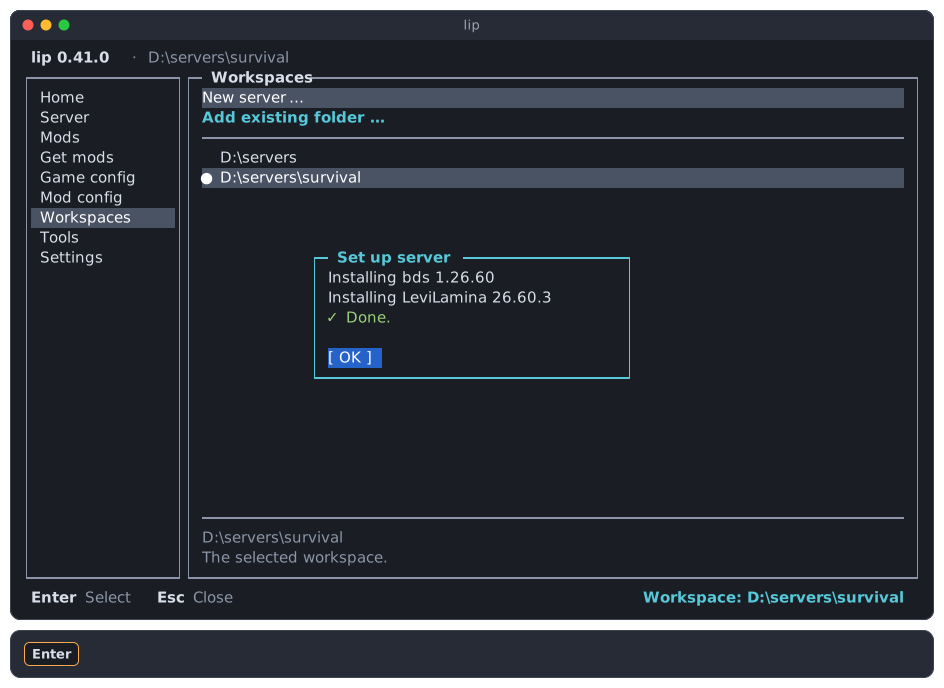
The new server is the selected workspace, and has the focus in the list.
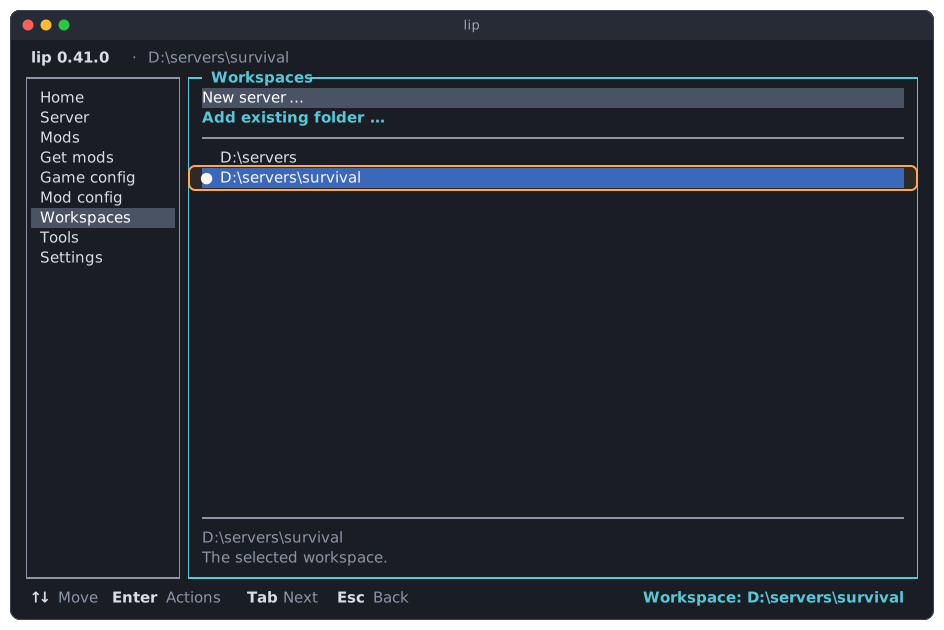
Go to the Server page to start it, or to Get mods first.
The same with a command
The wizard carries out lip setup in the new folder with your choices, for example:
lip setup --game 1.26.60 --loader levilamina@26.60.3With No loader it is --no-loader, and with the Linux server --build linux.
Change the game or the loader version
To move a server to another game version or another LeviLamina, set it up again. The wizard is the same, without the folder, and each step starts on what the server has now.
-
Move to the workspace, press
Enter, and choose Change game or loader version…. -
Choose the game version. The one that the server has is marked installed, and selected.
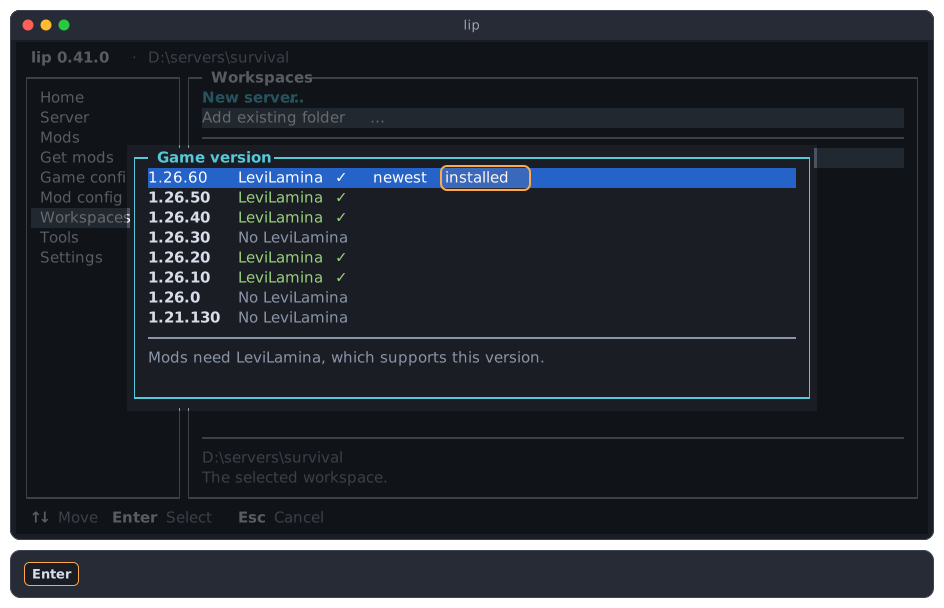
-
Choose the loader. The dialog starts on the LeviLamina that the server has, or on No loader when it has none.
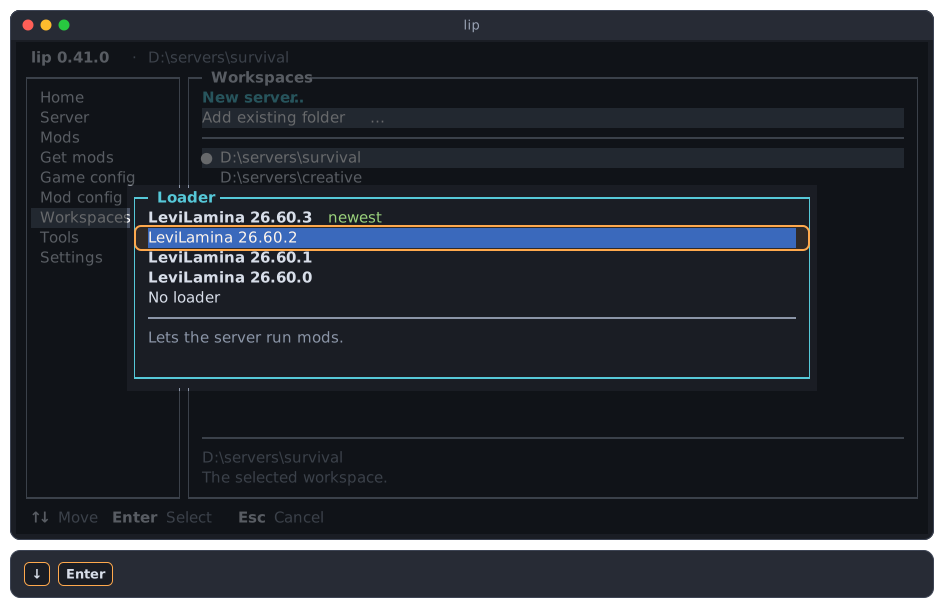
-
Read the plan, and choose Apply.
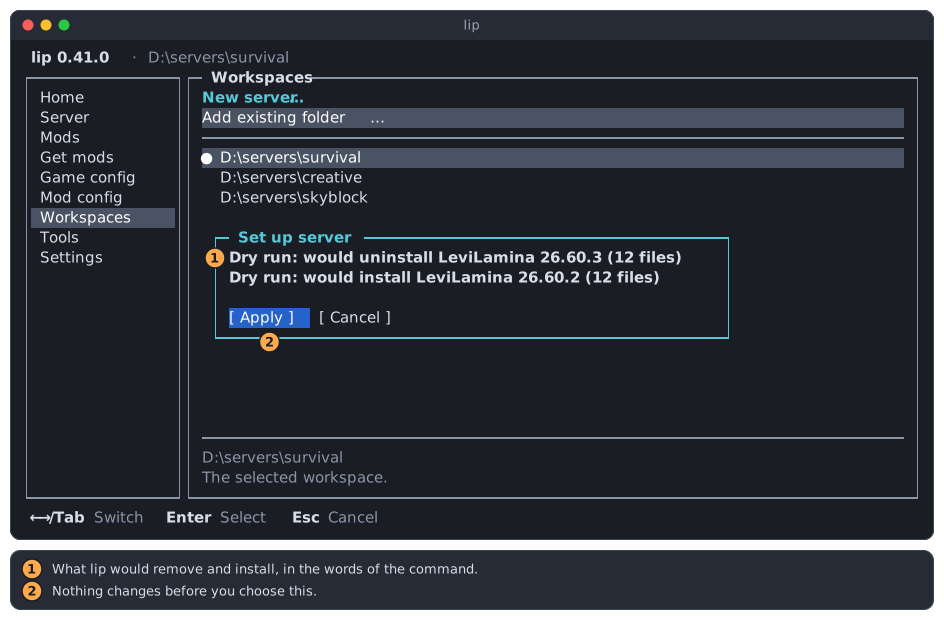
- What lip would remove and install.
- Nothing changes before you choose Apply.
When the workspace is not the selected one, lip selects it once you have made the choices, before it shows the plan.
Mods that do not fit the new version
A mod is made for certain LeviLamina versions. When an installed mod has no version for the game or the LeviLamina you chose, the plan names it and says that the setup would uninstall it. Choosing Apply then uninstalls those mods. Choose Cancel to keep everything as it is.
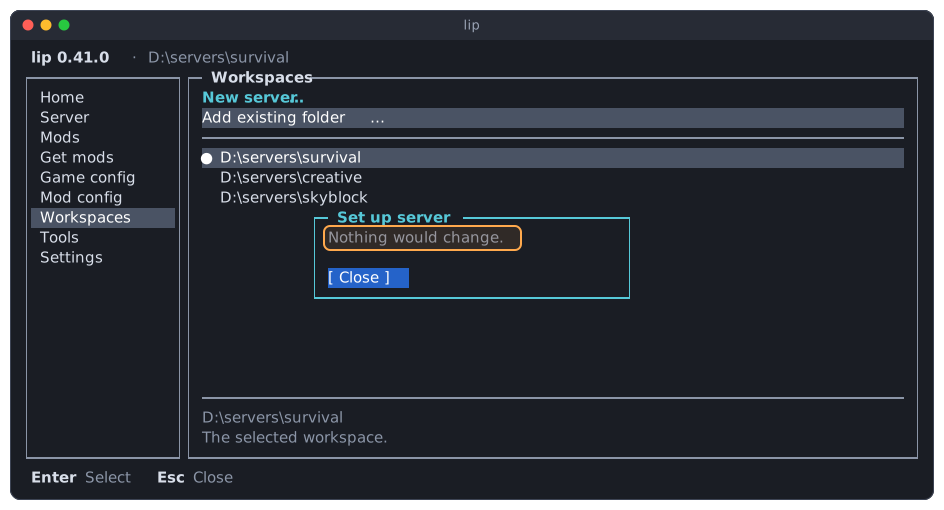
When you choose the versions that the server has already, there is nothing to do, and the plan has only Close:
A change of the game keeps server.properties, allowlist.json, permissions.json and your worlds. It deletes the other files of the old game, and with them the packs that you copied into behavior_packs/ or resource_packs/; What survives a game change has the whole list. Make a copy of the folder first: an older game may not open a world that a newer game saved.
A server with the Linux build on another system
A workspace that was set up with the Linux server runs only on Linux on x64. On any other system, the wizard cannot offer that build. It says so before you choose anything, and goes on with the Windows server:
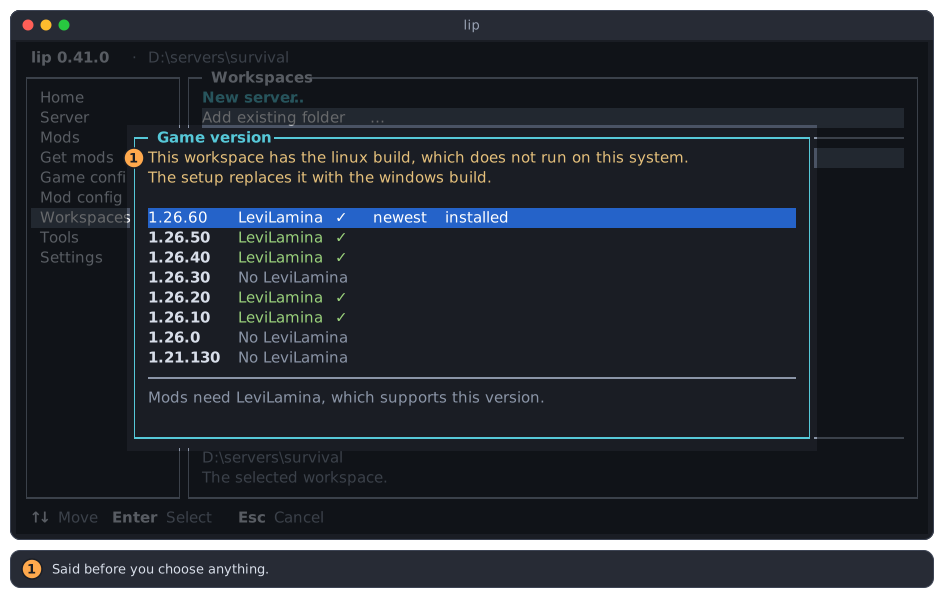
- The notice, shown before you choose anything.
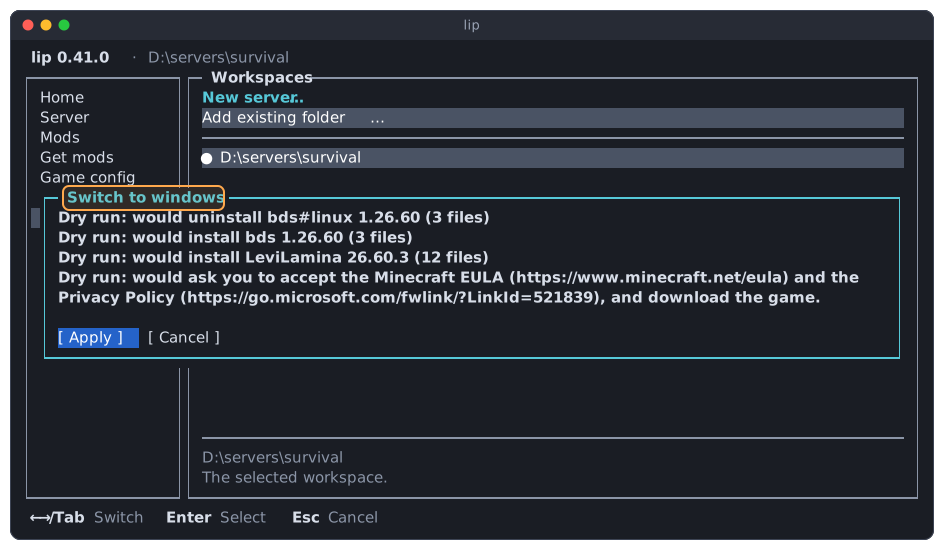
The plan then names the build in its title, Switch to windows, and lists the Linux server among what is uninstalled:
While a server runs
A running server does not keep you from using the list:
- The list marks the workspace server running, and the details say Its server is running.
- Switch and Remove from list work as usual. Neither stops the server.
- Change game or loader version… is dimmed, and the menu says Stop the server first. lip does not change the game under a running server.
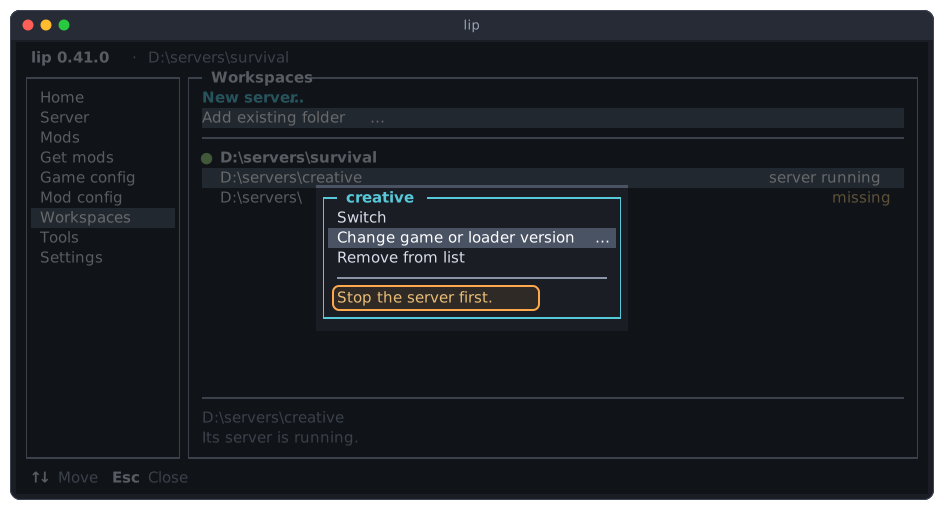
A new server cannot go into a folder whose server runs either. To stop a server, switch to its workspace and use the Server page. The interface reference lists what every page does meanwhile.
Several interfaces at once
You can open lip in several terminals. They share one list, the file workspaces.json (see Files):
- Each interface has its own selected workspace, so two terminals can show two servers.
- A workspace that one interface adds or removes shows up in the others within a few seconds, while their Workspaces page is open.
- Changes that several interfaces make at the same time are all kept.