Install mods on your server
At the end of this tutorial your server runs two mods: LeviOptimize, which makes the server faster, and LegacyScriptEngine, which runs script plugins. You find mods in the LeviMC Mods catalog, install them with lip (in its interface or with a command), check that LeviLamina loads them, and learn how to update and remove them.
What you need
- A server with LeviLamina, set up with
lip: see Your first server or A server from the command line. This tutorial uses the folderD:\servers\survival. - The server stopped. While it runs, the interface of
lipchanges nothing in its folder, and a running server only loads new mods when it starts again anyway. - An internet connection. Mods come from GitHub.
A server in Docker installs mods through its PACKAGES variable instead: see A server in Docker. The mod names are the same.
1. Find a mod in the catalog
-
Open LeviMC Mods and search for
LeviOptimize. -
Open its page. Check Side: a mod for your server must list the server. Check the game versions: one of them must be the version of your server.
-
Press Install. The dialog lets you choose a Variant and a Version, and shows the command under "Run this in your server folder with lip:", for example:
shelllip install github.com/LiteLDev/LeviOptimize@1.8.1Without the
@<version>at the end,lippicks the newest version that fits your server by itself.
You do not need the website to install: the Get mods page of lip shows the same catalog. Choose one of the two ways below.
2. Install a mod
In the interface
- Start
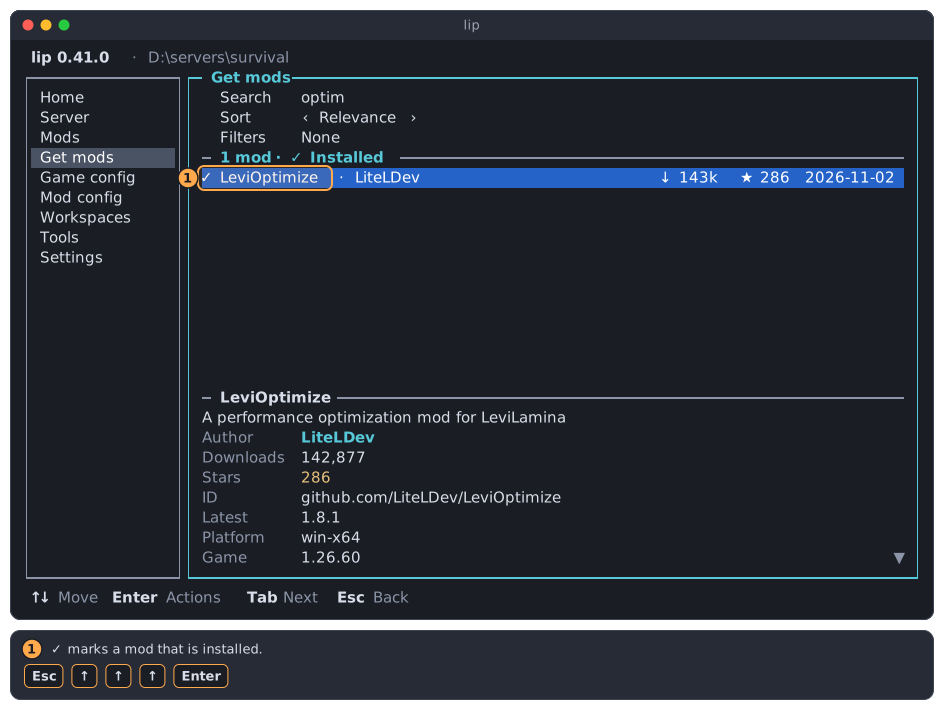
lipin the folder of the server (cd D:\servers\survival, thenlip). On Home, select Install mods and pressEnter. The Get mods page opens. - Press
↑until you are in Search, typeoptim, and pressEnter. LeviOptimize is selected. - Press
Enter, thenEnteragain on Install…. liplists only the versions that fit your game and your LeviLamina. Keep the newest and pressEnter.lipshows its plan, such asDry run: would install LeviOptimize 1.8.1. If the mod needs other mods, they are listed too. PressEnteron Apply.- You should see ✓ Done., and back in the list LeviOptimize has a ✓.
With a command
In the folder of the server, run:
lip install LeviOptimizeA short name like LeviOptimize means github.com/LiteLDev/LeviOptimize; mods of other authors need the full address from their page. lip installs the mod and everything it depends on into mods/. You should see:
✓ Packages installed successfully.lip list now shows github.com/LiteLDev/LeviOptimize under User-Requested.
3. Install LegacyScriptEngine
LegacyScriptEngine (LSE) runs plugins written in a script language. It comes in four variants, one per language; install the one your plugins are written in:
| Variant | Language |
|---|---|
#lua |
Lua |
#quickjs |
JavaScript (QuickJS) |
#nodejs |
JavaScript (Node.js) |
#python |
Python |
-
Install the variant, for example Lua:
Commandlip install LegacyScriptEngine#luaInterfaceGet mods → search "LegacyScriptEngine" → Enter → Install… → choose the variant with ← and → → Enter → Apply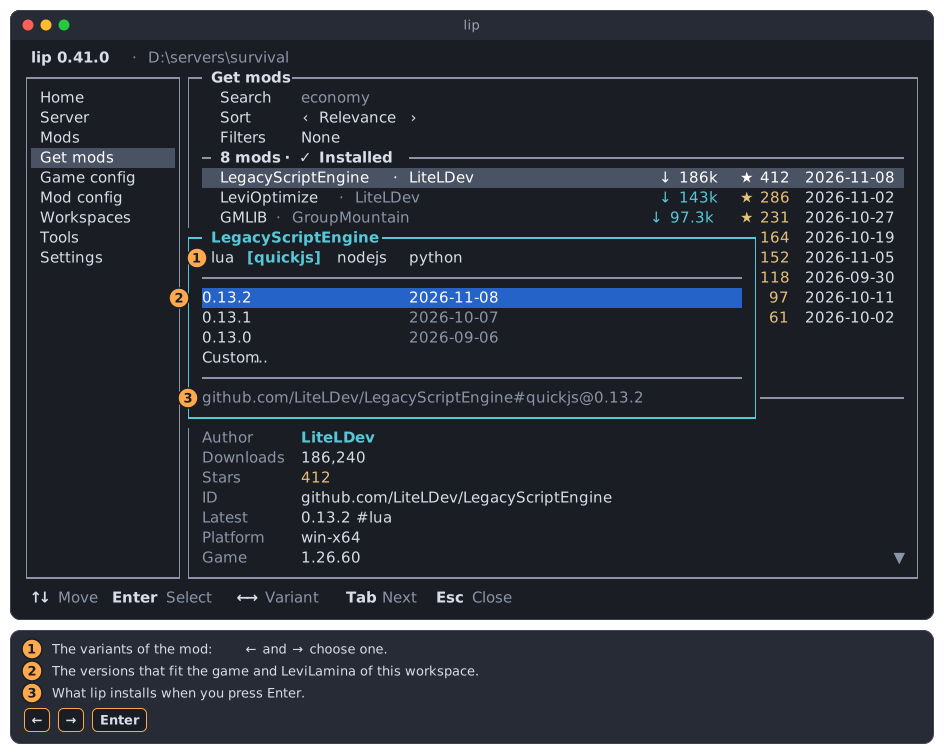
lipalso installs what LSE needs: LegacyRemoteCall, LegacyMoney and iListenAttentively. -
To install several engines, install each variant the same way.
The Python engine needs Python
Before you install #python, install Python on the server machine: Python 3.12.10 for LSE 0.16.2 and later.
Plugins go into the folder plugins/ of the server. On the next start, LSE migrates them and gives each one a LeviLamina mod manifest; restart the server once more to load them.
4. Check that the mods load
- Start the server: Start the server on Home, or
lip run. - Look for the lines of
[LeviLamina]in the output. You should see oneLoadedline per mod, such asLoaded LeviOptimize v1.8.1, and a count such as5 mod(s) loaded(the dependencies are mods too). - Stop the server with
Ctrl+C.
If a mod is missing from the list, the output says why. Error codes such as 126 and 127 are explained in LeviLamina troubleshooting.
5. Update and remove mods
Stop the server first. Then:
| To | Command | In the interface |
|---|---|---|
| Update every mod you installed | lip update |
Mods page: the action row Update all |
| Update one mod | lip update LeviOptimize |
Mods page: Enter on the mod, Update |
| Remove a mod | lip uninstall LeviOptimize |
Mods page: Enter on the mod, Uninstall |
| See what a command would do | add --dry-run |
Every change shows its plan first |
lip removes the dependencies that nothing needs any more by itself. lip update never changes the game or LeviLamina; to move the server to a new game version, see Workspaces or lip setup.
What you have now
- A server with LeviOptimize and LegacyScriptEngine, each with the dependencies it needs, in
mods/. - A way to find mods, check that they fit, and install, update and remove them.
Next steps
- Write a plugin for the engine you just installed: Your first script plugin.
- Let other players join: Let friends join your server.
- Change the settings of a mod: Mod config.
- Search, sort and filter the catalog in
lip: Get mods. Manage what is installed: Mods. - Every way to name a package (versions, branches, ZIP files, folders): Managing packages.
- The script engines and their languages: LegacyScriptEngine.
- Mods for the game client rather than the server: Play with mods on Windows.