Play with mods on Android
At the end of this tutorial you play Minecraft Bedrock Edition on your Android phone or tablet with a mod, AppleSkin, started from LeviLauncher. LeviLauncher uses the Minecraft you bought on Google Play, keeps the mods of each instance apart, and installs mods for you: you need nothing else.
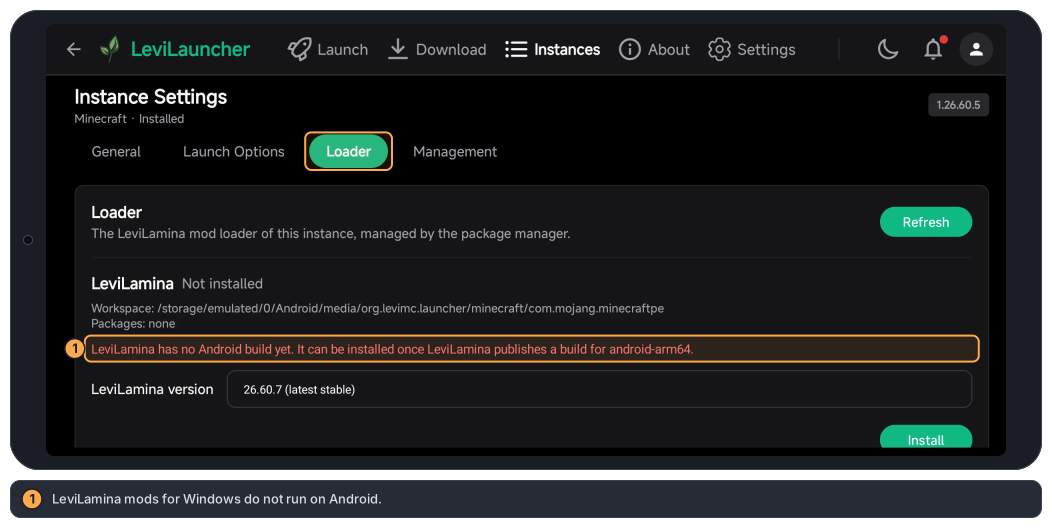
Mods on Android are native mods, made for Android. LeviLamina and the LeviLamina mods for Windows do not run on Android (more in step 7).
What you need
- An Android phone or tablet with Android 9 or later and a 64-bit ARM processor (ARM64). Almost every phone of the last years has one.
- Minecraft Bedrock Edition 1.21.80 or later, bought and installed from Google Play on this device. LeviLauncher launches your game; it does not replace the license, and it does not work with a Minecraft installed from anywhere else.
- An internet connection.
1. Install LeviLauncher
- On the phone, open the latest release of LeviLauncher for Android and download
LeviLauncher-v….apk(the file whose name ends in-release.apk). - Open the downloaded file. If Android says that your browser is not allowed to install apps, tap Settings, turn on Allow from this source (the setting "Install unknown apps" of the browser), go back and tap Install.
- Open LeviLauncher. You should see "Opening your launcher…", and then its licence agreement.
2. Go through the first start
-
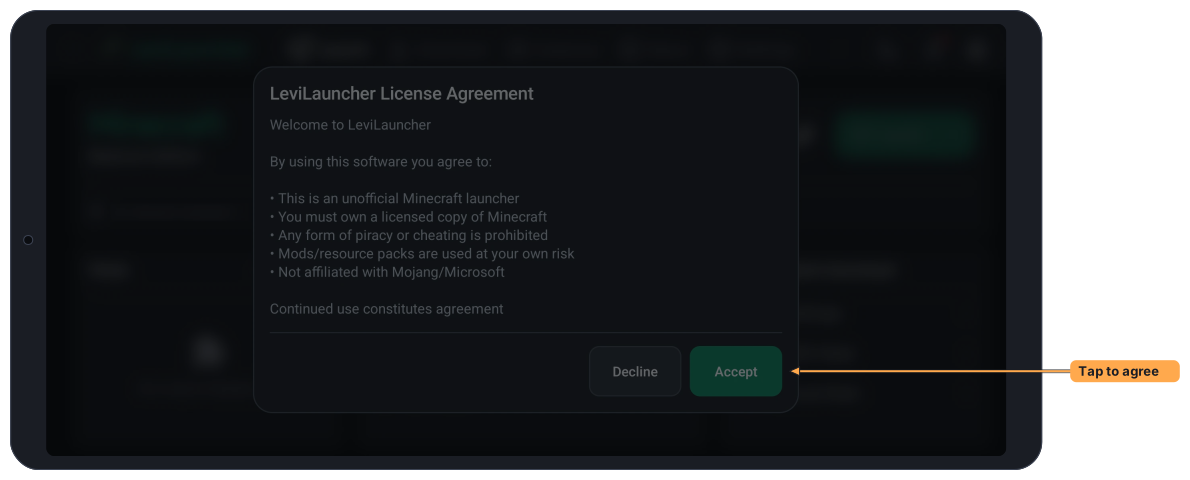
Read the LeviLauncher License Agreement and tap Accept.
-
If What’s new opens, tap Continue.
-
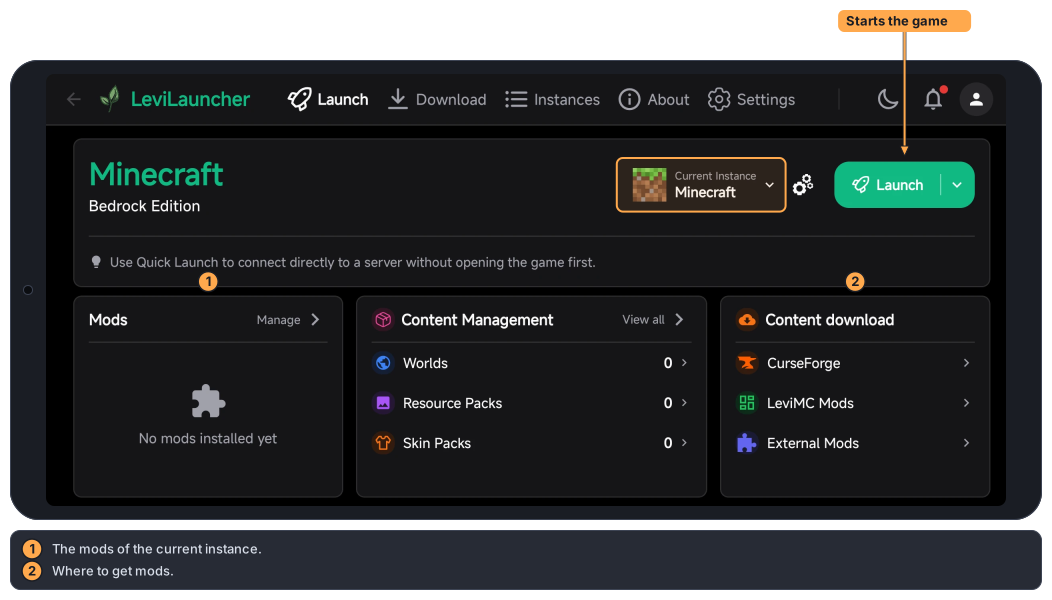
You should now see the Launch page. The bar at the top leads to Launch, Download, Instances, About and Settings. The round button at the top right signs in to a Microsoft account; you do not need it for this tutorial.
3. Check your game
An instance is a version of the game with its own mods. LeviLauncher finds the Minecraft you installed from Google Play and shows it as the instance Minecraft.
-
On Launch, look at Current Instance: it says Minecraft.
-
Tap it. The list shows your game with its version, for example
1.26.60.5, and a check mark. Tap outside the list to close it.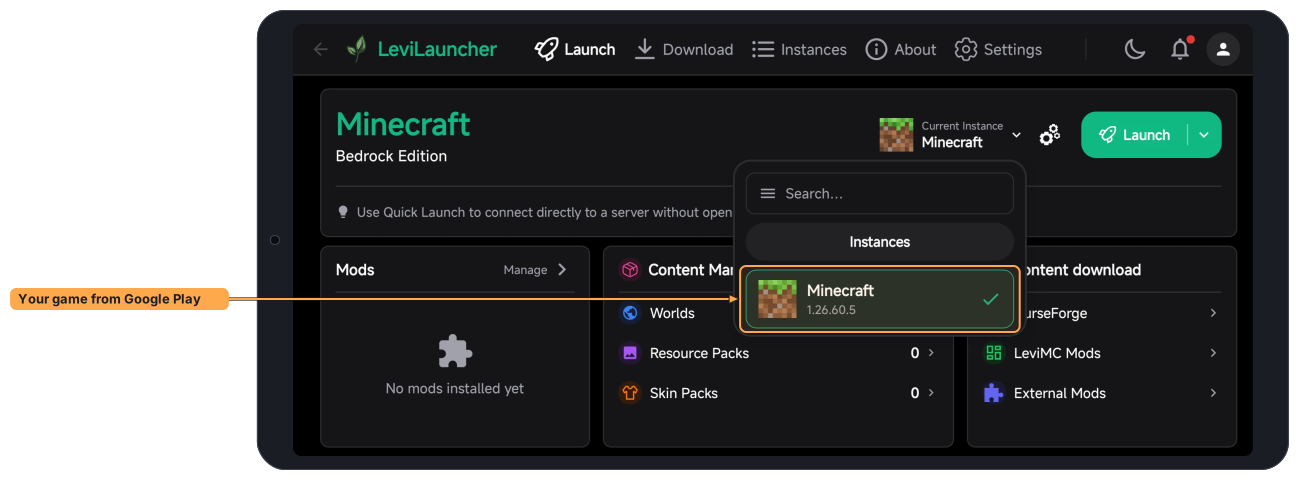
If the list is empty, Minecraft is not installed: install it from Google Play and open LeviLauncher again.
Other versions of the game
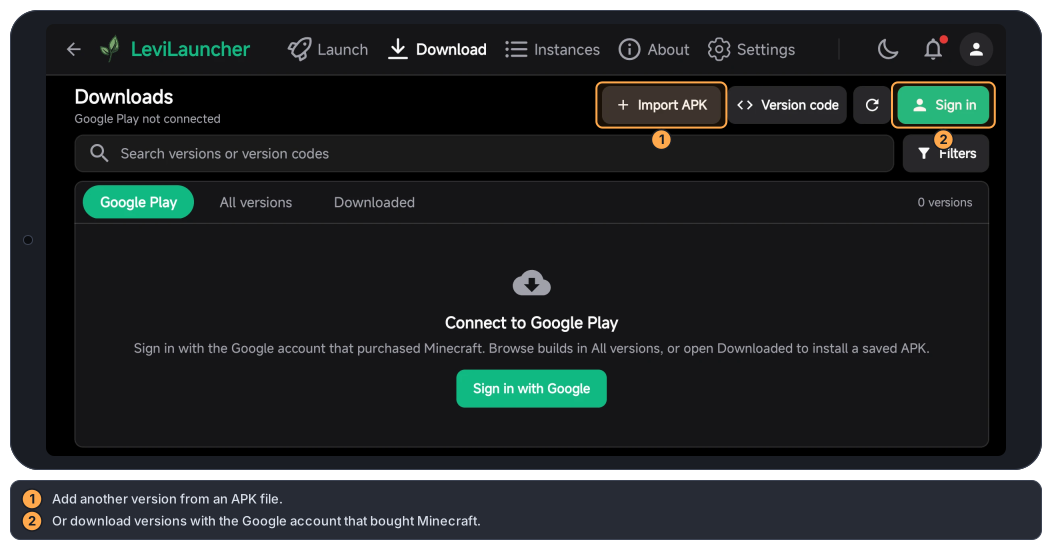
You can also play other versions next to your Google Play game. On Download, tap Import APK to add a version from an APK file, or Sign in with the Google account that bought Minecraft to download versions from Google Play. Each one becomes an instance that keeps its worlds apart from your normal game. They still need the Google Play game on the device. This tutorial does not need any of them.
4. Launch the game once
- On Launch, tap Launch.
- Minecraft starts. You should see its title screen. Close the game again: the next step adds a mod.
This first launch without mods tells you that the game itself works. If something goes wrong later, you know it is the mod.
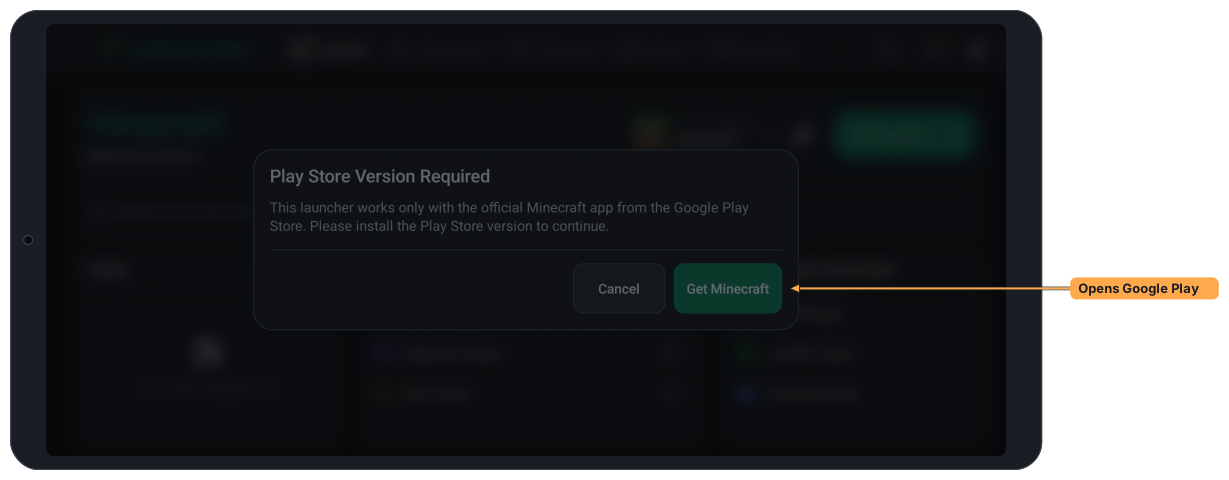
If LeviLauncher shows Play Store Version Required, the Minecraft on your device was not installed from Google Play. Tap Get Minecraft, install the game from Google Play with the account that bought it, and tap Launch again. If it says Unsupported Version instead, update Minecraft on Google Play: LeviLauncher needs 1.21.80 or later.
5. Install a mod
-
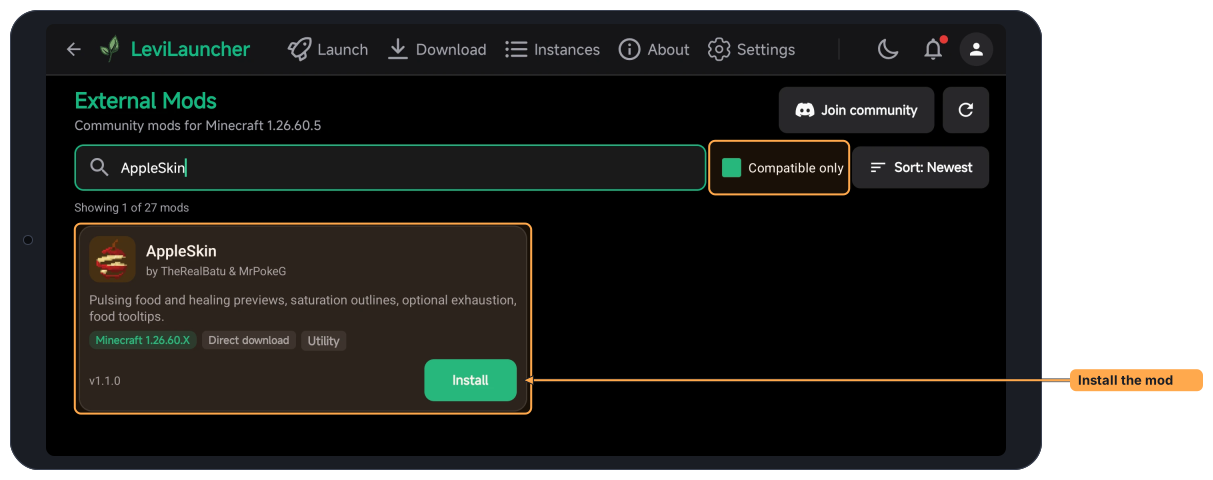
On Launch, in the Content download card, tap External Mods. It lists mods made by the community for Android, for the version of your current instance.
-
Keep Compatible only checked, so that you see only the mods for your game version. Tap the search box and type
AppleSkin. -
On the card of AppleSkin, tap Install. You should see "AppleSkin installed", and the button changes to Installed.
-
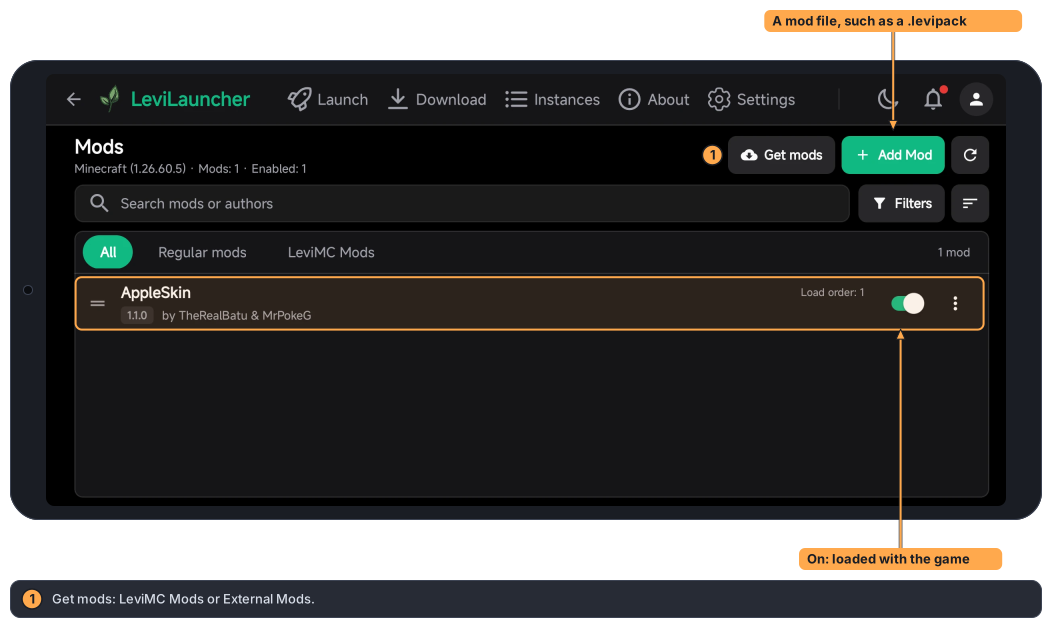
Go back to Launch and tap Manage on the Mods card. The Mods page lists AppleSkin with its version, and its switch is on: the mod is loaded with the game.
If AppleSkin is not in the list, your game version has no build of it: pick another mod from the list, or update Minecraft.
Some mods in External Mods are downloaded from their author's page instead: their button says Open Link, and shows External Download or Ad-Supported Download first. Tap Open Link there and download only the mod file there (a .levipack or .so file), come back to the Mods page, tap Add Mod and choose the file. You should see "Successfully processed 1 mod files". You can also open a .levipack from a file manager and choose LeviLauncher.
6. Play with the mod
-
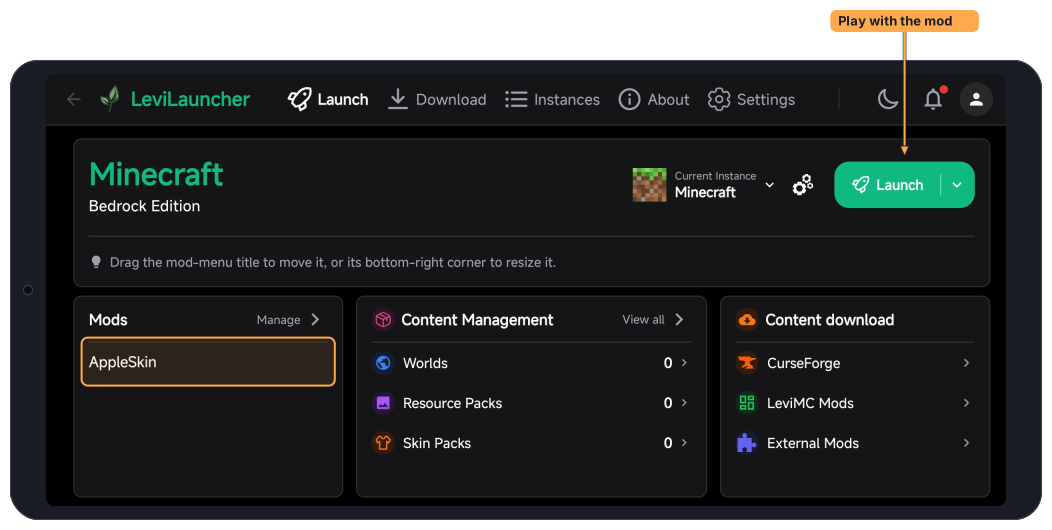
On Launch, the Mods card now lists AppleSkin. Tap Launch.
-
Minecraft starts with AppleSkin. Open a world and look at your hunger bar: when you hold food, AppleSkin shows how much it restores.
Add more mods one at a time, and launch after each one. If the game stops starting, turn off the switch of the newest mod on the Mods page first.
The mod menu in the game
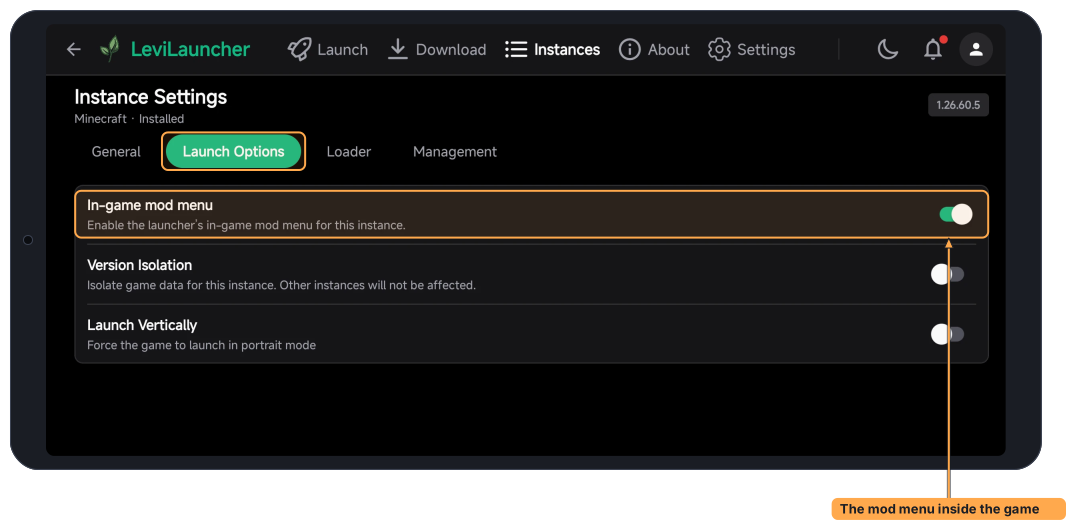
LeviLauncher adds a floating button to the game that opens a menu of the mods and their options. To turn it off or on, tap the gear next to Current Instance on Launch to open Instance Settings, go to Launch Options, and use the switch In-game mod menu.
7. Know what runs on Android
The mods for LeviLamina, the mod loader of the Windows game and of servers, are built for Windows. They do not run on Android, and LeviLamina itself has no Android build yet: the Loader tab of Instance Settings says so when you try to install it. Use the mods of External Mods, or mods made for Android.
LeviMC Mods in the Content download card lists the packages of LeviMC Mods that have a build for Android (android-arm64). There are none yet, so it is empty for now.
What you have now
- LeviLauncher, which launches the Minecraft you bought on Google Play, with mods.
- AppleSkin, installed in your instance, with a switch to turn it off.
Next steps
- Everything about instances: other versions, Version Isolation, renaming and deleting: Version Management.
- Worlds, resource packs and skin packs, with import, export and backups: Content Management.
- Mods, CurseForge and native mods: Mods & Integrations.
- When the game does not start: Update & Troubleshooting.
- Make a mod for Android yourself: Your first Android native mod.
- Play with mods on a PC: Play with mods on Windows.